Tutorial Infographic : Create Free Tutorial Infographics in Minutes with AI
Create Custom Tutorial Infographics Quickly with Pixazo Best AI Tutorial Infographic Maker. Try for Free!
Get Started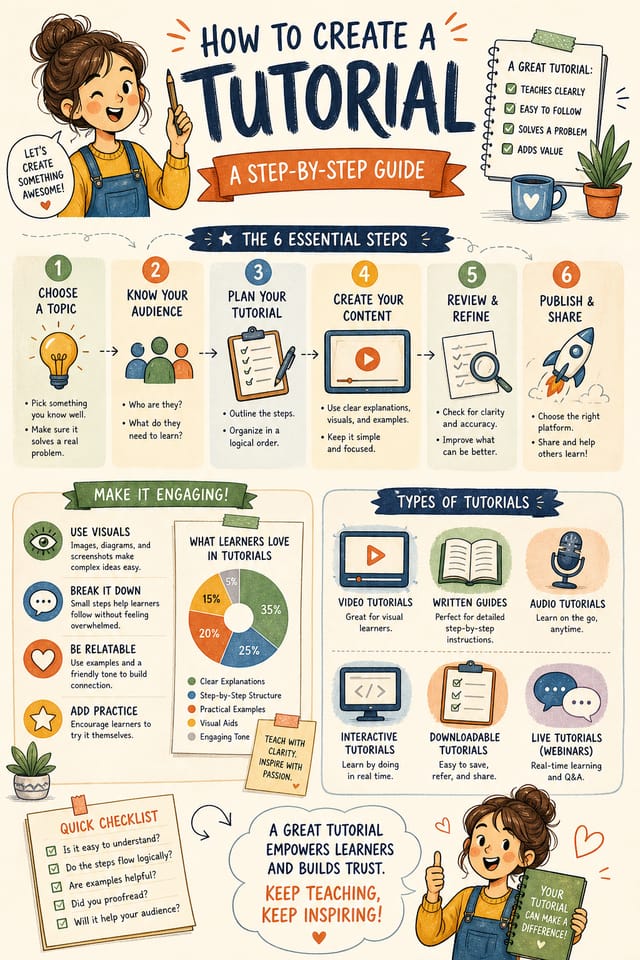
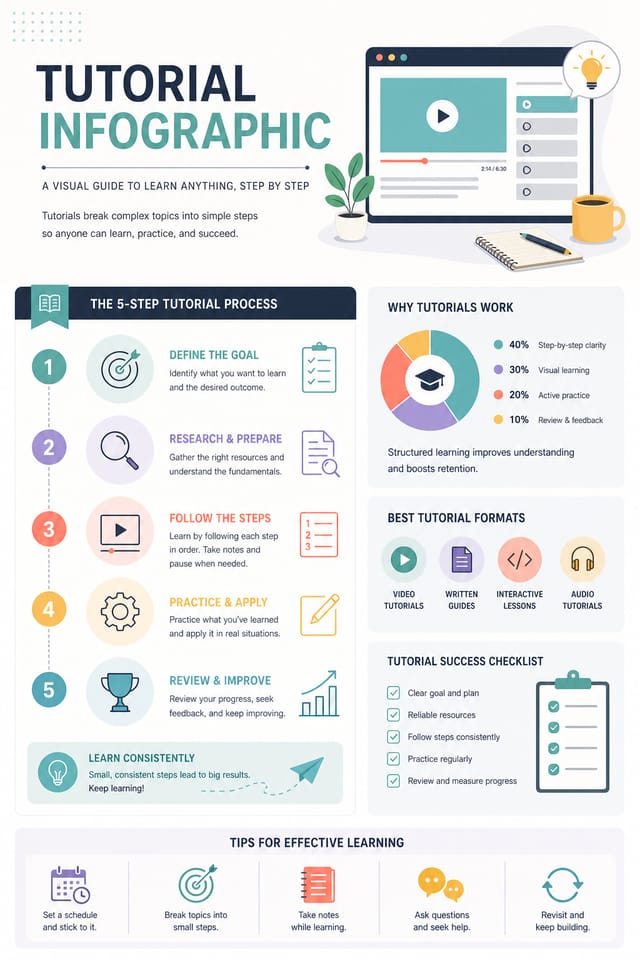
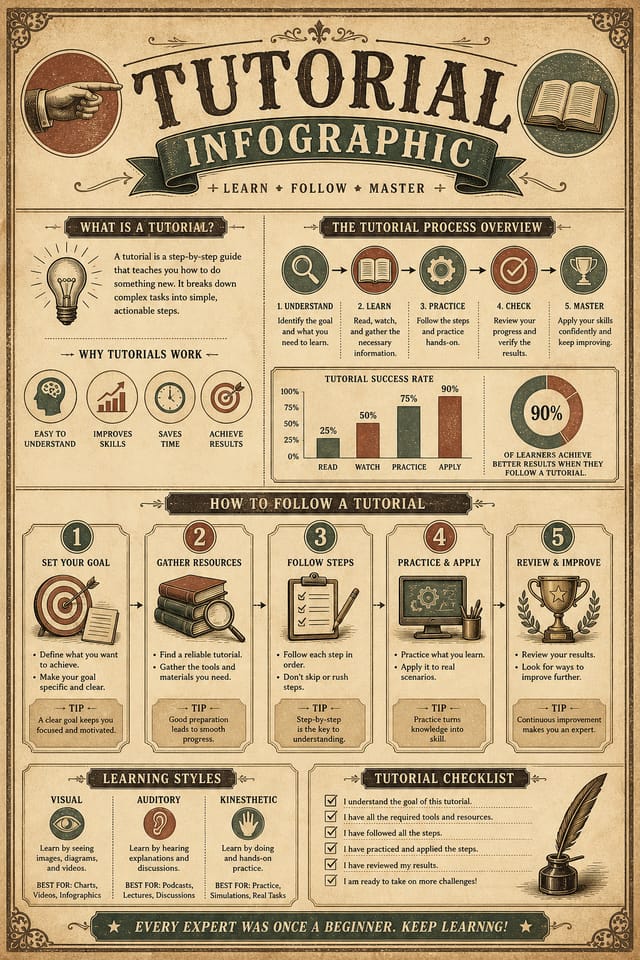
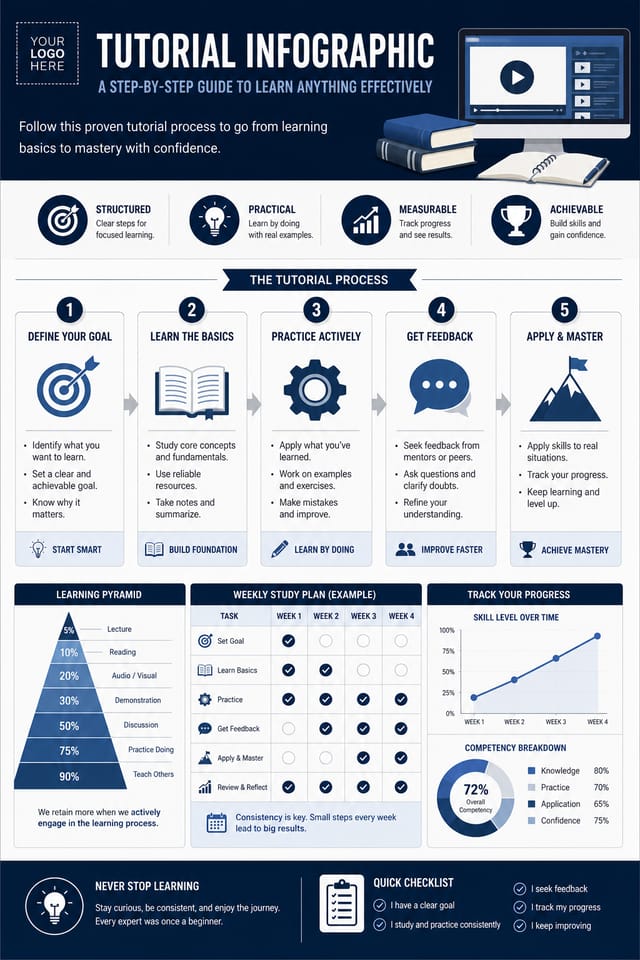
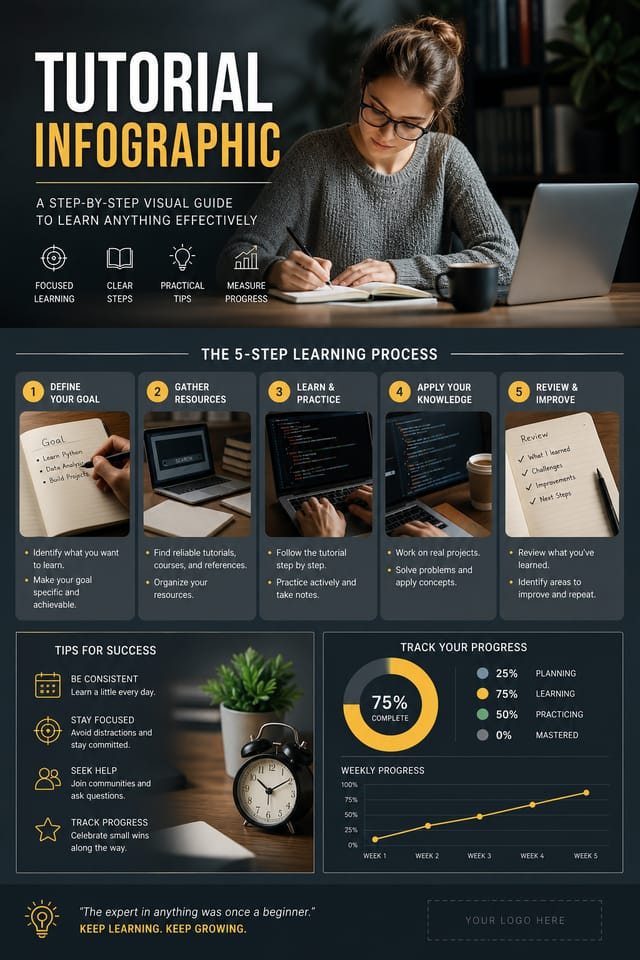
The Tutorial Infographic Process: From Start to Finish
Map Out the Design
Write a prompt describing your tutorial infographic. Include style preferences, color direction, the most important text to display, and any specific visual elements you want. The more specific your description, the more targeted the output.
Watch: Creating Tutorial Infographic designs step by step
Current Tutorial Infographic Directions: Where Design Is Going
Organic Shapes
Flowing, irregular forms are replacing sharp geometric shapes in tutorial infographic backgrounds and decorative elements for a softer visual feel.
Minimalist Layouts
Stripped-back tutorial infographic designs with generous white space and limited elements are gaining favor for their clarity and elegance.
Asymmetric Composition
Breaking grid symmetry in tutorial infographic layouts creates visual tension and a modern, editorial feel that stands out.
Retro Revival
Vintage aesthetics from the 1970s and 1990s are influencing tutorial infographic design with textured backgrounds, serif fonts, and warm gradients.
What Makes Tutorial Infographic Design Work: Design Intelligence at Work
The Tutorial Design System Pixazo Uses
Tutorial infographic design has its own visual conventions that differ significantly from other styles.
The AI recognizes these patterns and applies them when generating your design, rather than defaulting to a generic layout.
When you describe a tutorial infographic, Pixazo selects typography, color relationships, and compositional approaches appropriate to tutorial aesthetics.
The result is a design that looks like it belongs in its context, not a repurposed template with the wrong visual DNA.
Built for Tutorial Infographic: What It Can Do
Prompt Refinement
Adjust your description to refine any aspect of the tutorial infographic design. The AI responds to specific direction about colors, layout, or content.
Compositional Structure
Layout and hierarchy decisions reflect tutorial design patterns. The proportions and arrangement match how tutorial designs are conventionally structured.
Context-Aware Design
Describe your tutorial infographic's purpose and audience. The AI adjusts visual weight, complexity, and clarity based on the intended use context.
Resolution Control
Specify output dimensions for your tutorial infographic. Get files sized for web display, social media, or large-format printing.
The Tutorial Infographic Pipeline: Workflow Breakdown
Approve
Get stakeholder approval on the finished tutorial infographic. Verify all text is accurate and the design meets brand and technical requirements.
Refine
Apply targeted edits to your selected tutorial infographic. Adjust typography, spacing, and color until every element meets your quality standard.
Brief
Establish the key message, dimensions, color preferences, and target audience for your tutorial infographic before any design work begins.
Research
Collect examples of effective tutorial infographic designs, note what works, and identify patterns relevant to your project goals.
Tutorial Infographics Across Fields: Across Industries
Educational Materials
Design tutorial infographics for educational contexts. Courses, workshops, and learning materials benefit from the visual clarity of good tutorial design.
Religious and Spiritual Organizations
Create tutorial infographics for worship services, community outreach, and faith-based events. Respectful designs that reflect the organization's character.
Social Media Content
Design tutorial infographics sized for social platforms. Get content that looks intentional and well-crafted, not thrown together.
Real Estate Marketing
Create tutorial infographics for property listings, open houses, and agent branding. Professional visuals that elevate property presentation.
Visual Styles for Tutorial Infographics: From Classic to Bold
Editorial Tutorial
Text-dominant tutorial infographic layout inspired by print publication design. Typographic variety creates visual rhythm.
Geometric Tutorial
Structured tutorial composition using grid systems and angular forms. Order and precision define the visual approach.
Minimalist Tutorial
Stripped-back tutorial approach. Fewer elements, more negative space, typography carries more visual weight.
Textured Tutorial
Tutorial design with added surface depth. Background treatments add visual interest without disrupting legibility.
Community Tutorial Infographic: Community Creations
Real creators sharing their tutorial designs made with Pixazo AI.

Vibrant tutorial infographic targeting Gen Z audience, neon accent colors, asymmetric layout, bold experimental typography, maximum visual energy
Bold tutorial infographic with strong central headline, supporting information at secondary scale, background treatment consistent with tutorial design
High-contrast tutorial infographic, dark background with light text, accent color used for single key element, modern compositionTested Tutorial Infographic Prompts Worth Trying
Copy any prompt below and paste it into Pixazo to generate your design instantly.
Tutorial infographic for digital display, optimized proportions for screen viewing, colors calibrated for RGB output, legible at typical viewing distanceTextured tutorial infographic, surface treatment adds depth without obscuring legibility, texture consistent with tutorial aestheticTutorial style infographic, bold headline placement, supporting text at appropriate scale, color palette consistent with tutorial design conventionsLarge-format tutorial infographic design, elements sized for visibility at print scale, no fine detail that would be lost in productionSeries-compatible tutorial infographic design, visual language that extends to multiple formats, consistent design system across variantsHigh-impact tutorial infographic, immediate visual read at thumbnail size, clear headline dominance, supporting information structured logicallyNew to Tutorial Infographics? The Essentials
Pixazo generates high-resolution files suitable for both print and digital use. Specify your intended output format in your prompt. Print tutorial infographics benefit from high-DPI settings, while web and social media use works well with standard resolution output.
Specific prompts produce better results than vague ones. Include the visual style you want, any color preferences, the most important text to display, and the intended use. For tutorial design specifically, noting whether you want a contemporary or classic interpretation of tutorial style helps the AI make the right design decisions.
Include your specific colors in the prompt, either by hex code or descriptive terms. 'Navy and copper with white text' or '#1a1a2e and #c9a84c palette' both work. The AI builds a tutorial-appropriate palette around your specified colors.
Generated designs that miss the mark usually need more specific prompts. Add details about the visual hierarchy you want, the feeling the tutorial infographic should create, or specific elements to include or avoid. More context in the prompt produces more targeted output.
Pixazo generates original designs rather than copying existing work. The AI creates tutorial infographics from learned design principles, not by stitching together fragments of existing designs. Generated output does not reproduce copyrighted material or identifiable artistic styles of living creators.
Adjust your prompt to change any element of the design. If a generated tutorial infographic is close but not quite right, describe what you want changed and regenerate. The AI responds to specific direction about individual elements like color, layout, or typographic weight.
Where Tutorial Infographic AI: Trade-Offs to Know
Known limitations and trade-offs of AI-generated tutorial design. Being specific about what AI infographic generation can and cannot do helps you plan your workflow and set accurate expectations.

