AI LinkedIn Banner Maker : Create Free LinkedIn Banners in Minutes
Create Custom LinkedIn Banners Quickly with Pixazo Best AI LinkedIn Banner Maker. Try for Free!
Get Started
Linkedin-Banner Export Guide: Output Formats Compared
WEBP
Modern web format offering smaller file sizes than PNG or JPG for linkedin-banner images without significant quality loss.
JPG
Compressed image format suited for linkedin-banner designs with photographic elements where smaller file size matters more than pixel-perfect edges.
SVG
Scalable format for linkedin-banner designs that need to render crisply at any resolution, commonly used for web and responsive layouts.
TIFF
High-fidelity format for linkedin-banner files destined for professional printing, supporting CMYK color and lossless compression.
How AI Translates Linkedin-Banner Style: Why It Matters
How Pixazo Reads Linkedin-Banner Style Cues
Linkedin-Banner design has its own visual conventions that differ significantly from other styles.
The AI recognizes these patterns and applies them when generating your design, rather than defaulting to a generic layout.
When you describe a linkedin-banner, Pixazo selects typography, color relationships, and compositional approaches appropriate to linkedin-banner aesthetics.
The result is a design that looks like it belongs in its context, not a repurposed template with the wrong visual DNA.
Linkedin-Banner Design For: Who Uses Them
TikTok and Reels Cover Frames
Generate linkedin-banners for short-form video cover images. Vertical designs that represent video content and attract clicks.
Email Newsletter Headers
Design linkedin-banners for email campaign headers and hero images. Lightweight files that render reliably across email clients.
Twitter/X Headers and Post Graphics
Create linkedin-banners sized for Twitter headers (1500x500) and in-feed graphics. Designs optimized for fast consumption in timeline scrolling.
Pinterest Pins and Idea Pins
Create linkedin-banners in tall vertical formats optimized for Pinterest discovery. Designs that perform well in search and recommendation.
Facebook Event and Page Covers
Design linkedin-banners for Facebook page covers, event banners, and group headers. Platform-compliant dimensions with strong visual presence.
Linkedin-Banner Makers: Community Creations
Real creators sharing their linkedin banner designs made with Pixazo AI.
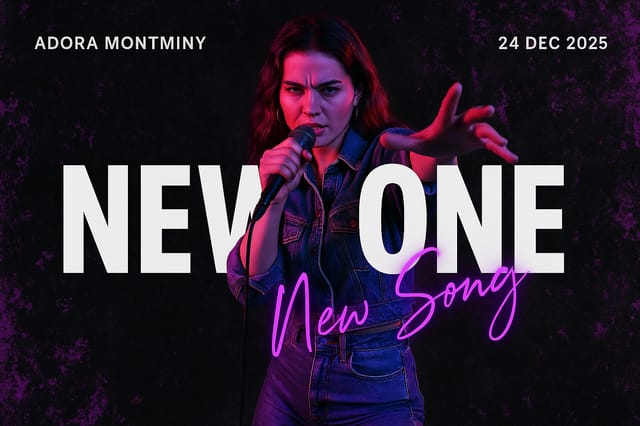
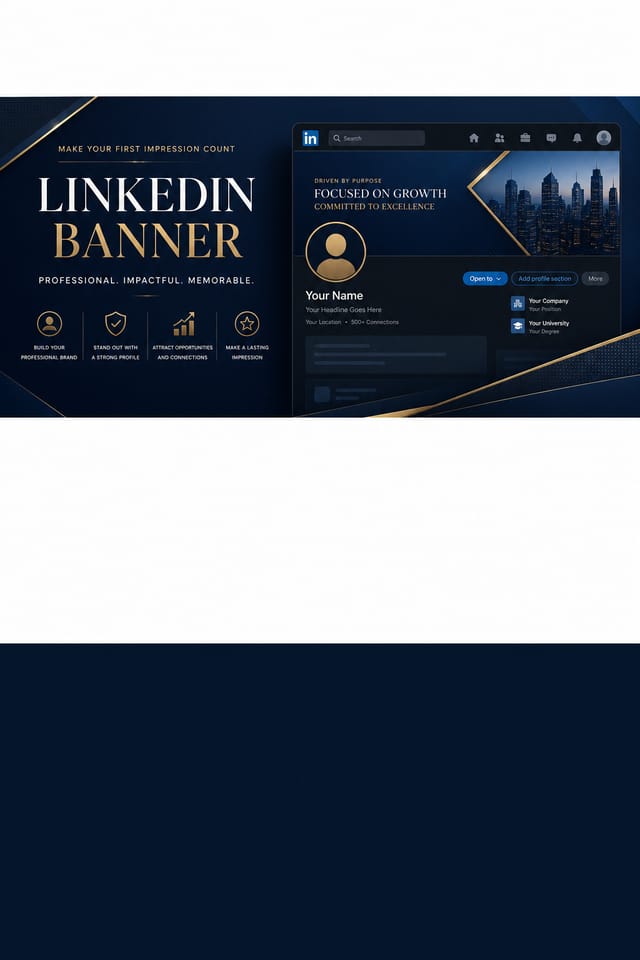
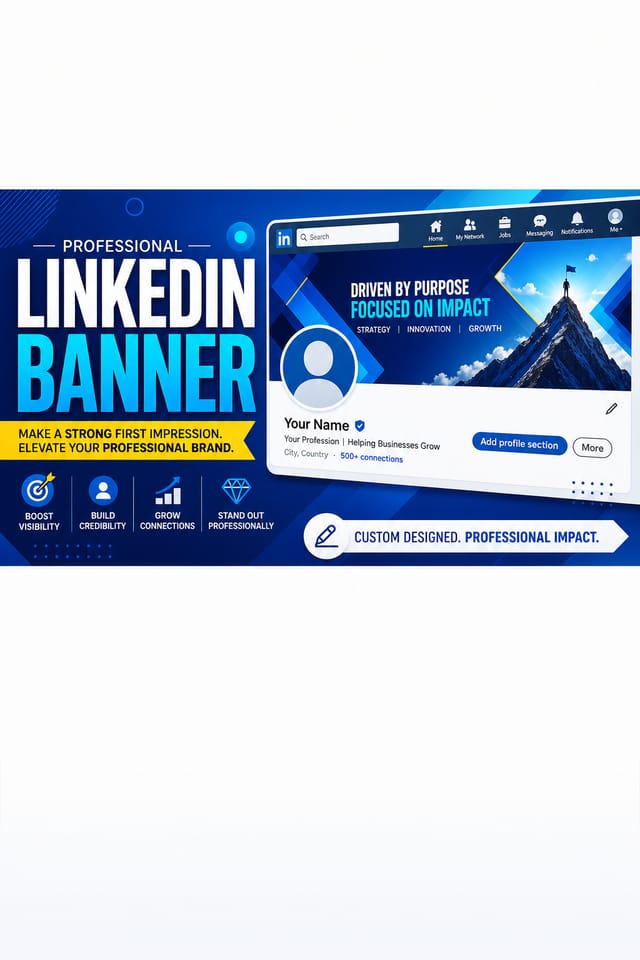
Two-color linkedin-banner, maximum contrast between primary and secondary color, typography set in one color per level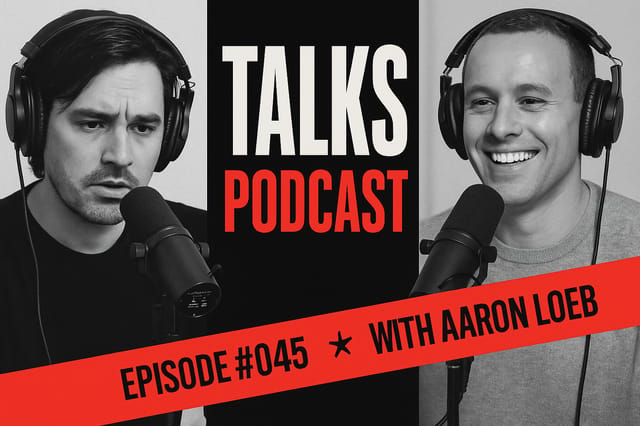
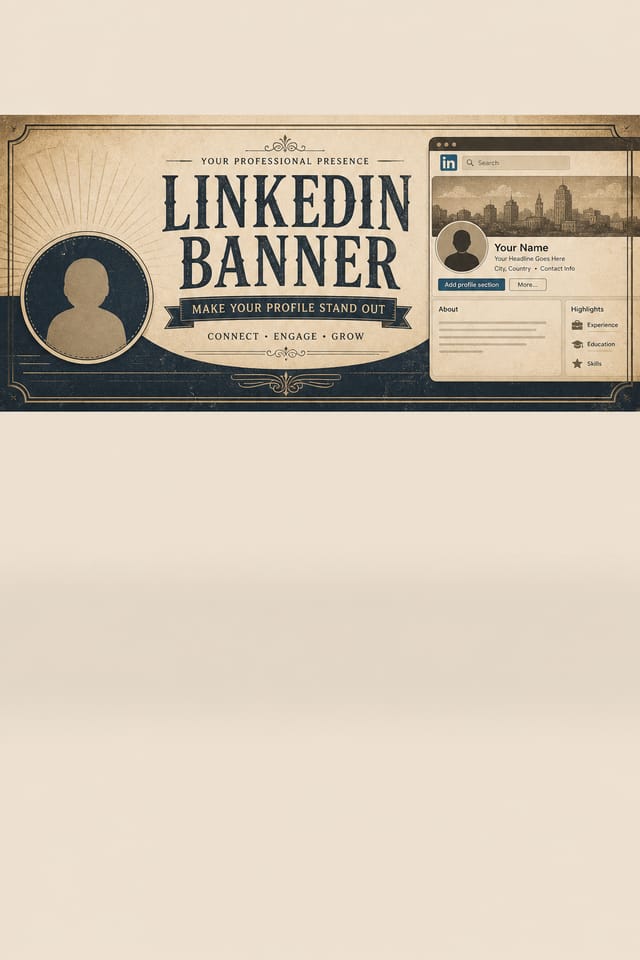
Linkedin-Banner with retro 1970s color palette, warm oranges and browns, groovy display type, textured paper background feel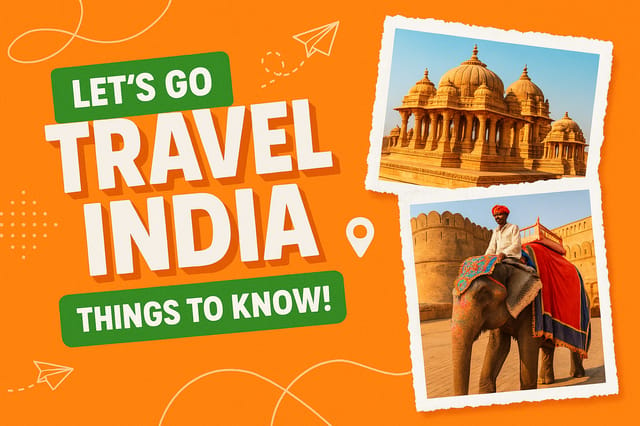
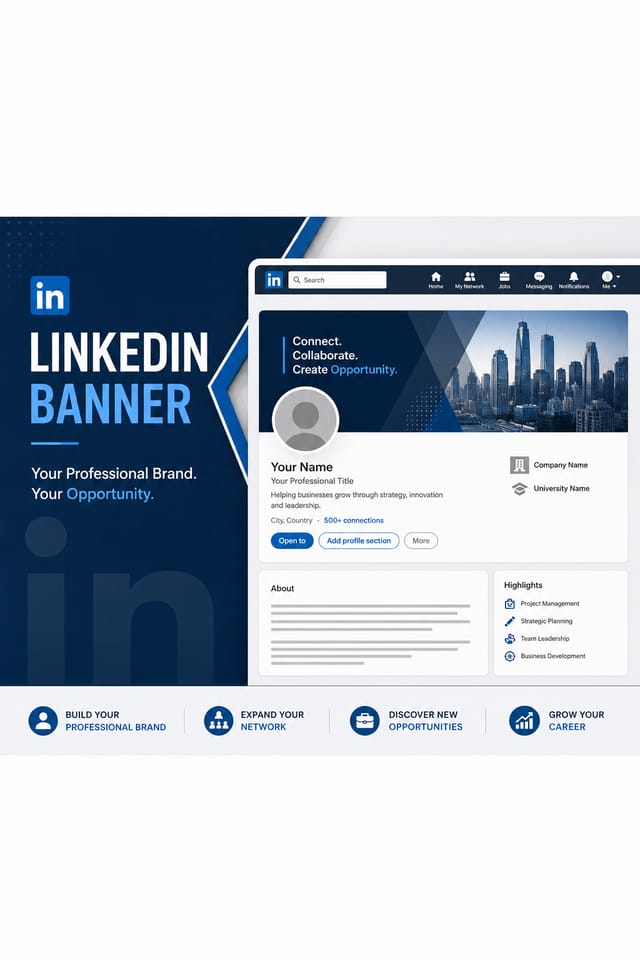
Corporate linkedin-banner for a B2B audience, clean and authoritative, navy and white palette, structured grid, data-friendly layoutLinkedin-Banner Style Movements: Current Directions
Muted Earth Tones
Natural color palettes with warm neutrals and desaturated greens are replacing the bright neon trends of previous years in linkedin-banner work.
Minimalist Layouts
Stripped-back linkedin-banner designs with generous white space and limited elements are gaining favor for their clarity and elegance.
Hand-Drawn Elements
Illustrations, doodles, and hand-lettering bring a personal, approachable quality to linkedin-banner designs in an era of polished digital output.
Retro Revival
Vintage aesthetics from the 1970s and 1990s are influencing linkedin-banner design with textured backgrounds, serif fonts, and warm gradients.
Asymmetric Composition
Breaking grid symmetry in linkedin-banner layouts creates visual tension and a modern, editorial feel that stands out.
Organic Shapes
Flowing, irregular forms are replacing sharp geometric shapes in linkedin-banner backgrounds and decorative elements for a softer visual feel.
The Linkedin-Banner Pipeline: Stages Explained
Approve Final sign-off
Get stakeholder approval on the finished linkedin-banner. Verify all text is accurate and the design meets brand and technical requirements.
Refine Polish the design
Apply targeted edits to your selected linkedin-banner. Adjust typography, spacing, and color until every element meets your quality standard.
Research Gather references
Collect examples of effective linkedin-banner designs, note what works, and identify patterns relevant to your project goals.
Generate Create initial designs
Use AI to produce multiple linkedin-banner variations based on your brief. Start broad and narrow down from the strongest options.
Review Evaluate and refine
Compare generated linkedin-banner options against your brief. Mark what works and note specific changes needed for the next iteration.
Behind Linkedin-Banner Design: Capabilities Explained
Consistency Across Variants
Generate multiple linkedin-banners for a project and maintain visual consistency across the set. Specify your core design parameters and vary secondary elements.
Instant Iterations
Generate multiple linkedin-banner variations from a single prompt. Compare options and refine until the design matches your vision.
Negative Space Handling
The AI manages whitespace in linkedin-banner designs according to linkedin-banner aesthetic conventions, not generic poster defaults.
Print-Ready Output
Generated linkedin-banners are sized and structured for professional printing. Download high-resolution files ready for production.
Layered Style Application
Combine linkedin-banner style with other design parameters in a single prompt. The AI interprets complex requests and applies multiple style constraints simultaneously.
The Path to Your Linkedin-Banner: The Workflow Explained
Watch: Creating Linkedin Banner Linkedin Banner designs step by step
The Art of Linkedin-Banner Design: Professional Standards
Where Linkedin-Banner AI: What to Expect
Known limitations and trade-offs of AI-generated linkedin banner design. Every AI design tool has boundaries. Knowing these limits before you start helps you get the most out of linkedin-banner generation.
Ready-to-Use Linkedin-Banner Prompt Formulas
Copy any prompt below and paste it into Pixazo to generate your design instantly.
Linkedin-Banner with strong visual hierarchy, largest element reads clearly, supporting elements organized by importance, clean background treatmentProfessional linkedin-banner, minimalist linkedin-banner approach, negative space used intentionally, readable at multiple viewing distances, print-ready compositionTextured linkedin-banner, surface treatment adds depth without obscuring legibility, texture consistent with linkedin-banner aestheticHigh-impact linkedin-banner, immediate visual read at thumbnail size, clear headline dominance, supporting information structured logicallyContemporary linkedin-banner design, grid-based layout, typographic precision, restrained color palette, no decorative excessFull-bleed linkedin-banner, background treatment extends to edges, foreground elements positioned for compositional balance, strong central hierarchyNew to Linkedin-Banners? A Quick FAQ
Each generation uses your unique prompt text to produce a distinct linkedin-banner design. Even similar prompts produce noticeably different outputs due to the AI's generative process. No two users receive identical designs.
Yes. Set up separate brand kits for each client or brand, then switch between them when generating linkedin-banners. Each brand kit stores its own colors, fonts, and logo so the AI applies the correct identity to every linkedin-banner without manual reconfiguration.
Pixazo is free to start with a credit card, so you can generate linkedin-banners at standard resolution. Paid plans unlock higher resolution, priority generation, and additional export formats. You can try linkedin-banner generation free with a credit card.
Describe your core design parameters in each prompt and vary only the specific elements that should change across the series. Maintaining consistent color palette, typographic approach, and compositional structure across linkedin-banner variations creates a coherent series.

