Restaurant Menu : Create Free Restaurant Menus in Minutes with AI
Create Custom Restaurant Menus Quickly with Pixazo Best AI Restaurant Menu Maker. Try for Free!
Get Started
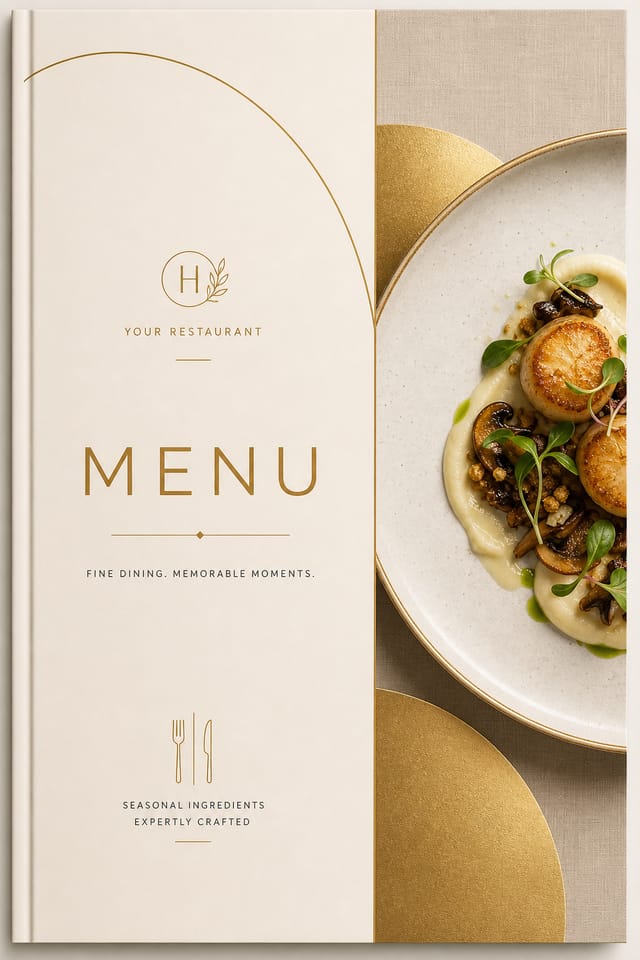
Inside the Restaurant Menu Engine: Key Capabilities
Resolution Control
Specify output dimensions for your restaurant menu. Get files sized for web display, social media, or large-format printing.
Fast Generation
Complete restaurant menu designs generate in seconds. No rendering queues, no waiting for batch processing.
Style-Accurate Generation
The AI interprets restaurant design conventions and applies them to your menu, producing output that looks correctly styled rather than generically templated.
No Design Software Required
Create professional restaurant menus without Photoshop, Illustrator, or other design applications. The AI handles all technical production.
Which Restaurant Menu Tool Fits: Finding the Right Fit
| Tool | Description |
|---|---|
| Stencil | Lightweight image creator optimized for fast social media graphics |
| Pixazo | AI-powered restaurant menu generator with prompt-based design and professional output quality |
| VistaCreate | Visual content platform with templates and a built-in asset library |
| Fotor | Photo editing platform with design templates and batch processing |
| Adobe Express | Streamlined creative tool backed by Adobe's design ecosystem |
Restaurant Menu Capabilities: What Each Does
Resolution Control
Export restaurant menus at resolutions from web-optimized to print-quality 4K
Format Flexibility
Download your restaurant menu as PNG, JPG, or PDF depending on your use case
Batch Generation
Create multiple restaurant menu variations from a single prompt efficiently
Restaurant Menus in Practice: Practical Examples
Educational Materials
Design restaurant menus for educational contexts. Courses, workshops, and learning materials benefit from the visual clarity of good restaurant design.
Small Business Marketing
Produce restaurant marketing menus without a design agency budget. Get professional results from a text description.
Restaurant and Food Service
Generate restaurant menus for menus, seasonal promotions, and restaurant branding. Designs that reflect cuisine style and dining atmosphere.
Social Media Content
Design restaurant menus sized for social platforms. Get content that looks intentional and well-crafted, not thrown together.
Retail and Hospitality
Produce restaurant in-store and venue menus that communicate quality through design. Restaurant aesthetics signal attention to customer experience.
Sample Restaurant Menu Prompt Examples
Copy any prompt below and paste it into Pixazo to generate your design instantly.
Geometric restaurant menu, structured grid system, angular composition, colors in blocks rather than gradients, modern clean finishRestaurant menu for digital display, optimized proportions for screen viewing, colors calibrated for RGB output, legible at typical viewing distanceRefined restaurant menu, sophisticated color relationships, intentional whitespace, typefaces appropriate to restaurant style, balanced compositionLarge-format restaurant menu design, elements sized for visibility at print scale, no fine detail that would be lost in productionRestaurant style menu, bold headline placement, supporting text at appropriate scale, color palette consistent with restaurant design conventionsHow Restaurant Menu AI Works: The Workflow Explained
Watch: Creating Restaurant Menu designs step by step
Design Variations for Restaurant Menus: Across Contexts
Editorial Restaurant
Text-dominant restaurant menu layout inspired by print publication design. Typographic variety creates visual rhythm.
Geometric Restaurant
Structured restaurant composition using grid systems and angular forms. Order and precision define the visual approach.
Minimalist Restaurant
Stripped-back restaurant approach. Fewer elements, more negative space, typography carries more visual weight.
Classic Restaurant
Traditional restaurant design principles applied to modern menu format. Clean composition, conventional hierarchy, time-tested visual decisions.
What Restaurant Menu AI: Trade-Offs to Know
Known limitations and trade-offs of AI-generated restaurant design. AI restaurant menu generation produces strong results within its design domain. These notes describe where human judgment and manual work remain necessary.
Restaurant Menu Creators: Community Showcase
Real creators sharing their restaurant designs made with Pixazo AI.
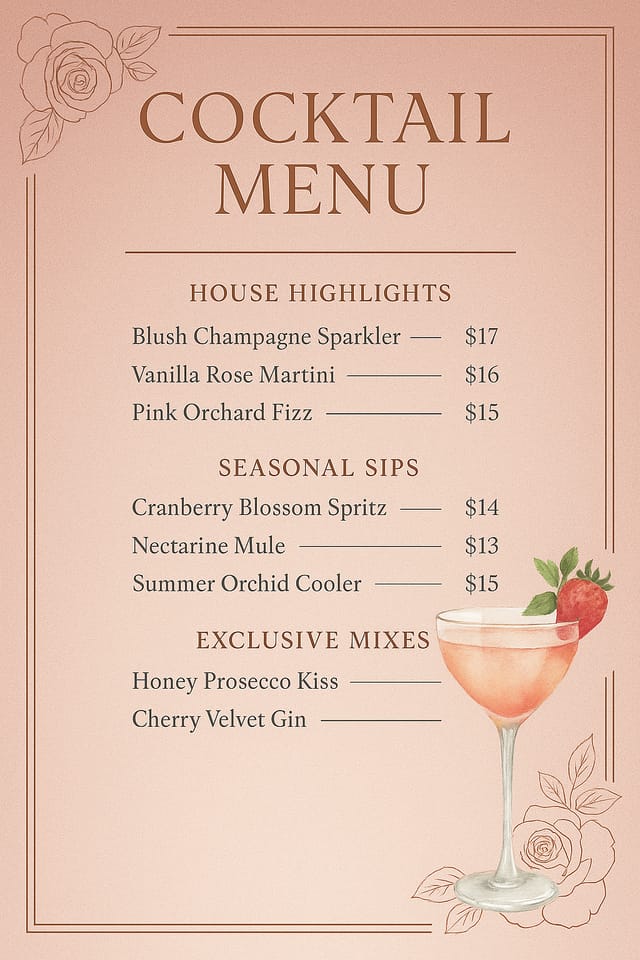
High-contrast restaurant menu, dark background with light text, accent color used for single key element, modern composition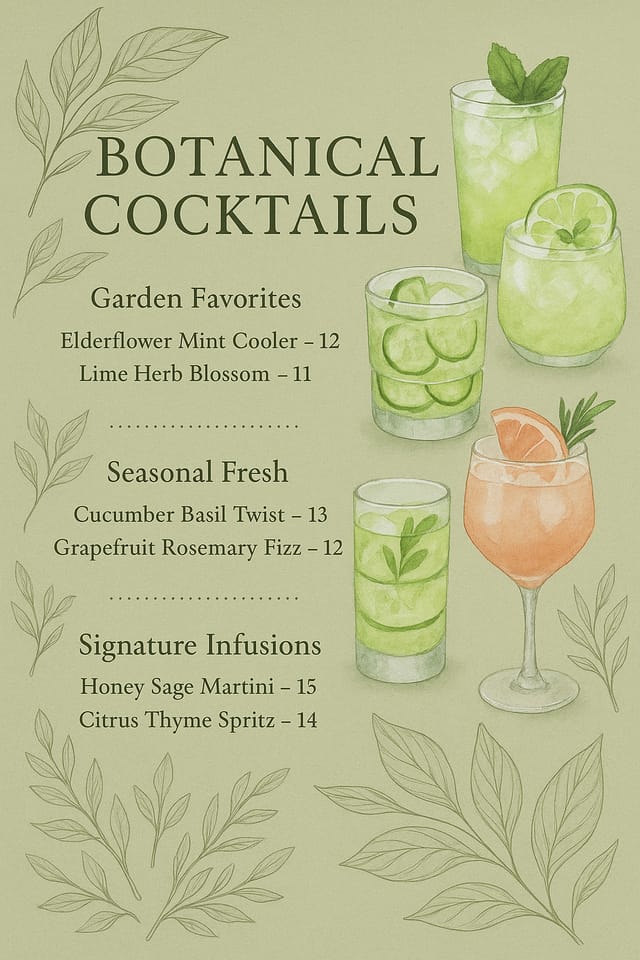
Moody restaurant menu with deep shadows and dramatic lighting feel, dark palette, cinematic atmosphere, headline in condensed uppercase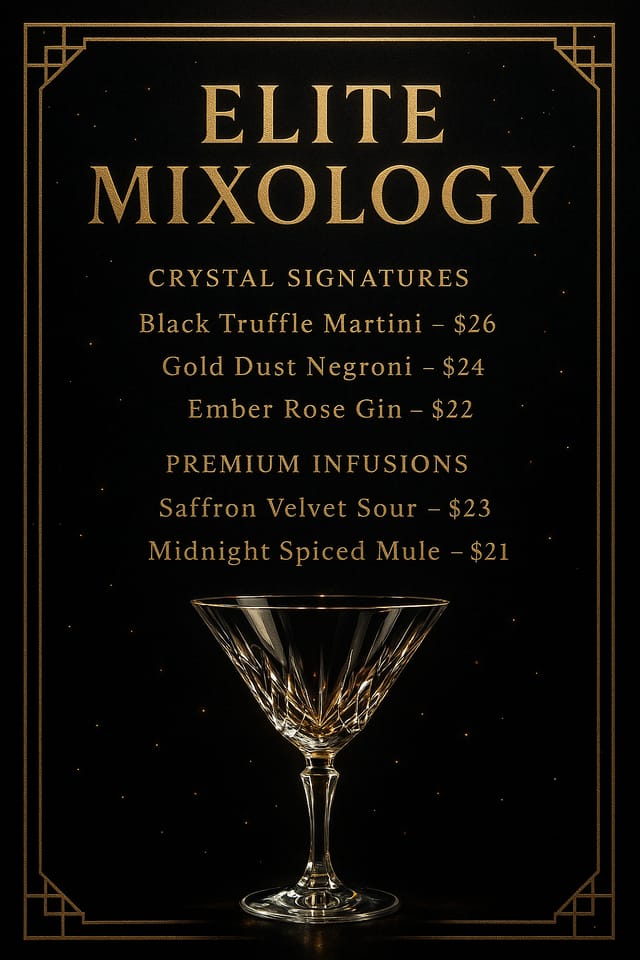
Professional restaurant menu, minimalist layout, selective use of color for emphasis, clear visual hierarchy from top to bottomMastering Restaurant Menu Creation: Expert-Level Advice
Prioritize Hierarchy
Every restaurant menu needs a clear reading order. Make sure the most important information is the largest and most prominent element in the layout.
Limit Your Color Palette
Stick to 2-3 primary colors in your restaurant menu design. Too many colors compete for attention and weaken the visual hierarchy.
Consider the Context
Think about where your restaurant menu will appear. A design optimized for social media needs different proportions and density than one for a physical bulletin board.
Keep Typography Simple
Use no more than two typefaces per restaurant menu. One for headlines, one for body text. Consistency in typography signals professionalism.
Check Alignment Carefully
Misaligned elements are one of the most common signs of amateur restaurant menu design. Use grid lines and snap-to features to keep things precise.
Understanding Restaurant Menus: The Essentials
Include your specific colors in the prompt, either by hex code or descriptive terms. 'Navy and copper with white text' or '#1a1a2e and #c9a84c palette' both work. The AI builds a restaurant-appropriate palette around your specified colors.
Common sizes include 1080x1080 for Instagram feed, 1080x1920 for stories and reels, 1200x628 for Facebook links, 1500x500 for Twitter headers, and 1080x1350 for Pinterest. Specify the platform in your prompt and Pixazo optimizes restaurant layout for that format.
Pixazo provides an API for programmatic restaurant menu generation. Integrate it into your content pipeline to automate design production at scale. API documentation covers authentication, prompt formatting, and output retrieval.
Designs created with Pixazo are available for commercial use. You can use your restaurant menus for client projects, product sales, advertising, and other commercial applications without additional licensing fees.
Designs generated through Pixazo are yours to use as you see fit. You retain full usage rights for commercial and personal applications. The platform does not claim ownership over your generated restaurant menu output.
Describe your core design parameters in each prompt and vary only the specific elements that should change across the series. Maintaining consistent color palette, typographic approach, and compositional structure across restaurant menu variations creates a coherent series.

