3D Mockup : Create Free 3D Mockups in Minutes with AI
Create Custom 3D Mockups Quickly with Pixazo Best AI 3D Mockup Maker. Try for Free!
Get Started
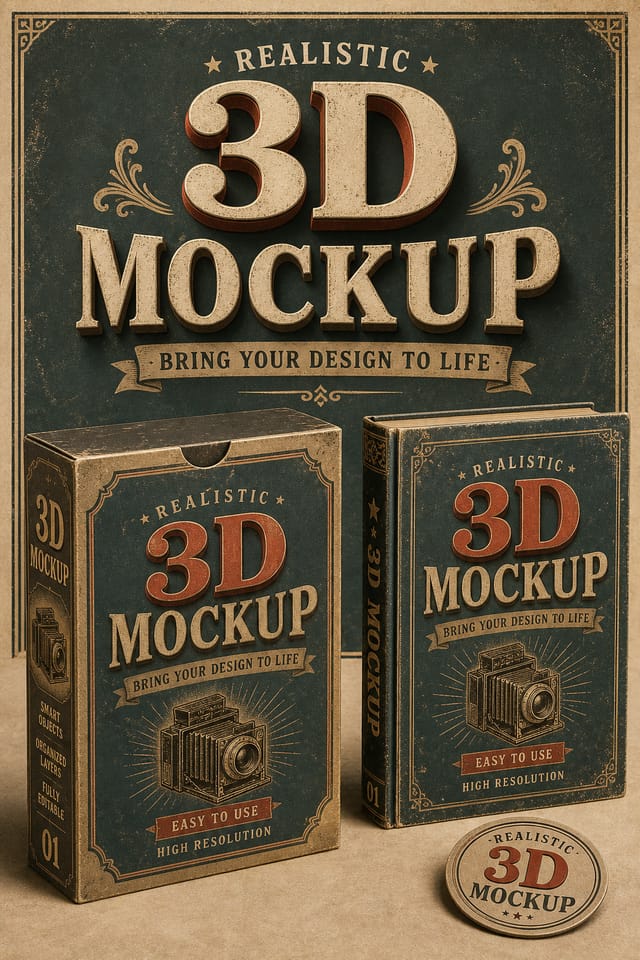
AI 3D Mockup Creator: Made Simple
Make 3d mockups with real visual personality. The AI selects design elements that fit 3d aesthetics, not generic templates.
Create Your 3D Mockup FreeInside the 3D Mockup Engine: Technical Breakdown
Context-Aware Design
Describe your 3d mockup's purpose and audience. The AI adjusts visual weight, complexity, and clarity based on the intended use context.
Negative Space Handling
The AI manages whitespace in 3d mockup designs according to 3d aesthetic conventions, not generic poster defaults.
Fast Generation
Complete 3d mockup designs generate in seconds. No rendering queues, no waiting for batch processing.
Commercial Use Rights
Designs generated with Pixazo are yours to use commercially. No additional licensing required for 3d mockup projects.
No Design Software Required
Create professional 3d mockups without Photoshop, Illustrator, or other design applications. The AI handles all technical production.
Text Placement Options
Describe where you want text elements positioned in your 3d mockup. The AI follows compositional direction about headline placement and body copy layout.
Inside 3D Mockup Creation: Made Simple
Log Your Requirements
Describe what you want your 3d mockup to look like. Include the mood, color palette, typography preference, and content hierarchy. Pixazo reads all of this and uses it to generate an appropriate design.
Review the Output
Pixazo generates your 3d mockup in seconds. Review the design and adjust your prompt to refine specific elements: change the color palette, shift the layout weight, or add visual elements you want included.
Sharpen the Output
Adjust your prompt to modify specific elements of the 3d mockup. Change the color palette, shift typography weight, or reposition the compositional focus. Each iteration gets you closer to the final design.
Deploy to Production
Get your final 3d mockup file in one click. Choose your format, download at full resolution, and use the design immediately. No watermarks, no additional fees, no waiting.
Watch: Creating 3D Mockup designs step by step
Your 3D Mockup Questions: Plain Answers
Common sizes include 1080x1080 for Instagram feed, 1080x1920 for stories and reels, 1200x628 for Facebook links, 1500x500 for Twitter headers, and 1080x1350 for Pinterest. Specify the platform in your prompt and Pixazo optimizes 3d layout for that format.
Brand kits let you save your logo, fonts, and color palette so every 3d mockup you generate stays on brand. Once configured, the AI applies your brand parameters automatically alongside 3d style conventions.
Generated designs that miss the mark usually need more specific prompts. Add details about the visual hierarchy you want, the feeling the 3d mockup should create, or specific elements to include or avoid. More context in the prompt produces more targeted output.
The AI generates visual designs, not data visualizations. For 3d mockups that need charts or graphs, generate the 3d layout in Pixazo and overlay your data graphics in post-production. The design framework will be style-consistent even if data elements are added separately.
3D Mockup Trends to Watch: Trend Report
Data-Driven Visuals
Incorporating charts, statistics, and structured data directly into 3d mockup layouts helps communicate complex messages at a glance.
Brutalist Design
Raw, intentionally unpolished 3d mockup aesthetics with stark contrasts and unconventional layouts are carving a niche in creative industries.
Minimalist Layouts
Stripped-back 3d mockup designs with generous white space and limited elements are gaining favor for their clarity and elegance.
Motion-Ready Design
Static 3d mockup designs are being created with animation in mind, using layered elements that translate smoothly to motion graphics.
What Works in 3D Mockup Design: A Quality Guide
Use a consistent visual hierarchy
Structure your 3d mockup so the viewer's eye follows a clear path from headline to supporting details to call-to-action.
Use grids and alignment
Structured layouts in your 3d mockup create a sense of order and professionalism that unstructured designs cannot match.
Maintain brand alignment
Keep your 3d mockup design consistent with existing brand colors, fonts, and visual language for a cohesive identity.
Forget the call to action
A 3d mockup without a clear next step for the viewer is a missed opportunity. Always include direction on what to do next.
Ignore accessibility
Low-contrast text and tiny font sizes in your 3d mockup exclude a significant portion of your potential audience.
Use too many fonts
More than two or three typefaces in a single 3d mockup creates visual noise and makes the design feel disjointed.
Advanced 3D Mockup Features: Explored in Depth
AI Generation
Convert text prompts into polished 3d mockup designs with contextual understanding
Style Transfer
Apply different visual styles to your 3d mockup while maintaining layout integrity
Color Palettes
AI-suggested color combinations that work for 3d mockup design conventions
Who Creates 3D Mockups: Use Case Roundup
Personal Creative Work
Generate 3d mockups for personal projects, home display, and creative experiments without spending production time on design execution.
Social Media Content
Design 3d mockups sized for social platforms. Get content that looks intentional and well-crafted, not thrown together.
Podcast and Media Branding
Generate 3d mockups for podcast covers, episode artwork, and media channel identity. Consistent visual branding across audio and video platforms.
Real Estate Marketing
Create 3d mockups for property listings, open houses, and agent branding. Professional visuals that elevate property presentation.
3D Mockup Capabilities: What You Get
Copy-Paste 3D Mockup Prompt Collection
Copy any prompt below and paste it into Pixazo to generate your design instantly.
Monochromatic 3d mockup, single-hue palette with value variation for contrast, typographic hierarchy creates visual interest without color complexityEditorial-style 3d mockup, text-dominant design, typographic treatment carries visual weight, layout proportions inspired by print publication designTwo-color 3d mockup design, high contrast between primary and secondary color, clean separation between graphic and text zones3D aesthetic mockup, palette drawn from 3d design tradition, layout proportions consistent with 3d conventions, purposeful use of each elementGeometric 3d mockup, structured grid system, angular composition, colors in blocks rather than gradients, modern clean finishLarge-format 3d mockup design, elements sized for visibility at print scale, no fine detail that would be lost in production3D Creator Work in the Wild
Real creators sharing their 3d designs made with Pixazo AI.

Square 3d mockup at 1080x1080 for LinkedIn post, professional tone, balanced text-to-visual ratio, brand-safe composition
Warm palette 3d mockup, ochre and brown tones, serif typography, traditional 3d design reference, tactile feeling
Handmade-feel 3d mockup with brush stroke textures, imperfect edges, warm color palette, artisanal craft aesthetic3D Mockup Constraints: Honest Expectations
Known limitations and trade-offs of AI-generated 3d design. Understanding what the AI handles well and where it falls short helps you structure your 3d mockup design workflow effectively.

