AI Mockup Maker : Create Free Mockups in Minutes
Create Custom Mockups Quickly with Pixazo Best AI Mockup Maker. Try for Free!
Get Started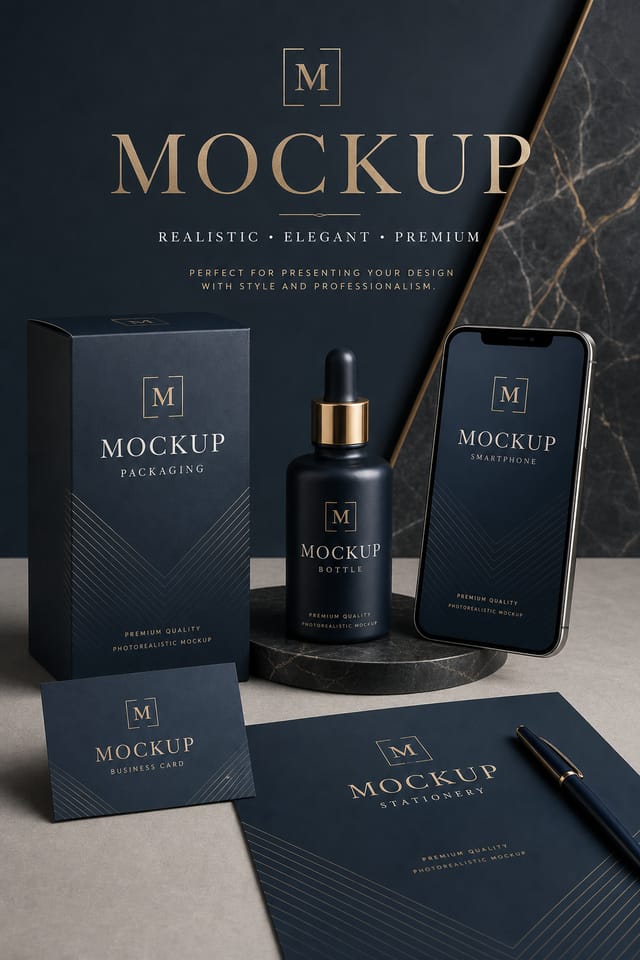
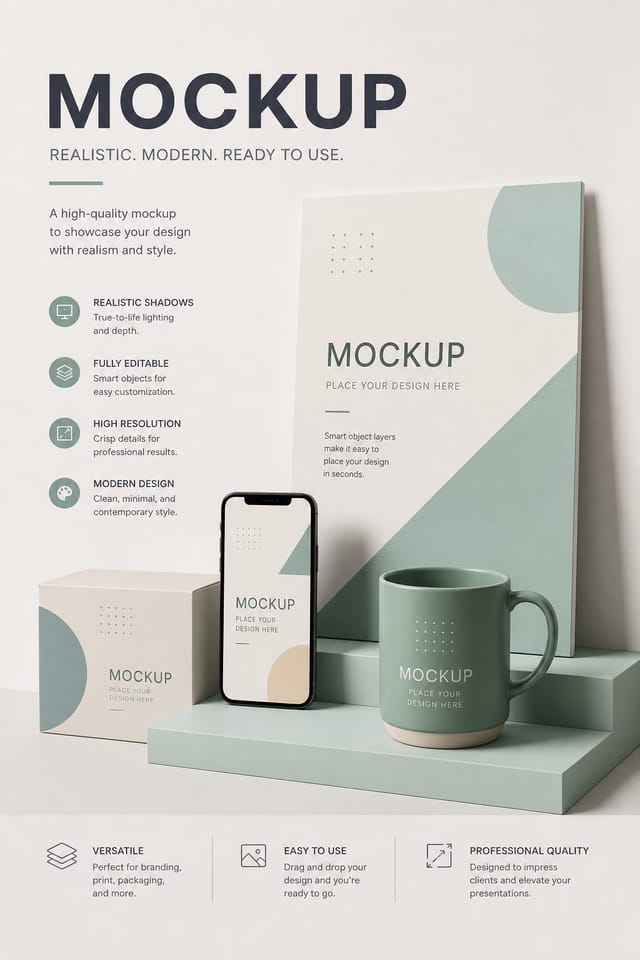
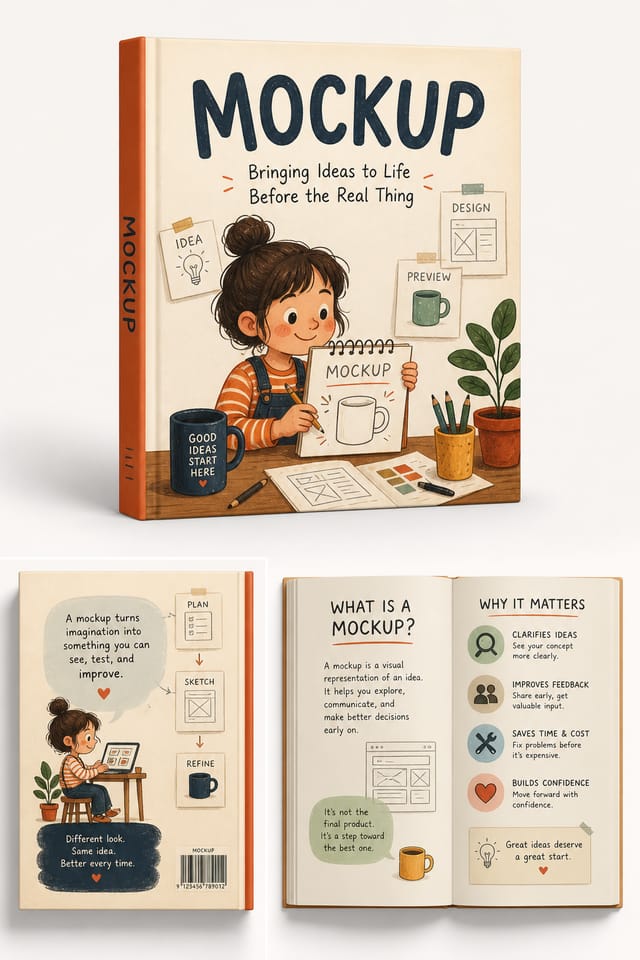
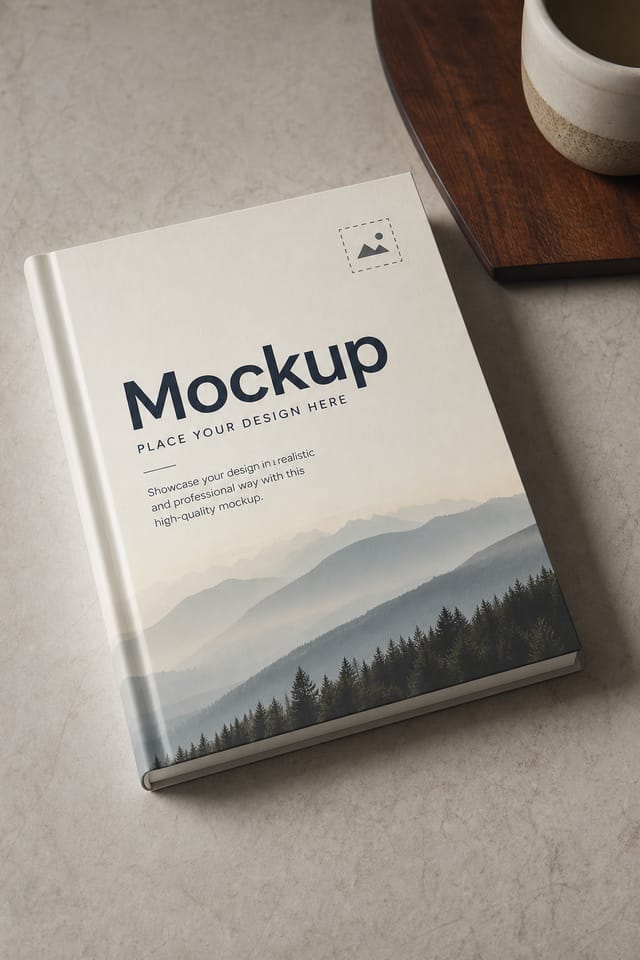
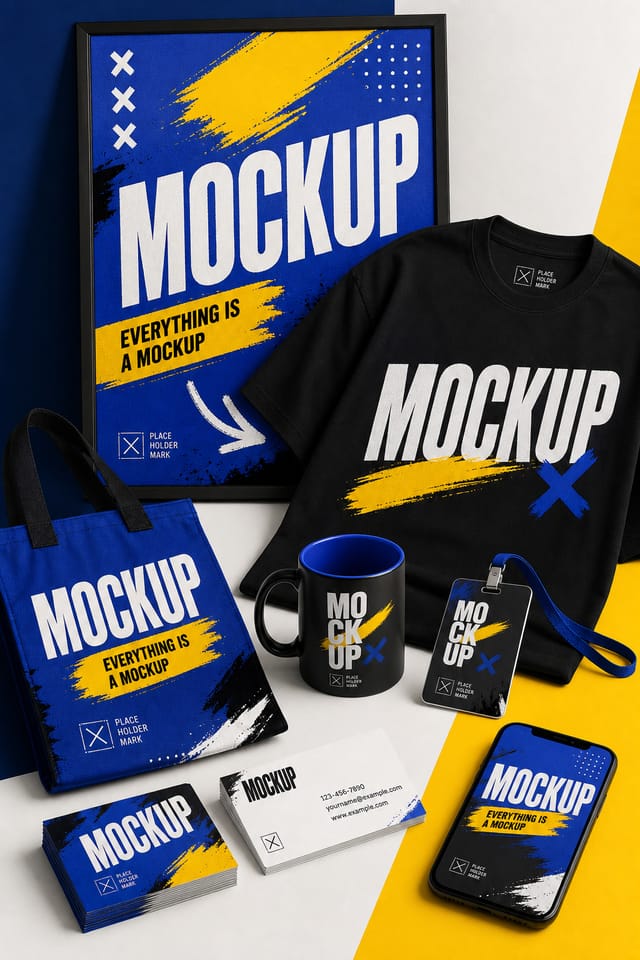
AI Mockup Design: Made Simple
Design professional mockups in minutes with Pixazo's AI design engine. Built for creators who want polished results without the production time.
Built for designers, marketers, small business owners, and creators who need professional mockup designs without design software.
Create Your Mockup FreeMockup Export Guide: Export Options Explained
WEBP
Modern web format offering smaller file sizes than PNG or JPG for mockup images without significant quality loss.
PNG
Lossless image format ideal for mockup designs with transparency, sharp text, and web display at predictable file sizes.
SVG
Scalable format for mockup designs that need to render crisply at any resolution, commonly used for web and responsive layouts.
Print-ready format for mockup files that preserves fonts, colors, and layout across different devices and print services.
The Logic of Mockup Design: The Underlying Framework
The Logic of Mockup Design
Professional mockup design involves more than applying a color filter to a generic layout.
The visual language of mockup design encompasses distinctive compositional approaches, characteristic color affinities, and typographic choices that signal quality and intentionality.
When you use Pixazo to create a mockup, the AI applies this visual knowledge to your specific request.
The result looks deliberate and style-appropriate, not accidental or template-derived.
Behind Mockup Design: Professional Features
Export Flexibility
Download your mockup in formats suited for your use case. Web-optimized versions for digital display, high-DPI files for print.
Style-Accurate Generation
The AI interprets mockup design conventions and applies them to your mockup, producing output that looks correctly styled rather than generically templated.
Color Palette Intelligence
Colors are chosen with mockup style awareness. The AI builds palettes that fit mockup design conventions rather than selecting arbitrarily.
Consistency Across Variants
Generate multiple mockups for a project and maintain visual consistency across the set. Specify your core design parameters and vary secondary elements.
Layered Style Application
Combine mockup style with other design parameters in a single prompt. The AI interprets complex requests and applies multiple style constraints simultaneously.
Instant Iterations
Generate multiple mockup variations from a single prompt. Compare options and refine until the design matches your vision.
Mockup Platform Comparison: Finding the Right Fit
| Tool | Description |
|---|---|
| Snappa | Quick graphic creator focused on social media and marketing visuals |
| Pixazo | AI-powered mockup generator with prompt-based design and professional output quality |
| VistaCreate | Visual content platform with templates and a built-in asset library |
| Stencil | Lightweight image creator optimized for fast social media graphics |
| Canva | Drag-and-drop editor with a large template library and collaboration features |
The Mockup Gallery: Creator Highlights
Real creators sharing their mockup designs made with Pixazo AI.
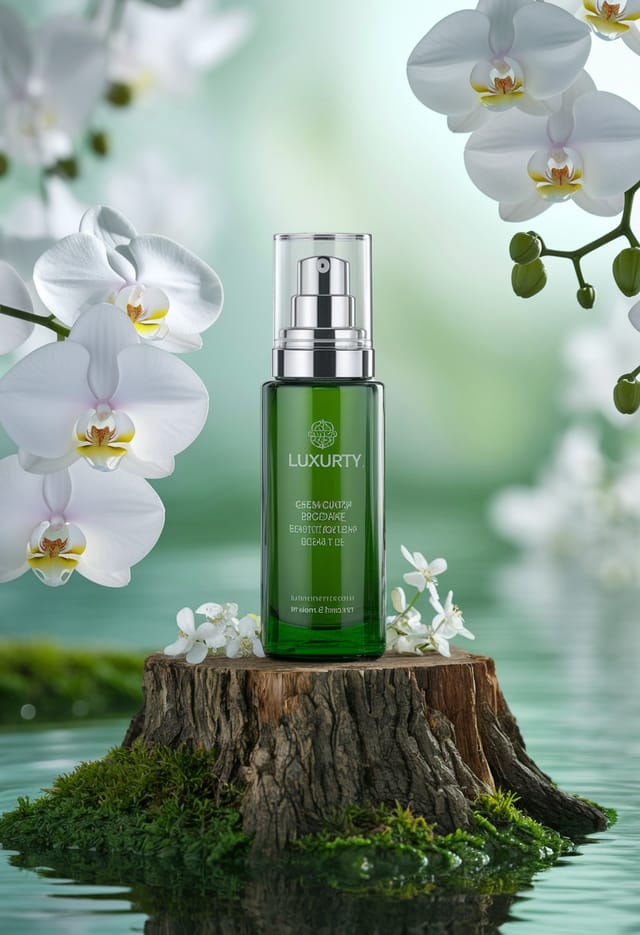
Bold mockup with strong central headline, supporting information at secondary scale, background treatment consistent with mockup design
Portrait mockup for social sharing, vertical 4:5 ratio, headline in upper third, supporting content below centerline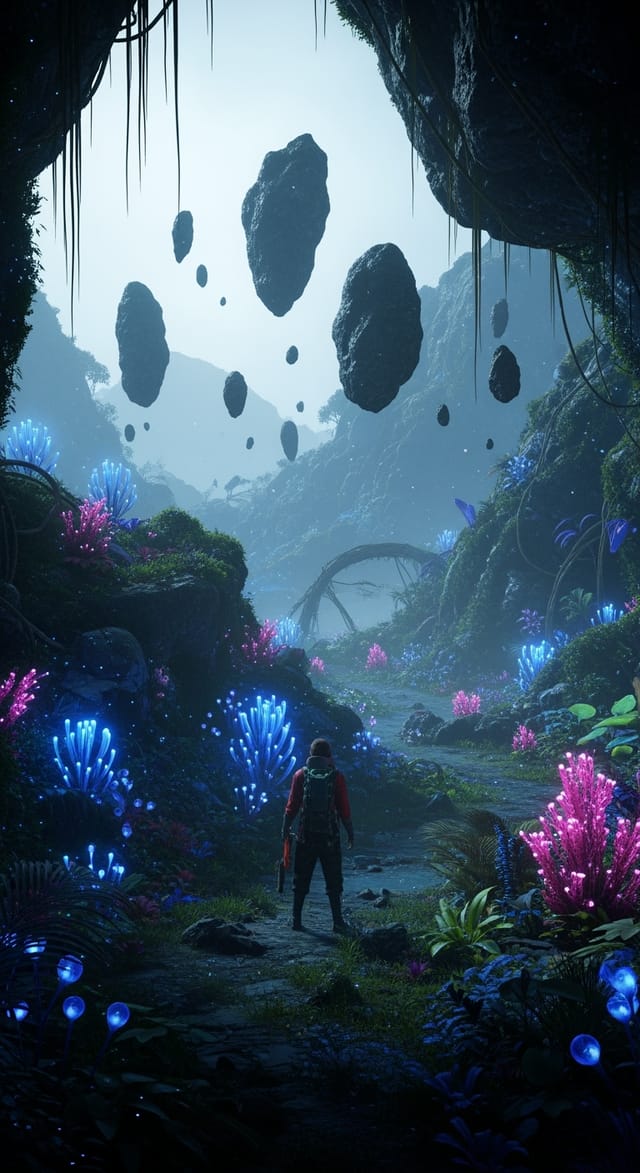
Full-bleed background mockup, image or texture extends to edges, foreground elements float above, headline anchored to centerAvoiding Mockup Mistakes: Dos and Don'ts
Use grids and alignment
Structured layouts in your mockup create a sense of order and professionalism that unstructured designs cannot match.
Optimize for the display medium
Tailor your mockup resolution, color space, and text size to the specific platform or physical context where it will appear.
Maintain brand alignment
Keep your mockup design consistent with existing brand colors, fonts, and visual language for a cohesive identity.
Use a consistent visual hierarchy
Structure your mockup so the viewer's eye follows a clear path from headline to supporting details to call-to-action.
Rely solely on AI output
AI-generated mockup designs are a starting point. Human review catches issues with context, tone, and accuracy that AI can miss.
Forget the call to action
A mockup without a clear next step for the viewer is a missed opportunity. Always include direction on what to do next.
Overcrowd the layout
Filling every pixel of your mockup with content makes it harder to read and reduces the impact of every individual element.
Putting Mockups to Work: Who Benefits Most
Promotional Stickers and Decals
Design mockups for die-cut stickers, bumper stickers, and promotional decals. Bold designs that read clearly on any surface.
Brand Identity Elements
Create mockups for logos, wordmarks, and brand symbols. Designs that establish visual identity with clarity and memorability.
Merchandise and Product Labels
Design mockups for product packaging, jar labels, and retail stickers. Print-ready output that works at physical production scale.
Event Badges and Credentials
Create mockups for conference badges, VIP passes, and staff credentials. Designs that combine branding with functional clarity.
App and Digital Product Icons
Generate mockups for app icons, favicons, and UI elements. Pixel-precise output optimized for screen display at multiple sizes.
The Path to Your Mockup: In Minutes
Communicate the Goal
Start with a text description of your mockup concept. Specify the visual style, colors, layout direction, and key text. Detailed prompts produce more accurate mockup designs than general ones.
Tally the Strengths
Your mockup generates immediately after submission. Evaluate the design against your requirements and refine the prompt to correct any elements that don't match your intent.
Deploy to Production
Download your completed mockup in the format that fits your use case. High-resolution files for print, web-optimized versions for digital, or PDF for production-ready delivery.
Watch: Creating Mockup designs step by step
Mockup Aesthetics: What Works Best
Classic Mockup
Traditional mockup design principles applied to modern mockup format. Clean composition, conventional hierarchy, time-tested visual decisions.
High-Contrast Mockup
Bold mockup visual treatment with strong tonal contrast. Elements read clearly at any viewing distance.
Geometric Mockup
Structured mockup composition using grid systems and angular forms. Order and precision define the visual approach.
Atmospheric Mockup
Mockup design where mood takes priority. Color and composition work together to create a specific feeling.
Textured Mockup
Mockup design with added surface depth. Background treatments add visual interest without disrupting legibility.
Copy-Paste Mockup Prompt Templates
Copy any prompt below and paste it into Pixazo to generate your design instantly.
Textured mockup, surface treatment adds depth without obscuring legibility, texture consistent with mockup aestheticMockup design, clean layout, strong typography hierarchy, appropriate color palette for mockup aesthetic, high contrast between headline and backgroundLarge-format mockup design, elements sized for visibility at print scale, no fine detail that would be lost in productionGeometric mockup, structured grid system, angular composition, colors in blocks rather than gradients, modern clean finishMockup for digital display, optimized proportions for screen viewing, colors calibrated for RGB output, legible at typical viewing distanceProfessional mockup, minimalist mockup approach, negative space used intentionally, readable at multiple viewing distances, print-ready compositionWhere Mockup AI: Capabilities and Caveats
Known limitations and trade-offs of AI-generated mockup design. Understanding what the AI handles well and where it falls short helps you structure your mockup design workflow effectively.
AI Mockup Generation: What You Should Know
You can generate as many variations as your account tier allows. Refine your prompt with each iteration to move toward your target design. Most users find the right direction within three to five generations.
Templates apply a fixed visual structure with placeholder content. AI generation produces original designs based on your specific description. Two mockups generated from different prompts will have genuinely different layouts, not just different text in the same box positions.
A mockup generates in seconds after submitting your prompt. Total time from prompt submission to downloadable file is typically under a minute, including any server processing time.
Longer, more detailed prompts generally produce more accurate results for mockup design. Include all the relevant information: style direction, color preferences, content to display, intended use, and any specific design elements you want. There is no strict character limit.
Canva uses fixed templates you customize manually. Pixazo generates original mockup designs from your description, so every output is unique. For mockup work specifically, the AI applies style-specific design decisions rather than offering generic drag-and-drop templates.

