Brochure Mockup : Create Free Brochure Mockups in Minutes with AI
Create Custom Brochure Mockups Quickly with Pixazo Best AI Brochure Mockup Maker. Try for Free!
Get Started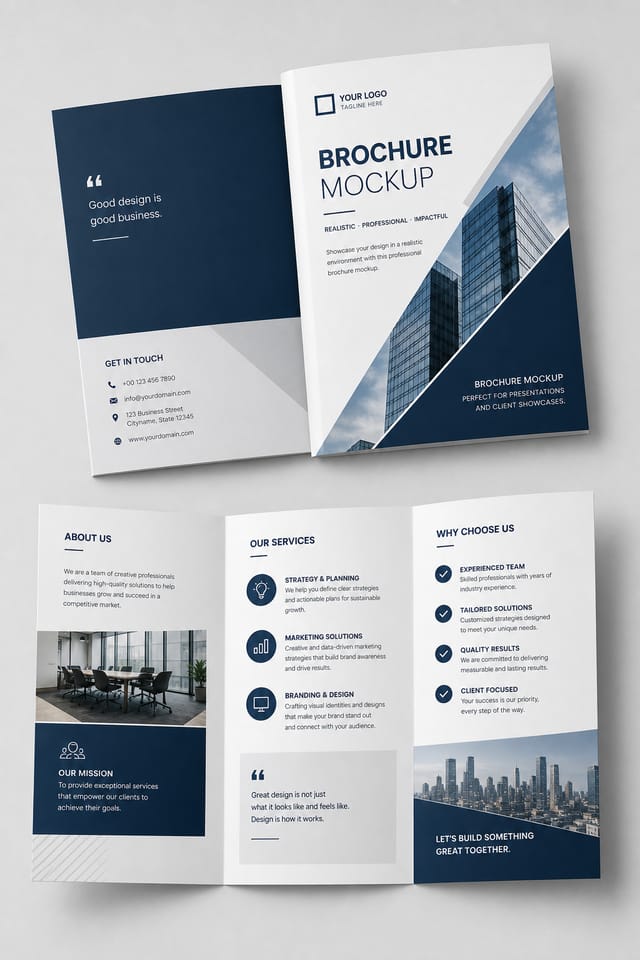
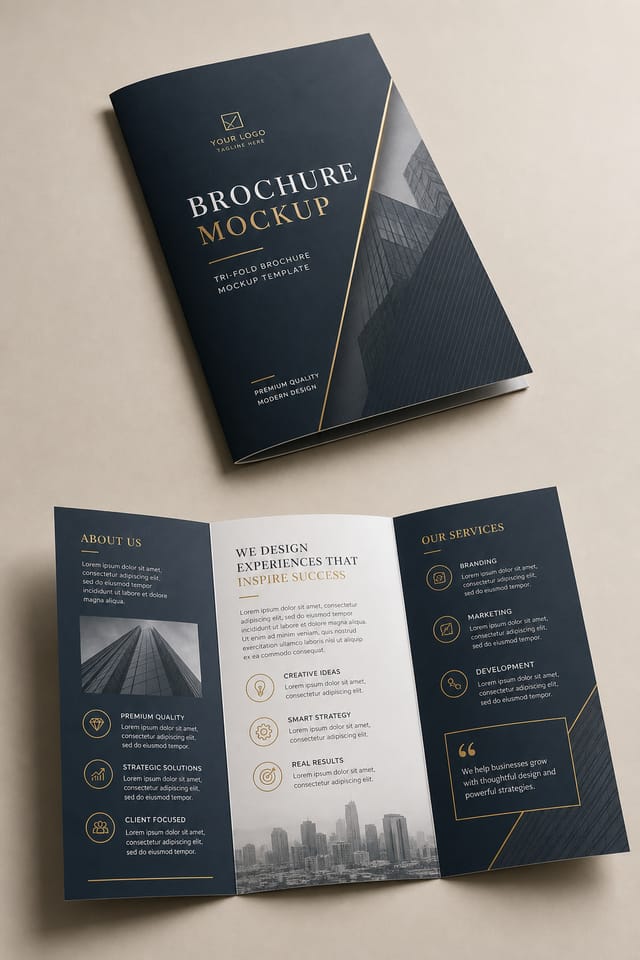
The Logic of Brochure Mockup Design: What Good Design Involves
What Separates Good Brochure Design from Generic
Not all mockup design styles work the same way.
Brochure design has specific characteristics that distinguish it from other approaches: particular color affinities, compositional tendencies, and typographic conventions that trained designers recognize immediately.
Pixazo applies this style knowledge automatically.
When you request a brochure mockup, the AI pulls from a visual vocabulary appropriate to brochure design, producing output that reads correctly to anyone familiar with the style.
Putting Brochure Mockups to Work: Real Applications
Informational Brochures
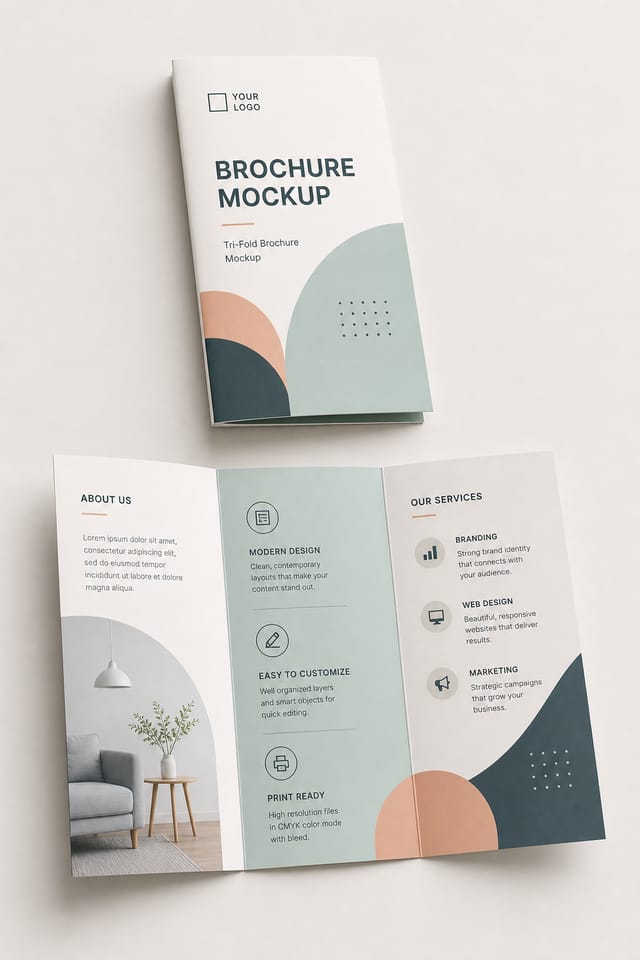
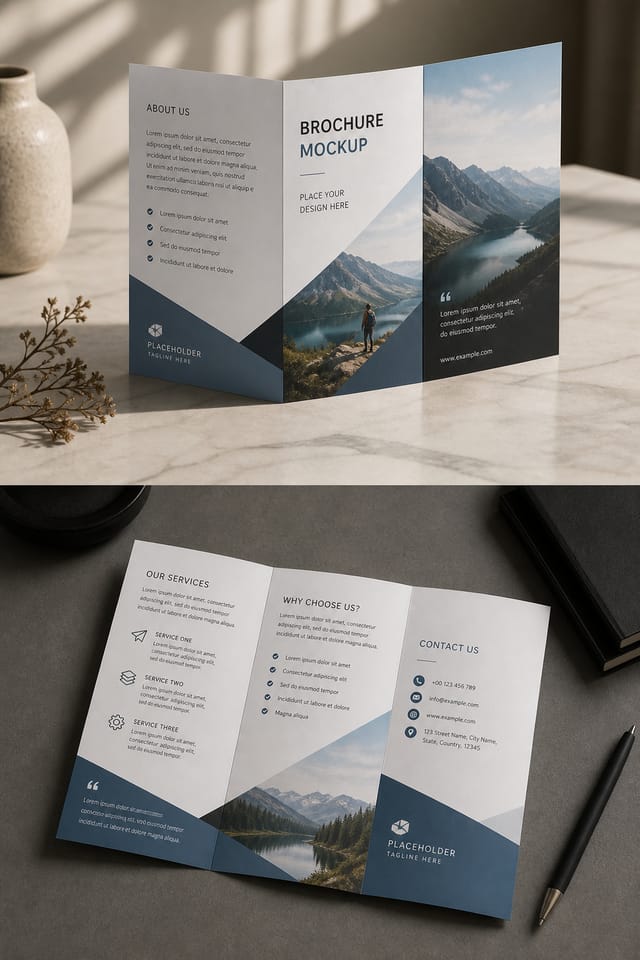
Create brochure mockups for tri-fold and bi-fold brochures. Designs that organize complex information into scannable, attractive panels.
Product Catalogs and Lookbooks
Generate brochure mockups for catalog covers and interior spreads. Layouts that showcase products with consistent visual standards.
Conference and Workshop Booklets
Generate brochure mockups for event programs, workshop guides, and seminar handouts. Professional materials that attendees keep and reference.
Real Estate Property Sheets
Create brochure mockups for property listings, open house flyers, and agent marketing materials. Clean layouts that highlight key property details.
Door-to-Door Campaign Materials
Design brochure mockups for leaflets, pamphlets, and handbills for local outreach. High-impact designs that survive a quick glance at the doorstep.
The Brochure Mockup Process: What Actually Happens
Watch: Creating Brochure Mockup designs step by step
Brochure Mockup AI: What It Can Do
Background Variation
Generate brochure mockups with different background treatments. Solid, gradient, textured, or pattern backgrounds all available for brochure style.
Typography Matching
Typefaces are selected to match brochure aesthetic expectations. The AI pairs fonts that reinforce your brochure mockup's visual identity.
Color Palette Intelligence
Colors are chosen with brochure style awareness. The AI builds palettes that fit brochure design conventions rather than selecting arbitrarily.
Text Placement Options
Describe where you want text elements positioned in your brochure mockup. The AI follows compositional direction about headline placement and body copy layout.
Color Temperature Control
Specify warm, cool, or neutral color direction for your brochure mockup. The AI builds the full palette around your temperature preference.
Layered Style Application
Combine brochure style with other design parameters in a single prompt. The AI interprets complex requests and applies multiple style constraints simultaneously.
Brochure Mockup AI Strengths: Why Creators Choose It
Iterative Refinement
Start with an initial generation and refine your brochure mockup through follow-up prompts that adjust specific elements while preserving what already works.
Multi-Format Export
Export your completed brochure mockup in the format that fits your workflow. PNG for web, PDF for print, and JPG for universal compatibility.
What Makes a Strong Brochure Mockup: The Essentials
Purposeful Negative Space
Empty space in brochure mockup design is not wasted space. Generous margins and breathing room around elements signal quality and make the design easier to read.
Compositional Balance
Visual weight in brochure mockup design should be intentional. Asymmetric balance often creates more interest than centered symmetry, but both can work when executed with purpose.
Color Discipline
Effective brochure mockup color palettes do more with less. A two or three color system applied consistently creates more visual coherence than many competing colors.
Copy-Paste Brochure Mockup Prompt Ideas
Copy any prompt below and paste it into Pixazo to generate your design instantly.
Portrait-orientation brochure mockup, vertical composition, headline at natural reading entry point, supporting information flows downward logicallyFull-bleed brochure mockup, background treatment extends to edges, foreground elements positioned for compositional balance, strong central hierarchyBrochure mockup design, clean layout, strong typography hierarchy, appropriate color palette for brochure aesthetic, high contrast between headline and backgroundBrochure style mockup, bold headline placement, supporting text at appropriate scale, color palette consistent with brochure design conventionsBrochure mockup with strong visual hierarchy, largest element reads clearly, supporting elements organized by importance, clean background treatmentShowcasing Brochure Mockups: Spotlights and Showcases
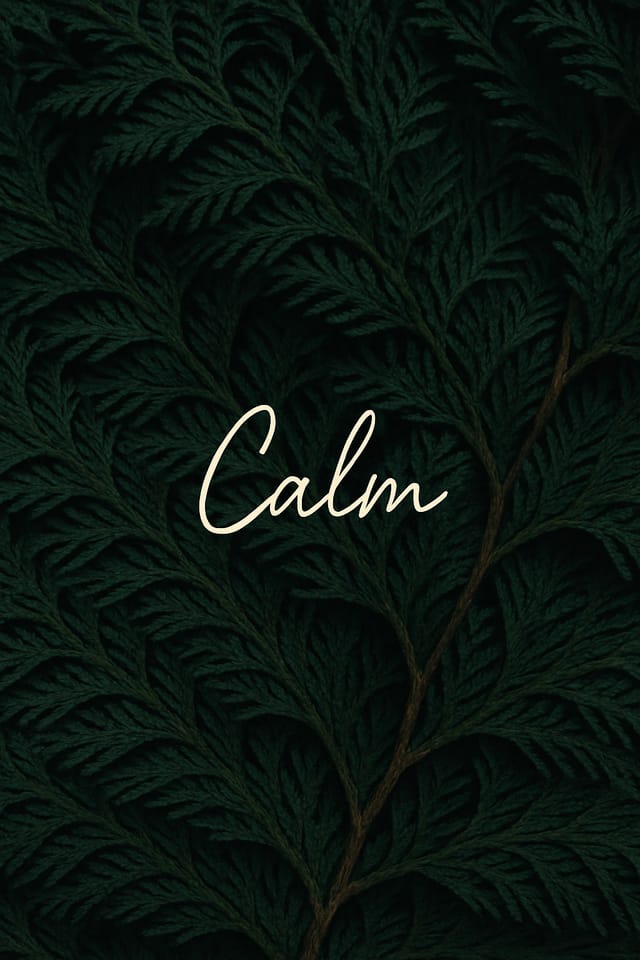
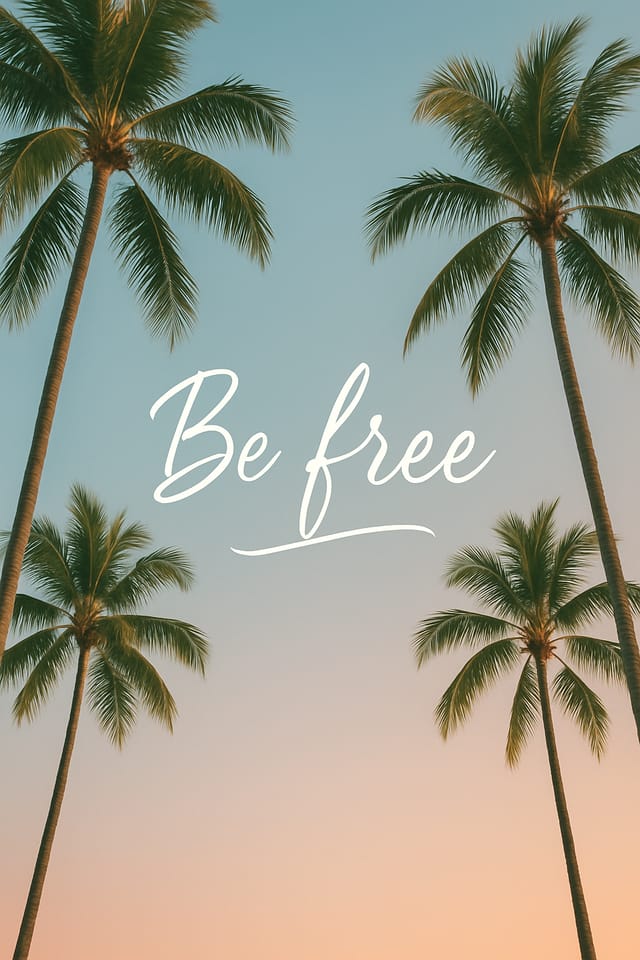
Real creators sharing their brochure designs made with Pixazo AI.

Elevating Your Brochure Mockup: What Professionals Know
Prioritize Hierarchy
Every brochure mockup needs a clear reading order. Make sure the most important information is the largest and most prominent element in the layout.
Start with a Clear Brief
Before generating any brochure mockup, write down the core message, target audience, and intended use. A focused brief produces better results than iterating from a vague idea.
Consider the Context
Think about where your brochure mockup will appear. A design optimized for social media needs different proportions and density than one for a physical bulletin board.
Iterate with Variations
Generate 3-5 versions of your brochure mockup before committing. Comparing variations side by side often reveals the strongest direction.
Limit Your Color Palette
Stick to 2-3 primary colors in your brochure mockup design. Too many colors compete for attention and weaken the visual hierarchy.
The Reality of Brochure Mockup AI: Where It Falls Short
Known limitations and trade-offs of AI-generated brochure design. Being specific about what AI mockup generation can and cannot do helps you plan your workflow and set accurate expectations.
Brochure Mockup Design Trends: Design Movements
Retro Revival
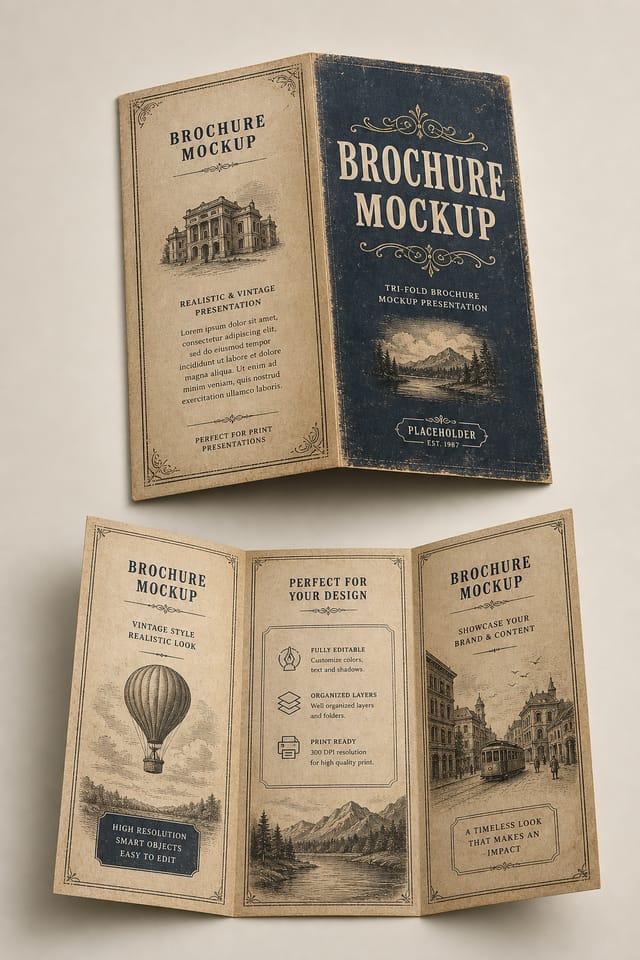
Vintage aesthetics from the 1970s and 1990s are influencing brochure mockup design with textured backgrounds, serif fonts, and warm gradients.
Minimalist Layouts
Stripped-back brochure mockup designs with generous white space and limited elements are gaining favor for their clarity and elegance.
Bold Typography
Oversized type and expressive fonts are dominating brochure mockup design, turning headlines into visual centerpieces rather than just text.
Motion-Ready Design
Static brochure mockup designs are being created with animation in mind, using layered elements that translate smoothly to motion graphics.
How Brochure Mockup Tools Stack Up: A Neutral Comparison
| Tool | Description |
|---|---|
| Canva | Drag-and-drop editor with a large template library and collaboration features |
| VistaCreate | Visual content platform with templates and a built-in asset library |
| Pixazo | AI-powered brochure mockup generator with prompt-based design and professional output quality |
| Desygner | Multi-format design tool with PDF editing and brand management |
| Stencil | Lightweight image creator optimized for fast social media graphics |
Brochure Mockup Essentials: Questions and Answers
Pixazo generates brochure mockups in RGB color space. For professional offset printing that requires CMYK, convert the downloaded file using Adobe Photoshop, Illustrator, or a free tool like GIMP. The AI selects colors that translate well to print when you mention print use in your prompt.
Brand kits let you save your logo, fonts, and color palette so every brochure mockup you generate stays on brand. Once configured, the AI applies your brand parameters automatically alongside brochure style conventions.
Pixazo offers a free tier that lets you generate brochure mockups with standard resolution output. Paid plans unlock higher resolution, priority generation, and additional export formats. You can try brochure mockup generation free with a credit card.
Generated designs that miss the mark usually need more specific prompts. Add details about the visual hierarchy you want, the feeling the brochure mockup should create, or specific elements to include or avoid. More context in the prompt produces more targeted output.

