iPhone Mockup : Create Free iPhone Mockups in Minutes with AI
Create Custom iPhone Mockups Quickly with Pixazo Best AI iPhone Mockup Maker. Try for Free!
Get Started
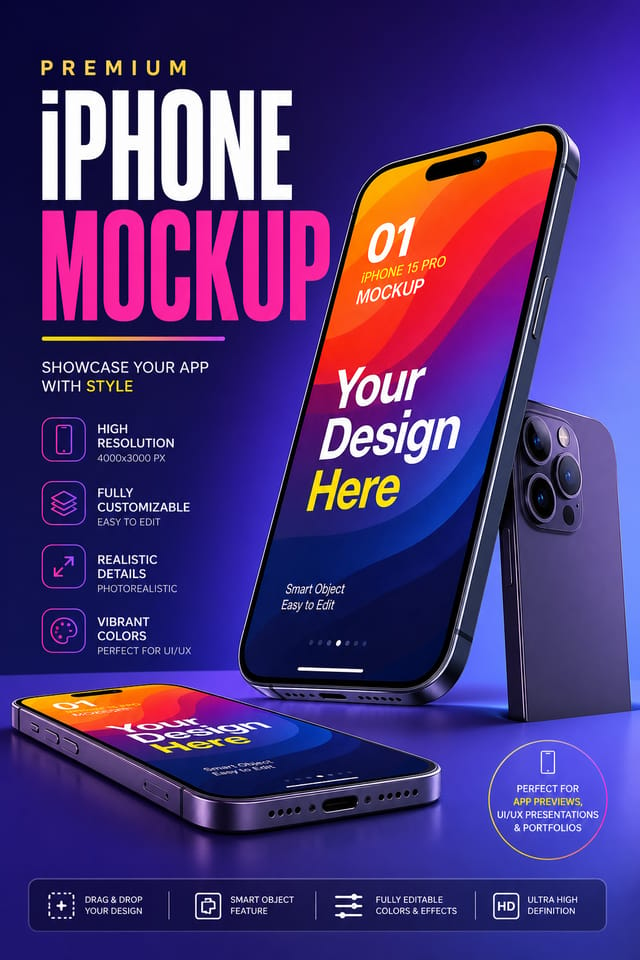
The Logic of Iphone Mockup Design: The Underlying Framework
Design Intelligence for Iphone Mockups
Creating a convincing iphone mockup requires understanding iphone as a design vocabulary, not just as a label.
The color relationships, the type choices, the spatial organization.
These elements work together to create the impression of intentional iphone design.
Pixazo's generation model recognizes iphone design patterns and applies them systematically.
Iphone Mockup Output Options: Format Guide
PNG
Lossless image format ideal for iphone mockup designs with transparency, sharp text, and web display at predictable file sizes.
TIFF
High-fidelity format for iphone mockup files destined for professional printing, supporting CMYK color and lossless compression.
Print-ready format for iphone mockup files that preserves fonts, colors, and layout across different devices and print services.
SVG
Scalable format for iphone mockup designs that need to render crisply at any resolution, commonly used for web and responsive layouts.
The Path to Your Iphone Mockup: How It Works
Present the Brief
Write a prompt describing your iphone mockup. Include style preferences, color direction, the most important text to display, and any specific visual elements you want. The more specific your description, the more targeted the output.
Benchmark the Output
Your iphone mockup generates immediately after submission. Evaluate the design against your requirements and refine the prompt to correct any elements that don't match your intent.
Enhance the Details
Refine the iphone mockup by updating your description with precise changes. Add constraints you didn't include initially or remove elements that aren't working. The AI responds to specific direction.
Commit the Output
Download your completed iphone mockup in the format that fits your use case. High-resolution files for print, web-optimized versions for digital, or PDF for production-ready delivery.
Watch: Creating Iphone Mockup designs step by step
What Powers Iphone Mockup Design: Key Capabilities
Typography Matching
Typefaces are selected to match iphone aesthetic expectations. The AI pairs fonts that reinforce your iphone mockup's visual identity.
Negative Space Handling
The AI manages whitespace in iphone mockup designs according to iphone aesthetic conventions, not generic poster defaults.
Color Temperature Control
Specify warm, cool, or neutral color direction for your iphone mockup. The AI builds the full palette around your temperature preference.
Background Variation
Generate iphone mockups with different background treatments. Solid, gradient, textured, or pattern backgrounds all available for iphone style.
Resolution Control
Specify output dimensions for your iphone mockup. Get files sized for web display, social media, or large-format printing.
Iphone Mockup Design Insights: Tips That Work
Keep Typography Simple
Use no more than two typefaces per iphone mockup. One for headlines, one for body text. Consistency in typography signals professionalism.
Use High Contrast for Readability
Whether your iphone mockup is displayed on screen or in print, strong contrast between text and background ensures the message gets through at any size.
Limit Your Color Palette
Stick to 2-3 primary colors in your iphone mockup design. Too many colors compete for attention and weaken the visual hierarchy.
Check Alignment Carefully
Misaligned elements are one of the most common signs of amateur iphone mockup design. Use grid lines and snap-to features to keep things precise.
Iphone Mockup Maker: FAQ
Your prompt history is saved in your account. You can revisit previous iphone mockup prompts, duplicate them with modifications, and build a library of proven prompt structures for consistent iphone design output.
Pixazo generates complete iphone mockup designs from text prompts. Custom image uploads for compositing are on the product roadmap. Currently, the AI creates all visual elements based on your description rather than incorporating external assets.
Longer, more detailed prompts generally produce more accurate results for iphone mockup design. Include all the relevant information: style direction, color preferences, content to display, intended use, and any specific design elements you want. There is no strict character limit.
Individual iphone mockups generate in seconds. For batch production, you can submit multiple prompts in sequence and download results as they complete. A series of ten iphone mockup variations typically takes under five minutes total.
Each generation uses your unique prompt text to produce a distinct iphone mockup design. Even similar prompts produce noticeably different outputs due to the AI's generative process. No two users receive identical designs.
Putting Iphone Mockups to Work: Real Applications
Music and Audio Production
Produce iphone mockups for album covers, playlist artwork, and music event promotion. Visual identity that matches the sound.
Educational Materials
Design iphone mockups for educational contexts. Courses, workshops, and learning materials benefit from the visual clarity of good iphone design.
Personal Creative Work
Generate iphone mockups for personal projects, home display, and creative experiments without spending production time on design execution.
Travel and Tourism Promotion
Design iphone mockups for destinations, tour packages, and hospitality brands. Aspirational visuals that inspire booking decisions.
Why Iphone Mockup AI Works: Why Creators Choose It
Multi-Format Export
Export your completed iphone mockup in the format that fits your workflow. PNG for web, PDF for print, and JPG for universal compatibility.
Iterative Refinement
Start with an initial generation and refine your iphone mockup through follow-up prompts that adjust specific elements while preserving what already works.
Iphone Design Styles: Options and Variations
High-Contrast Iphone
Bold iphone visual treatment with strong tonal contrast. Elements read clearly at any viewing distance.
Classic Iphone
Traditional iphone design principles applied to modern mockup format. Clean composition, conventional hierarchy, time-tested visual decisions.
Editorial Iphone
Text-dominant iphone mockup layout inspired by print publication design. Typographic variety creates visual rhythm.
Geometric Iphone
Structured iphone composition using grid systems and angular forms. Order and precision define the visual approach.
Textured Iphone
Iphone design with added surface depth. Background treatments add visual interest without disrupting legibility.
Ready-to-Use Iphone Mockup Prompts That Work
Copy any prompt below and paste it into Pixazo to generate your design instantly.
Full-bleed iphone mockup, background treatment extends to edges, foreground elements positioned for compositional balance, strong central hierarchyGeometric iphone mockup, structured grid system, angular composition, colors in blocks rather than gradients, modern clean finishProfessional iphone mockup, minimalist iphone approach, negative space used intentionally, readable at multiple viewing distances, print-ready compositionSeries-compatible iphone mockup design, visual language that extends to multiple formats, consistent design system across variantsIphone mockup with strong visual hierarchy, largest element reads clearly, supporting elements organized by importance, clean background treatmentTwo-color iphone mockup design, high contrast between primary and secondary color, clean separation between graphic and text zonesShowcasing Iphone Mockups: What People Are Making
Real creators sharing their iphone designs made with Pixazo AI.

Contemporary iphone style mockup, grid-based structure, disciplined spacing, restrained decoration, readable at viewing distance
Iphone mockup for large format print, elements scaled for visibility at distance, colors optimized for print output
Monochromatic iphone mockup, single hue in multiple values, typographic hierarchy creates depth without color complexityWorking with Iphone Mockup AI: Honest Expectations
Known limitations and trade-offs of AI-generated iphone design. Understanding what the AI handles well and where it falls short helps you structure your iphone mockup design workflow effectively.

