Product Mockup : Create Free Product Mockups in Minutes with AI
Create Custom Product Mockups Quickly with Pixazo Best AI Product Mockup Maker. Try for Free!
Get Started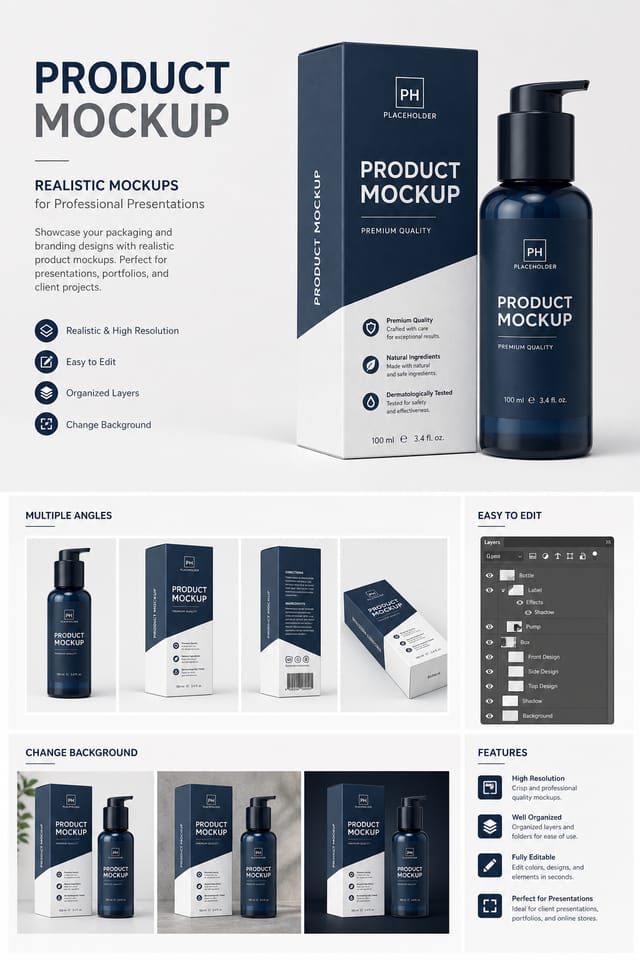
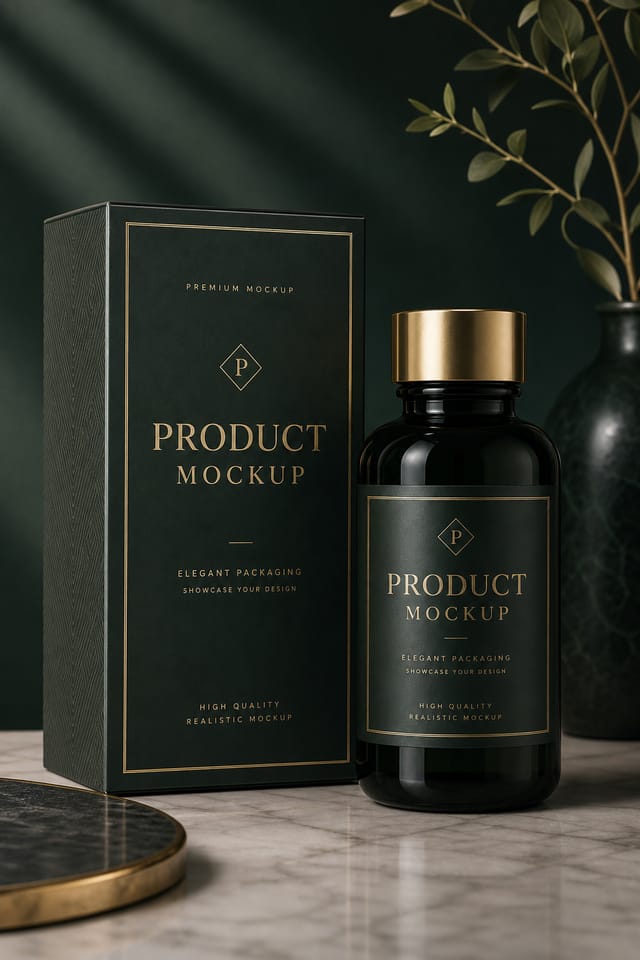
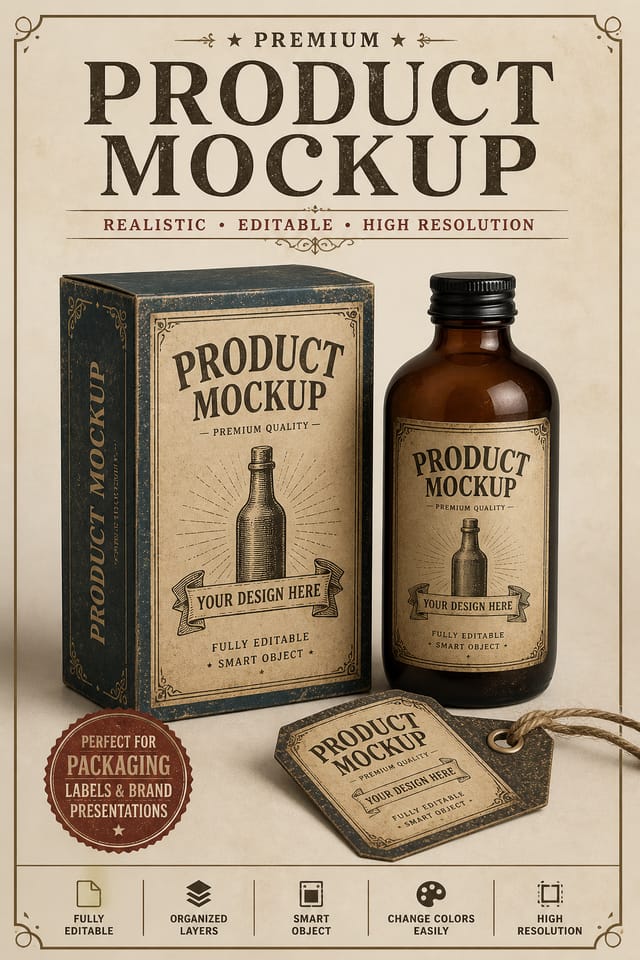
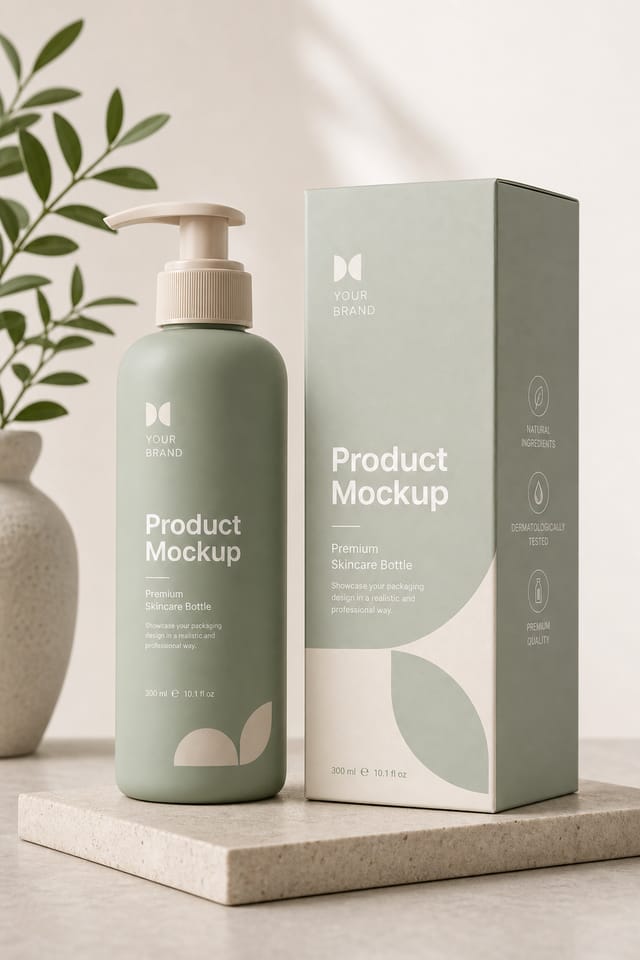
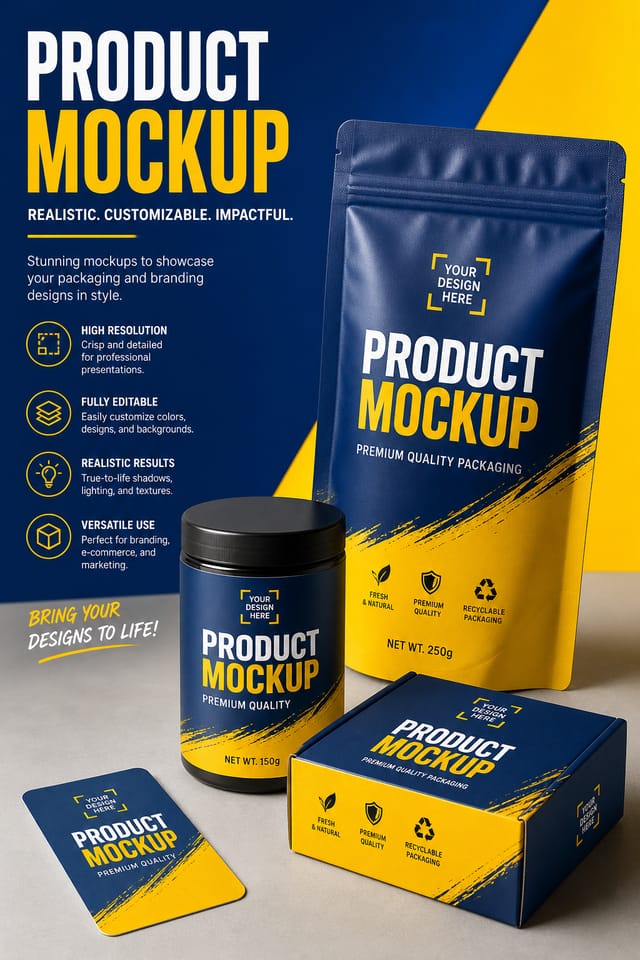
The Product Mockup Framework: What the AI Understands
Understanding Product Mockup Design Conventions
Product mockup design has its own visual conventions that differ significantly from other styles.
The AI recognizes these patterns and applies them when generating your design, rather than defaulting to a generic layout.
When you describe a product mockup, Pixazo selects typography, color relationships, and compositional approaches appropriate to product aesthetics.
The result is a design that looks like it belongs in its context, not a repurposed template with the wrong visual DNA.
How to Evaluate Product Mockups: What Good Looks Like
The Product Mockup Feature Set: What Sets It Apart
Compositional Structure
Layout and hierarchy decisions reflect product design patterns. The proportions and arrangement match how product designs are conventionally structured.
Text Placement Options
Describe where you want text elements positioned in your product mockup. The AI follows compositional direction about headline placement and body copy layout.
Color Temperature Control
Specify warm, cool, or neutral color direction for your product mockup. The AI builds the full palette around your temperature preference.
Instant Iterations
Generate multiple product mockup variations from a single prompt. Compare options and refine until the design matches your vision.
Context-Aware Design
Describe your product mockup's purpose and audience. The AI adjusts visual weight, complexity, and clarity based on the intended use context.
Print-Ready Output
Generated product mockups are sized and structured for professional printing. Download high-resolution files ready for production.
Effective Product Mockup Prompt Ideas
Copy any prompt below and paste it into Pixazo to generate your design instantly.
Monochromatic product mockup, single-hue palette with value variation for contrast, typographic hierarchy creates visual interest without color complexityFull-bleed product mockup, background treatment extends to edges, foreground elements positioned for compositional balance, strong central hierarchyProfessional product mockup, minimalist product approach, negative space used intentionally, readable at multiple viewing distances, print-ready compositionRefined product mockup, sophisticated color relationships, intentional whitespace, typefaces appropriate to product style, balanced compositionProduct mockup for digital display, optimized proportions for screen viewing, colors calibrated for RGB output, legible at typical viewing distanceProduct aesthetic mockup, palette drawn from product design tradition, layout proportions consistent with product conventions, purposeful use of each elementCurrent Product Mockup Directions: Current Directions
Motion-Ready Design
Static product mockup designs are being created with animation in mind, using layered elements that translate smoothly to motion graphics.
Hand-Drawn Elements
Illustrations, doodles, and hand-lettering bring a personal, approachable quality to product mockup designs in an era of polished digital output.
Bold Typography
Oversized type and expressive fonts are dominating product mockup design, turning headlines into visual centerpieces rather than just text.
Minimalist Layouts
Stripped-back product mockup designs with generous white space and limited elements are gaining favor for their clarity and elegance.
Asymmetric Composition
Breaking grid symmetry in product mockup layouts creates visual tension and a modern, editorial feel that stands out.
The Product Mockup Process: From Start to Finish
Capture Your Intent
Write a prompt describing your product mockup. Include style preferences, color direction, the most important text to display, and any specific visual elements you want. The more specific your description, the more targeted the output.
Review the Output
Pixazo generates your product mockup in seconds. Review the design and adjust your prompt to refine specific elements: change the color palette, shift the layout weight, or add visual elements you want included.
Rework Specific Parts
Refine the product mockup by updating your description with precise changes. Add constraints you didn't include initially or remove elements that aren't working. The AI responds to specific direction.
Walk Away with the Design
Export your product mockup in the format you need. PNG for web and social, PDF for print production, JPG for email and lightweight sharing. The file is yours to use commercially without restrictions.
Product Mockup Specifications
Watch: Creating Product Mockup designs step by step
Product Mockup Platform Comparison: An Honest Look
Fotor
Photo editing platform with design templates and batch processing
Pixazo
AI-powered product mockup generator with prompt-based design and professional output quality
Desygner
Multi-format design tool with PDF editing and brand management
Canva
Drag-and-drop editor with a large template library and collaboration features
Stencil
Lightweight image creator optimized for fast social media graphics
Product Mockups Across Fields: Who Benefits Most
Trade Show and Expo Booth Graphics
Create product mockups for exhibition stands, pull-up banners, and booth backdrops. Large-format designs that attract foot traffic.
Client and Investor Presentations
Design product mockups that support pitch decks, quarterly reviews, and stakeholder updates. Visual summaries that communicate key metrics.
Recruitment and Hiring Outreach
Generate product mockups for job fairs, career pages, and employer branding initiatives. Designs that represent company culture visually.
Product Launch Campaigns
Design product mockups for new product introductions across digital and print channels. Materials that establish positioning from day one.
Storefront and Office Displays
Generate product mockups for window displays, reception areas, and retail environments. Designs that reinforce brand presence in physical spaces.
Product Mockup Aesthetics: Worth Exploring
Editorial Product
Text-dominant product mockup layout inspired by print publication design. Typographic variety creates visual rhythm.
Minimalist Product
Stripped-back product approach. Fewer elements, more negative space, typography carries more visual weight.
Classic Product
Traditional product design principles applied to modern mockup format. Clean composition, conventional hierarchy, time-tested visual decisions.
Contemporary Product
Current product design sensibility with updated proportions, modern typefaces, and contemporary color relationships.
Exporting Your Product Mockup: Choosing the Right Format
WEBP
Modern web format offering smaller file sizes than PNG or JPG for product mockup images without significant quality loss.
Print-ready format for product mockup files that preserves fonts, colors, and layout across different devices and print services.
TIFF
High-fidelity format for product mockup files destined for professional printing, supporting CMYK color and lossless compression.
SVG
Scalable format for product mockup designs that need to render crisply at any resolution, commonly used for web and responsive layouts.
New to Product Mockups? Key Things to Know
You control every major design parameter through your prompt: color palette, typography style, layout structure, visual weight distribution, background treatment, and content hierarchy. The more specific your product mockup prompt, the more precisely the AI follows your creative direction.
Designs created with Pixazo are available for commercial use. You can use your product mockups for client projects, product sales, advertising, and other commercial applications without additional licensing fees.
Brand kits let you save your logo, fonts, and color palette so every product mockup you generate stays on brand. Once configured, the AI applies your brand parameters automatically alongside product style conventions.
Include your specific colors in the prompt, either by hex code or descriptive terms. 'Navy and copper with white text' or '#1a1a2e and #c9a84c palette' both work. The AI builds a product-appropriate palette around your specified colors.
Specific prompts produce better results than vague ones. Include the visual style you want, any color preferences, the most important text to display, and the intended use. For product design specifically, noting whether you want a contemporary or classic interpretation of product style helps the AI make the right design decisions.
Product Makers: Community Creations
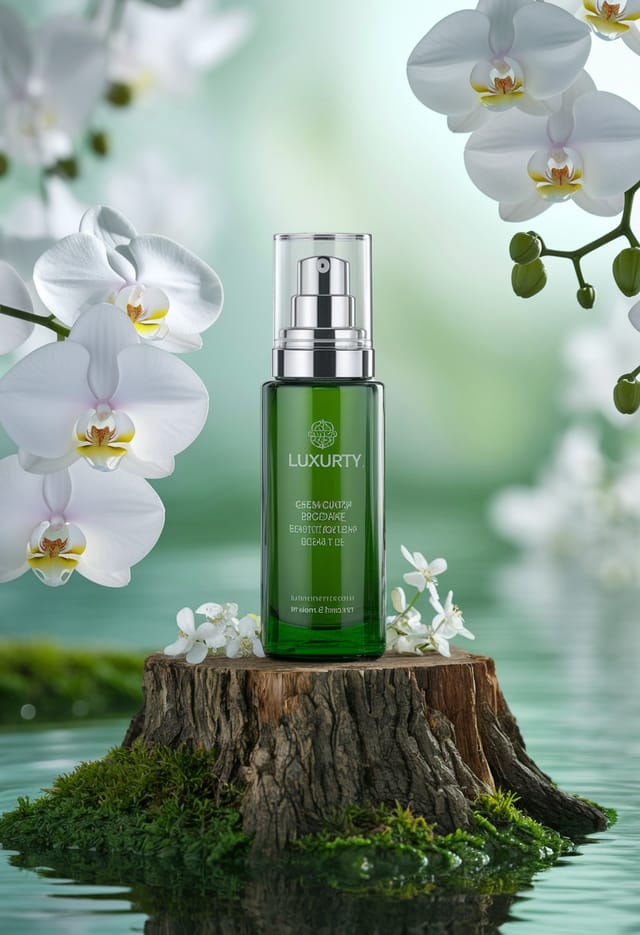
Real creators sharing their product designs made with Pixazo AI.

Being Realistic About Product Mockups: Capabilities and Caveats
Known limitations and trade-offs of AI-generated product design. Transparency matters when using AI for product mockup design. The points below describe where you may need to supplement AI output with manual work.

