Sticker Mockup : Create Free Sticker Mockups in Minutes with AI
Create Custom Sticker Mockups Quickly with Pixazo Best AI Sticker Mockup Maker. Try for Free!
Get Started
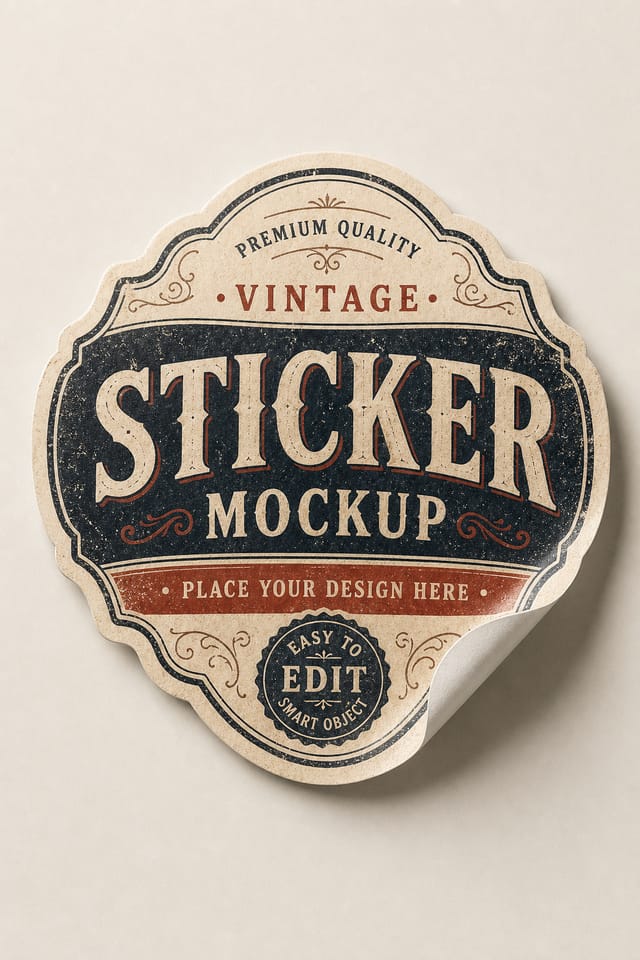
Pro Tips for Sticker Mockup Design: Tips That Work
Test at Actual Size
Always preview your sticker mockup at the dimensions it will be displayed. Design details that look fine at 100% can disappear or crowd at real-world scale.
Limit Your Color Palette
Stick to 2-3 primary colors in your sticker mockup design. Too many colors compete for attention and weaken the visual hierarchy.
Match Tone to Audience
A sticker mockup for a corporate event needs a different visual tone than one for a music festival. Let the audience guide your style choices.
Iterate with Variations
Generate 3-5 versions of your sticker mockup before committing. Comparing variations side by side often reveals the strongest direction.
Check Alignment Carefully
Misaligned elements are one of the most common signs of amateur sticker mockup design. Use grid lines and snap-to features to keep things precise.
How Pixazo Reads Sticker Style: A Technical Perspective
How AI Translates Sticker Style to Final Output
The strongest sticker mockup designs succeed because every element reinforces the style rather than contradicting it.
Typography that fits sticker conventions, colors that carry sticker associations, layouts that breathe in ways consistent with sticker design sensibility.
Pixazo's AI understands these relationships.
Describe your sticker mockup and the system generates designs where all the elements agree.
Avoiding Sticker Mockup Mistakes: Dos and Don'ts
Test with real content
Never finalize a sticker mockup with placeholder text. Real copy often has different lengths and line breaks that affect the design.
Use grids and alignment
Structured layouts in your sticker mockup create a sense of order and professionalism that unstructured designs cannot match.
Keep the message focused
A strong sticker mockup communicates one primary idea clearly. Supporting details should reinforce, not compete with, the main message.
Maintain brand alignment
Keep your sticker mockup design consistent with existing brand colors, fonts, and visual language for a cohesive identity.
Forget the call to action
A sticker mockup without a clear next step for the viewer is a missed opportunity. Always include direction on what to do next.
Overcrowd the layout
Filling every pixel of your sticker mockup with content makes it harder to read and reduces the impact of every individual element.
Ignore accessibility
Low-contrast text and tiny font sizes in your sticker mockup exclude a significant portion of your potential audience.
Skip proofreading
Typos and grammatical errors on a sticker mockup undermine credibility instantly. Always have someone else review the final text.
The Reach of Sticker Mockups: Who Uses Them
Brand Identity Elements
Create sticker mockups for logos, wordmarks, and brand symbols. Designs that establish visual identity with clarity and memorability.
App and Digital Product Icons
Generate sticker mockups for app icons, favicons, and UI elements. Pixel-precise output optimized for screen display at multiple sizes.
Merchandise and Product Labels
Design sticker mockups for product packaging, jar labels, and retail stickers. Print-ready output that works at physical production scale.
Mockup Presentations
Create sticker mockups placed within realistic mockup contexts. Show clients how designs look on physical products, screens, and environments.
Promotional Stickers and Decals
Design sticker mockups for die-cut stickers, bumper stickers, and promotional decals. Bold designs that read clearly on any surface.
Which Sticker Mockup Tool Fits: Tools Compared
Piktochart
Infographic and presentation maker for data-driven visuals
Desygner
Multi-format design tool with PDF editing and brand management
Pixazo
AI-powered sticker mockup generator with prompt-based design and professional output quality
Snappa
Quick graphic creator focused on social media and marketing visuals
Canva
Drag-and-drop editor with a large template library and collaboration features
Sticker Makers: Designs Worth Seeing
Real creators sharing their sticker designs made with Pixazo AI.
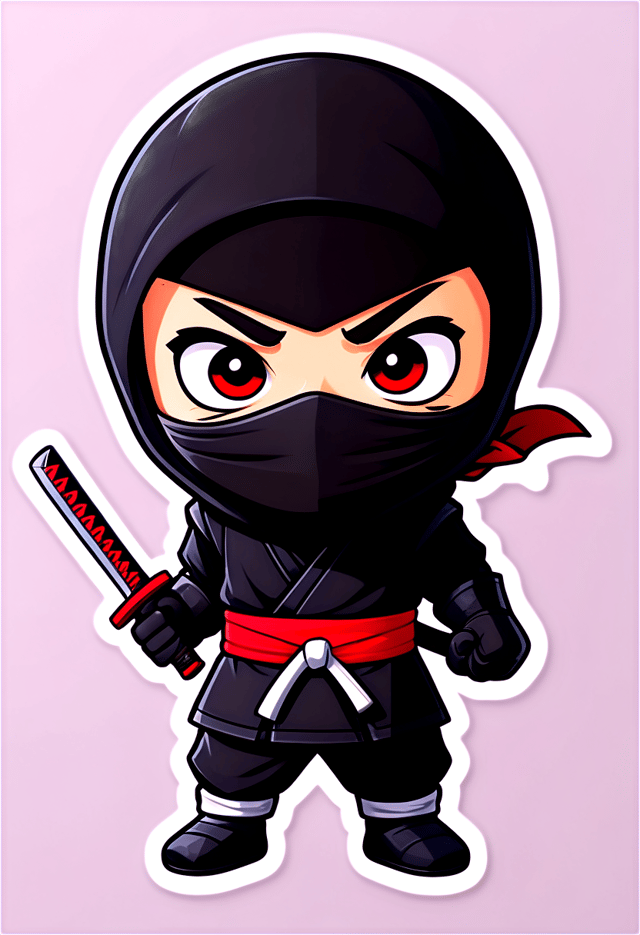
Vibrant sticker mockup targeting Gen Z audience, neon accent colors, asymmetric layout, bold experimental typography, maximum visual energy
Playful sticker mockup for a family audience, rounded typography, bright saturated colors, approachable and energetic tone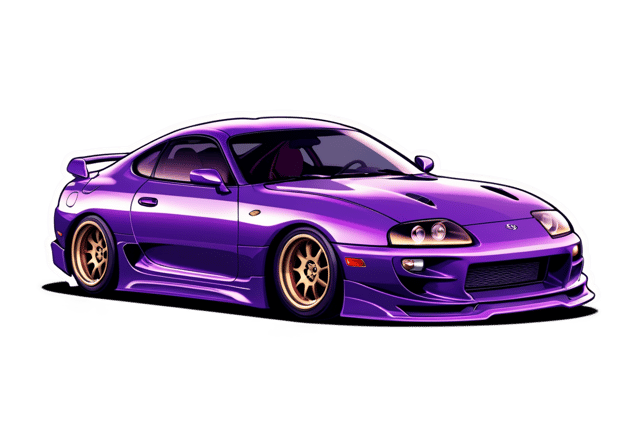
Square sticker mockup at 1080x1080 for LinkedIn post, professional tone, balanced text-to-visual ratio, brand-safe compositionInside the Sticker Mockup Engine: Key Capabilities
No Design Software Required
Create professional sticker mockups without Photoshop, Illustrator, or other design applications. The AI handles all technical production.
Instant Iterations
Generate multiple sticker mockup variations from a single prompt. Compare options and refine until the design matches your vision.
Layered Style Application
Combine sticker style with other design parameters in a single prompt. The AI interprets complex requests and applies multiple style constraints simultaneously.
Export Flexibility
Download your sticker mockup in formats suited for your use case. Web-optimized versions for digital display, high-DPI files for print.
Print-Ready Output
Generated sticker mockups are sized and structured for professional printing. Download high-resolution files ready for production.
Context-Aware Design
Describe your sticker mockup's purpose and audience. The AI adjusts visual weight, complexity, and clarity based on the intended use context.
The Path to Your Sticker Mockup: In Minutes
Draft the Concept
Write a prompt describing your sticker mockup. Include style preferences, color direction, the most important text to display, and any specific visual elements you want. The more specific your description, the more targeted the output.
Watch: Creating Sticker Mockup designs step by step
Core Ideas Behind Sticker Mockups: What Good Looks Like
The Fine Print on Sticker Mockups: What to Expect
Known limitations and trade-offs of AI-generated sticker design. Transparency matters when using AI for sticker mockup design. The points below describe where you may need to supplement AI output with manual work.
Sticker Mockup Prompts: Prompts Worth Trying
Copy any prompt below and paste it into Pixazo to generate your design instantly.
Editorial-style sticker mockup, text-dominant design, typographic treatment carries visual weight, layout proportions inspired by print publication designGeometric sticker mockup, structured grid system, angular composition, colors in blocks rather than gradients, modern clean finishLarge-format sticker mockup design, elements sized for visibility at print scale, no fine detail that would be lost in productionRefined sticker mockup, sophisticated color relationships, intentional whitespace, typefaces appropriate to sticker style, balanced compositionPortrait-orientation sticker mockup, vertical composition, headline at natural reading entry point, supporting information flows downward logicallyMonochromatic sticker mockup, single-hue palette with value variation for contrast, typographic hierarchy creates visual interest without color complexityAbout Sticker Mockups: Plain Answers
Generated designs that miss the mark usually need more specific prompts. Add details about the visual hierarchy you want, the feeling the sticker mockup should create, or specific elements to include or avoid. More context in the prompt produces more targeted output.
Brand kits let you save your logo, fonts, and color palette so every sticker mockup you generate stays on brand. Once configured, the AI applies your brand parameters automatically alongside sticker style conventions.
The AI renders text as specified in your prompt, so double-check spelling and punctuation before generating. If text renders incorrectly in a sticker mockup, adjust your prompt and regenerate. The AI follows your exact text input.
The AI recognizes sticker design as a distinct visual category with its own conventions. Specifying sticker style in your prompt triggers appropriate design decisions around color, typography, and composition rather than defaulting to generic poster layout.
Pixazo provides an API for programmatic sticker mockup generation. Integrate it into your content pipeline to automate design production at scale. API documentation covers authentication, prompt formatting, and output retrieval.
Professional sticker mockup design comes down to the right color relationships, appropriate typographic hierarchy, and compositional balance that fits sticker aesthetic conventions. Generic designs miss these details because they apply neutral defaults rather than style-specific decisions. Pixazo applies sticker design knowledge when you specify the style.

