Wall Art Mockup : Create Free Wall Art Mockups in Minutes with AI
Create Custom Wall Art Mockups Quickly with Pixazo Best AI Wall Art Mockup Maker. Try for Free!
Get Started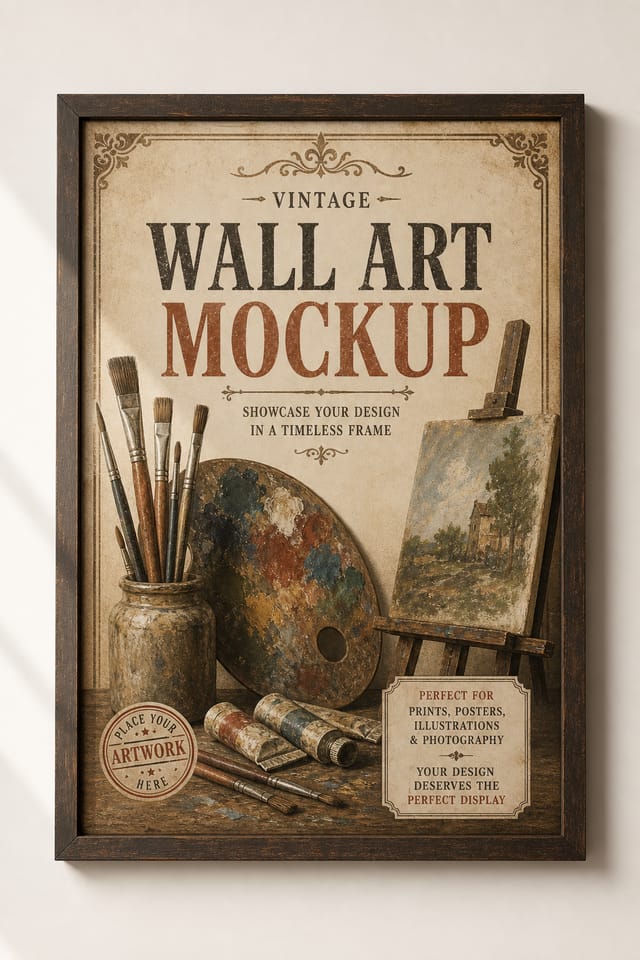
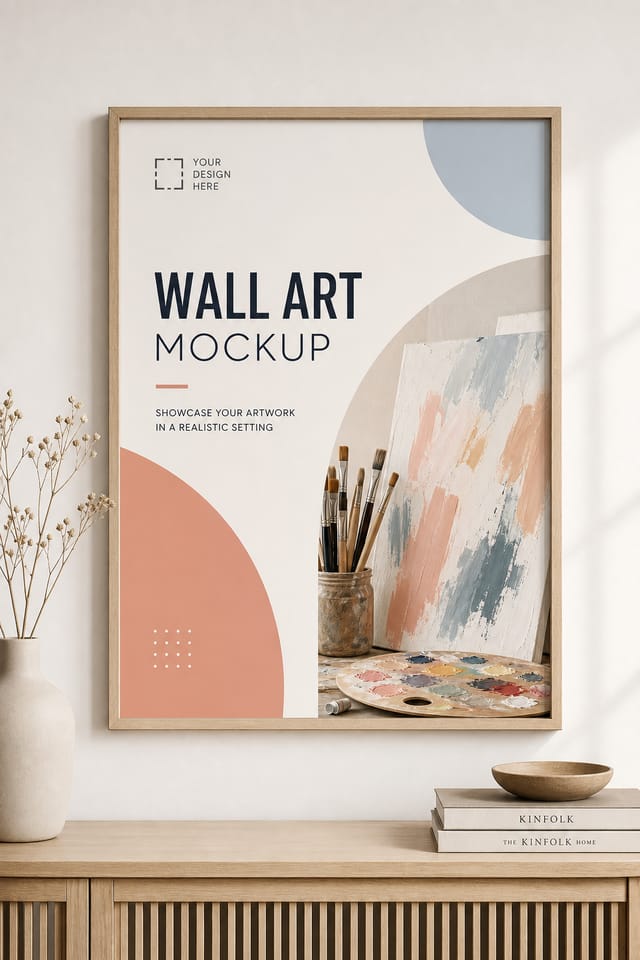
The Wall-Art Design Approach: Design Intelligence at Work
Design Intelligence for Wall-Art Mockups
Not all mockup design styles work the same way.
Wall-Art design has specific characteristics that distinguish it from other approaches: particular color affinities, compositional tendencies, and typographic conventions that trained designers recognize immediately.
Pixazo applies this style knowledge automatically.
When you request a wall-art mockup, the AI pulls from a visual vocabulary appropriate to wall-art design, producing output that reads correctly to anyone familiar with the style.
Build a Wall-Art Mockup: A Quick Guide
Lay Out the Concept
Start with a text description of your wall-art mockup concept. Specify the visual style, colors, layout direction, and key text. Detailed prompts produce more accurate wall-art mockup designs than general ones.
Score the First Draft
The AI produces a wall-art mockup based on your description. If the first result isn't exactly right, adjust the prompt to address what needs changing. Most designs reach the target within a few iterations.
Snag Your File
Download your completed wall-art mockup in the format that fits your use case. High-resolution files for print, web-optimized versions for digital, or PDF for production-ready delivery.
Watch: Creating Wall Art Mockup designs step by step
The Reach of Wall-Art Mockups: Use Case Roundup
Podcast and Media Branding
Generate wall-art mockups for podcast covers, episode artwork, and media channel identity. Consistent visual branding across audio and video platforms.
Small Business Marketing
Produce wall-art marketing mockups without a design agency budget. Get professional results from a text description.
Educational Materials
Design wall-art mockups for educational contexts. Courses, workshops, and learning materials benefit from the visual clarity of good wall-art design.
Wedding and Celebration Planning
Create wall-art mockups for invitations, signage, and event branding. Cohesive visual systems that carry a celebration's theme across every touchpoint.
Professional Projects
Create wall-art mockups for client work, commercial campaigns, and professional applications where quality and style accuracy matter.
Emerging Wall-Art Mockup Patterns: Styles Gaining Traction
Retro Revival
Vintage aesthetics from the 1970s and 1990s are influencing wall-art mockup design with textured backgrounds, serif fonts, and warm gradients.
Muted Earth Tones
Natural color palettes with warm neutrals and desaturated greens are replacing the bright neon trends of previous years in wall-art mockup work.
Minimalist Layouts
Stripped-back wall-art mockup designs with generous white space and limited elements are gaining favor for their clarity and elegance.
Bold Typography
Oversized type and expressive fonts are dominating wall-art mockup design, turning headlines into visual centerpieces rather than just text.
Asymmetric Composition
Breaking grid symmetry in wall-art mockup layouts creates visual tension and a modern, editorial feel that stands out.
What Powers Wall-Art Mockup Design: What It Can Do
Layered Style Application
Combine wall-art style with other design parameters in a single prompt. The AI interprets complex requests and applies multiple style constraints simultaneously.
Fast Generation
Complete wall-art mockup designs generate in seconds. No rendering queues, no waiting for batch processing.
Prompt Refinement
Adjust your description to refine any aspect of the wall-art mockup design. The AI responds to specific direction about colors, layout, or content.
Consistency Across Variants
Generate multiple wall-art mockups for a project and maintain visual consistency across the set. Specify your core design parameters and vary secondary elements.
Background Variation
Generate wall-art mockups with different background treatments. Solid, gradient, textured, or pattern backgrounds all available for wall-art style.
Compositional Structure
Layout and hierarchy decisions reflect wall-art design patterns. The proportions and arrangement match how wall-art designs are conventionally structured.
The Fundamentals of Wall-Art Mockup: The Essentials
Sample Wall-Art Mockup Prompt Examples
Copy any prompt below and paste it into Pixazo to generate your design instantly.
Professional wall-art mockup, minimalist wall-art approach, negative space used intentionally, readable at multiple viewing distances, print-ready compositionWall-Art aesthetic mockup, palette drawn from wall-art design tradition, layout proportions consistent with wall-art conventions, purposeful use of each elementTextured wall-art mockup, surface treatment adds depth without obscuring legibility, texture consistent with wall-art aestheticMonochromatic wall-art mockup, single-hue palette with value variation for contrast, typographic hierarchy creates visual interest without color complexityLarge-format wall-art mockup design, elements sized for visibility at print scale, no fine detail that would be lost in productionHigh-impact wall-art mockup, immediate visual read at thumbnail size, clear headline dominance, supporting information structured logicallyCurrent Wall-Art Mockup Limits: Realistic Expectations
Known limitations and trade-offs of AI-generated wall art design. Being specific about what AI mockup generation can and cannot do helps you plan your workflow and set accurate expectations.
Wall-Art Creator Community Showcase
Real creators sharing their wall art designs made with Pixazo AI.

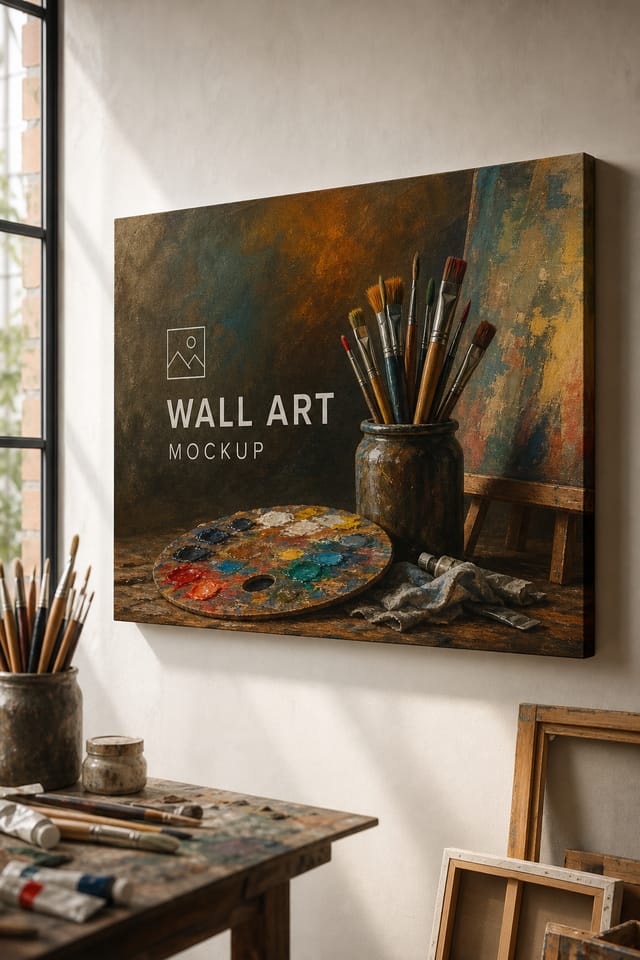
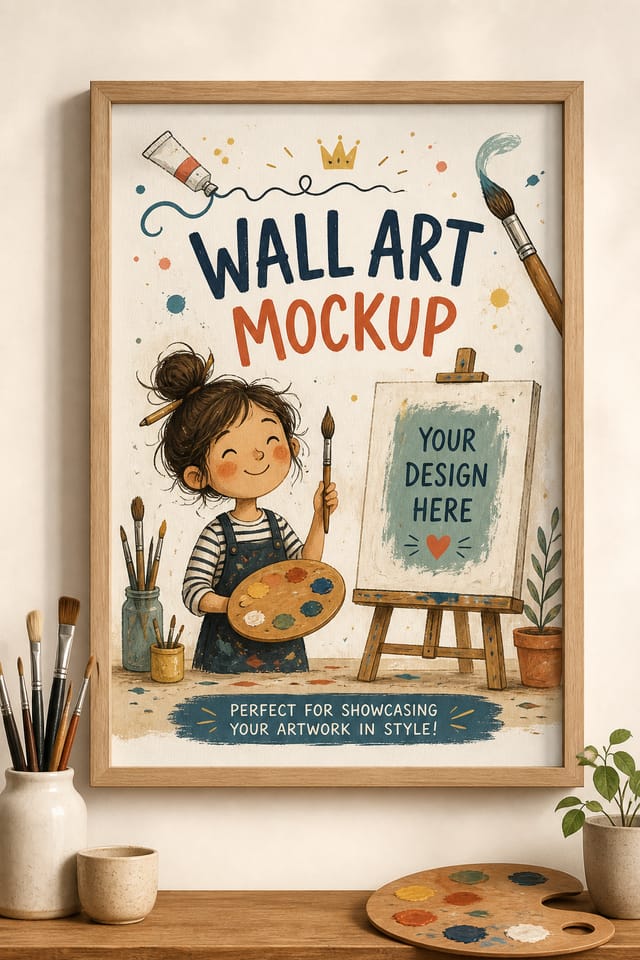
Handmade-feel wall-art mockup with brush stroke textures, imperfect edges, warm color palette, artisanal craft aesthetic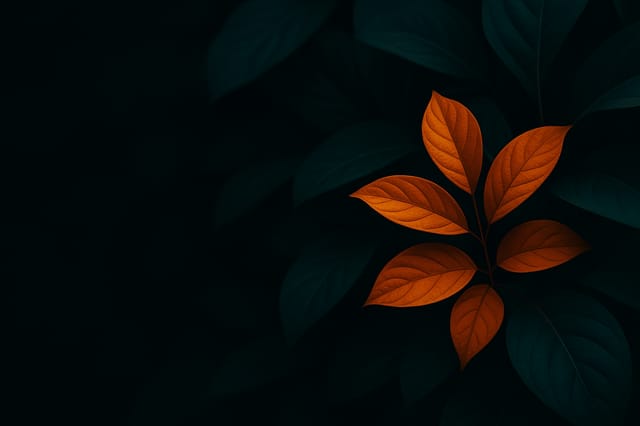
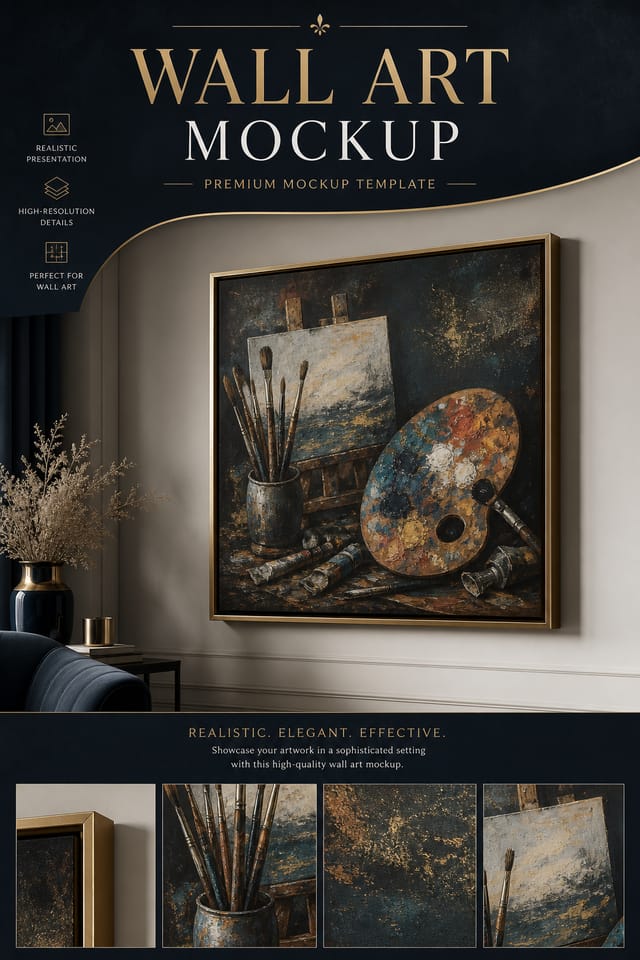
Luxurious wall-art mockup with gold foil accents on black, thin serif typography, symmetrical centered layout, premium feel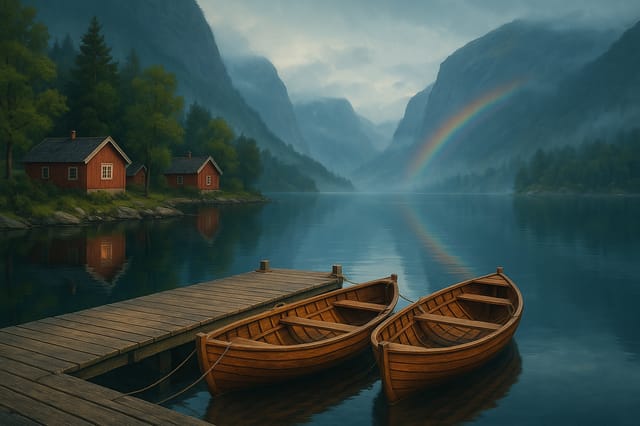
Warm palette wall-art mockup, ochre and brown tones, serif typography, traditional wall-art design reference, tactile feelingWall-Art Mockup Workflow Stages: Stages Explained
Research Gather references
Collect examples of effective wall-art mockup designs, note what works, and identify patterns relevant to your project goals.
Generate Create initial designs
Use AI to produce multiple wall-art mockup variations based on your brief. Start broad and narrow down from the strongest options.
Approve Final sign-off
Get stakeholder approval on the finished wall-art mockup. Verify all text is accurate and the design meets brand and technical requirements.
Review Evaluate and refine
Compare generated wall-art mockup options against your brief. Mark what works and note specific changes needed for the next iteration.
Wall-Art Mockup Dos and Don'ts: Dos and Don'ts
Keep the message focused
A strong wall-art mockup communicates one primary idea clearly. Supporting details should reinforce, not compete with, the main message.
Optimize for the display medium
Tailor your wall-art mockup resolution, color space, and text size to the specific platform or physical context where it will appear.
Maintain brand alignment
Keep your wall-art mockup design consistent with existing brand colors, fonts, and visual language for a cohesive identity.
Test with real content
Never finalize a wall-art mockup with placeholder text. Real copy often has different lengths and line breaks that affect the design.
Skip proofreading
Typos and grammatical errors on a wall-art mockup undermine credibility instantly. Always have someone else review the final text.
Use too many fonts
More than two or three typefaces in a single wall-art mockup creates visual noise and makes the design feel disjointed.
Forget the call to action
A wall-art mockup without a clear next step for the viewer is a missed opportunity. Always include direction on what to do next.
Overcrowd the layout
Filling every pixel of your wall-art mockup with content makes it harder to read and reduces the impact of every individual element.
Getting Started with Wall-Art Mockups: Key Things to Know
Individual wall-art mockups generate in seconds. For batch production, you can submit multiple prompts in sequence and download results as they complete. A series of ten wall-art mockup variations typically takes under five minutes total.
The AI recognizes wall-art design as a distinct visual category with its own conventions. Specifying wall-art style in your prompt triggers appropriate design decisions around color, typography, and composition rather than defaulting to generic poster layout.
Each generation uses your unique prompt text to produce a distinct wall-art mockup design. Even similar prompts produce noticeably different outputs due to the AI's generative process. No two users receive identical designs.
Include the target language in your prompt when generating wall-art mockups with non-English text. The AI selects typographic approaches appropriate for the language and applies wall-art design conventions to the overall layout regardless of language.

