Website Mockup : Create Free Website Mockups in Minutes with AI
Create Custom Website Mockups Quickly with Pixazo Best AI Website Mockup Maker. Try for Free!
Get Started
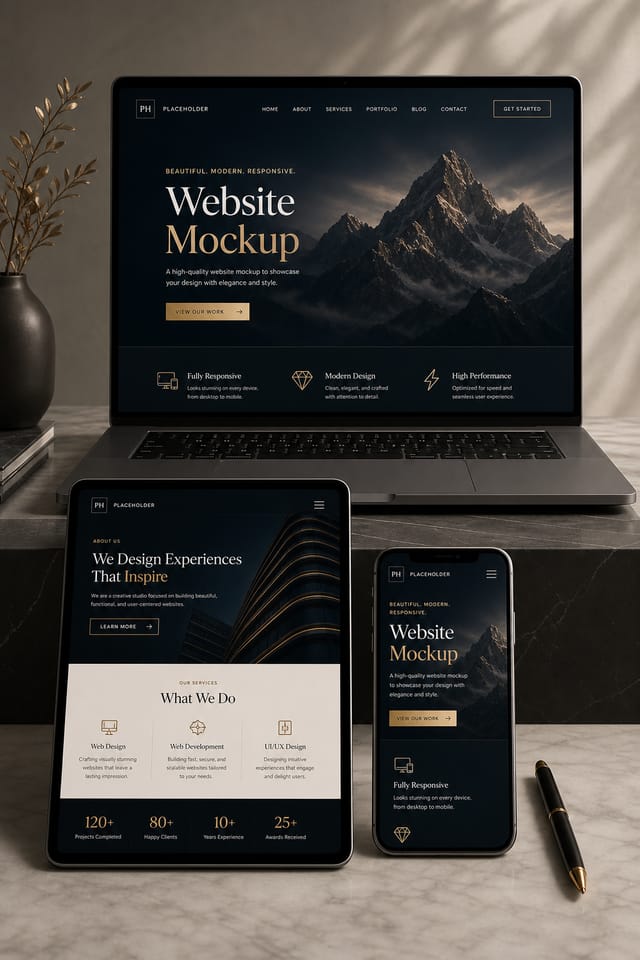
Which Website Mockup Tool Fits: Finding the Right Fit
| Tool | Description |
|---|---|
| Canva | Drag-and-drop editor with a large template library and collaboration features |
| Pixazo | AI-powered website mockup generator with prompt-based design and professional output quality |
| Snappa | Quick graphic creator focused on social media and marketing visuals |
| Desygner | Multi-format design tool with PDF editing and brand management |
| Crello | Template-based design tool with animation and video support |
Website Mockup AI Specs: Numbers That Matter
The Website Mockup Feature Set: Core Strengths
Color Temperature Control
Specify warm, cool, or neutral color direction for your website mockup. The AI builds the full palette around your temperature preference.
Compositional Structure
Layout and hierarchy decisions reflect website design patterns. The proportions and arrangement match how website designs are conventionally structured.
Context-Aware Design
Describe your website mockup's purpose and audience. The AI adjusts visual weight, complexity, and clarity based on the intended use context.
Layered Style Application
Combine website style with other design parameters in a single prompt. The AI interprets complex requests and applies multiple style constraints simultaneously.
Website Mockup Applications: Who Benefits Most
Event Promotion
Create website event mockups that establish the right visual mood before the event. Website design signals quality and sets expectations.
Healthcare and Wellness
Design website mockups for clinics, wellness centers, and health campaigns. Trustworthy visuals that communicate care and professionalism.
Small Business Marketing
Produce website marketing mockups without a design agency budget. Get professional results from a text description.
Retail and Hospitality
Produce website in-store and venue mockups that communicate quality through design. Website aesthetics signal attention to customer experience.
Sample Website Mockup Prompt Templates
Copy any prompt below and paste it into Pixazo to generate your design instantly.
Professional website mockup, minimalist website approach, negative space used intentionally, readable at multiple viewing distances, print-ready compositionWebsite aesthetic mockup, palette drawn from website design tradition, layout proportions consistent with website conventions, purposeful use of each elementClean website mockup design, geometric structure, disciplined typography, color accent used selectively for emphasis, printer-optimized resolutionWebsite style mockup, bold headline placement, supporting text at appropriate scale, color palette consistent with website design conventionsMonochromatic website mockup, single-hue palette with value variation for contrast, typographic hierarchy creates visual interest without color complexityWebsite Mockup Design Steps: The Simple Process
Express Your Design Idea
Write a prompt describing your website mockup. Include style preferences, color direction, the most important text to display, and any specific visual elements you want. The more specific your description, the more targeted the output.
Score the First Draft
Pixazo generates your website mockup in seconds. Review the design and adjust your prompt to refine specific elements: change the color palette, shift the layout weight, or add visual elements you want included.
Harvest the Result
Download your completed website mockup in the format that fits your use case. High-resolution files for print, web-optimized versions for digital, or PDF for production-ready delivery.
Website Mockup Specifications
Watch: Creating Website Mockup designs step by step
Website Mockup Workflow Stages: The Full Process
Generate
Use AI to produce multiple website mockup variations based on your brief. Start broad and narrow down from the strongest options.
Refine
Apply targeted edits to your selected website mockup. Adjust typography, spacing, and color until every element meets your quality standard.
Export
Export your website mockup in the required formats and resolutions. Organize deliverables for handoff to the production or publishing team.
Review
Compare generated website mockup options against your brief. Mark what works and note specific changes needed for the next iteration.
Design Standards for Website Mockup: What to Aim For
Alignment and Grid
Strong website mockup layouts align elements to an invisible grid. Consistent alignment builds trust and professionalism, while deliberate breaks from the grid create emphasis.
Texture and Depth
Subtle texture in website mockup design adds visual interest without competing with content. Surface treatments create depth and suggest quality when used sparingly.
Repetition and Consistency
Repeating visual elements in website mockup design creates cohesion. Consistent use of shapes, colors, and spacing makes the design feel unified rather than assembled from random parts.
Website Makers: Designs Worth Seeing
Real creators sharing their website designs made with Pixazo AI.
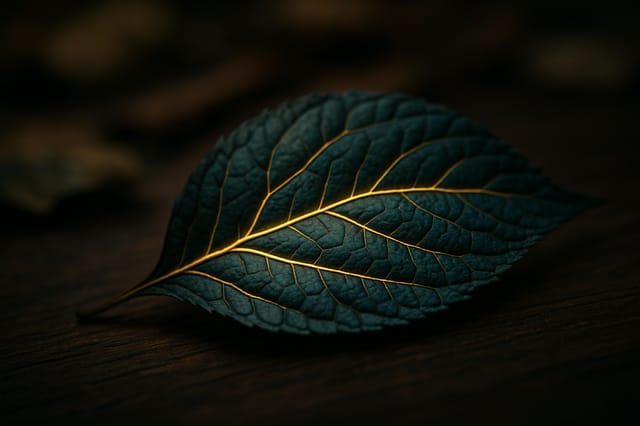
Eco-friendly themed website mockup, natural green and kraft tones, organic shapes, sustainability messaging, handcrafted aesthetic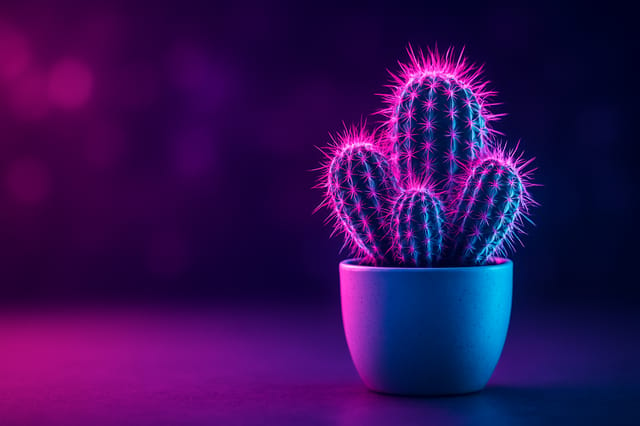
Geometric website mockup design, angular composition, color in blocks, structured grid, no decorative flourishes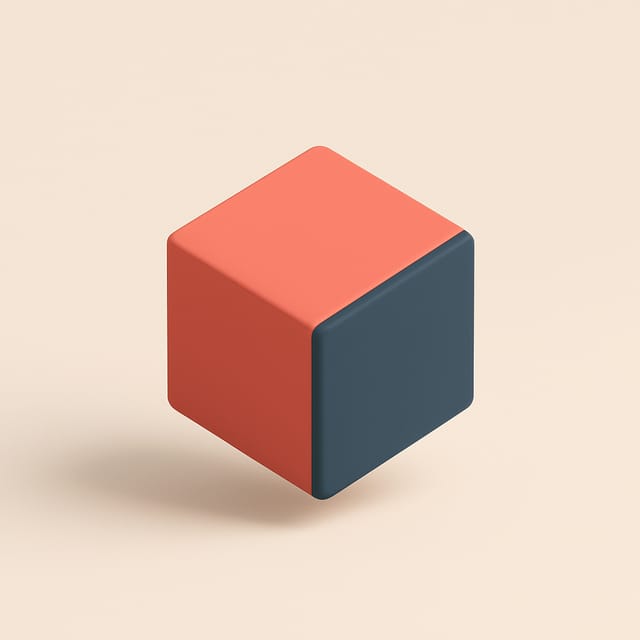
Cool palette website mockup, slate and steel tones, sans-serif typography, contemporary website sensibility, precise alignmentWorking with Website Mockup AI: What It Cannot Do
Known limitations and trade-offs of AI-generated website design. Being specific about what AI mockup generation can and cannot do helps you plan your workflow and set accurate expectations.
Website Mockup Maker: Common Questions Answered
Generate your initial website mockup, review the output, then modify your prompt to adjust specific elements. Each regeneration produces a fresh design incorporating your changes. Most users reach their final website mockup design within two to four iterations.
Canva uses fixed templates you customize manually. Pixazo generates original website mockup designs from your description, so every output is unique. For website work specifically, the AI applies style-specific design decisions rather than offering generic drag-and-drop templates.
Pixazo generates single-page website mockup designs per prompt. For multi-page projects, generate each page individually using consistent prompt language to maintain visual continuity across your website document set.
Adjust your prompt to change any element of the design. If a generated website mockup is close but not quite right, describe what you want changed and regenerate. The AI responds to specific direction about individual elements like color, layout, or typographic weight.

