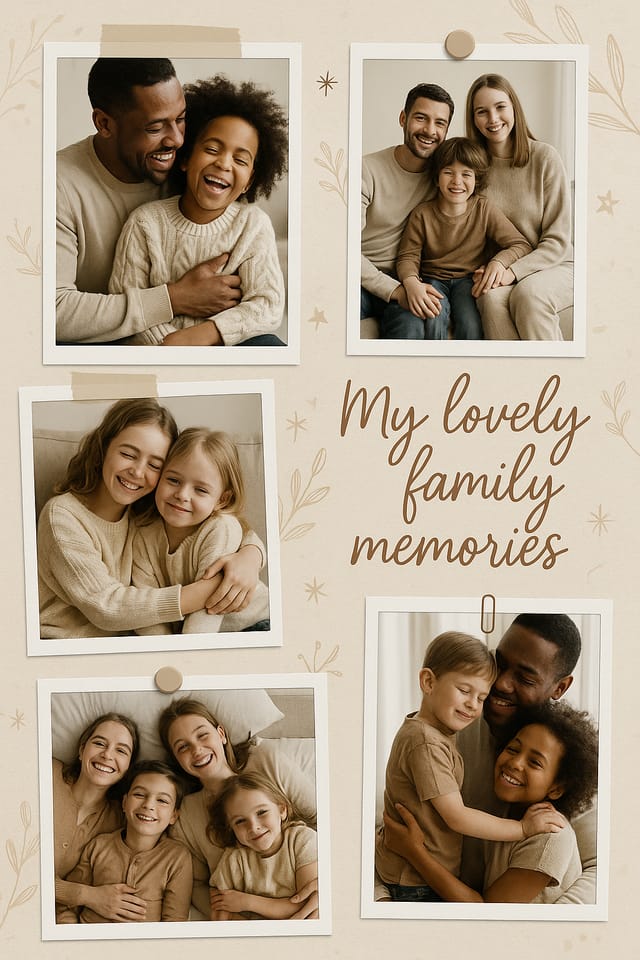
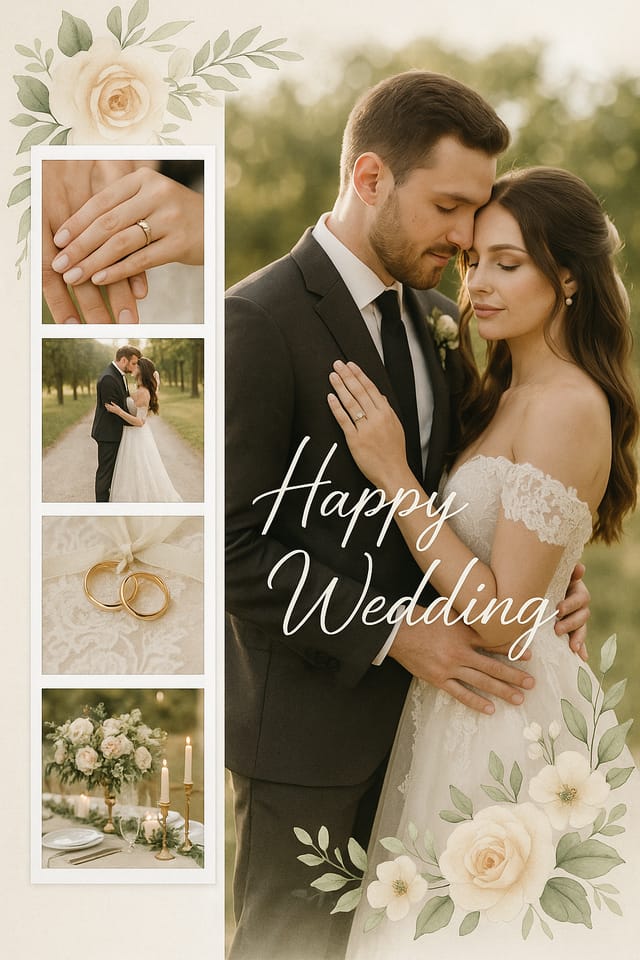
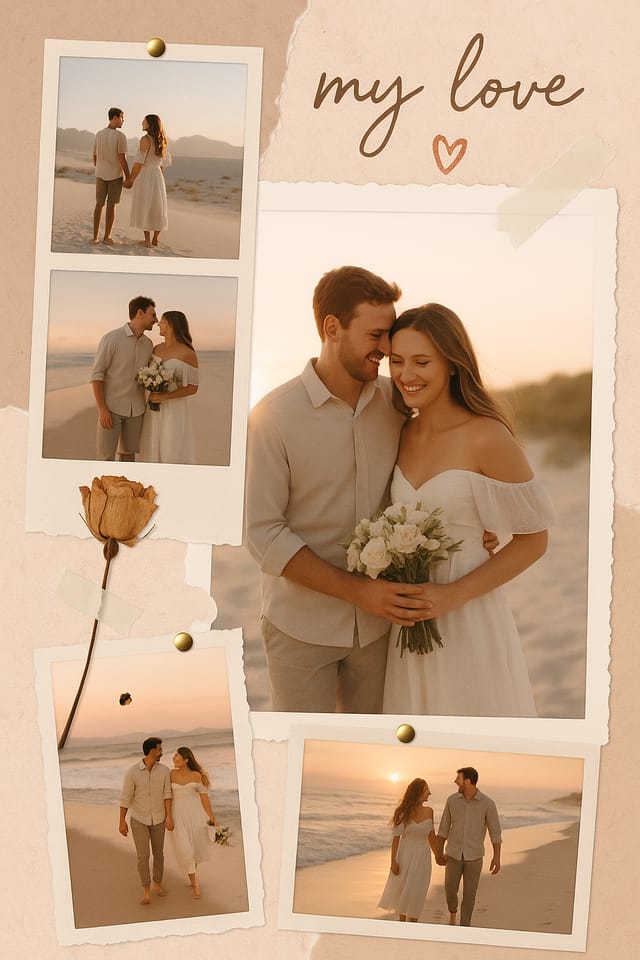
Montage Photo Collage : Create Free Montage Photo Collages in Minutes with AI
Create Custom Montage Photo Collages Quickly with Pixazo Best AI Montage Photo Collage Maker. Try for Free!
Get Started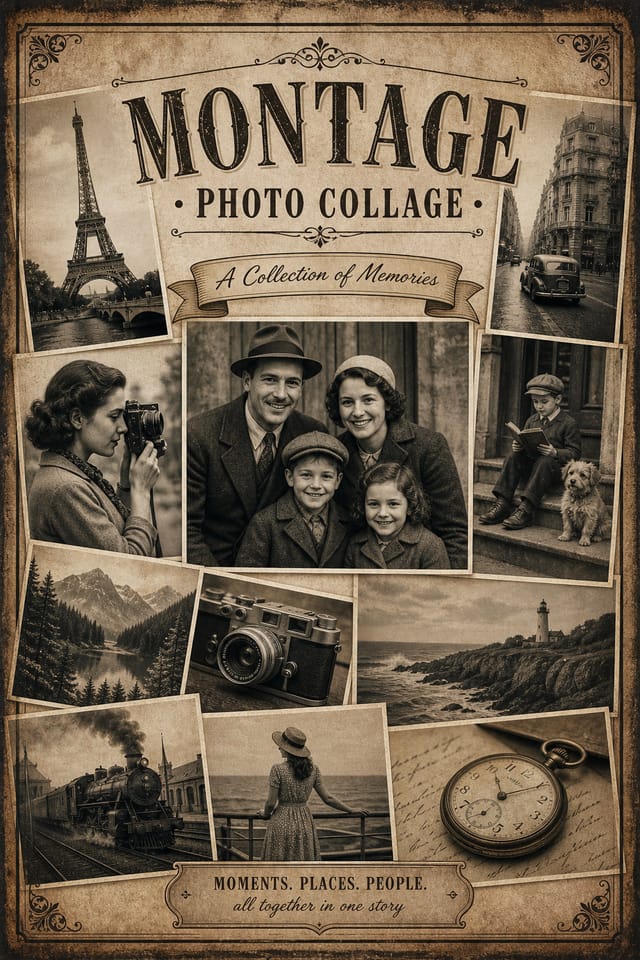
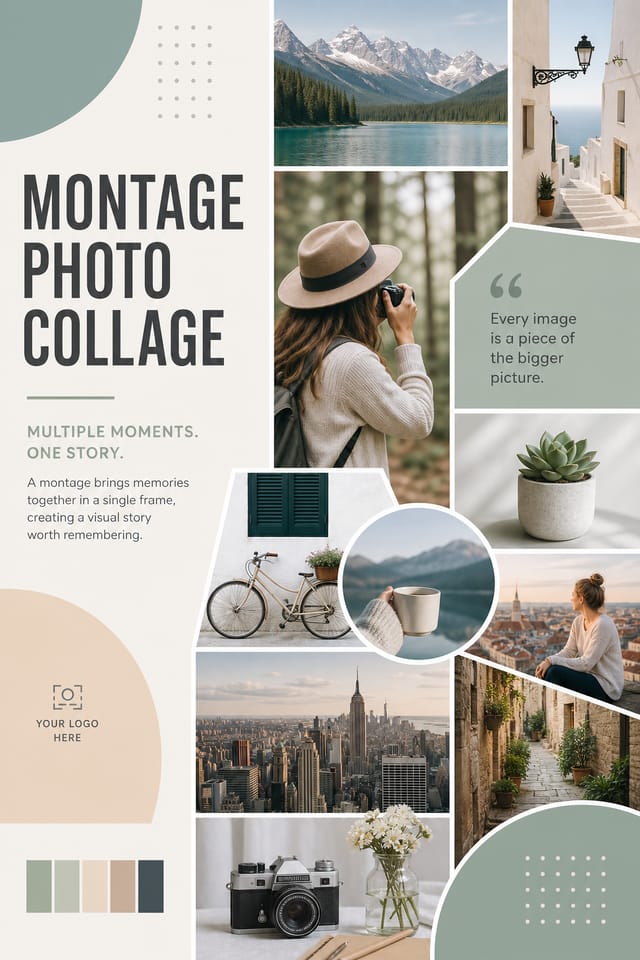
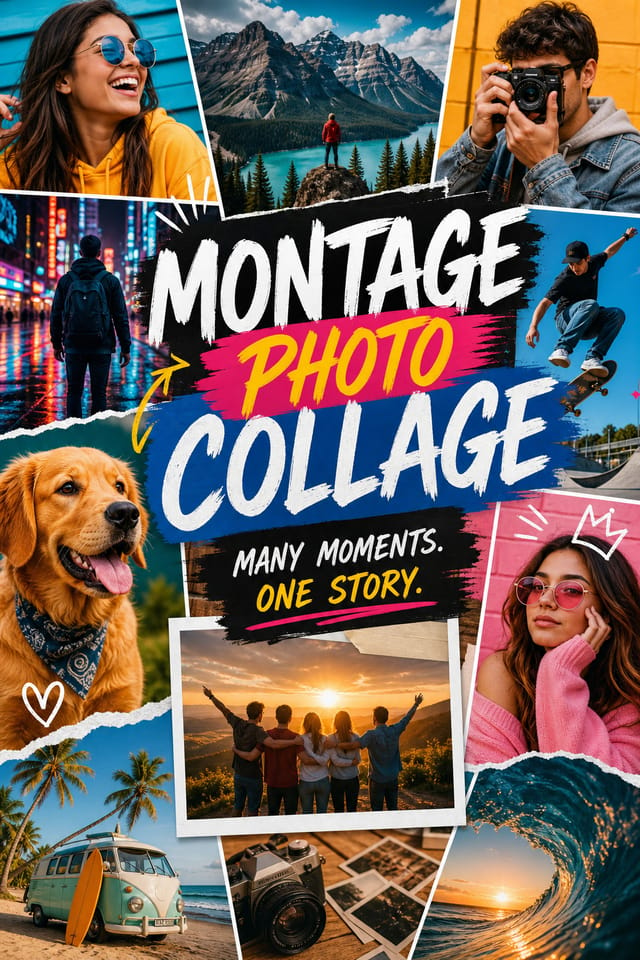
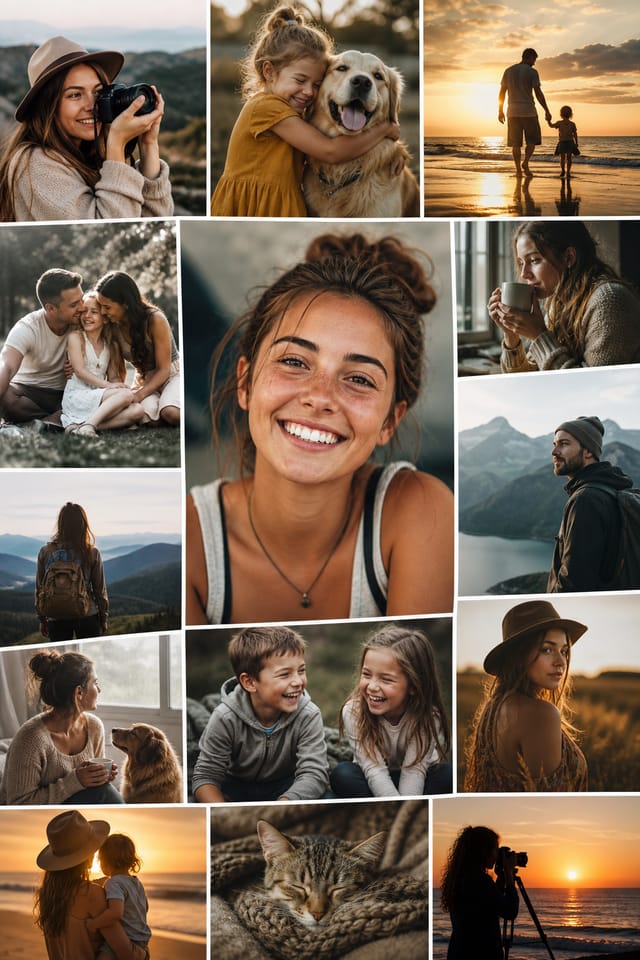
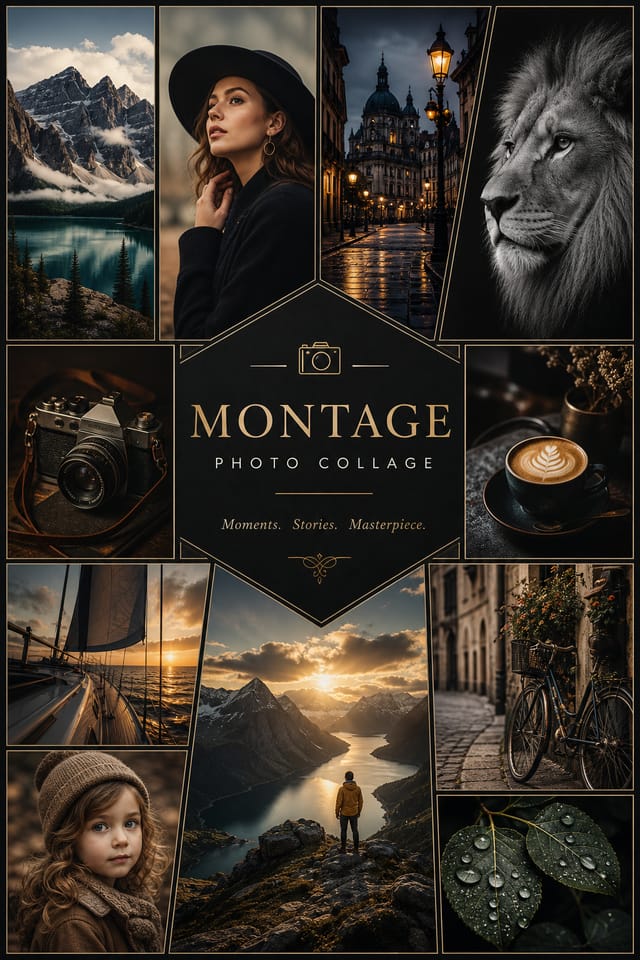
The Range of Montage Styles: Style Breakdown
High-Contrast Montage
Bold montage visual treatment with strong tonal contrast. Elements read clearly at any viewing distance.
Editorial Montage
Text-dominant montage photo-collage layout inspired by print publication design. Typographic variety creates visual rhythm.
Classic Montage
Traditional montage design principles applied to modern photo-collage format. Clean composition, conventional hierarchy, time-tested visual decisions.
Minimalist Montage
Stripped-back montage approach. Fewer elements, more negative space, typography carries more visual weight.
Geometric Montage
Structured montage composition using grid systems and angular forms. Order and precision define the visual approach.
Montage Photo-Collage AI: Core Strengths
Negative Space Handling
The AI manages whitespace in montage photo-collage designs according to montage aesthetic conventions, not generic poster defaults.
Subcategory Awareness
The AI distinguishes between design subcategories. A montage photo-collage request produces montage-appropriate output, not a generic design with montage text added.
Export Flexibility
Download your montage photo-collage in formats suited for your use case. Web-optimized versions for digital display, high-DPI files for print.
No Design Software Required
Create professional montage photo-collages without Photoshop, Illustrator, or other design applications. The AI handles all technical production.
Exporting Your Montage Photo-Collage: File Types and Uses
Print-ready format for montage photo-collage files that preserves fonts, colors, and layout across different devices and print services.
TIFF
High-fidelity format for montage photo-collage files destined for professional printing, supporting CMYK color and lossless compression.
WEBP
Modern web format offering smaller file sizes than PNG or JPG for montage photo-collage images without significant quality loss.
PNG
Lossless image format ideal for montage photo-collage designs with transparency, sharp text, and web display at predictable file sizes.
Montage Photo-Collage Design For: Across Industries
Mockup Presentations
Create montage photo-collages placed within realistic mockup contexts. Show clients how designs look on physical products, screens, and environments.
Promotional Stickers and Decals
Design montage photo-collages for die-cut stickers, bumper stickers, and promotional decals. Bold designs that read clearly on any surface.
Event Badges and Credentials
Create montage photo-collages for conference badges, VIP passes, and staff credentials. Designs that combine branding with functional clarity.
Merchandise and Product Labels
Design montage photo-collages for product packaging, jar labels, and retail stickers. Print-ready output that works at physical production scale.
From Prompt to Montage Photo-Collage: The Creation Flow
Provide the Details
Start with a text description of your montage photo-collage concept. Specify the visual style, colors, layout direction, and key text. Detailed prompts produce more accurate montage photo-collage designs than general ones.
Evaluate the Result
Pixazo generates your montage photo-collage in seconds. Review the design and adjust your prompt to refine specific elements: change the color palette, shift the layout weight, or add visual elements you want included.
Course-Correct the Design
Iterate on your montage photo-collage by modifying the aspects that need work. Regenerate with a more targeted prompt until the design matches your vision. Most refinements take one or two iterations.
Collect Your Design
Download your completed montage photo-collage in the format that fits your use case. High-resolution files for print, web-optimized versions for digital, or PDF for production-ready delivery.
Watch: Creating Montage Photo Collage designs step by step
Results with Montage Photo-Collage AI: Key Metrics
Full commercial usage rights for all generated montage photo
Full commercial usage rights for all generated montage photo-collages
From initial prompt to finished montage photo-collage in a s
From initial prompt to finished montage photo-collage in a simple workflow
Generate montage photo-collage designs at no cost with the f
Generate montage photo-collage designs at no cost with the free plan
Montage Photo-Collage Generation: Known Limitations
Known limitations and trade-offs of AI-generated montage design. AI montage photo-collage generation produces strong results within its design domain. These notes describe where human judgment and manual work remain necessary.
Montage Photo-Collage Starter Prompt Techniques
Copy any prompt below and paste it into Pixazo to generate your design instantly.
High-impact montage photo-collage, immediate visual read at thumbnail size, clear headline dominance, supporting information structured logicallyFull-bleed montage photo-collage, background treatment extends to edges, foreground elements positioned for compositional balance, strong central hierarchyPortrait-orientation montage photo-collage, vertical composition, headline at natural reading entry point, supporting information flows downward logicallyGeometric montage photo-collage, structured grid system, angular composition, colors in blocks rather than gradients, modern clean finishMontage photo-collage for digital display, optimized proportions for screen viewing, colors calibrated for RGB output, legible at typical viewing distanceMontage photo-collage with strong visual hierarchy, largest element reads clearly, supporting elements organized by importance, clean background treatmentMontage Photo-Collage Style Movements: Design Movements
Motion-Ready Design
Static montage photo-collage designs are being created with animation in mind, using layered elements that translate smoothly to motion graphics.
Muted Earth Tones
Natural color palettes with warm neutrals and desaturated greens are replacing the bright neon trends of previous years in montage photo-collage work.
Brutalist Design
Raw, intentionally unpolished montage photo-collage aesthetics with stark contrasts and unconventional layouts are carving a niche in creative industries.
Hand-Drawn Elements
Illustrations, doodles, and hand-lettering bring a personal, approachable quality to montage photo-collage designs in an era of polished digital output.
Minimalist Layouts
Stripped-back montage photo-collage designs with generous white space and limited elements are gaining favor for their clarity and elegance.
Data-Driven Visuals
Incorporating charts, statistics, and structured data directly into montage photo-collage layouts helps communicate complex messages at a glance.
New to Montage Photo-Collages? Plain Answers
Pixazo provides an API for programmatic montage photo-collage generation. Integrate it into your content pipeline to automate design production at scale. API documentation covers authentication, prompt formatting, and output retrieval.
You can generate as many variations as your account tier allows. Refine your prompt with each iteration to move toward your target design. Most users find the right direction within three to five generations.
Canva uses fixed templates you customize manually. Pixazo generates original montage photo-collage designs from your description, so every output is unique. For montage work specifically, the AI applies style-specific design decisions rather than offering generic drag-and-drop templates.
Describe your core design parameters in each prompt and vary only the specific elements that should change across the series. Maintaining consistent color palette, typographic approach, and compositional structure across montage photo-collage variations creates a coherent series.
Include your specific colors in the prompt, either by hex code or descriptive terms. 'Navy and copper with white text' or '#1a1a2e and #c9a84c palette' both work. The AI builds a montage-appropriate palette around your specified colors.
Specify the dimensions in your prompt. Common formats like A3, 18x24 inches, or 1080x1920 pixels for social media stories all work. The AI generates a montage photo-collage composition appropriate for the specified aspect ratio and use case.
Community Montage Photo-Collage: Community Creations
Real creators sharing their montage designs made with Pixazo AI.