10 Best AI Image Inpainting/Replacer Tools to Edit Photos Like a Pro in 2026
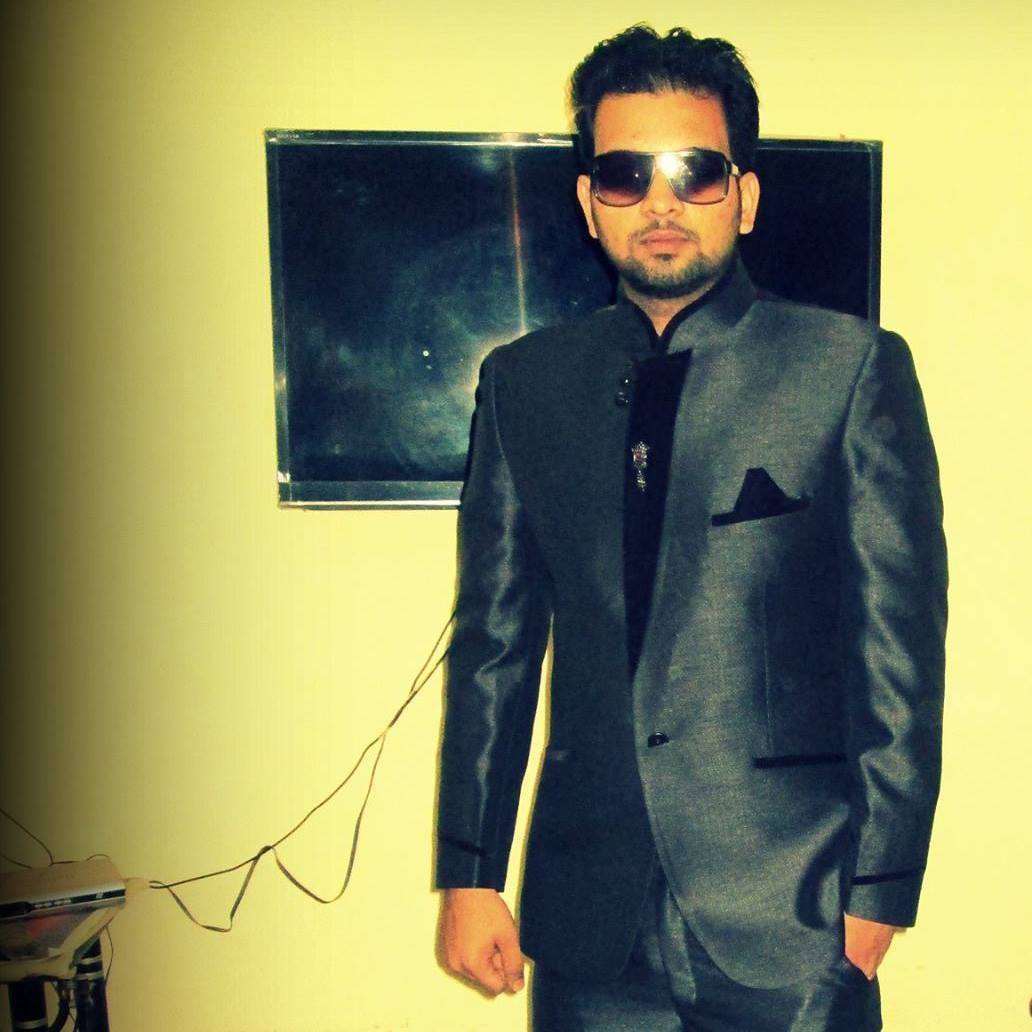

AI image inpainting has split into two distinct use cases: precise region editing for professional production workflows, and creative generative fill for ideation and content creation. The tools on this list reflect that split. Some are built specifically for e-commerce and product photography. Others are designed for designers who need to iterate fast. A few require engineering resources to deploy. Knowing which category you fall into narrows the choice significantly — and if you would rather build inpainting into your own product than move between tools, the Image Generation API exposes the same editing capability programmatically.
Tools Covered
Adobe Firefly Generative Fill Best for Enterprise
Adobe Firefly Generative Fill is the only inpainting tool on this list trained exclusively on licensed content. Every other model here was trained on scraped web data, which creates legal exposure that matters in agency and enterprise contexts. Firefly eliminates that exposure by design: Adobe indemnifies commercial users against IP claims arising from generated outputs, a guarantee that no other tool on this list offers.
The practical inpainting quality is strong across object removal, background extension, and element replacement. It handles complex edge cases — removing a person from a crowd, extending a product shot beyond its original frame, replacing a sky while preserving foreground lighting — with consistency that reflects its training on professional stock photography. The integration into Photoshop as a native panel means it fits directly into existing design workflows without context switching or API setup.
The constraints are real: Firefly enforces content policy restrictions that affect some advertising and fashion use cases. Generation speed through the web interface is acceptable but not real-time. And the per-output cost structure at scale makes it expensive compared to self-hosted alternatives. For agencies handling client work in regulated industries — financial services, healthcare, consumer brands with compliance teams — Firefly’s indemnification makes it the correct choice regardless of unit cost.
Key Specifications
| Training Data | Adobe Stock, licensed content only |
| IP Indemnification | Yes — full commercial indemnification on paid plans |
| Integration | Photoshop native, Firefly web app, API (beta) |
| Output Resolution | Up to 2048×2048 standard |
Strengths
- Only tool with IP indemnification — correct choice for enterprise and agency work
- Photoshop native integration removes workflow friction for design teams
- Consistent results on product photography and editorial use cases
Limitations
- Content policy restrictions affect some advertising and fashion outputs
- Expensive at scale compared to self-hosted or API-based alternatives
- Not designed for real-time iteration — no live canvas preview
FLUX.1 Fill (Black Forest Labs) Open Source
FLUX.1 Fill is the current state-of-the-art open-weight inpainting model. Black Forest Labs released it as a direct answer to the quality gap between API-based tools and what production teams actually needed for complex edits. The architectural improvement over earlier diffusion inpainting models is measurable: FLUX.1 Fill maintains better structural coherence across mask boundaries, handles large masked regions without the “diffusion smear” artifact common in older models, and follows text prompts more precisely when describing what should fill the masked area.
The practical difference shows up most clearly on hard cases: replacing a background while a model is mid-motion, filling a large irregular mask in an architectural rendering, or extending an image beyond its original frame in a direction that requires the model to reason about perspective. FLUX.1 Fill handles these with noticeably fewer retry cycles than its predecessors.
Access is either through self-hosting (requiring 24GB+ VRAM for the full model) or through third-party API wrappers. It is not available through a first-party consumer interface with native mask drawing tools — you need to bring your own UI or use ComfyUI. For teams with ML infrastructure, this is the highest-quality inpainting available today. For teams without it, the setup cost is prohibitive.
Key Specifications
| Architecture | FLUX Diffusion Transformer with inpainting conditioning |
| License | FLUX.1 Fill [dev] — non-commercial; [pro] via API |
| Min VRAM (local) | 24GB for full model; quantized variants at 12–16GB |
| Ecosystem | ComfyUI, Diffusers, A1111 (via plugin) |
Strengths
- Best structural coherence at mask boundaries of any model on this list
- Handles large irregular masks without artifacts that plague older models
- Strong text-prompt adherence for describing replacement content
Limitations
- High VRAM requirements — self-hosting is not viable on consumer hardware without quantization
- No native mask drawing UI — requires ComfyUI or similar front-end
- Commercial license is separate from the dev weights
Pixazo AI Inpainting API + Web
Pixazo AI Inpainting is built for developer workflows and product teams that need inpainting as one capability among several — not as a standalone tool. The REST API returns results alongside the platform’s image generation and editing endpoints, so teams building applications do not need separate integrations and API keys for each capability. One key covers generation, inpainting, style transfer, and upscaling.
The inpainting quality sits between Firefly and self-hosted FLUX.1 Fill on most benchmarks. For e-commerce product editing, background replacement, and object removal in well-lit studio images, it produces results that are production-ready without manual cleanup. Complex natural scenes with irregular lighting or significant texture detail occasionally require retries, which is typical of API-based inpainting at this level.
The web interface at the Pixazo inpainting generator provides mask drawing tools without requiring any setup, which makes it accessible for non-technical teams who need occasional inpainting alongside other design tasks. The combination of accessible web interface and clean API makes Pixazo a practical middle ground between Firefly’s enterprise focus and FLUX.1 Fill’s infrastructure requirements.
Key Specifications
| Access | REST API + web interface |
| API Endpoint | Unified with image generation endpoints |
| Use Cases | Object removal, background replacement, product editing |
| Infrastructure | Fully managed — no GPU required |
Strengths
- Unified API covers inpainting alongside generation and editing — one integration
- Web interface with mask tools for non-technical users
- No infrastructure management — serverless inpainting at scale
Limitations
- Complex natural scenes with irregular lighting require more retries than self-hosted FLUX.1
- Less output customization than fine-tuned Stable Diffusion pipelines
Stable Diffusion Inpainting Open Source
Stable Diffusion’s inpainting pipeline remains the most customizable option on this list. The combination of open weights, dedicated inpainting model variants, ControlNet conditioning for pose and structure preservation, and thousands of community fine-tunes means you can build a pipeline that performs exceptionally well on a specific, narrow use case — better than any general-purpose API for that specific task.
The most production-relevant application is e-commerce: a fine-tuned SD inpainting model trained on your product photography style, your lighting conditions, and your composition standards will outperform any API model on your specific product catalog. The investment is the fine-tuning pipeline itself — DreamBooth or LoRA training on 50–200 representative images, deployed behind a ComfyUI or Diffusers inference endpoint. Once built, it runs at any scale.
The base model quality without fine-tuning has fallen behind FLUX.1 Fill for complex inpainting tasks. The case for Stable Diffusion is not the base model — it is the fine-tuning ecosystem and the ability to own a model that no third-party API provider can deprecate or reprice.
Key Specifications
| Key Models | SD 1.5 Inpainting, SD XL Inpainting, SD 3.5 Inpainting |
| License | Stability AI Community License (commercial requires agreement) |
| Min VRAM (local) | 6GB for SD 1.5; 16GB for SDXL; 24GB for SD 3.5 |
| Fine-tuning | DreamBooth, LoRA, full fine-tune on custom data |
Suggested Read: Best AI Cartoon Generator Tools in 2026: A Clear Overview
Strengths
- Most customizable — fine-tune on your own data for use-case-specific performance
- Largest community ecosystem with domain-specific fine-tunes available
- Self-hostable for data privacy compliance
Limitations
- Base model quality trails FLUX.1 Fill for complex inpainting without fine-tuning
- Requires ML engineering to deploy and maintain
- Commercial license requires separate agreement with Stability AI
GPT Image 1.5 (OpenAI)
GPT Image 1.5’s inpainting mode is the strongest option for text-driven editing — cases where the instruction to the model is complex and needs to be followed precisely. “Replace the background with a sunset over a mountain range while keeping the foreground shadows consistent” is the kind of multi-clause instruction where GPT Image 1.5 outperforms every other model on this list. The model’s strength in instruction-following extends directly to its inpainting behavior.
The practical limitation is the mask drawing interface, which is minimal in the current API and requires separate tooling for precise selections. The output resolution caps out at 1024×1024 through the standard API, which is limiting for print and high-DPI production workflows. The rate limits and per-image cost also make GPT Image 1.5 expensive for high-volume inpainting compared to self-hosted alternatives.
For teams already using GPT Image 1.5 for generation, adding inpainting through the same integration is straightforward. For teams building a dedicated inpainting pipeline from scratch, it is not the first choice — but it is the correct choice when prompt complexity is the bottleneck.
Suggested Read: GPT Image 2.5 Prompt Guide: How to Write Prompts That Get the Image You Want
Key Specifications
| Input | Image + mask + text prompt via API |
| Strength | Complex multi-clause instructions, instruction-following accuracy |
| Output Resolution | 1024×1024 standard |
| Access | OpenAI API (images.edit endpoint) |
Strengths
- Best instruction-following for complex multi-clause editing prompts
- Simple API integration for teams already using GPT Image 1.5
- Strong understanding of spatial relationships and contextual instructions
Limitations
- Output capped at 1024×1024 — not suitable for print or high-DPI workflows
- Expensive at scale relative to self-hosted alternatives
- Rate limits restrict high-throughput production use
Krea.ai
Krea.ai occupies a specific niche: real-time generative fill for designers who need to iterate fast during the creative ideation phase. The canvas updates in near-real-time as you paint the mask and adjust the prompt, which eliminates the generation-review-regenerate cycle that slows iteration with other tools. For concept work, style exploration, and early-stage design where speed of iteration matters more than output precision, Krea is the fastest tool on this list.
The trade-off is that Krea’s inpainting is optimized for creative speed rather than production accuracy. Edge handling is softer than Firefly or FLUX.1 Fill. Large masks with complex content requirements produce less predictable results. For final production assets in e-commerce or advertising, you will need a different tool. Krea’s value is in the exploration phase — getting to a direction quickly before switching to a higher-precision tool for final output.
Suggested Read: 10 Best AI Flyer Generator Tools in 2026
Key Specifications
| Interface | Real-time canvas with live generation preview |
| Use Case | Creative ideation, concept exploration, fast iteration |
| Access | Web app + API (limited) |
| Generation Mode | Near-real-time (sub-2s on standard masks) |
Strengths
- Fastest iteration loop — real-time canvas updates eliminate regeneration wait times
- Strong for early-stage concept exploration and direction-finding
- Clean interface with no engineering setup required
Limitations
- Edge precision lower than Firefly and FLUX.1 Fill
- Less predictable on large masks with complex content requirements
- Not optimized for high-volume production workflows
Suggested Read: Color Mixer: How to Mix Paint Colors Digitally and Build Perfect Palettes
Runway Gen-4 Inpainting
Runway is the only tool on this list with a native video inpainting workflow. The Gen-4 inpainting feature can fill masked regions across video frames — useful for removing objects from footage, replacing video backgrounds, or editing out production artifacts from video content. For teams working in video production, this is a capability that no other tool on this list provides.
For static image inpainting, Runway’s quality is competitive with mid-tier tools but does not match the best-in-class options. The practical reason to use Runway for static images is if you are already in a video production workflow and need occasional static frame edits without switching to a different tool. Otherwise, the purpose-built inpainting tools on this list produce better results for image-only workflows.
Key Specifications
| Unique Feature | Video frame inpainting across temporal sequence |
| Access | Web app + Runway API |
| Output Formats | Images and video clips |
| Commercial Use | Yes on paid plans |
Strengths
- Only tool on this list with native video frame inpainting capability
- Useful for video production workflows — remove objects from footage without external tools
- Clean web interface accessible without engineering setup
Limitations
- Static image inpainting quality does not match Firefly or FLUX.1 Fill
- Best justified for video production contexts, not standalone image editing
Suggested Read: Pixazo AI Photo Edit: 10 Prompts to Transform Your Dandiya, Garba Or Durga Puja Look
Which AI Inpainting Tool Should You Use?
The decision hinges on three questions: Do you need IP indemnification? Do you need an API or a managed interface? And how complex are your masking requirements?
| Your Goal | Best Tool | Why |
|---|---|---|
| Enterprise/agency with IP indemnification required | Adobe Firefly | Only tool with commercial indemnification |
| Maximum inpainting quality on complex edits | FLUX.1 Fill | Best structural coherence at mask boundaries |
| API integration for developer product workflows | Pixazo AI Inpainting | Unified API, no infrastructure management |
| Custom fine-tuned pipeline on proprietary data | Stable Diffusion | Only option with full fine-tuning control |
| Complex multi-clause text-driven editing | GPT Image 1.5 | Best instruction-following accuracy |
| Fast creative iteration and concept exploration | Krea.ai | Real-time canvas — fastest iteration loop |
| Video production with frame-level object removal | Runway Gen-4 | Only tool with native video inpainting |
Use Inpainting Directly Through the Pixazo API
The Pixazo inpainting API accepts a source image, a mask, and a prompt — and returns a production-ready edited image. No GPU infrastructure required. One API key covers inpainting alongside generation, style transfer, and upscaling.
Suggested Read: Introducing the Recraft V4.1 Flash API on Pixazo API
Frequently Asked Questions About AI Image Inpainting
What is AI image inpainting?
AI image inpainting is the process of filling a masked or removed region of an image with AI-generated content that matches the surrounding context. Unlike simple cloning or texture-fill tools, modern diffusion-based inpainting models can generate semantically meaningful content — replacing a person with a plausible background, swapping one object for another, or extending an image beyond its original frame. The mask defines the region to be filled; the model generates content consistent with the unmasked areas and, on most tools, a text prompt describing what should fill the region.
Which AI inpainting tool has the best quality?
FLUX.1 Fill currently produces the best raw inpainting quality for complex tasks — particularly on large masks, irregular shapes, and cases where structural coherence across the mask boundary is critical. For specific production contexts, Adobe Firefly Generative Fill produces more consistent results on licensed photography use cases, and Stable Diffusion with domain-specific fine-tuning can outperform both on narrow, well-defined tasks where training data is available.
Can AI inpainting be used commercially?
Most tools on this list permit commercial use on paid plans. Adobe Firefly is the only tool with explicit IP indemnification, making it the lowest-risk choice for enterprise and agency use. Pixazo, Krea.ai, and Runway all allow commercial use through their paid tiers. Stable Diffusion and FLUX.1 Fill require reviewing the applicable license for commercial use — Stability AI requires a commercial license agreement, and FLUX.1 Fill [dev] weights are restricted to non-commercial use while the [pro] API version permits commercial deployment.
What is the difference between inpainting and generative fill?
The terms are used interchangeably by most tools, but there is a subtle distinction. Traditional inpainting refers to filling a masked region based only on surrounding pixels — reconstructing what was there. Generative fill is the broader capability of placing new, semantically meaningful content based on a text prompt. Modern AI tools including all the ones on this list perform generative fill: they generate new content rather than just interpolating from surrounding pixels. Adobe Photoshop popularized the “Generative Fill” label; most other tools call the same capability “inpainting.”
Does inpainting work on any image or are there requirements?
Inpainting quality is significantly affected by source image properties. Well-lit images with clear subject-background separation produce more consistent results than images with complex, irregular lighting. High-resolution source images allow the model to better understand the context surrounding the masked region. Small, precise masks on well-defined objects are easier than large, irregular masks covering complex content. All tools on this list perform better on studio photography than on casual smartphone photos with variable lighting and perspective.
Suggested Read: 10 Best AI Clothes Changer Tools in 2026
Deepak Joshi
Author · Pixazo
Deepak writes about generative AI models, APIs, and the workflows teams use to ship them. Reviewed by Abhinav Girdhar.