How To Unblur a Video: Tips, Tools, And Tricks


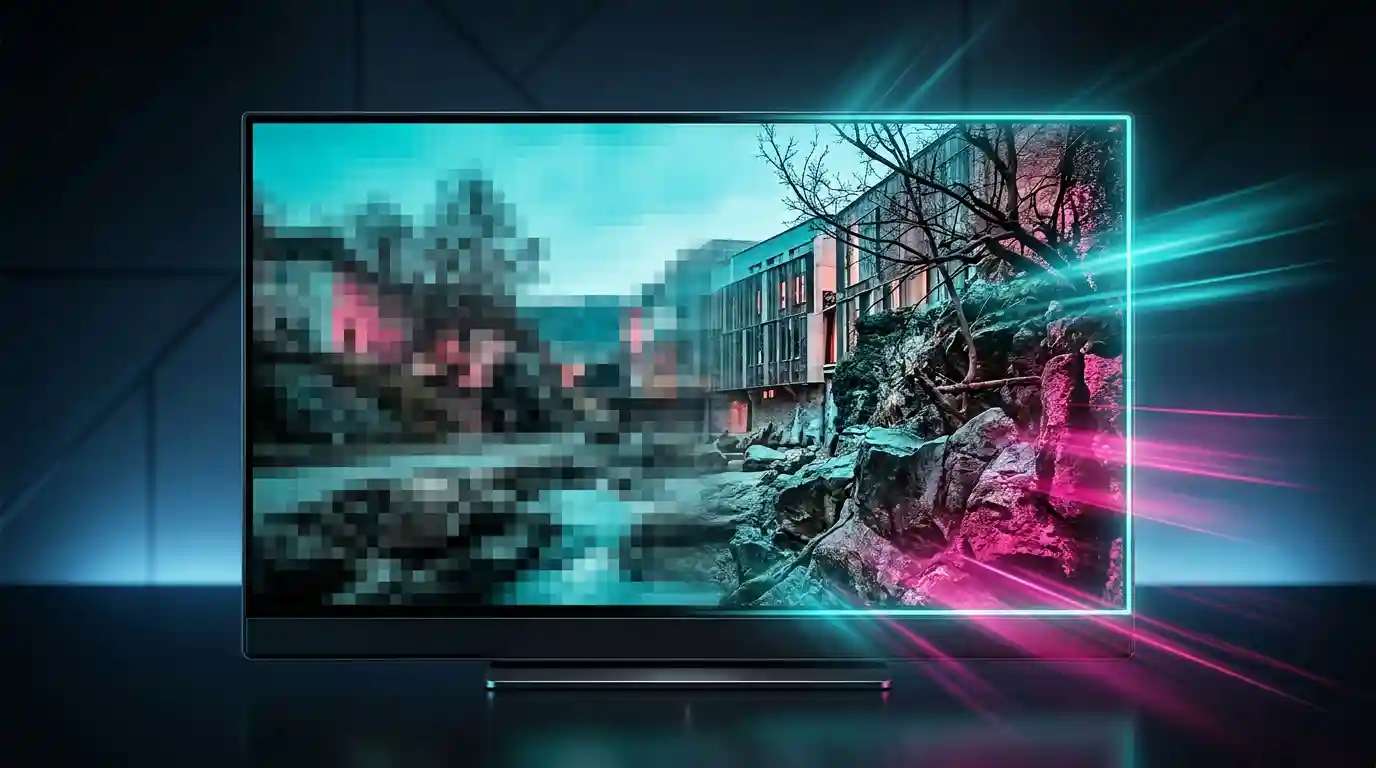
Video has become a key way we capture memories, share ideas, and build a following online. In 2026, audiences expect sharp, clear footage every time. A shaky, low‑quality clip can distract viewers and weaken your message. Whether you save family moments, make a training video, or post on social media, clarity shows you care about quality. You can do this in AI Video Editor.
Suggested Read: 50+ Prompts to Transform Your Christmas Look and Photos
Recent advances in artificial intelligence have made it easy for anyone to improve old or blurry videos. Tools like the AI Video Editor let you unblur, upscale, and clean up footage with a few clicks. You no longer need expert skills or expensive hardware. In this guide, you will learn why clear video matters and how to use AI Video Editor and other tools to achieve sharp results.
Common Causes of Blurry Videos and How to Prevent Them
Before you reach for an enhancer, it helps to know why videos turn out blurry in the first place. Here are the most common causes and how you can avoid them:
- Low‑resolution recordings
If you record at a low resolution, there is less detail to work with. Always choose the highest resolution your device supports. On a phone, switch to 4K or at least 1080p when possible. - Camera shake and motion blur
Sudden movements or slow shutter speeds can smear the image. Use a tripod or a gimbal to keep your camera steady. If you must record handheld, try to move smoothly and avoid fast pans. - Poor lighting conditions
Low light forces cameras to use longer exposures and higher ISO, which can blur or add grain. Record in well‑lit environments. Consider adding a soft LED panel or bouncing natural light with reflectors. - Compression artifacts from uploads/downloads
Every time you upload or download a video to social media or cloud storage, the file may get compressed and lose detail. To reduce this, export at a higher bitrate and use platforms that allow higher‑quality uploads. - Out‑of‑focus captures
If your camera does not lock focus before recording, parts of the scene will be soft. Always tap to focus on your phone or set manual focus on a camera. Wait for a confirming beep or green square before you press record.
Quick Fixes: How to Unblur a Video on Mobile (Android/iOS)
Mobile apps have made video editing more accessible than ever. Here is a step‑by‑step guide to unblurring videos on your phone using AI Video Editor alongside popular free apps.
Suggested Read: Introducing Kling AI Avatar v2 Pro API on Pixazo: Ultra-Realistic Talking Avatars from a Single Image
- Install AI Video Editor
Download the AI Video Editor app from Google Play or the App Store. Open it and grant access to your media library. - Import your video
Tap the plus icon and choose the blurry clip. The app will analyze the footage and suggest enhancement options. - Select the Unblur feature
In AI Video Editor, go to the Enhance tab and tap Unblur. You will see a slider for strength. Start at 50 percent and preview the result. Increase the strength until you see clearer edges but no unwanted artifacts. - Apply noise reduction
Still in Enhance, use Noise Reduction to smooth out grainy areas. A little goes a long way—keep the slider below 30 percent for natural results. - Adjust brightness and contrast
Return to the main editor and open Color. Slightly boost brightness and contrast to make details pop. Avoid overdoing it, or you risk clipping highlights. - Export your video
Tap Export and choose HD or Full HD. Wait for processing and save to your gallery. Now you have a sharper video ready to share. Also, you can use our AI HD Video Converter tool to convert your low-quality video into a high-definition one.
Pixazo: Advanced Tool for Video Enhancement
When you need crisp, clear footage without a fuss, Pixazo AI Video Enhancer answers the call. This desktop powerhouse brings the magic of artificial intelligence to your fingertips, all within a clean, straightforward interface. No menus buried under layers, no arcane settings to puzzle over—just honest results that speak for themselves.
Suggested Read: GPT‑4o vs Gemini 2.5 Pro vs Grok 3: A Deep Dive into Next-Generation Image Generation Models
With a single click, the Unblur feature works like a skilled artist sharpening a charcoal sketch. Faces become distinct, text jumps into focus, and every edge snaps into view. But it does not stop there. The smart Noise Reduction tool studies each frame as if it were handcrafted, removing grain and hiss while preserving the fine details that give your video its character. And when your colours look dull or washed out, the AI‑Driven Color Correction breathes life back into them, restoring warmth and depth so your scenes glow with natural beauty.
Plus, Pixazo has woven in AI design tools that let you apply professional‑grade presets or craft your own custom looks. This takes video enhancement to a new level—your footage not only becomes clearer, it carries a polished style that stands out.
Suggested Read: How to Create a Video Resume Using AI to Impress Recruiters?
Key highlights:
- One‑Click Unblur: Turn fuzzy frames into sharp images in an instant.
- Adaptive Noise Reduction: Tame unwanted speckle and hiss without losing detail.
- AI‑Driven Color Correction: Revive flat or faded footage with authentic tones.
Pros of online enhancers
- No need to install apps or software.
- Simple, guided interfaces work for beginners.
- You can try multiple services to compare results.
Cons of online enhancers
- Upload and download times can be slow for large files.
- Privacy concerns if your footage is sensitive.
- Free tiers often limit resolution or add watermarks.
AI‑Powered Enhancements: The Future of Video Clarity
Artificial intelligence is changing how we think about video quality. Here are the key ways AI helps:
Suggested Read: 50+ Creative Say No to Drugs Poster Ideas to Strengthen Drug Awareness Campaign
Automatic adjustments
AI Video Editor learns from thousands of examples to guess the best sharpening and denoising settings. You no longer need to tweak sliders.
Learning algorithms
Models improve over time. As you feed the tool more video, it adapts to your style and common issues.
Real‑time processing
Some apps now offer a live preview of enhancements while you browse clips. This speeds up editing on the fly.
AI Video Generator
By creating missing frames and filling gaps in motion, AI Video Generator has taken video clarity to a new level. It can reconstruct lost detail and smooth out choppy footage, making old or low‑quality clips look fresh and fluid.
Suggested Read: 33 Best Social Media Icon Sets You Must Explore
Expert Tips for Shooting Clearer Videos
Even with the best enhancers, a well-shot video is easier to fix than a badly shot one. Try these practices:
- Camera settings
- Use a shutter speed at least twice your frame rate (for 30 fps, aim for 1/60 s).
- Select the lowest ISO that still gives good exposure.
- Stabilization
- Use a tripod, slider, or gimbal to reduce shake.
- If you must shoot handheld, practice a smooth gait and keep elbows in.
- Lighting
- Shoot with the light at your back or side, never directly behind the camera.
- Add fill lights to soften shadows and highlight details.
- Equipment recommendations
- Tripod: A solid 2‑section carbon fiber tripod.
- Gimbal: A three‑axis motorized gimbal for phones or cameras.
- Lights: Portable LED panels with adjustable temperature.
Frequently Asked Questions (FAQs)
Can all blurry videos be fixed?
Most slight blur and noise can be reduced. However, if a clip is extremely low resolution or badly out of focus, you may only achieve partial clarity. AI Video Editor will do its best, but it cannot recreate details that were never captured.
Is it better to use mobile apps or desktop software?
Use mobile apps for quick fixes on the go. They are easy to access and free. Desktop software delivers higher quality results, more control, and batch processing. Choose based on your needs and budget.
How does AI improve video quality?
AI models are trained on thousands of videos. They learn to recognize edges, textures, and patterns, then apply de‑blurring and denoising in a smart way. This outperforms simple sharpening filters that can create odd halos.
What are the limitations of video enhancement tools?
- Artifacts: Over sharpening can cause ringing or unnatural edges.
- Processing time: High‑quality AI models can take minutes per minute of video.
- Cost: Advanced desktop tools often require a paid license or subscription.
Deepak Joshi
Author · Pixazo
Deepak writes about generative AI models, APIs, and the workflows teams use to ship them. Reviewed by Abhinav Girdhar.