AI Venn Diagram Maker : Create Free Venn Diagrams in Minutes
Create Custom Venn Diagrams Quickly with Pixazo Best AI Venn Diagram Maker. Try for Free!
Get Started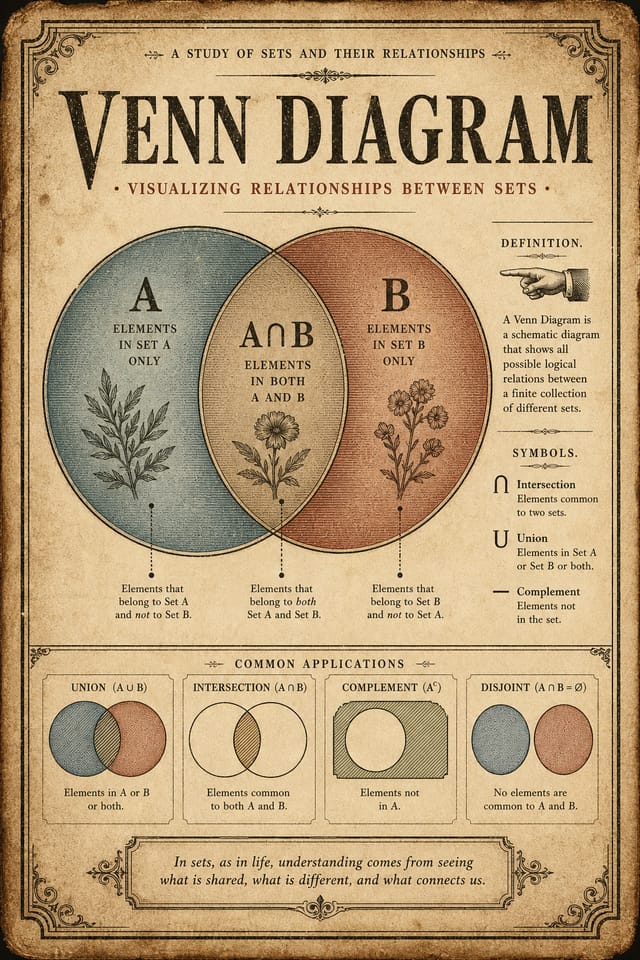
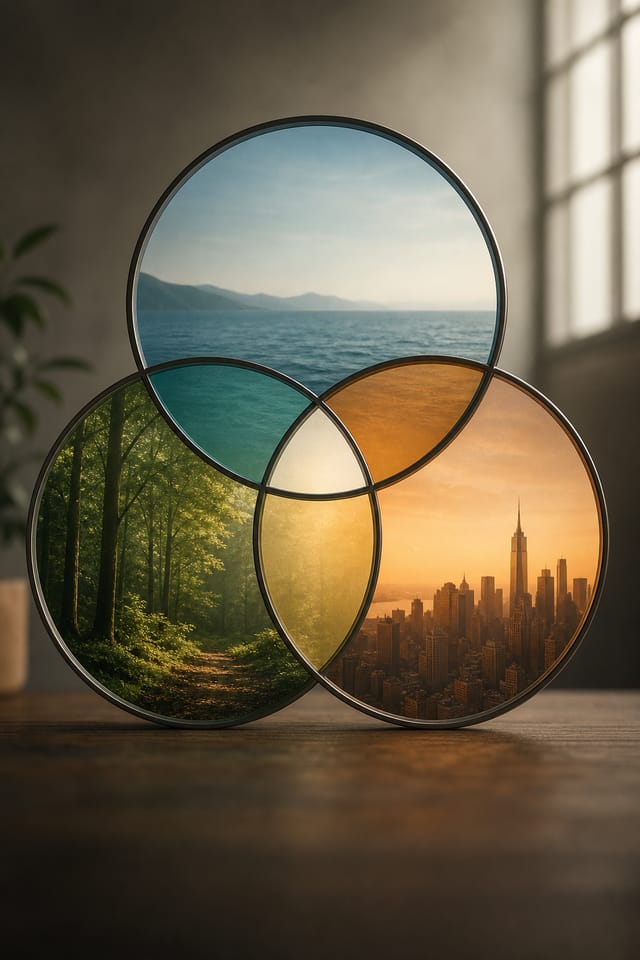
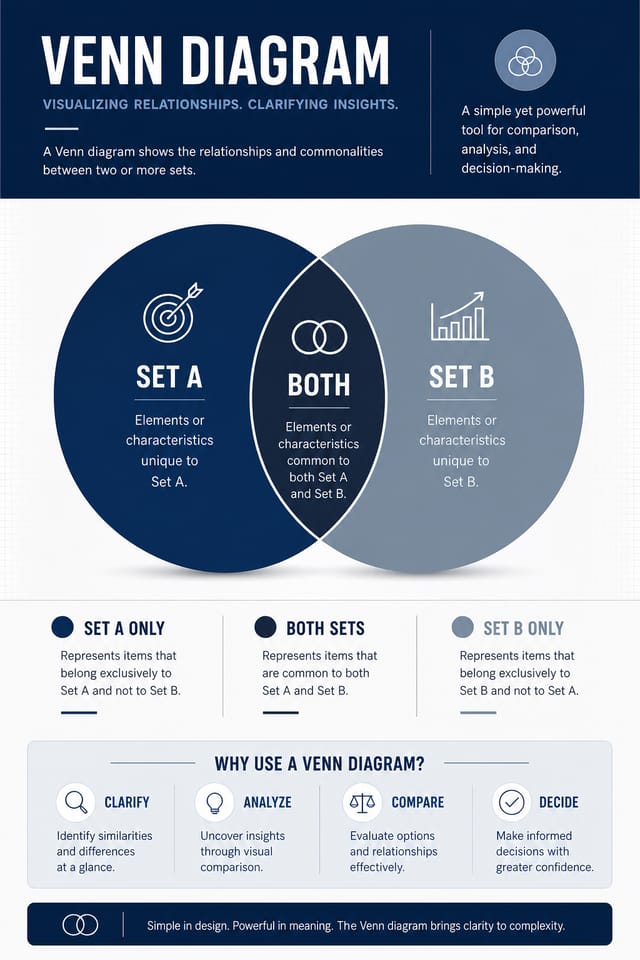
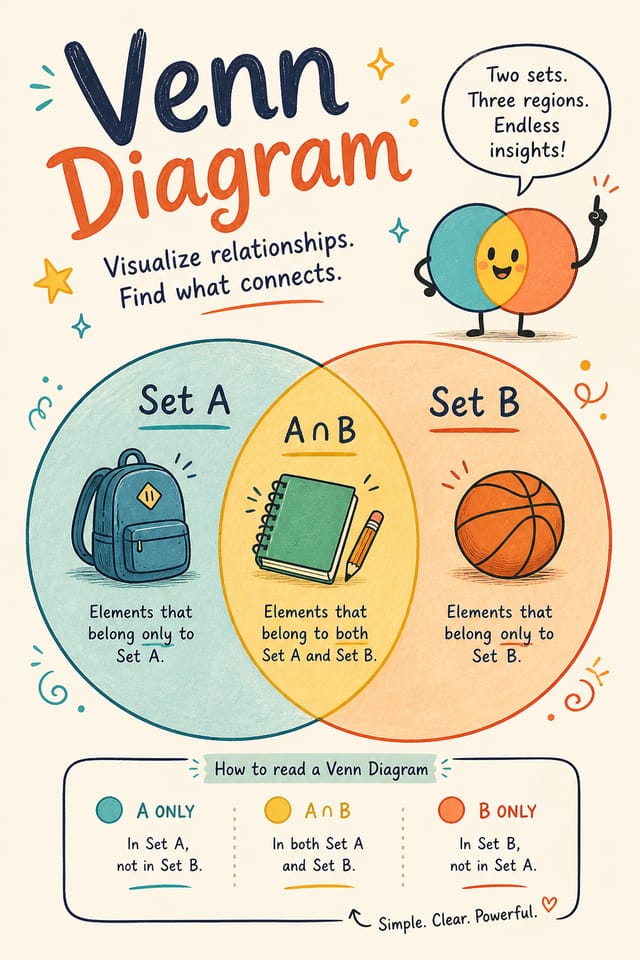
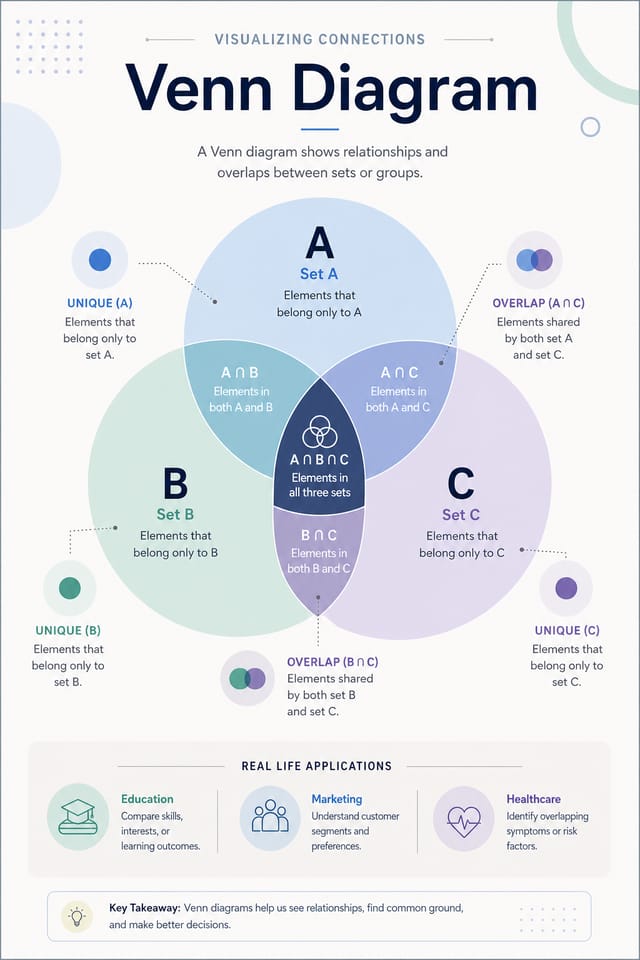
AI Venn-Diagram Builder: Built for Creators
Turn your venn-diagram ideas into finished designs with one prompt. No software to learn, no design background required.
Built for designers, marketers, small business owners, and creators who need professional venn diagram designs without design software.
Create Your Venn Diagram FreeVenn-Diagram AI: Design Powers
Style-Accurate Generation
The AI interprets venn-diagram design conventions and applies them to your venn-diagram, producing output that looks correctly styled rather than generically templated.
Color Palette Intelligence
Colors are chosen with venn-diagram style awareness. The AI builds palettes that fit venn-diagram design conventions rather than selecting arbitrarily.
No Design Software Required
Create professional venn-diagrams without Photoshop, Illustrator, or other design applications. The AI handles all technical production.
Layered Style Application
Combine venn-diagram style with other design parameters in a single prompt. The AI interprets complex requests and applies multiple style constraints simultaneously.
The Venn-Diagram Process: Step by Step
Write Your Prompt
Start with a text description of your venn-diagram concept. Specify the visual style, colors, layout direction, and key text. Detailed prompts produce more accurate venn-diagram designs than general ones.
Analyze the Design
Your venn-diagram generates immediately after submission. Evaluate the design against your requirements and refine the prompt to correct any elements that don't match your intent.
Tweak and Polish
Iterate on your venn-diagram by modifying the aspects that need work. Regenerate with a more targeted prompt until the design matches your vision. Most refinements take one or two iterations.
Wrap the Project
Download your completed venn-diagram in the format that fits your use case. High-resolution files for print, web-optimized versions for digital, or PDF for production-ready delivery.
Watch: Creating Venn Diagram Venn Diagram designs step by step
Getting More from Venn-Diagram AI: From Experienced Designers
Limit Your Color Palette
Stick to 2-3 primary colors in your venn-diagram design. Too many colors compete for attention and weaken the visual hierarchy.
Check Alignment Carefully
Misaligned elements are one of the most common signs of amateur venn-diagram design. Use grid lines and snap-to features to keep things precise.
Use High Contrast for Readability
Whether your venn-diagram is displayed on screen or in print, strong contrast between text and background ensures the message gets through at any size.
Match Tone to Audience
A venn-diagram for a corporate event needs a different visual tone than one for a music festival. Let the audience guide your style choices.
New to Venn-Diagrams? What People Ask
Pixazo generates single-page venn-diagram designs per prompt. For multi-page projects, generate each page individually using consistent prompt language to maintain visual continuity across your venn-diagram document set.
Pixazo generates venn-diagrams in RGB color space. For professional offset printing that requires CMYK, convert the downloaded file using Adobe Photoshop, Illustrator, or a free tool like GIMP. The AI selects colors that translate well to print when you mention print use in your prompt.
Pixazo generates high-resolution files suitable for both print and digital use. Specify your intended output format in your prompt. Print venn-diagrams benefit from high-DPI settings, while web and social media use works well with standard resolution output.
The AI generates visual designs, not data visualizations. For venn-diagrams that need charts or graphs, generate the venn-diagram layout in Pixazo and overlay your data graphics in post-production. The design framework will be style-consistent even if data elements are added separately.
The AI recognizes venn-diagram design as a distinct visual category with its own conventions. Specifying venn-diagram style in your prompt triggers appropriate design decisions around color, typography, and composition rather than defaulting to generic poster layout.
Specific prompts produce better results than vague ones. Include the visual style you want, any color preferences, the most important text to display, and the intended use. For venn-diagram design specifically, noting whether you want a contemporary or classic interpretation of venn-diagram style helps the AI make the right design decisions.
Venn-Diagram Design Rules: Practical Guidelines
Test with real content
Never finalize a venn-diagram with placeholder text. Real copy often has different lengths and line breaks that affect the design.
Use grids and alignment
Structured layouts in your venn-diagram create a sense of order and professionalism that unstructured designs cannot match.
Maintain brand alignment
Keep your venn-diagram design consistent with existing brand colors, fonts, and visual language for a cohesive identity.
Use a consistent visual hierarchy
Structure your venn-diagram so the viewer's eye follows a clear path from headline to supporting details to call-to-action.
Skip proofreading
Typos and grammatical errors on a venn-diagram undermine credibility instantly. Always have someone else review the final text.
Forget the call to action
A venn-diagram without a clear next step for the viewer is a missed opportunity. Always include direction on what to do next.
Rely solely on AI output
AI-generated venn-diagram designs are a starting point. Human review catches issues with context, tone, and accuracy that AI can miss.
Ignore accessibility
Low-contrast text and tiny font sizes in your venn-diagram exclude a significant portion of your potential audience.
Venn-Diagram Tools in Detail: Capabilities Explored
AI Generation
Convert text prompts into polished venn-diagram designs with contextual understanding
Style Transfer
Apply different visual styles to your venn-diagram while maintaining layout integrity
Color Palettes
AI-suggested color combinations that work for venn-diagram design conventions
Venn-Diagram Design For: Contexts and Scenarios
Process and Workflow Diagrams
Design venn-diagrams illustrating step-by-step processes, organizational workflows, and decision trees. Clear visual logic for operational documentation.
Photo Collages and Montages
Design venn-diagrams arranging multiple images into cohesive visual compositions. Grid-based and freeform layouts for photo storytelling.
Historical and Project Timelines
Generate venn-diagrams mapping events, milestones, and project phases along a visual timeline. Designs that make chronology intuitive at a glance.
Comparison and Versus Charts
Create venn-diagrams for product comparisons, feature matrices, and side-by-side analyses. Layouts that make differences and similarities immediately obvious.
Venn-Diagram Capabilities: Quick Overview
Venn-Diagram Starter Prompt Inspiration
Copy any prompt below and paste it into Pixazo to generate your design instantly.
Two-color venn-diagram design, high contrast between primary and secondary color, clean separation between graphic and text zonesVenn-Diagram aesthetic venn-diagram, palette drawn from venn-diagram design tradition, layout proportions consistent with venn-diagram conventions, purposeful use of each elementPortrait-orientation venn-diagram, vertical composition, headline at natural reading entry point, supporting information flows downward logicallyTextured venn-diagram, surface treatment adds depth without obscuring legibility, texture consistent with venn-diagram aestheticEditorial-style venn-diagram, text-dominant design, typographic treatment carries visual weight, layout proportions inspired by print publication designContemporary venn-diagram design, grid-based layout, typographic precision, restrained color palette, no decorative excessVenn-Diagram Makers: Creator Highlights
Real creators sharing their venn diagram designs made with Pixazo AI.
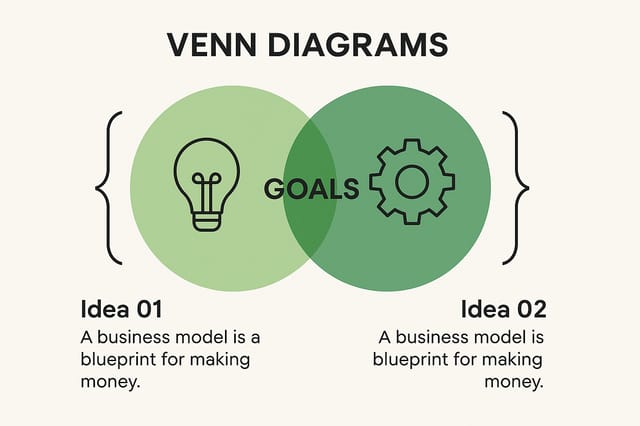
Full-bleed background venn-diagram, image or texture extends to edges, foreground elements float above, headline anchored to center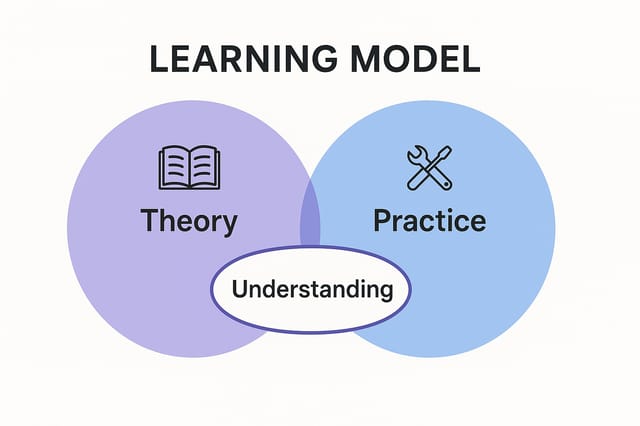
Refined venn-diagram aesthetic venn-diagram, sophisticated color relationships, intentional negative space, type selection matching venn-diagram conventions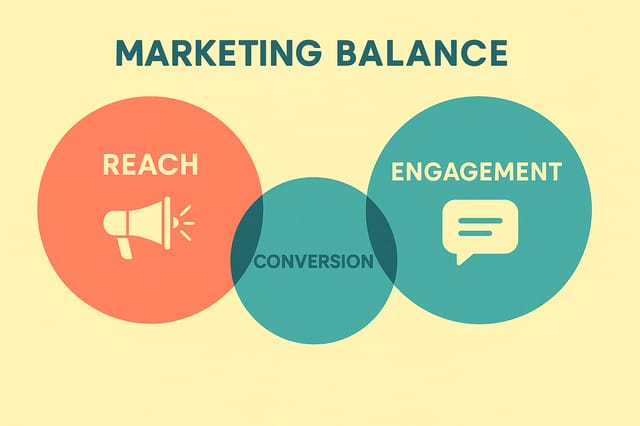
Contemporary venn-diagram style venn-diagram, grid-based structure, disciplined spacing, restrained decoration, readable at viewing distanceVenn-Diagram Generation: Current Boundaries
Known limitations and trade-offs of AI-generated venn diagram design. Being specific about what AI venn-diagram generation can and cannot do helps you plan your workflow and set accurate expectations.

