How to Edit Text in an Image (JPG, PNG, Screenshot) for Free

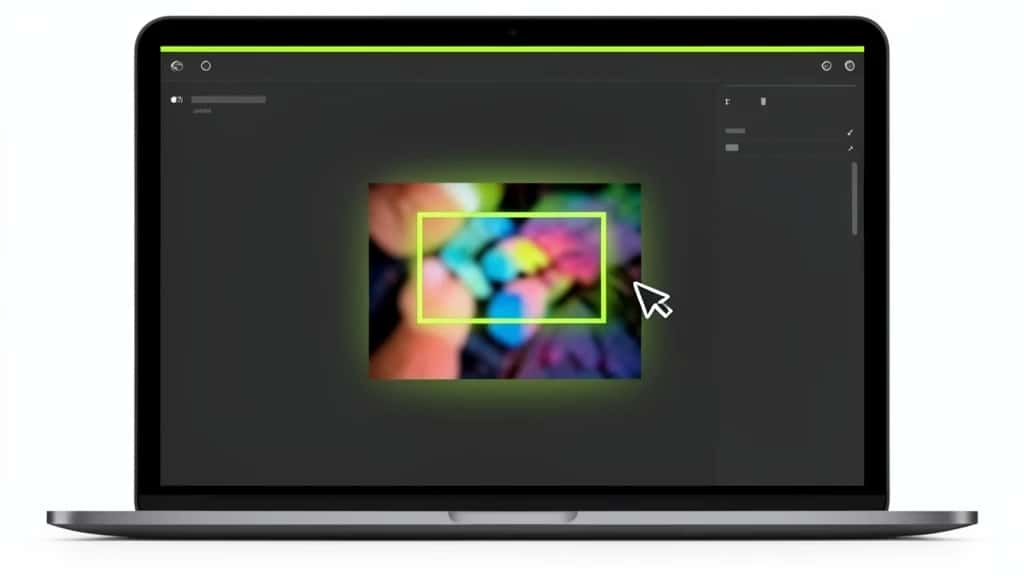
You can edit text in an image for free in under two minutes. An online AI editor like Pixazo’s AI Photo Text Editor erases the old words, rebuilds the background behind them, and lets you type new text in a matching font.
A JPG, PNG or screenshot is a flat picture, not a document. The letters are just pixels, so you cannot click on them and retype like in Word. To change them, a tool has to remove the old text, fill in what was behind it, and add new text on top.
This guide shows you how to do that three ways: online for free, in Photoshop, and on your iPhone. It also covers matching the original font, keeping the background clean, and translating text in an image without losing the design.
How to edit text in an image: quick steps
- Open a free online image text editor in your browser.
- Upload your JPG, PNG or screenshot.
- Select or brush over the text you want to change.
- Type the new words. The tool removes the old text and fills the background.
- Match the font, size and color, then download your image.
These steps work on a computer or phone, and you do not need to install anything.
Edit text in an image online for free
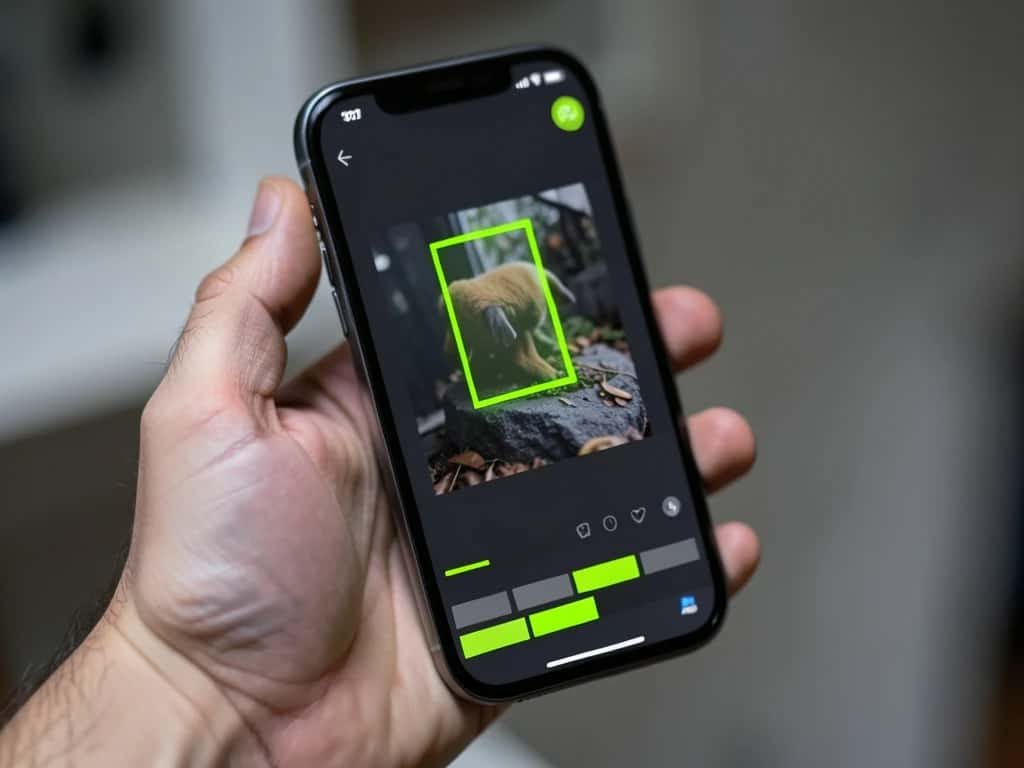
An online AI editor is the fastest way to change text in a photo. It works for JPG, JPEG, PNG and screenshots, and most tools let you try it free without signing up. Pixazo’s AI Photo Text Editor samples the original font automatically, so the replacement blends straight back in.
How to edit text in an image with the same font
The easiest way to match a font is to let the editor identify it for you. AI text editors sample the original font, weight, color and letter spacing and render the new text to match, so there is no font hunting. A dedicated font finder can also suggest the closest match from a cropped picture of the text.
If you cannot find an exact match:
- ▸Check the basics first: serif or sans-serif, thick or thin, rounded or sharp corners.
- ▸Use a common lookalike. Many logos and signs use fonts close to Helvetica, Arial, Montserrat or Roboto.
- ▸Copy the letter spacing and line height, not just the font. Wrong spacing gives an edit away faster than a slightly different font.
- ▸Let an AI editor or Photoshop’s Match Font feature detect the font for you.
Suggested Read: How to Remove a Watermark Using AI
How to edit text in an image without changing the background
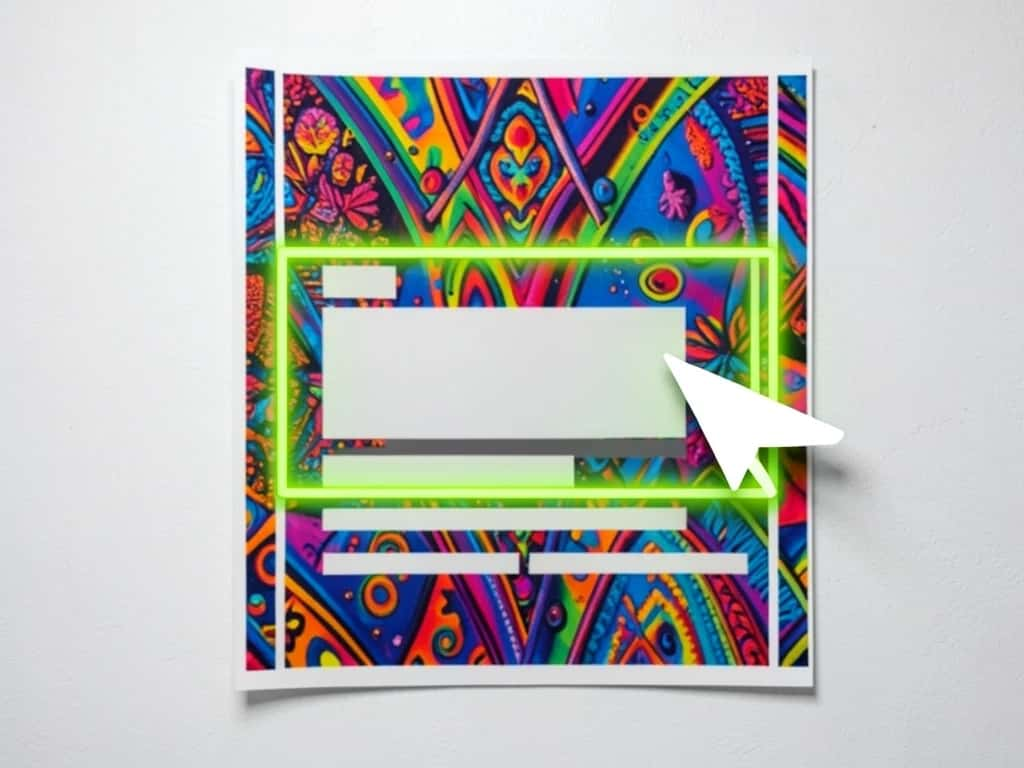
To keep the background untouched, only erase the area right around the letters. Most AI editors rebuild the background automatically using inpainting, which predicts what was behind the text. If you want to erase text, watermarks or labels entirely rather than replace them, Pixazo’s AI Text Remover is built for exactly that.
Tips for a clean result:
- ▸Plain backgrounds: White or solid colors: almost any tool works well.
- ▸Textured backgrounds: Wood, fabric or brick: brush in small sections instead of one big swipe.
- ▸Patterns or gradients: Use a clone or healing tool to copy nearby texture over the old text.
- ▸Curved surfaces: On a bottle or mug, warp the new text to follow the curve.
Always compare before and after at 100% zoom. Small blurs that are invisible on a phone screen show up when someone zooms in.
How to edit text in a JPEG image in Photoshop
Photoshop gives you the most control, but it takes a few more steps. Here is how to edit text in a JPG or JPEG in Photoshop:
- Open your image and duplicate the background layer (Ctrl or Cmd + J) so the original stays safe.
- Use the Rectangular Marquee or Lasso tool to select the text.
- Go to Edit > Content-Aware Fill (or use Generative Fill in newer versions) to remove the text and rebuild the background.
- Select the Type tool (T), click where the old text was, and type your new words.
- To find the font, select the old text area and use Type > Match Font.
- Adjust size, color and tracking until it blends in, then go to File > Export > Export As to save.
No Photoshop? Free browser-based editors such as Photopea offer a very similar layout and many of the same features.
How to change text in a photo on iPhone
You can change text in a photo on iPhone with the built-in Photos app plus Markup, or with an online editor in Safari.
Using the Photos app:
- Open the photo and tap Edit.
- If your iPhone supports Apple Intelligence, tap Clean Up and brush over the text to erase it.
- Tap the Markup (pen) icon, then + > Add Text.
- Type your new text, then change the font, size and color.
- Tap Done to save.
Markup’s font choices are limited. For a closer font match, open an online image text editor in Safari or Chrome. The steps from Method 1 work the same on a phone, and Android users can follow them too.
Suggested Read: Best AI Image Extenders and Uncrop Tools
How to edit screenshot text
Screenshots are the easiest images to edit. They usually have flat backgrounds and standard system fonts, so the change is hard to spot.
- ▸On a phone or computer, upload the screenshot to an online editor and follow Method 1.
- ▸Common fonts to try: San Francisco (iPhone and Mac), Roboto (Android), Segoe UI (Windows).
- ▸Crop out notification bars or anything you do not need before you edit.
Editing text in JPG vs PNG images
The method is the same for both formats. The difference is how the file stores quality.
| Format | Best for | Editing tip |
|---|---|---|
| JPG / JPEG | Photos, social media | Compression can blur letter edges. Use the highest-quality copy you have. |
| PNG | Screenshots, graphics, logos | Keeps sharp edges and transparent backgrounds. Save as PNG again after editing. |
How to translate text in an image without losing the design
To translate text in an image and keep the layout, erase the original words and type the translation in the same spot, font and color. Pixazo’s AI Image Text Translator does this in one step, swapping on-image text for its translation while keeping the original font, size and layout.
- Read and translate the text with a camera translation tool or by typing it out.
- Remove the original text with an online editor (Method 1).
- Paste the translated words in the same position and style.
- Check the length. Some languages run 20 to 30% longer than English, so you may need a smaller font size or an extra line.
Suggested Read: Best AI Background Removers
Latest tools and methods for editing text in photos
The biggest change in recent years is AI. Instead of cloning backgrounds by hand, you brush over text and the tool rebuilds the area in seconds.
| Tool | Best for | Price | Skill level |
|---|---|---|---|
| Pixazo AI Photo Text Editor | Quick text replacement with the same font | Free to start | Beginner |
| Canva | Adding text and designs to photos | Free plan; AI on paid | Beginner |
| Adobe Express | Social posts and simple edits | Free plan | Beginner |
| Photopea | Photoshop-style editing in a browser | Free | Intermediate |
| Photoshop | Professional, pixel-perfect edits | Paid | Advanced |
| iPhone Photos (Markup, Clean Up) | Fast edits on your phone | Free | Beginner |
To replace text while keeping a template’s exact font, size and position, look for an editor that lets you upload a design, click its text, and type the new words so the layout stays the same. AI photo text editors do this automatically.
Suggested Read: 35+ Prompts to Create Amazing Images using AI
Tips for a natural-looking result
- ▸Start with the highest-resolution image you have.
- ▸Match the text color with an eyedropper, never by eye.
- ▸Add a slight blur or noise if the photo is soft, so new text does not look too sharp.
- ▸Keep the same angle and perspective as the original text.
- ▸Zoom out and look at the whole image before you save.
Suggested Read: Best AI Image Generators
Conclusion
Editing text in an image is quick once you know the steps: erase the old text, fill the background, and type new words in a matching font. For most people, a free online AI editor is the fastest option. Use Photoshop when you need full control, and the iPhone Photos app for quick fixes on the go.
Try the AI Photo Text Editor Free
Suggested Read: How to Make an ID Card Online
FAQ
Can I edit text in a JPG file directly?
Not like a Word file. A JPG stores text as pixels, so you need an editor that removes the old text and adds new text on top. Online AI editors do this in a few clicks.
How do I edit image text for free?
Use a free online image text editor such as Pixazo’s AI Photo Text Editor, a browser tool like Photopea, or the Photos app on iPhone. All of them let you remove and replace text without paying.
How do I edit just a few letters in an image?
Select only those letters, erase them, and type the replacements in the same font and size. Zoom in close so the new letters line up with the rest of the word.
How do I replace text in an image online?
Upload the image to an online editor, brush over the text, type the new words, and download. You do not need to install any software.
How do I keep the background when I remove text?
Erase only the area right around the letters and let the AI rebuild the background with inpainting. For erasing text entirely, a dedicated AI text remover does the cleanest job.
Can I edit text in a PNG image the same way?
Yes. The steps are the same for PNG, JPG and JPEG. Save as PNG afterward to keep sharp edges and any transparent background.
How do I match the original font?
Let an AI editor sample the font for you, or identify it with a font finder. If you cannot match it exactly, use a close lookalike and copy the letter spacing and line height.
Can I translate the text in an image and keep the design?
Yes. Erase the original words and type the translation in the same spot, font and color, or use an AI image text translator that swaps the text while keeping the layout.
Deepak Joshi
Author · Pixazo
Deepak writes about generative AI models, APIs, and the workflows teams use to ship them. Reviewed by Abhinav Girdhar.