How to Make a Discord Banner That Actually Looks Good (2026)

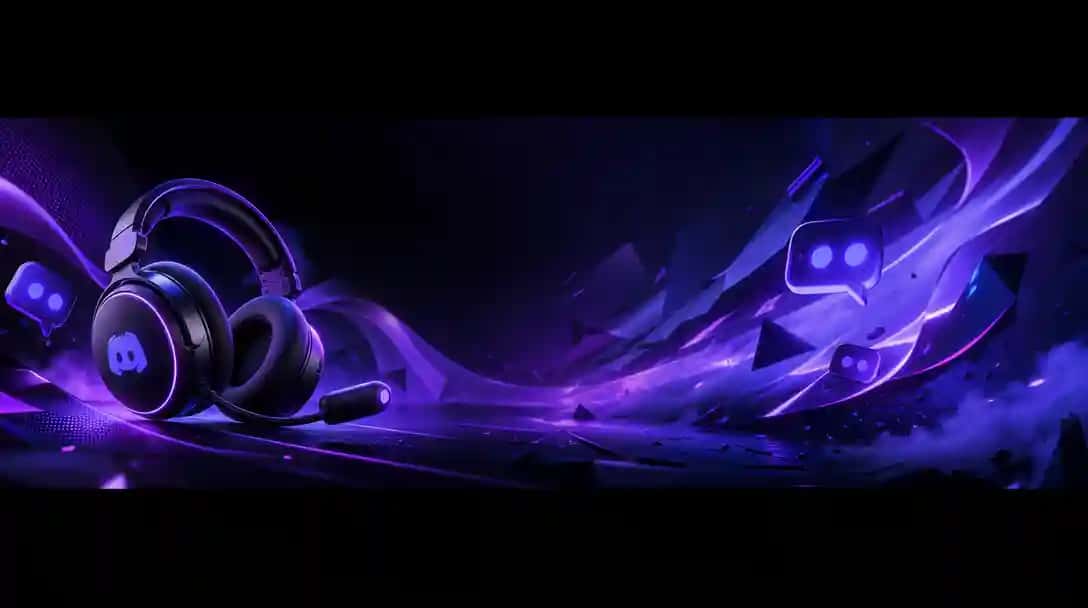
A good Discord banner does more work than people give it credit for. It’s the first visual impression of your server, showing up at the top of the channel list for every member and every visitor browsing the invite link. A sharp banner signals that your community is active, organized, and worth joining. A blurry or generic one signals the opposite. You can try this yourself with AI Discord Banner Maker.
This guide covers everything you need to create a Discord banner that fits correctly, looks professional, and actually represents your server’s identity. We’ll go over the exact specifications, the best tools for creating banners (both free and paid), and practical design advice you can apply immediately.
Discord Banner Specifications: The Numbers That Matter
Before designing anything, you need to know the technical requirements. Discord has specific size guidelines, and getting them wrong means your banner will look blurry, get cropped awkwardly, or simply not upload.
Server banners display at the top of the channel sidebar. The recommended upload size is 960×540 pixels, though Discord accepts images up to 10MB. The actual display size varies depending on the viewer’s screen resolution and window size, Discord crops from the center outward, so keep important elements (text, logos) centered and away from the edges.
To set a server banner, your server needs to be at Boost Level 2 (at least 7 boosts from members). Without this, the banner option won’t appear in server settings.
Profile banners appear on your personal profile when someone clicks your username. These require Discord Nitro (the $9.99/month plan) and use a wider format. The recommended size is 600×240 pixels, though uploading at a higher resolution (like 1200×480) will give better quality on high-DPI screens.
Invite splash images show up on the server invite page. These also require Boost Level 2 and use a 1920×1080 resolution. This is the image people see before they even join, so it’s worth making it count.
Method 1: AI Banner Tools (Fastest Route)
AI-powered tools have streamlined banner creation to the point where you can have a finished, properly-sized banner in under 5 minutes with no design background.
The workflow is simple: select “Discord” as your platform, and the tool sets up the correct canvas dimensions. From there, you can either start with an AI-generated concept (describe the vibe you want, “dark neon cyberpunk,” “cozy cottage aesthetic,” “clean esports team”, and the AI produces a starting point) or upload your own background image.
Add your server name and tagline using built-in text tools. The advantage over general-purpose design tools is that dedicated banner tools include font pairings, safe-zone guides, and export presets specifically optimized for Discord’s rendering.
Tools in this category include Pixazo, Fotor, and several Discord-specific generators. This method works best for server owners who want a polished result quickly and don’t want to learn design software.
Method 2: Canva (Template-Based)
Canva has a selection of Discord banner templates that you can customize with drag-and-drop editing. Search for “Discord banner” in Canva’s template library, pick one that’s close to what you want, and modify the text, colors, and images.
The main advantage is the template library, you can see finished designs and tweak them rather than starting from scratch. The downside is that popular Canva templates get used by thousands of servers, so your banner might look familiar to people who’ve seen other servers using the same base design.
Canva’s free tier works fine for basic banners. The Pro tier ($12.99/month) unlocks more templates, premium stock photos, and the background remover tool.
One thing to watch for: Canva’s “Discord banner” templates aren’t always the right size. Double-check that the canvas dimensions match Discord’s specifications before exporting.
Method 3: Photoshop / GIMP (Full Control)
For maximum creative control, traditional image editors let you build banners from scratch with complete freedom over every element.
Set your canvas to 960×540 pixels (or 1920×1080 for invite splash images). Build your design using layers for the background, any character art or images, text elements, and effects.
This method takes the most time and skill, but it produces the most original results. It’s the standard approach for esports teams, large brand communities, and servers where the banner is part of a broader visual identity system.
GIMP is the free alternative if you don’t have a Photoshop subscription. The interface has a steeper learning curve, but it handles banner creation perfectly well.
Design Principles That Apply Regardless of Tool
Keep text large and readable
Discord compresses your banner and displays it at reduced size in the sidebar. Text that looks fine on your 1920×1080 monitor during editing might become unreadable once Discord squishes it down. Use bold, high-contrast fonts and limit yourself to a server name plus maybe a short tagline. If you need a magnifying glass to read it on your own screen, members definitely won’t be able to read it in Discord.
Use a visual hierarchy
The most important element (usually your server name or logo) should be the largest and most prominent thing on the banner. Supporting elements (taglines, decorative graphics) should be secondary. If everything is the same size and visual weight, nothing stands out and the banner becomes visual noise.
Stay within safe zones
Discord crops banners differently depending on the viewer’s screen. Keep all important elements within the center 80% of the canvas. Anything placed near the edges might get cut off on smaller screens or mobile devices.
Match your server’s theme
The banner should feel like it belongs to the same visual world as your server icon, role colors, and channel organization. If your server has a warm, friendly vibe, a dark and aggressive banner will feel disconnected. Consistency builds trust.
Avoid clutter
A banner is not a poster. It’s a small visual accent that sets the mood. One background, one focal image (if any), and a text element or two is plenty. The most effective banners are often the simplest.
Adapting Your Banner for Other Platforms
Many server owners also need banners for related platforms, a TikTok profile promoting their community, a YouTube channel for server content, or a Minecraft server listing.
Each platform has different dimensions and crop behaviors. Rather than designing separate banners from scratch, the most efficient approach is creating one core design and adapting it. Some tools offer resizing features that recompose your layout for different platforms, keeping the focal point and text properly positioned.
For reference, here are the key dimensions for the most common banner placements:
| Platform | Dimensions |
|---|---|
| Discord server banner | 960×540px |
| Discord invite splash | 1920×1080px |
| Discord profile banner | 600×240px (upload at 1200×480 for quality) |
| TikTok profile header | 1920×1080px recommended |
| YouTube channel art | 2560×1440px (safe area: 1546×423px center) |
| Twitch profile banner | 1200×480px |
| Minecraft server list | 468×60px (some lists accept larger) |
Common Mistakes to Avoid
Using copyrighted art without permission
This is especially common in gaming communities. Fan art, screenshots, and official game renders are often used without permission. While enforcement varies, it’s better practice to use original art, properly licensed stock images, or AI-generated visuals.
Saving as the wrong format
Use PNG for banners with text, logos, or sharp edges. JPG compression creates visible artifacts around text and high-contrast boundaries. The file size difference is rarely significant enough to matter at banner dimensions.
Suggested Read: How to Make a Vision Board: A Step-by-Step Guide
Ignoring mobile display
A large percentage of Discord users are on mobile. Check how your banner looks on a phone screen, not just your desktop monitor. Text that’s readable on a 27-inch display may be illegible on a phone.
Over-animating
Discord supports animated banners (GIF format) for boosted servers. Animation can be eye-catching, but aggressive or flashy animations become distracting and can annoy members who see the banner every time they open the server. Subtle motion, a gentle gradient shift, slow particles, a breathing effect, works better than rapid flashing.
Suggested Read: LinkedIn Banner: Create a LinkedIn Banner that boosts your profile
Making Your Banner Work Harder
A banner isn’t just decoration. Used intentionally, it communicates information and sets expectations.
Some servers update their banner seasonally or for events, a Halloween theme in October, a New Year’s celebration in January, a special design for a community milestone. This signals that the server is active and maintained, which matters for retention.
Others use the banner to highlight ongoing events, recruitment needs, or partnerships. A banner that says “Season 3 Tournament, Sign Up Now” does double duty as both decoration and communication.
The point is: your banner is real estate. Think about what it should accomplish beyond just looking nice.
Suggested Read: YouTube Banner Size Guide 2026 (Every Device)
Getting Started
If you’ve been running your server with the default blank banner (or no banner at all), even a basic custom design is a meaningful upgrade. Pick any of the methods above, spend 10-15 minutes on it, and you’ll have something that makes your server feel more polished and intentional.
For the fastest path, AI tools handle the technical details (sizing, formatting, safe zones) so you can focus on making it look the way you want. For complete creative control, Photoshop or GIMP give you every tool you could need, at the cost of a longer learning curve.
Either way, your community will notice the difference.
Ready to try the AI approach? Create your Discord banner on Pixazo →
Suggested Read: Best AI Banner Generator Tools in 2026
Frequently Asked Questions
1. What is the correct size for a Discord server banner?
The recommended upload size for a Discord server banner is 960×540 pixels. Discord accepts image files up to 10MB. Since Discord crops from the center outward, keep all important elements, like text and logos, centered and away from the edges to avoid them being cut off on different screen sizes.
2. Do I need Discord Nitro or server boosts to set a banner?
It depends on the banner type. A server banner requires your server to be at Boost Level 2 (at least 7 boosts from members), no Nitro needed for this. A personal profile banner, however, requires Discord Nitro (the $9.99/month plan). Invite splash images also require Boost Level 2.
Suggested Read: How to Design Wallpaper On Your Own?
3. What file format should I use when uploading a Discord banner?
Use PNG for banners that include text, logos, or sharp edges. JPG compression creates visible artifacts around high-contrast boundaries, which can make your banner look low quality. If your server is boosted and you want an animated banner, you can use GIF format, but keep the animation subtle to avoid distracting your members.
4. Can I create a Discord banner for free?
Yes. Tools like Canva (free tier) and GIMP (completely free) let you design and export Discord banners at no cost. AI-powered tools like Pixazo also offer banner creation. The free tier of Canva is sufficient for basic banners, while GIMP gives you full control at no cost with a steeper learning curve.
Suggested Read: Discord Profile Picture Size: The Ultimate Guide
5. How do I make sure my banner looks good on mobile?
A large percentage of Discord users are on mobile, so always preview your banner on a phone screen, not just your desktop monitor. Keep all important elements within the center 80% of the canvas (the safe zone), use bold and high-contrast fonts, and avoid placing any text or key visuals near the edges, as these may be cropped on smaller screens.
6. How often should I update my Discord server banner?
There’s no set rule, but many active servers update their banners seasonally or around events, for example, a Halloween theme in October or a special design for a community milestone. Updating your banner signals to members that the server is actively maintained, which can positively impact retention. You can also use the banner to highlight ongoing events, tournaments, or recruitment needs.
Suggested Read: Top 15 YouTube Banner Ideas to Make your Channel Look Super-Awesome
Deepak Joshi
Author · Pixazo
Deepak writes about generative AI models, APIs, and the workflows teams use to ship them. Reviewed by Abhinav Girdhar.