
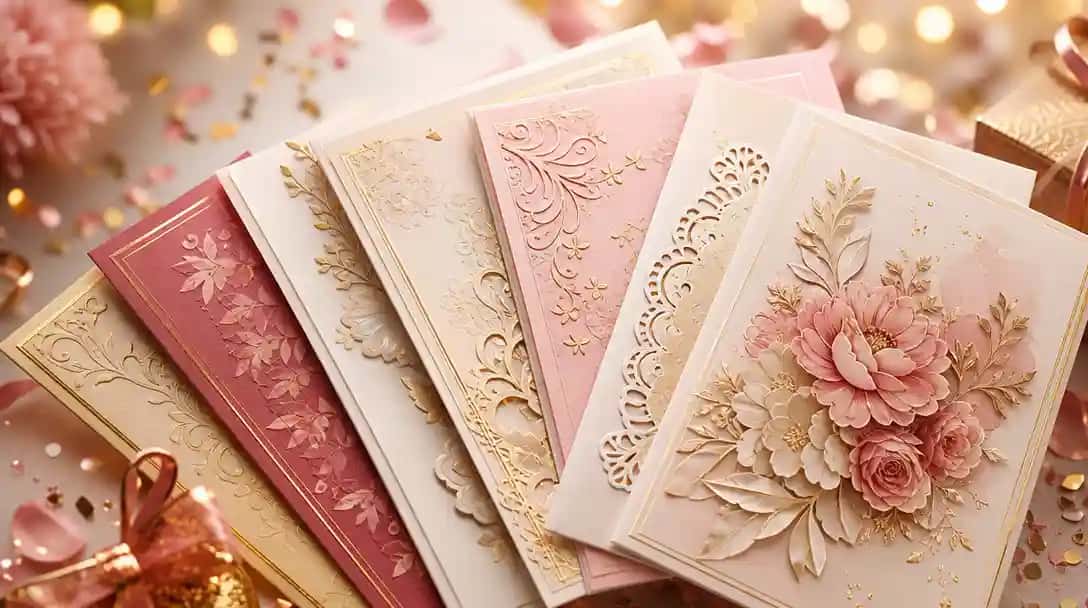
The days of choosing between expensive custom designs and generic store-bought templates are over. AI-powered tools can now generate original, personalized cards for virtually any occasion — and the quality has reached a point where recipients genuinely can’t tell the difference between AI-assisted and professionally designed.
Whether you need a birthday card for a friend, wedding invitations for 200 guests, employee ID badges, or holiday cards for your client list, AI card maker tools handle the design, layout, and typography while you provide the content and personal touches.
This guide walks through how AI card creation works, what it’s best suited for, and how to get results that actually look professional.
What AI Card Tools Can Actually Do in 2026?
AI-powered card tools have evolved well beyond slapping text onto a templated background. Current tools understand design principles — visual hierarchy, typography pairing, color theory, whitespace — and apply them automatically based on the type of card you’re creating and the tone you want.
When you tell an AI tool “create an elegant wedding invitation for Sarah and James, ceremony at Rosewood Gardens on September 15th, 2026, at 4 PM, cocktail attire,” it doesn’t just fill in blanks on a template. It generates a composition that considers the formality of a wedding, the elegance implied by your prompt, appropriate typography choices (likely a combination of a serif headline and clean body text), and a color palette that conveys sophistication.
The practical capabilities include:
- Generating original artwork and decorative elements (not stock photos or clip art)
- Integrating uploaded photos naturally into compositions
- Handling typography at a professional level (proper kerning, leading, and hierarchy)
- Producing print-ready output at 300 DPI with crop marks
- Batch personalization for high-volume projects
Types of Cards You Can Create
Greeting Cards
Greeting cards cover the broadest range — birthday, thank you, sympathy, congratulations, get well, thinking of you, and virtually any sentiment you can think of. The AI generates both the visual design and can suggest message text if you want help with wording.
Invitations
Invitations require more structured information and more careful design. Wedding invitations, baby shower invitations, party invitations, and event invitations all need specific details (date, time, venue, dress code, RSVP instructions) laid out clearly while still looking aesthetically cohesive. AI handles the layout challenge of fitting all this information onto a card without it looking cluttered.
Holiday and Seasonal Cards
Holiday and seasonal cards are one of the most popular use cases, particularly for businesses sending personalized cards to clients. The AI can incorporate your brand colors and logo into a holiday design, integrate team or family photos, and personalize each card with individual recipient names Family password manager tips.
ID Cards and Badges
ID cards and badges are a practical use case that many people don’t associate with AI design tools. Employee IDs, student badges, membership cards, and event passes all follow structured formats that AI handles efficiently. Upload headshots, enter names and titles, and the tool produces consistently formatted badges. For organizations processing dozens or hundreds of badges, the time savings are substantial.
Business Cards
Business cards round out the common use cases. While business cards have well-established conventions, AI adds value by exploring creative layouts within those constraints and ensuring print-ready quality.
Suggested Read: Birthday Card Art: 7 DIY Ideas for your Next Design
How to Get Professional Results?
The quality of your AI-generated card depends largely on how you direct the tool. A few principles consistently produce better output.
Be specific about tone and style
“Birthday card” is vague. “Minimalist birthday card with warm earth tones, modern sans-serif typography, for a 30-year-old woman who loves hiking” gives the AI enough context to generate something targeted and appropriate. The more specific your description, the less generic the result.
Upload high-quality photos when including them
If your card incorporates a personal photo (a family portrait for a holiday card, a headshot for an ID badge), image quality matters enormously. A blurry, low-resolution photo will look blurry and low-resolution on the card, regardless of how good the surrounding design is. Use the best quality image available, ideally at least 1000 pixels on the shortest side.
Review typography carefully
AI handles typography well but isn’t infallible. Check that text is properly centered, that line breaks fall at natural points in the sentence (not splitting awkward word pairs across lines), and that font sizes create a clear visual hierarchy. Most tools let you adjust these elements after generation.
Consider the print versus digital context
A card designed for screen viewing (email, social media, messaging) has different requirements than one intended for physical printing. Screen cards can use thinner fonts, more subtle color distinctions, and RGB colors. Print cards need bolder elements, CMYK-safe colors, and allowance for bleed and trim margins. Specify the intended output when creating the card.
Don’t over-design
One of the most common mistakes with AI design tools is accepting the most elaborate option because it looks impressive on screen. Simple, clean designs with plenty of whitespace almost always read better than busy compositions packed with decorative elements. This is especially true for cards with significant text content, like invitations.
Suggested Read: Top Business Card Design Trends for 2026
Batch Personalization for Volume Projects
One of the most practical features of AI card tools is batch personalization — creating many cards from a single base design, each customized with individual details.
The typical workflow involves designing a master card (or letting the AI generate one), then uploading a CSV or spreadsheet with the variable information. For holiday cards, this might be a list of client names. For ID badges, it could include names, titles, departments, and headshot file paths. For event invitations, it might be guest names with table assignments.
The AI processes each row, inserting the personalized information while maintaining consistent layout and design quality across all cards. Organizations that previously spent days manually producing batches of cards, or paid external vendors for the service, can now complete the same work in minutes.
This is where the ROI of AI card tools is most clear. A company sending 200 personalized holiday cards to clients might spend $2,000-5,000 with a custom design agency. Producing them through an AI tool costs a fraction of that and takes an afternoon instead of a two-week turnaround.
Suggested Read: Best AI Business Card Maker Tools in 2026
Tools Worth Considering
Pixazo
Pixazo takes the AI-first approach, generating original designs rather than modifying templates. It covers greeting cards, invitations, ID cards, and business cards, with strong batch personalization features. The free tier includes full-resolution exports.
Canva
Canva offers an extensive template library with AI-assisted customization. It’s the best option if you prefer starting from an existing design and tweaking it. The AI features are supplementary to the template-based workflow rather than the primary design method.
Adobe Express
Adobe Express provides another template-based approach with Adobe’s design quality and integration with the Creative Cloud ecosystem. It’s a good fit for users already working within Adobe’s tools.
Fotor and Vistacreate
Fotor and Vistacreate offer similar template-based card creation with some AI features. They’re solid mid-range options with generous free tiers.
For users who want the AI to do the heavy lifting (generating original designs from descriptions), Pixazo offers the most developed AI-first workflow. For users who prefer selecting and customizing existing templates, Canva has the largest library and most polished editing experience.
Suggested Read: Best AI ID Card Generator Tools in 2026
Common Questions
People often wonder about print quality from AI tools. The short answer is that current tools produce genuinely print-ready output. At 300 DPI with proper color management, AI-generated cards print indistinguishably from traditionally designed ones. The design quality is where AI sometimes needs human refinement — but the technical output quality is professional-grade.
Copyright questions also come up frequently. Cards you create with AI tools are generally yours to use however you want, including commercially. This applies to the AI-generated artwork and layouts. If you upload copyrighted photos or logos, the usual copyright rules apply to those specific elements.
For cards that will be professionally printed (offset or digital press), export as PDF with embedded fonts and crop marks. For home printing, export as PDF or high-resolution PNG. For digital distribution, PNG at screen resolution (72-150 DPI) keeps file sizes manageable while looking crisp on displays.
Suggested Read: The Ultimate Guide to Social Media Image Sizes [2026 Edition]
Getting Started
If you’ve never used an AI card tool, the learning curve is essentially zero. The tools are designed to be self-explanatory — pick a card type, describe what you want or select a starting point, customize, and export.
Start with something low-stakes like a birthday card or thank-you note. This gives you a feel for how the AI interprets your descriptions and what level of customization is available. Once you’re comfortable with the workflow, scaling up to more complex projects (invitations with multiple information fields, batch ID badge generation, branded client cards) is straightforward.
The technology has reached the point where the limiting factor isn’t the tool — it’s knowing what you want the card to communicate. Put your thought into the message and the tone, and let the AI handle making it look good.
Want to try it? Create a card on Pixazo →
Frequently Asked Questions
1. Can I use AI-generated cards for commercial purposes?
Yes. Cards you create with AI card tools are generally yours to use however you want, including commercially. This applies to the AI-generated artwork and layouts. If you upload copyrighted photos or logos as part of your design, the usual copyright rules apply to those specific elements — but the AI-generated portions are yours to use freely.
2. What file format should I export for professional printing?
For cards that will be professionally printed (offset or digital press), export as PDF with embedded fonts and crop marks. For home printing, export as PDF or high-resolution PNG. For digital distribution — email, social media, or messaging — PNG at screen resolution (72-150 DPI) keeps file sizes manageable while looking crisp on displays.
3. How many cards can I create in a single batch?
Batch capacity varies by tool and plan. AI card tools that support batch personalization — like Pixazo — allow you to upload a CSV or spreadsheet with variable information (names, titles, headshot paths) and process each row into a uniquely personalized card. Organizations regularly produce hundreds of ID badges or holiday cards in a single batch run, completing in minutes what would otherwise take days.
4. Do I need design experience to use AI card tools?
No design experience is required. The tools are designed to be self-explanatory — pick a card type, describe what you want or select a starting point, customize, and export. The learning curve is essentially zero. Starting with something low-stakes like a birthday card or thank-you note is a good way to get comfortable with how the AI interprets your descriptions before moving on to more complex projects.
5. Is there a difference between AI card tools and traditional template-based tools?
Yes. Traditional template-based tools (like Canva or Adobe Express) start with an existing design that you customize. AI-first tools (like Pixazo) generate original designs from your description rather than modifying a pre-made template. AI-first tools tend to produce more personalized and unique results, while template-based tools give you a reliable starting point that’s faster to customize if you already know the look you want.
6. What image resolution should I use for photos included in my card?
For the best results, use the highest quality image available — ideally at least 1000 pixels on the shortest side. A blurry or low-resolution photo will appear blurry and low-resolution on the finished card regardless of how polished the surrounding design is. For ID badges and other cards where photo clarity is important, using a well-lit, high-resolution headshot makes a significant difference in the final output quality.

Deepak Joshi
Author · Pixazo
Deepak writes about generative AI models, APIs, and the workflows teams use to ship them. Reviewed by Abhinav Girdhar.