What a Usable Green Screen Actually Looks Like

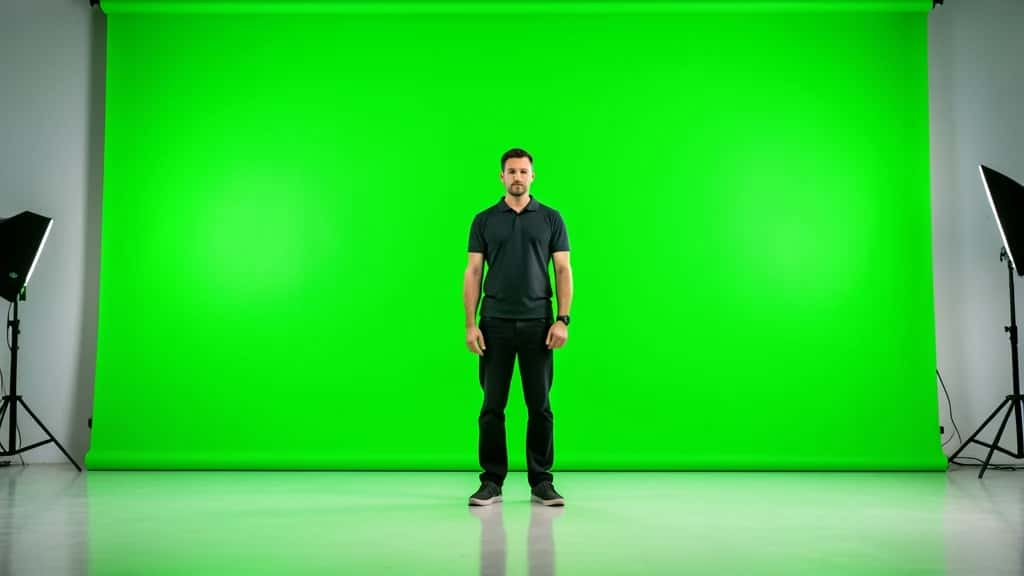
A green screen does not key cleanly because it is green. It keys cleanly because it is evenly lit, the right distance from the subject, free of shadows and wrinkles, and exposed correctly. Get those right and the key almost pulls itself. Get them wrong and no amount of post work fully saves it. This guide shows what a usable green screen actually looks like, what a bad one looks like, and how to light one so the AI Compositing team, or your own compositor, gets a clean edge.
You will learn the traits of a keyable green screen, the mistakes that wreck one, how to light it, and a quick checklist to run before you roll.
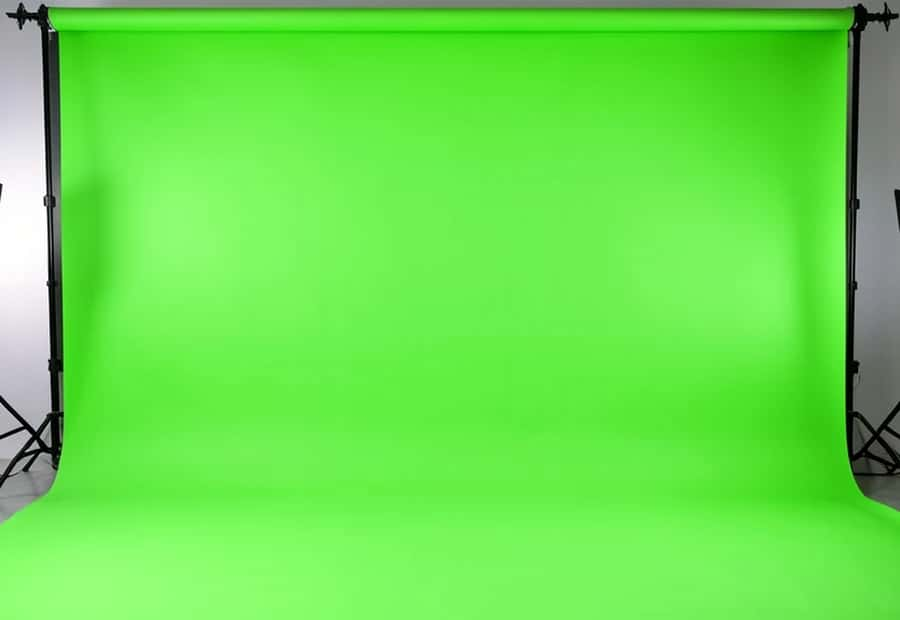
Why Even Green Is Not Enough
- ▸A key reads brightness and color: The software separates the subject by finding one consistent green. Any variation reads as a different color and breaks the key.
- ▸Evenness beats saturation: A perfectly even mid green keys better than a vivid green full of hotspots and shadows.
- ▸The edge is what matters: A key lives or dies at the subject outline, so spill and shadow near the edge do the most damage.
- ▸It is a lighting job, not a backdrop job: Hanging green fabric is five percent of the work. Lighting it evenly is the other ninety-five.
Suggested Read: Color Space Handoffs That Break AI VFX Shots
What a Usable Green Screen Looks Like
- ▸One flat, consistent shade of green across the whole backdrop, with no bright or dark patches
- ▸Smooth and taut, with no wrinkles, folds or seams casting tiny shadows
- ▸The subject standing well in front of it, far enough that green does not spill onto them
- ▸The backdrop and the subject lit separately, so you can expose each correctly
- ▸A clean edge around the subject with no green rim, dark halo or soft spill
- ▸Exposed to a correct mid level, not crushed dark or blown out bright
Suggested Read: What Footage Survives AI Rotoscoping
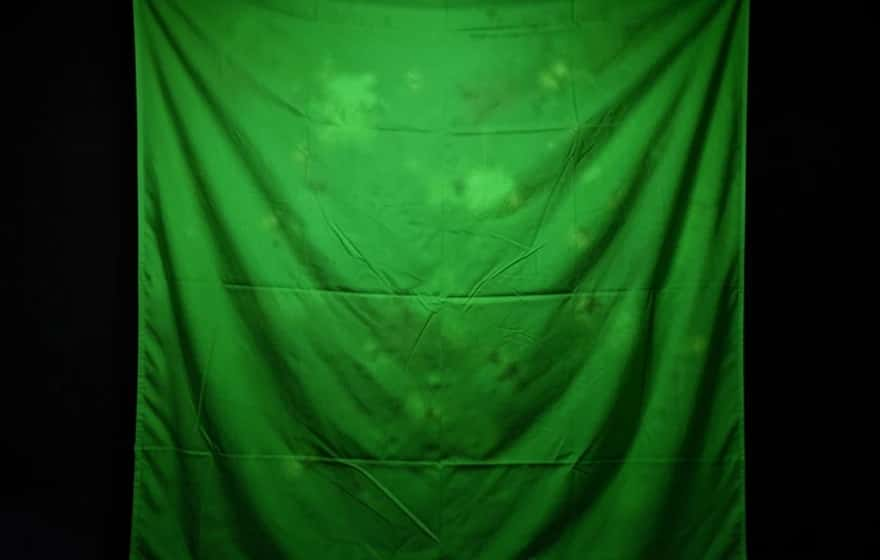
What a Bad Green Screen Looks Like
- ▸Uneven lighting: Bright hotspots and dark corners give the key several greens to chase instead of one.
- ▸Shadows on the screen: The subject or a boom casts a shadow, which reads as a darker green the key cannot fully remove.
- ▸Wrinkles and creases: Folds create thin highlights and shadows, peppering the backdrop with tiny edges.
- ▸Green spill on the subject: Standing too close bounces green onto hair, shoulders and light clothing, so the key eats into them.
- ▸Wrong exposure: A screen that is too dark or blown out loses the clean color separation the key depends on.
Suggested Read: What Motion Blur Does to a Matte
Keyable vs Problem Green Screens at a Glance
| Keys cleanly | Fights the key |
|---|---|
| One even shade of green edge to edge | Hotspots, dark corners, patchy color |
| Smooth, taut, wrinkle free | Folds and creases casting micro shadows |
| Subject several feet in front | Subject close to the screen, green spilling on them |
| Screen and subject lit separately | One light doing both, so neither is right |
| Correct mid exposure | Crushed dark or blown out highlights |
| Matte or non reflective surface | Shiny fabric bouncing hotspots back |
Suggested Read: Shooting for a Clean Plate
How to Light a Green Screen
Suggested Read: When a Camera Solve Fails, and How to Get One Anyway
Where AI Rotoscoping Fits Into This
A clean green screen keys so well that you may not need roto at all. A messy one still has to be rescued, and that is often a hybrid of keying and rotoscoping around the spots the key cannot hold. An AI roto pass handles the easy regions and flags the problem edges for an artist, so you only pay for hand work where the screen let you down. For volume, Pixazo for enterprise video and VFX runs that pass and corrects the hard shots.
Talk to Pixazo About VFX at Scale
Suggested Read: Why Your Matte Chatters, and the Four Causes
A Quick Green Screen Checklist
- ▸The green is one even shade across the whole backdrop
- ▸No shadows or hotspots are falling on the screen
- ▸The screen is taut, with no wrinkles or creases
- ▸The subject is several feet forward with no visible green spill
- ▸Screen and subject are each exposed correctly
- ▸A rim or back light keeps the subject edge clean
A usable green screen is boring to look at: flat, even, wrinkle free, correctly exposed, with the subject well clear of it. That boredom is the whole point, because it hands the key one consistent color to remove and a clean edge to keep. Spend the time lighting it evenly on the day, and the key is quick. Skip that and you turn a five minute pull into a shot an artist has to rescue frame by frame.
Suggested Read: Codecs, Bit Depth and Why Proxies Ruin Mattes
FAQ
What makes a green screen keyable?
Even lighting, one consistent shade of green, a smooth wrinkle free surface, enough distance between subject and screen to avoid spill, and correct exposure. Those traits give the key one color to remove and a clean subject edge to keep.
Why does my green screen not key cleanly?
Usually uneven lighting, shadows or wrinkles give the key several greens to chase, or the subject stood too close and picked up green spill. The problem is almost always the lighting, not the fabric.
How far should the subject stand from the green screen?
Several feet, as far as the space allows. Distance stops backdrop light and green bounce from spilling onto the subject, which keeps their edge clean and the key tight.
How do I light a green screen evenly?
Light the screen separately from the subject with soft sources from both sides, balance out hotspots and dark patches, keep the screen taut, and flag any shadow that falls on it.
What is green spill and how do I avoid it?
Green spill is backdrop green bouncing onto the subject, especially hair and light clothing. Avoid it with distance, separate subject lighting, and a rim or back light that defines a clean edge.
Do I still need rotoscoping with a green screen?
A clean green screen may need none. A messy one usually needs a hybrid of keying and rotoscoping to rescue the edges the key cannot hold, which is slower and more expensive than lighting it well.
What color should a green screen be?
A consistent, moderately saturated mid green, lit evenly so it reads as one color. The exact shade matters less than its evenness and correct exposure across the whole backdrop.
Deepak Joshi
Author · Pixazo
Deepak writes about generative AI models, APIs, and the workflows teams use to ship them. Reviewed by Abhinav Girdhar.