8 Best AI Image Resizers for Social and Print

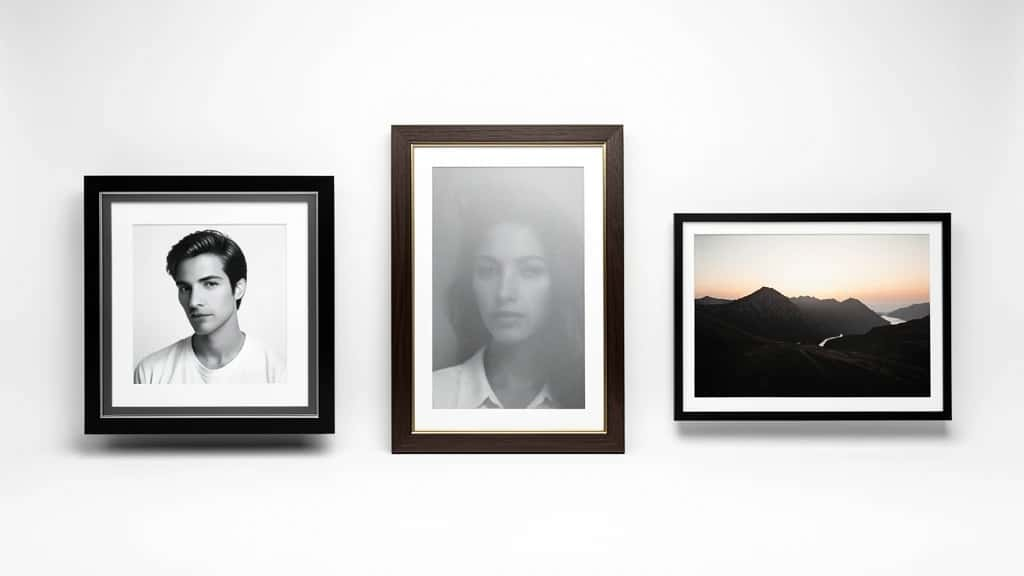
Resizing an image for Instagram and resizing it for a printed poster are two different jobs. Social is about hitting exact pixel dimensions fast across many platforms. Print is about physical size at a high enough density, which is where a file can look fine on screen but come out soft on paper. This roundup of 8 tools scores both, and the AI Image Resizer is one option that pairs social presets with AI upscaling.
Below you will find a quick comparison table, the eight tools in full, a social and print size cheat sheet, and plain-language help on resizing versus AI upscaling so your prints stay sharp.
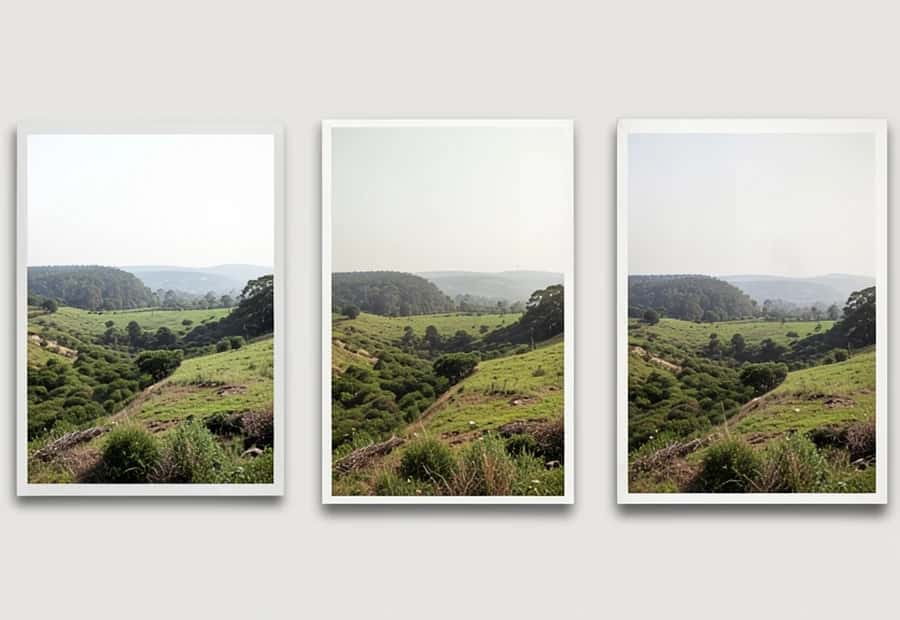
The 8 Best AI Image Resizers at a Glance
| # | Tool | Best for | Pricing |
|---|---|---|---|
| 1 | Canva Magic Resize | One design pushed to many social sizes | Freemium, resize in paid plan |
| 2 | Adobe Express and Photoshop | Social presets plus serious print control | Subscription |
| 3 | Let’s Enhance | Upscaling small images to print size | Free credits, then paid |
| 4 | Fotor | All-round resize plus AI enlarger | Freemium |
| 5 | Picsart | Mobile-first resize and enhance at volume | Freemium |
| 6 | Pixazo | Social presets and AI upscaling in one place | Free tier, paid plans |
| 7 | Topaz Gigapixel AI | Maximum-quality upscaling for large prints | Paid desktop app |
| 8 | iLoveIMG | Fast, free bulk downscaling | Free, paid for heavy use |
Why Resizing for Social and Print Are Different
Social resizing usually means downscaling one master file to exact platform dimensions, so speed and batch presets matter more than raw detail. Print resizing is about physical size at a target density, where a small file simply does not have enough pixels and prints soft. A tool that is great at one is often mediocre at the other, which is why this list scores both.
Resizing vs AI Upscaling, and Why It Matters for Print
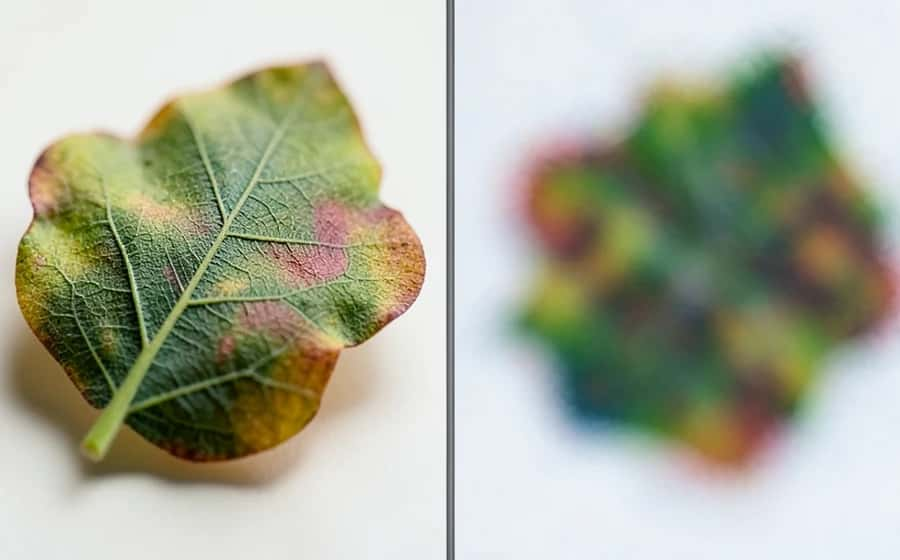
- ▸Resizing changes pixel count: Shrinking a large photo is nearly lossless. Enlarging interpolates new pixels from existing ones, so edges go soft and detail smears.
- ▸AI upscaling reconstructs detail: Instead of stretching pixels, it adds plausible detail, so a small image can be enlarged for a poster and still hold up at arm length.
- ▸Print cares about DPI: Screens are happy around 72 PPI, but most commercial print wants 300 DPI at the final size. The math is simple: inches times 300 equals the pixels you need.
- ▸Rule of thumb: If you are only going smaller, any resizer works. If you are going bigger for print, you need real AI upscaling, not just a scale slider.
What Separates a Good Resizer From a Scale Slider
- ▸Batch social presets: Can it export one design to many platform sizes in a single pass, or one at a time?
- ▸Print readiness: Does it support high DPI, true upscaling, print sizes, bleed and CMYK, or only RGB screen output?
- ▸Enlargement quality: Does enlarging add detail, or just stretch pixels?
- ▸Ease and cost: Learning curve, free tier limits, and whether the useful features sit behind a paywall.
Suggested Read: Best AI Image Upscaler Tools
The 8 Best AI Image Resizers in Full
01Canva Magic Resize
Best for: Creators and social teams who need one design pushed to many platform sizes quickly.
Strengths: Magic Resize duplicates a design into multiple social dimensions in one action, and it ships with a large library of correctly sized social templates.
Limitation: Its resizing is layout scaling, not detail-reconstructing AI upscaling, so enlarging a small photo for print can still look soft, and CMYK output is limited.
Pricing: Generous free tier, but Magic Resize and bulk features sit in the paid plan.
02Adobe Express and Photoshop
Best for: People who want both quick social resizing and serious print control in one ecosystem.
Strengths: Express has simple social presets, while Photoshop offers Super Resolution for AI-assisted enlargement plus full control over DPI, color mode, CMYK and bleed.
Limitation: It is more tool than social-only users need, and the better print and upscaling features assume Photoshop, which has a steeper learning curve.
Pricing: Subscription based, with a lighter free Express tier.
03Let’s Enhance
Best for: Turning small or low-resolution images into print-ready files.
Strengths: Built around AI upscaling, it lets you set a target print size and DPI, which is honest when the real problem is not enough pixels for a poster.
Limitation: It focuses on upscaling rather than a full set of one-click social presets, so it is a specialist, not an all-rounder.
Pricing: Credit or subscription model, usually with a few free credits to test.
04Fotor
Best for: A middle path between a photo editor and a resizer.
Strengths: It combines a batch-friendly resizer, social templates and an AI image enlarger in one browser tool, covering most everyday social and light print tasks.
Limitation: The free tier adds limits and watermarks on some features, and heavy upscaling is good but not studio grade.
Pricing: Freemium, with the upscaler and higher-resolution exports gated.
05Picsart
Best for: Mobile-first creators and online sellers resizing and enhancing product shots at volume.
Strengths: Quick resizing, an AI enhancer and upscaler, and strong social presets that work well on phone and web.
Limitation: Batch and the best enhancement tools are subscription features, and it leans social rather than press-ready print.
Pricing: Freemium, with Plus or Pro unlocking batch and the upscaler.
06Pixazo
Best for: Creators who want social presets and AI upscaling for print in one place. Use the AI Image Resizer to hit platform dimensions and enlarge for print in the same flow.
Strengths: It pairs common social sizes with AI upscaling, so you can resize an Instagram or YouTube asset and also push an image up for flyers or posters without it turning soft, inside a wider AI design and VFX platform.
Limitation: As a browser tool it targets screen and everyday print, so for a commercial press run you may still confirm CMYK and bleed in a dedicated layout app.
Pricing: Free tier to try, with higher volume and resolution on paid credits or plans.
07Topaz Gigapixel AI
Best for: Maximum-quality AI upscaling when print sharpness is the whole point.
Strengths: A dedicated desktop upscaler widely regarded for enlarging images with strong detail recovery, a favorite for large, sharp prints.
Limitation: It is a focused upscaling app with no social presets, and it runs on the desktop rather than in a browser.
Pricing: Paid desktop product, generally a one-time purchase.
08iLoveIMG
Best for: Fast, free bulk resizing when you just need to change dimensions.
Strengths: It resizes many images at once in the browser with a clean interface, ideal for shrinking a folder of photos to a target width.
Limitation: It is a straightforward resizer, not an AI upscaler, so enlarging will not recover detail.
Pricing: Free for core resizing, with a paid tier for heavier use.
Suggested Read: Facebook Image Sizes 2026
Social and Print Size Cheat Sheet
| Use case | Dimensions (px) | Notes |
|---|---|---|
| Instagram post, square | 1080 x 1080 | 1:1, safest feed default |
| Instagram portrait | 1080 x 1350 | 4:5, more feed space |
| Instagram Story / Reels | 1080 x 1920 | 9:16 vertical |
| Facebook feed image | 1200 x 1200 | Link preview closer to 1200 x 630 |
| LinkedIn post image | 1200 x 1200 | Link share around 1200 x 627 |
| X (Twitter) post | 1600 x 900 | 16:9 landscape |
| YouTube thumbnail | 1280 x 720 | 16:9 |
| YouTube banner | 2560 x 1440 | Keep key content in the safe area |
| Pinterest pin | 1000 x 1500 | 2:3 vertical |
| Business card (print) | 1050 x 600 at 300 DPI | 3.5 x 2 in, add bleed |
| Photo print 4×6 | 1200 x 1800 at 300 DPI | Standard small photo |
| Flyer / letter (print) | 2550 x 3300 at 300 DPI | 8.5 x 11 in |
Screen sizes are pixels at normal density, while print sizes assume 300 DPI at the finished physical size. Confirm the exact spec with each platform or your printer, since these do change.
Suggested Read: The Ultimate Guide to Social Media Image Sizes
How to Choose the Right Resizer for Your Workflow
- ▸Social-first creators: Posting daily? Prioritize batch presets and templates.
- ▸Sellers and marketers: Also printing flyers, cards and posters? Prioritize AI upscaling and DPI control.
- ▸Studios needing press files: Prioritize CMYK and bleed, which most browser tools do not handle, and finish in a layout app.
- ▸Mixed needs on a budget: A freemium all-rounder with an AI upscaler covers most cases.
Suggested Read: LinkedIn Banner Size 2026
Common Image-Resizing Mistakes
- ▸Enlarging with a plain resizer for print: Stretching a small image to poster size without AI upscaling gives soft output. Upscale first, then size to the print spec.
- ▸Designing only in screen pixels: A file crisp on a monitor can print fuzzy because it was built at 72 PPI. Work back from physical size times 300.
- ▸Forgetting bleed and safe areas: Social art is edge-to-edge with no bleed, so sending it straight to a printer risks white edges. Add bleed and keep key elements inside the safe area.
Suggested Read: A Guide to Common Aspect Ratios and Image Sizes
Conclusion
Match the tool to the output, not the hype. Social rewards speed and presets, so a template-driven resizer wins. Print rewards pixels and density, so you want real AI upscaling and DPI control. Several tools here do one job well, a few do both, and the right pick depends on whether your work ends up on a screen, on paper, or both.
Suggested Read: 8 Best AI Photo Colorizers for Black and White Photos
FAQ
What is the difference between resizing and upscaling an image?
Resizing changes the pixel dimensions, which is clean when you go smaller but soft when you go bigger. Upscaling uses AI to reconstruct detail as it enlarges, so the result stays sharp enough to print.
What DPI do I need for printing?
Most print work targets 300 DPI at the final physical size, while screens only need around 72 PPI. To find the pixels you need, multiply the print width and height in inches by 300.
Can I resize for Instagram and for a printed flyer with the same tool?
Some tools handle both, but many are strong at one and weak at the other. Social tools excel at presets, while print needs real AI upscaling and higher DPI, so check a single tool covers both.
Will enlarging a small photo for a poster make it blurry?
With simple resizing, yes, because it stretches existing pixels. A dedicated AI upscaler reconstructs detail as it enlarges, which keeps a small image usable at poster size.
Do these tools export in CMYK for professional printing?
Many browser resizers work in RGB only, which is fine for home and office printing but not always for a commercial press. For CMYK and bleed you often finish in a dedicated layout or editing app.
Is there a free AI image resizer?
Yes. Several tools offer free tiers for basic resizing, and a few include limited free AI upscaling. Batch exports, higher resolutions and watermark removal usually sit behind a paid plan.
Can I resize many images at once?
Yes, batch resizing is common, but it is often a paid feature. If you regularly process folders of images, look specifically for a batch mode.
Deepak Joshi
Author · Pixazo
Deepak writes about generative AI models, APIs, and the workflows teams use to ship them. Reviewed by Abhinav Girdhar.