Marketing Infographic : Create Free Marketing Infographics in Minutes with AI
Create Custom Marketing Infographics Quickly with Pixazo Best AI Marketing Infographic Maker. Try for Free!
Get Started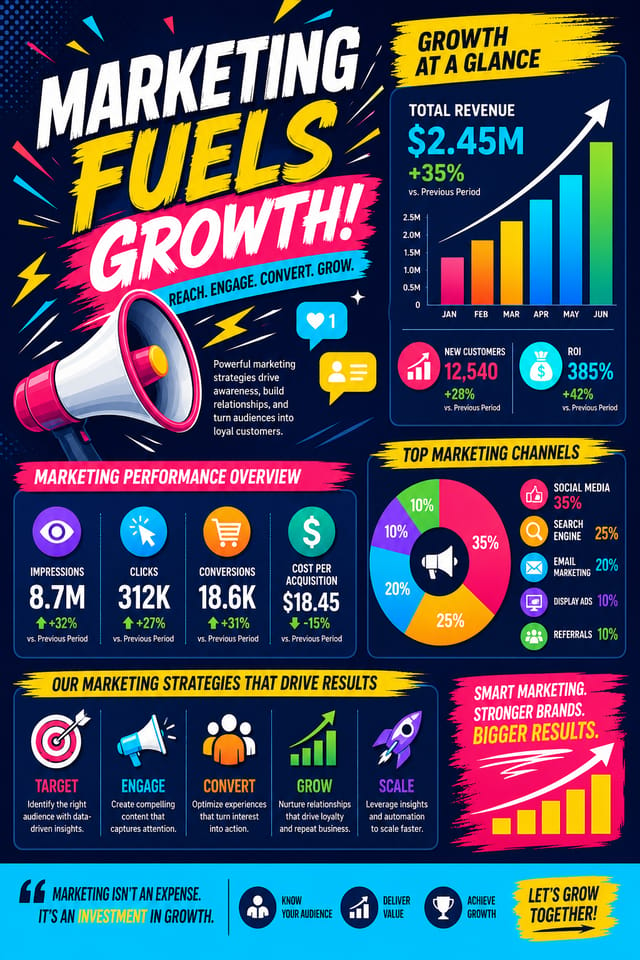
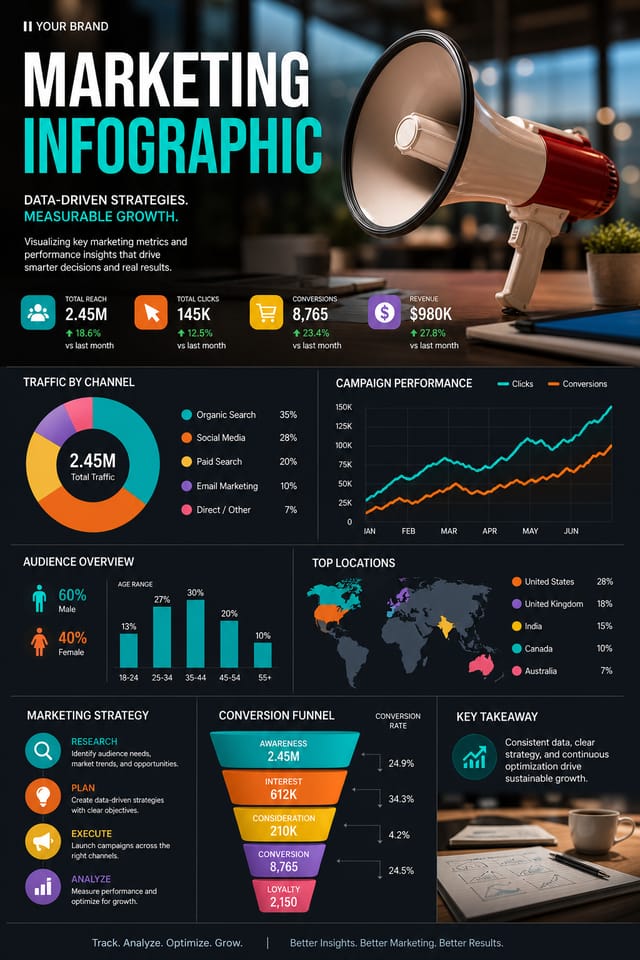
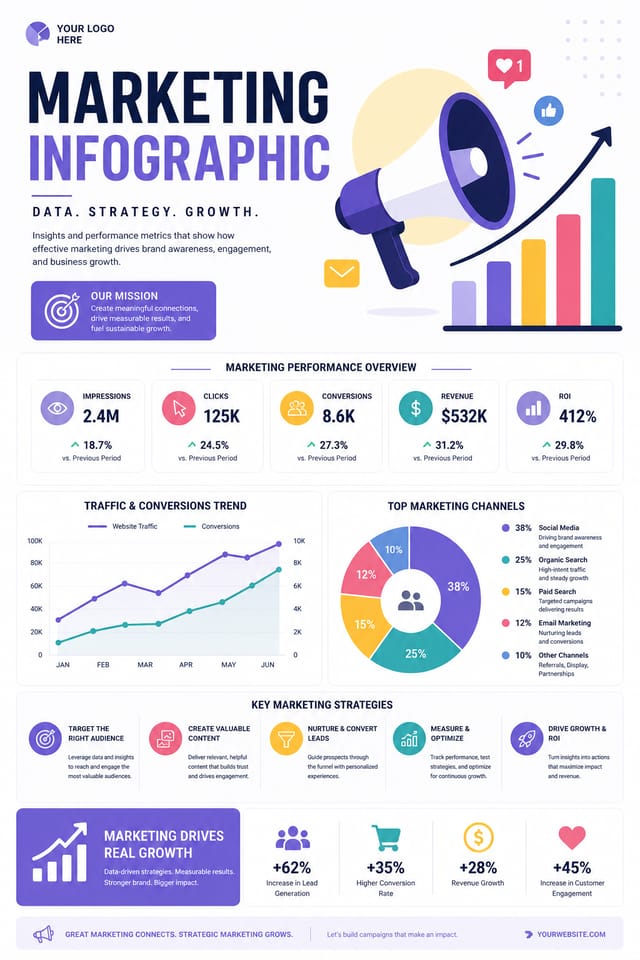
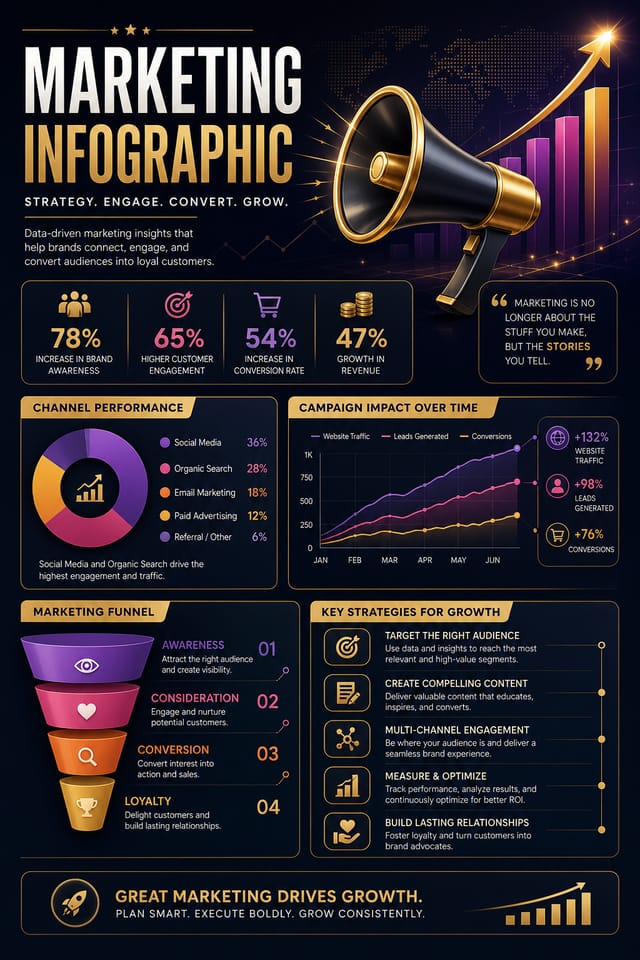
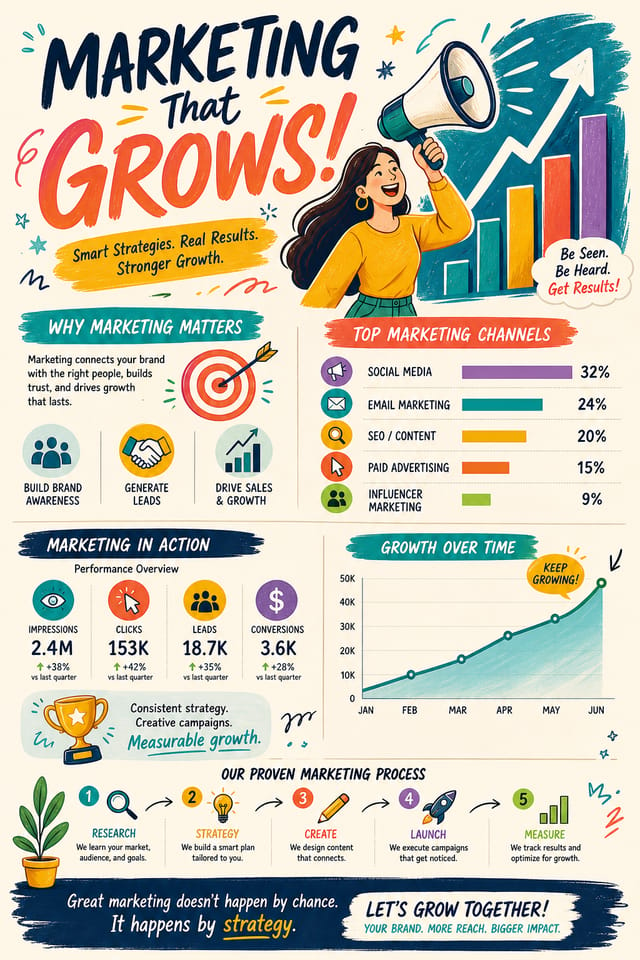
AI Marketing Infographic Design: Professional Results Fast
Pixazo AI builds marketing infographics from your description. Describe the look you want and get a design that fits your exact context.
Create Your Marketing Infographic FreeHow AI Translates Marketing Style: Why It Matters
What Makes Marketing Infographic Design Work
Not all infographic design styles work the same way.
Marketing design has specific characteristics that distinguish it from other approaches: particular color affinities, compositional tendencies, and typographic conventions that trained designers recognize immediately.
Pixazo applies this style knowledge automatically.
When you request a marketing infographic, the AI pulls from a visual vocabulary appropriate to marketing design, producing output that reads correctly to anyone familiar with the style.
The Marketing Infographic Feature Set: Feature Overview
Instant Iterations
Generate multiple marketing infographic variations from a single prompt. Compare options and refine until the design matches your vision.
Print-Ready Output
Generated marketing infographics are sized and structured for professional printing. Download high-resolution files ready for production.
Layered Style Application
Combine marketing style with other design parameters in a single prompt. The AI interprets complex requests and applies multiple style constraints simultaneously.
Consistency Across Variants
Generate multiple marketing infographics for a project and maintain visual consistency across the set. Specify your core design parameters and vary secondary elements.
Community Marketing Infographic: Showcase Gallery
Real creators sharing their marketing designs made with Pixazo AI.

Marketing infographic designed for dark mode display, OLED-optimized black background, vibrant accent colors, high contrast text
Monochromatic marketing infographic, single hue in multiple values, typographic hierarchy creates depth without color complexity
Marketing infographic for outdoor billboard at 14x48 feet, extreme readability at distance, three-word headline max, high contrast backgroundWho Creates Marketing Infographics: A Practical Guide
Trade Show and Expo Booth Graphics
Create marketing infographics for exhibition stands, pull-up banners, and booth backdrops. Large-format designs that attract foot traffic.
Recruitment and Hiring Outreach
Generate marketing infographics for job fairs, career pages, and employer branding initiatives. Designs that represent company culture visually.
Internal Communications
Create marketing infographics for all-hands meetings, policy announcements, and employee recognition programs. Professional materials for internal audiences.
Storefront and Office Displays
Generate marketing infographics for window displays, reception areas, and retail environments. Designs that reinforce brand presence in physical spaces.
Client and Investor Presentations
Design marketing infographics that support pitch decks, quarterly reviews, and stakeholder updates. Visual summaries that communicate key metrics.
Marketing Infographic Style Movements: Current Directions
Organic Shapes
Flowing, irregular forms are replacing sharp geometric shapes in marketing infographic backgrounds and decorative elements for a softer visual feel.
Brutalist Design
Raw, intentionally unpolished marketing infographic aesthetics with stark contrasts and unconventional layouts are carving a niche in creative industries.
Motion-Ready Design
Static marketing infographic designs are being created with animation in mind, using layered elements that translate smoothly to motion graphics.
Retro Revival
Vintage aesthetics from the 1970s and 1990s are influencing marketing infographic design with textured backgrounds, serif fonts, and warm gradients.
Bold Typography
Oversized type and expressive fonts are dominating marketing infographic design, turning headlines into visual centerpieces rather than just text.
Your Marketing Infographic Workflow: A Quick Guide
Open with Your Idea
Write a prompt describing your marketing infographic. Include style preferences, color direction, the most important text to display, and any specific visual elements you want. The more specific your description, the more targeted the output.
Let AI Build It
Your marketing infographic generates immediately after submission. Evaluate the design against your requirements and refine the prompt to correct any elements that don't match your intent.
Extract the Final
Get your final marketing infographic file in one click. Choose your format, download at full resolution, and use the design immediately. No watermarks, no additional fees, no waiting.
Marketing Infographic Specifications
Watch: Creating Marketing Infographic designs step by step
Marketing Infographic Workflow Stages: How It All Connects
Review Evaluate and refine
Compare generated marketing infographic options against your brief. Mark what works and note specific changes needed for the next iteration.
Export Deliver final files
Export your marketing infographic in the required formats and resolutions. Organize deliverables for handoff to the production or publishing team.
Refine Polish the design
Apply targeted edits to your selected marketing infographic. Adjust typography, spacing, and color until every element meets your quality standard.
Approve Final sign-off
Get stakeholder approval on the finished marketing infographic. Verify all text is accurate and the design meets brand and technical requirements.
Visual Styles for Marketing Infographics: Compared
Atmospheric Marketing
Marketing infographic design where mood takes priority. Color and composition work together to create a specific feeling.
Classic Marketing
Traditional marketing design principles applied to modern infographic format. Clean composition, conventional hierarchy, time-tested visual decisions.
High-Contrast Marketing
Bold marketing visual treatment with strong tonal contrast. Elements read clearly at any viewing distance.
Geometric Marketing
Structured marketing composition using grid systems and angular forms. Order and precision define the visual approach.
Minimalist Marketing
Stripped-back marketing approach. Fewer elements, more negative space, typography carries more visual weight.
Comparing Marketing Infographic Tools: An Honest Look
Snappa
Quick graphic creator focused on social media and marketing visuals
Pixazo
AI-powered marketing infographic generator with prompt-based design and professional output quality
Canva
Drag-and-drop editor with a large template library and collaboration features
Piktochart
Infographic and presentation maker for data-driven visuals
PicMonkey
Photo editor and design tool with brand kit management
Marketing Infographic Generation: Prompt Templates
Copy any prompt below and paste it into Pixazo to generate your design instantly.
Editorial-style marketing infographic, text-dominant design, typographic treatment carries visual weight, layout proportions inspired by print publication designRefined marketing infographic, sophisticated color relationships, intentional whitespace, typefaces appropriate to marketing style, balanced compositionProfessional marketing infographic, minimalist marketing approach, negative space used intentionally, readable at multiple viewing distances, print-ready compositionPortrait-orientation marketing infographic, vertical composition, headline at natural reading entry point, supporting information flows downward logicallyTwo-color marketing infographic design, high contrast between primary and secondary color, clean separation between graphic and text zonesHigh-impact marketing infographic, immediate visual read at thumbnail size, clear headline dominance, supporting information structured logicallyHonest Notes on Marketing Infographics: Areas for Improvement
Known limitations and trade-offs of AI-generated marketing design. Understanding what the AI handles well and where it falls short helps you structure your marketing infographic design workflow effectively.
Getting Started with Marketing Infographics: Frequently Asked
You can specify any aspect ratio in your prompt. Common options include 1:1 for social posts, 4:5 for Instagram, 9:16 for stories, 16:9 for presentations, and standard print sizes like A4 or letter. The AI adapts marketing composition to fit your chosen ratio.
Designs created with Pixazo are available for commercial use. You can use your marketing infographics for client projects, product sales, advertising, and other commercial applications without additional licensing fees.
Templates apply a fixed visual structure with placeholder content. AI generation produces original designs based on your specific description. Two marketing infographics generated from different prompts will have genuinely different layouts, not just different text in the same box positions.
Pixazo generates marketing infographics in RGB color space. For professional offset printing that requires CMYK, convert the downloaded file using Adobe Photoshop, Illustrator, or a free tool like GIMP. The AI selects colors that translate well to print when you mention print use in your prompt.
Pixazo supports PNG, JPEG, and PDF export for marketing infographics. PNG preserves transparency if your design uses it. JPEG works well for web and social media. PDF is the preferred format for print production of marketing infographics.

