Process Infographic : Create Free Process Infographics in Minutes with AI
Create Custom Process Infographics Quickly with Pixazo Best AI Process Infographic Maker. Try for Free!
Get Started
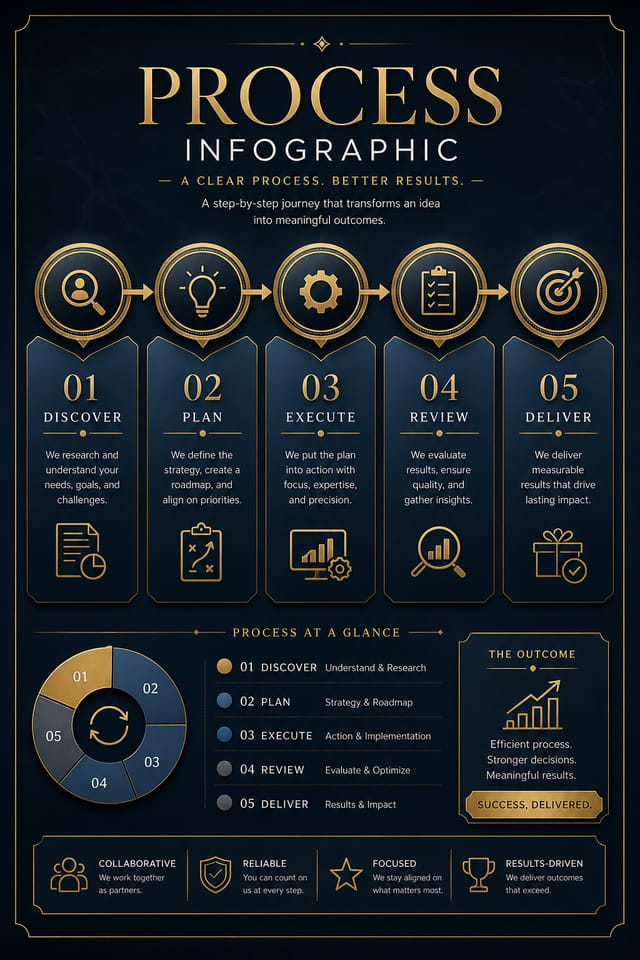
The Process Design Approach: What Good Design Involves
The Process Design System Pixazo Uses
Process design carries specific visual associations that viewers pick up on immediately.
The right palette, the right typographic approach, the right compositional balance.
Get these right and your process infographic communicates clearly.
Core of Process Infographic AI: Tools That Matter
Text Placement Options
Describe where you want text elements positioned in your process infographic. The AI follows compositional direction about headline placement and body copy layout.
Color Temperature Control
Specify warm, cool, or neutral color direction for your process infographic. The AI builds the full palette around your temperature preference.
No Design Software Required
Create professional process infographics without Photoshop, Illustrator, or other design applications. The AI handles all technical production.
Export Flexibility
Download your process infographic in formats suited for your use case. Web-optimized versions for digital display, high-DPI files for print.
Commercial Use Rights
Designs generated with Pixazo are yours to use commercially. No additional licensing required for process infographic projects.
Fast Generation
Complete process infographic designs generate in seconds. No rendering queues, no waiting for batch processing.
Process Design Community: Gallery Highlights
Real creators sharing their process designs made with Pixazo AI.

Process infographic design, clean typographic hierarchy, palette appropriate to process aesthetic, high contrast headline, balanced composition
Corporate process infographic for a B2B audience, clean and authoritative, navy and white palette, structured grid, data-friendly layout
Square process infographic at 1080x1080 for LinkedIn post, professional tone, balanced text-to-visual ratio, brand-safe compositionWhen You Need Process Infographics: Real Applications
Travel and Tourism Promotion
Design process infographics for destinations, tour packages, and hospitality brands. Aspirational visuals that inspire booking decisions.
Personal Creative Work
Generate process infographics for personal projects, home display, and creative experiments without spending production time on design execution.
Music and Audio Production
Produce process infographics for album covers, playlist artwork, and music event promotion. Visual identity that matches the sound.
Subscription and SaaS Marketing
Generate process infographics for software launches, feature announcements, and onboarding campaigns. Clean, modern designs for digital-first audiences.
Process Infographic Generation: Three Easy Steps
Seed the AI with Context
Describe what you want your process infographic to look like. Include the mood, color palette, typography preference, and content hierarchy. Pixazo reads all of this and uses it to generate an appropriate design.
Check the Design
Your process infographic generates immediately after submission. Evaluate the design against your requirements and refine the prompt to correct any elements that don't match your intent.
Enhance the Details
Adjust your prompt to modify specific elements of the process infographic. Change the color palette, shift typography weight, or reposition the compositional focus. Each iteration gets you closer to the final design.
Grab the Finished Version
Export your process infographic in the format you need. PNG for web and social, PDF for print production, JPG for email and lightweight sharing. The file is yours to use commercially without restrictions.
Watch: Creating Process Infographic designs step by step
Style Approaches for Process Infographics: What Works Best
Classic Process
Traditional process design principles applied to modern infographic format. Clean composition, conventional hierarchy, time-tested visual decisions.
Geometric Process
Structured process composition using grid systems and angular forms. Order and precision define the visual approach.
High-Contrast Process
Bold process visual treatment with strong tonal contrast. Elements read clearly at any viewing distance.
Editorial Process
Text-dominant process infographic layout inspired by print publication design. Typographic variety creates visual rhythm.
Minimalist Process
Stripped-back process approach. Fewer elements, more negative space, typography carries more visual weight.
Good Process Infographic Prompt Examples
Copy any prompt below and paste it into Pixazo to generate your design instantly.
Process aesthetic infographic, palette drawn from process design tradition, layout proportions consistent with process conventions, purposeful use of each elementProcess infographic with strong visual hierarchy, largest element reads clearly, supporting elements organized by importance, clean background treatmentTextured process infographic, surface treatment adds depth without obscuring legibility, texture consistent with process aestheticMonochromatic process infographic, single-hue palette with value variation for contrast, typographic hierarchy creates visual interest without color complexityFull-bleed process infographic, background treatment extends to edges, foreground elements positioned for compositional balance, strong central hierarchyHigh-impact process infographic, immediate visual read at thumbnail size, clear headline dominance, supporting information structured logicallyProcess Infographic Design Insights: What Professionals Know
Get Feedback Early
Share your process infographic draft with someone outside the project. Fresh eyes catch issues you have become blind to after hours of refinement.
Limit Your Color Palette
Stick to 2-3 primary colors in your process infographic design. Too many colors compete for attention and weaken the visual hierarchy.
Consider the Context
Think about where your process infographic will appear. A design optimized for social media needs different proportions and density than one for a physical bulletin board.
Iterate with Variations
Generate 3-5 versions of your process infographic before committing. Comparing variations side by side often reveals the strongest direction.
Where Process Infographic AI: Where It Falls Short
Known limitations and trade-offs of AI-generated process design. Being specific about what AI infographic generation can and cannot do helps you plan your workflow and set accurate expectations.
Exporting Your Process Infographic: Choosing the Right Format
TIFF
High-fidelity format for process infographic files destined for professional printing, supporting CMYK color and lossless compression.
SVG
Scalable format for process infographic designs that need to render crisply at any resolution, commonly used for web and responsive layouts.
PNG
Lossless image format ideal for process infographic designs with transparency, sharp text, and web display at predictable file sizes.
WEBP
Modern web format offering smaller file sizes than PNG or JPG for process infographic images without significant quality loss.
New to Process Infographics? Frequently Asked
You can request high-contrast or color-blind-friendly palettes in your prompt. Specify 'accessible color palette' or 'deuteranopia-safe colors' and the AI will select process-appropriate colors that maintain sufficient contrast for users with color vision deficiencies.
The AI recognizes process design as a distinct visual category with its own conventions. Specifying process style in your prompt triggers appropriate design decisions around color, typography, and composition rather than defaulting to generic poster layout.
Adjust your prompt to change any element of the design. If a generated process infographic is close but not quite right, describe what you want changed and regenerate. The AI responds to specific direction about individual elements like color, layout, or typographic weight.
Specify the dimensions in your prompt. Common formats like A3, 18x24 inches, or 1080x1920 pixels for social media stories all work. The AI generates a process infographic composition appropriate for the specified aspect ratio and use case.

