Statistic Infographic : Create Free Statistic Infographics in Minutes with AI
Create Custom Statistic Infographics Quickly with Pixazo Best AI Statistic Infographic Maker. Try for Free!
Get Started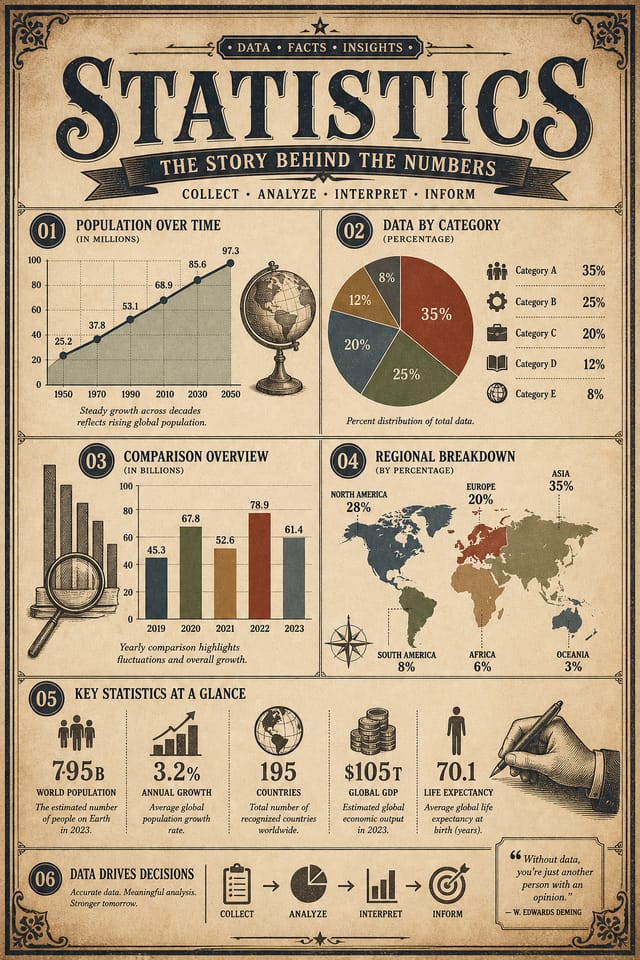
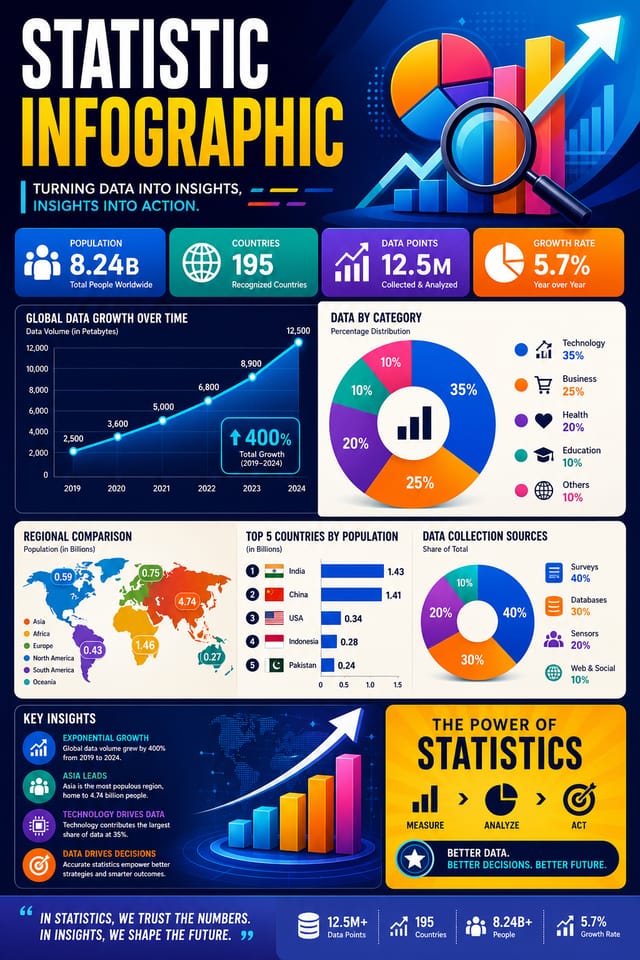
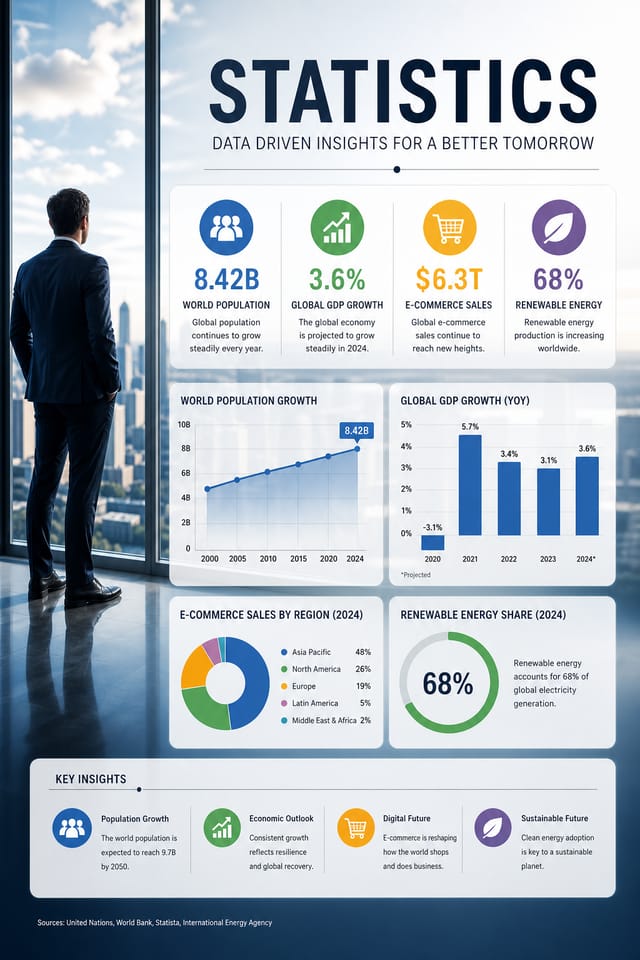
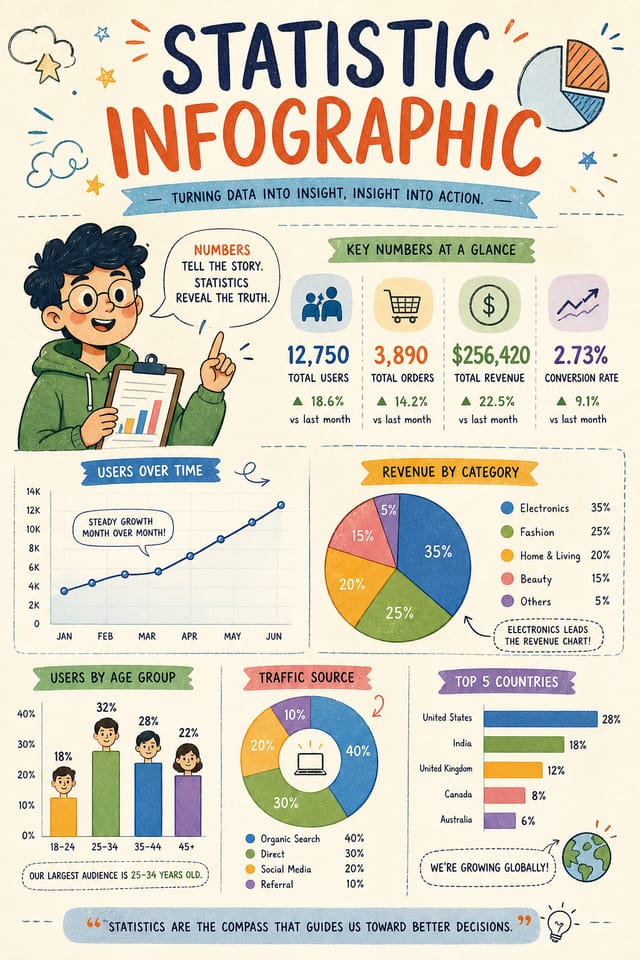
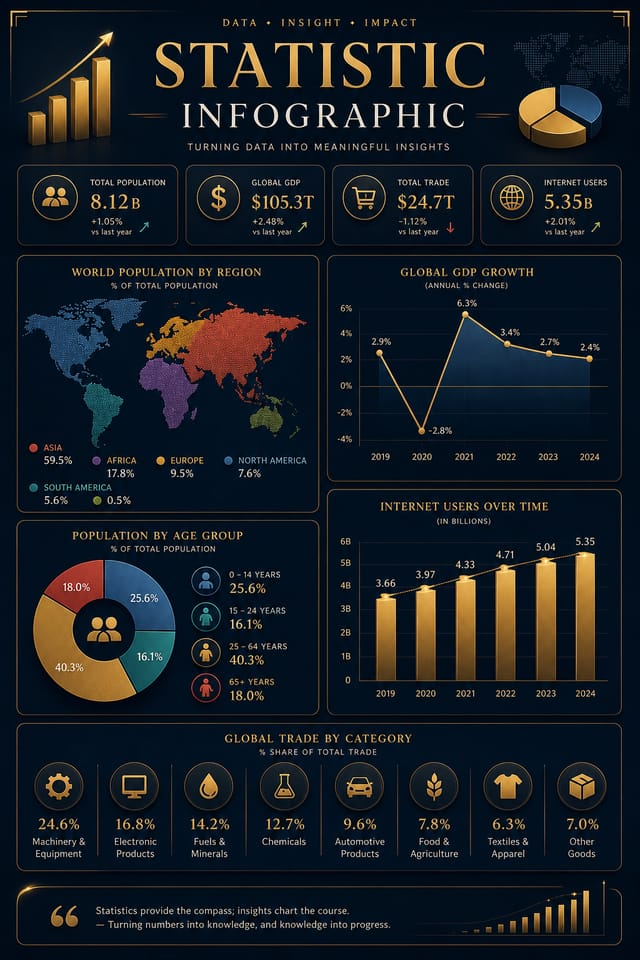
AI Statistics Infographic Creator: Create Like a Pro
Pixazo AI builds statistics infographics from your description. Describe the look you want and get a design that fits your exact context.
Create Your Statistics Infographic FreeStatistics Infographic Aesthetics: How Pixazo Handles It
Design Intelligence for Statistics Infographics
Effective statistics infographic design depends on understanding what makes statistics work visually.
Color relationships, typographic choices, and spatial arrangement all carry different weight depending on the design style.
Pixazo's AI has been trained to recognize these distinctions.
The practical result is that a statistics infographic prompt produces designs that fit statistics conventions rather than generic poster layouts.
Build a Statistics Infographic: The Workflow Explained
Watch: Creating Statistics Infographic designs step by step
Putting Statistics Infographics to Work: Across Industries
Non-Profit Campaigns
Create compelling statistics campaign infographics without allocating budget to design production. Focus resources on mission-critical activities.
Freelance Design Work
Use Pixazo to generate statistics infographic concepts for client review. Present multiple directions quickly before committing to detailed execution.
Restaurant and Food Service
Generate statistics infographics for menus, seasonal promotions, and restaurant branding. Designs that reflect cuisine style and dining atmosphere.
Interior Display
Generate statistics infographics for home and office wall display. Get print-ready files that look considered rather than stock-photo generic.
Educational Materials
Design statistics infographics for educational contexts. Courses, workshops, and learning materials benefit from the visual clarity of good statistics design.
Precision Statistics Infographic Tools: Capabilities Explained
Instant Iterations
Generate multiple statistics infographic variations from a single prompt. Compare options and refine until the design matches your vision.
Background Variation
Generate statistics infographics with different background treatments. Solid, gradient, textured, or pattern backgrounds all available for statistics style.
Style-Accurate Generation
The AI interprets statistics design conventions and applies them to your infographic, producing output that looks correctly styled rather than generically templated.
Fast Generation
Complete statistics infographic designs generate in seconds. No rendering queues, no waiting for batch processing.
Subcategory Awareness
The AI distinguishes between design subcategories. A statistics infographic request produces statistics-appropriate output, not a generic design with statistics text added.
Typography Matching
Typefaces are selected to match statistics aesthetic expectations. The AI pairs fonts that reinforce your statistics infographic's visual identity.
The Fundamentals of Statistics Infographic: A Designer's Perspective
Effective Statistics Infographic Prompt Inspiration
Copy any prompt below and paste it into Pixazo to generate your design instantly.
Atmospheric statistics infographic, background treatment supports the headline without competing with it, visual weight distributed intentionallyGeometric statistics infographic, structured grid system, angular composition, colors in blocks rather than gradients, modern clean finishStatistics aesthetic infographic, palette drawn from statistics design tradition, layout proportions consistent with statistics conventions, purposeful use of each elementContemporary statistics infographic design, grid-based layout, typographic precision, restrained color palette, no decorative excessPortrait-orientation statistics infographic, vertical composition, headline at natural reading entry point, supporting information flows downward logicallyRefined statistics infographic, sophisticated color relationships, intentional whitespace, typefaces appropriate to statistics style, balanced compositionHow Statistics Infographic Projects Flow: How It All Connects
Refine Polish the design
Apply targeted edits to your selected statistics infographic. Adjust typography, spacing, and color until every element meets your quality standard.
Review Evaluate and refine
Compare generated statistics infographic options against your brief. Mark what works and note specific changes needed for the next iteration.
Research Gather references
Collect examples of effective statistics infographic designs, note what works, and identify patterns relevant to your project goals.
Export Deliver final files
Export your statistics infographic in the required formats and resolutions. Organize deliverables for handoff to the production or publishing team.
Generate Create initial designs
Use AI to produce multiple statistics infographic variations based on your brief. Start broad and narrow down from the strongest options.
What Statistics Infographic AI: Room to Grow
Known limitations and trade-offs of AI-generated statistics design. Understanding what the AI handles well and where it falls short helps you structure your statistics infographic design workflow effectively.
From the Statistics Community: A Design Gallery
Real creators sharing their statistics designs made with Pixazo AI.



Download Your Statistics Infographic: Choosing the Right Format
JPG
Compressed image format suited for statistics infographic designs with photographic elements where smaller file size matters more than pixel-perfect edges.
Print-ready format for statistics infographic files that preserves fonts, colors, and layout across different devices and print services.
WEBP
Modern web format offering smaller file sizes than PNG or JPG for statistics infographic images without significant quality loss.
TIFF
High-fidelity format for statistics infographic files destined for professional printing, supporting CMYK color and lossless compression.
SVG
Scalable format for statistics infographic designs that need to render crisply at any resolution, commonly used for web and responsive layouts.
Getting Started with Statistics Infographics: Your Questions Answered
Each generation uses your unique prompt text to produce a distinct statistics infographic design. Even similar prompts produce noticeably different outputs due to the AI's generative process. No two users receive identical designs.
The AI renders text as specified in your prompt, so double-check spelling and punctuation before generating. If text renders incorrectly in a statistics infographic, adjust your prompt and regenerate. The AI follows your exact text input.
Team accounts allow multiple users to share prompts, saved statistics infographic designs, and brand kits within a shared workspace. Team members can iterate on each other's statistics infographic designs and maintain consistent output across projects.
Pixazo generates single-page statistics infographic designs per prompt. For multi-page projects, generate each page individually using consistent prompt language to maintain visual continuity across your statistics document set.
Individual statistics infographics generate in seconds. For batch production, you can submit multiple prompts in sequence and download results as they complete. A series of ten statistics infographic variations typically takes under five minutes total.

