Emoji Meme : Create Free Emoji Memes in Minutes with AI
Create Custom Emoji Memes Quickly with Pixazo Best AI Emoji Meme Maker. Try for Free!
Get Started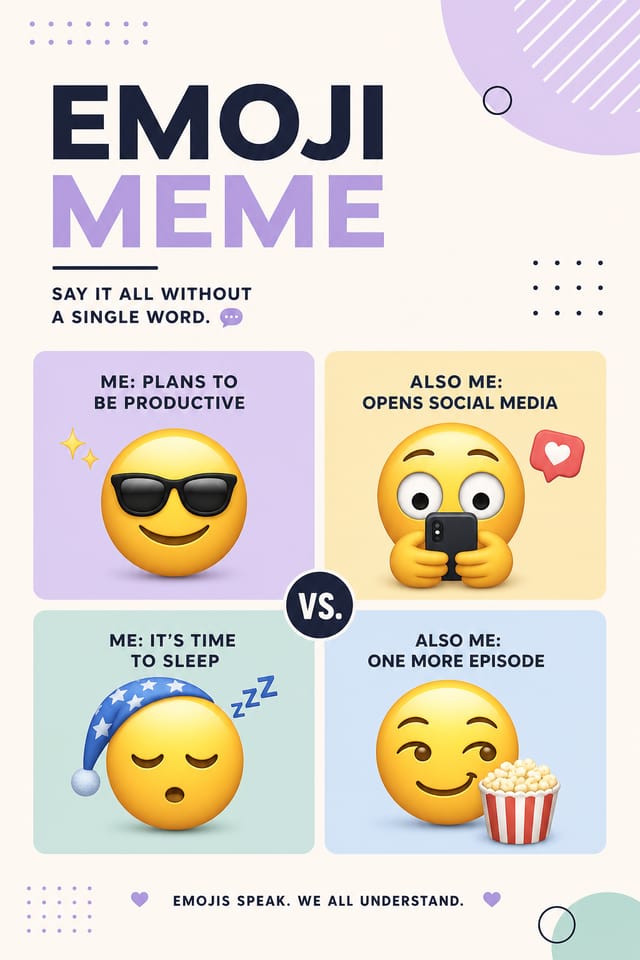
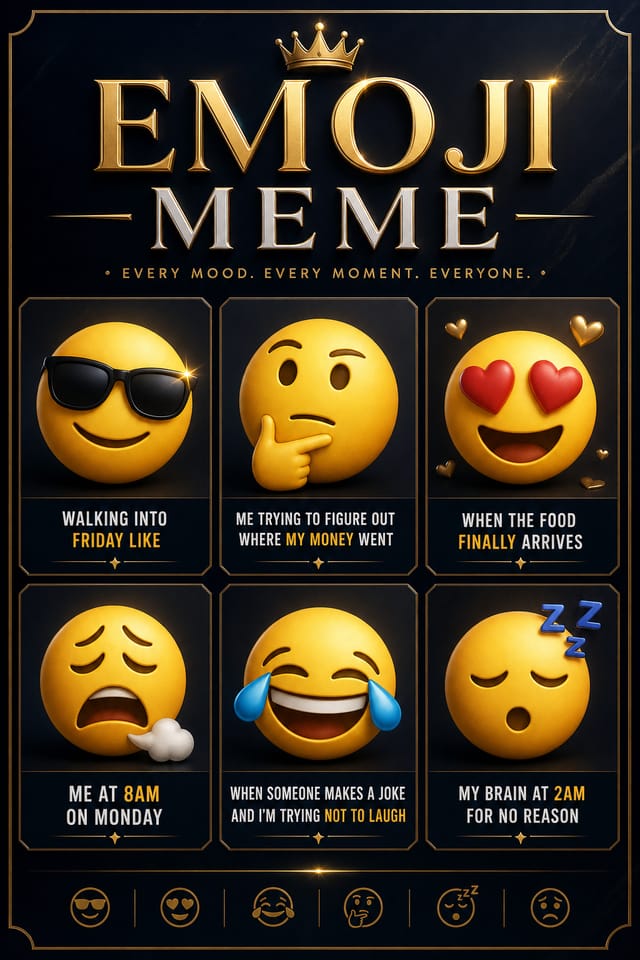
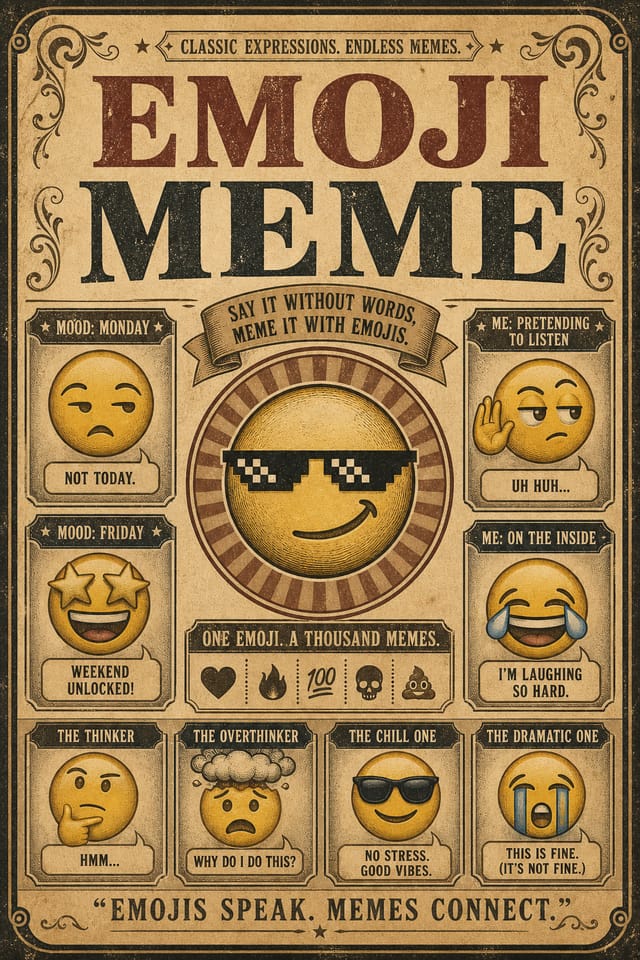
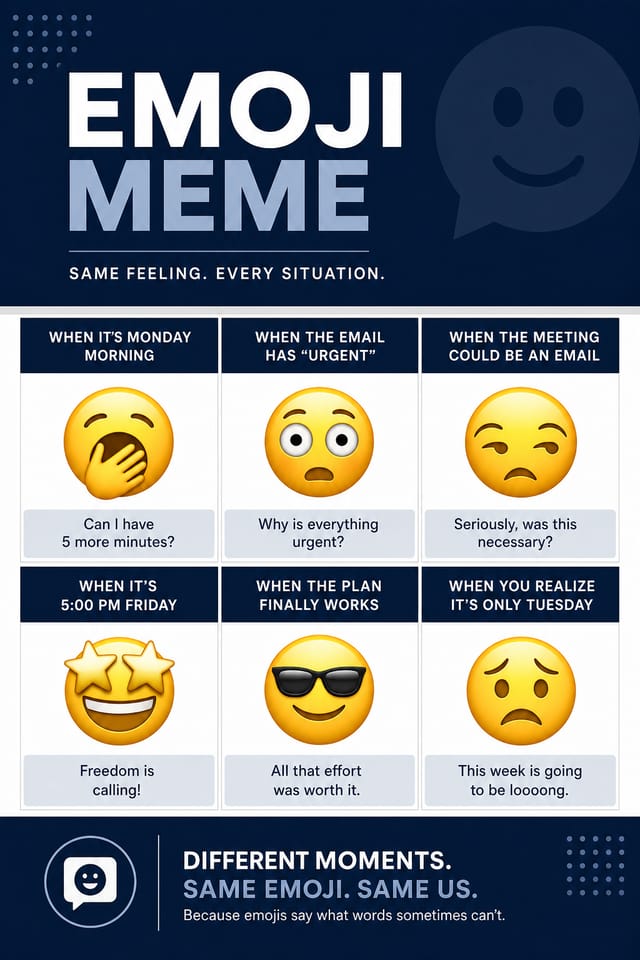
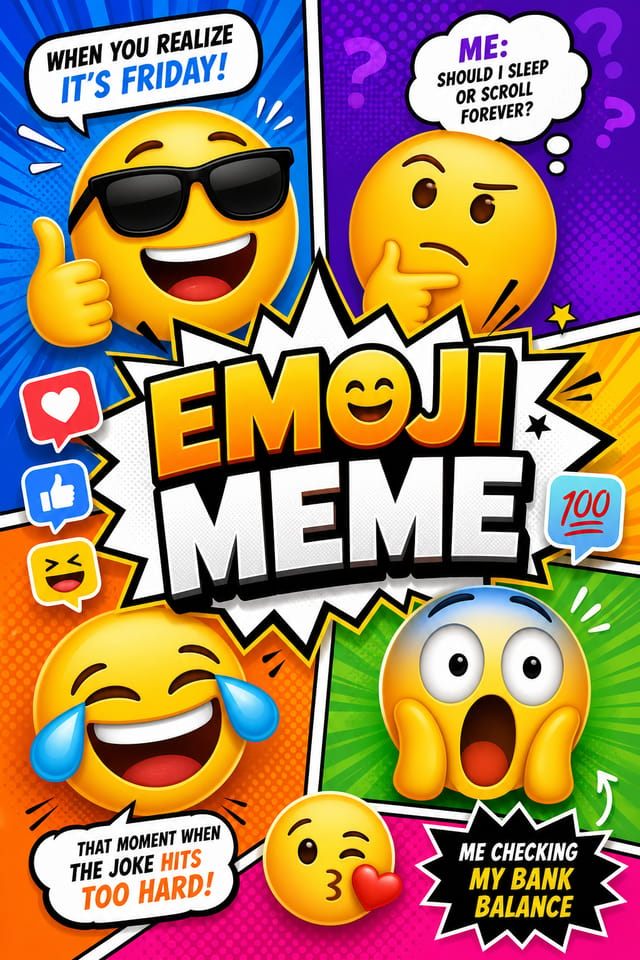
AI Emoji Meme Builder: Instant Professional Output
Create emoji memes that fit your brand and purpose. Hash-based design variations mean your emoji posters look distinct every time.
Create Your Emoji Meme FreeHow Pixazo Reads Emoji Style: Key Design Conventions
The Emoji Meme Design Framework
Emoji design carries specific visual associations that viewers pick up on immediately.
The right palette, the right typographic approach, the right compositional balance.
Get these right and your emoji meme communicates clearly.
How People Use Emoji Memes: From Hobby to Pro
Professional Projects
Create emoji memes for client work, commercial campaigns, and professional applications where quality and style accuracy matter.
Social Media Content
Design emoji memes sized for social platforms. Get content that looks intentional and well-crafted, not thrown together.
Interior Display
Generate emoji memes for home and office wall display. Get print-ready files that look considered rather than stock-photo generic.
Freelance Design Work
Use Pixazo to generate emoji meme concepts for client review. Present multiple directions quickly before committing to detailed execution.
Restaurant and Food Service
Generate emoji memes for menus, seasonal promotions, and restaurant branding. Designs that reflect cuisine style and dining atmosphere.
Behind Emoji Meme Design: A Closer Look
Background Variation
Generate emoji memes with different background treatments. Solid, gradient, textured, or pattern backgrounds all available for emoji style.
Prompt Refinement
Adjust your description to refine any aspect of the emoji meme design. The AI responds to specific direction about colors, layout, or content.
Resolution Control
Specify output dimensions for your emoji meme. Get files sized for web display, social media, or large-format printing.
Negative Space Handling
The AI manages whitespace in emoji meme designs according to emoji aesthetic conventions, not generic poster defaults.
Creating Emoji Memes: Plain Answers
Canva uses fixed templates you customize manually. Pixazo generates original emoji meme designs from your description, so every output is unique. For emoji work specifically, the AI applies style-specific design decisions rather than offering generic drag-and-drop templates.
Brand kits let you save your logo, fonts, and color palette so every emoji meme you generate stays on brand. Once configured, the AI applies your brand parameters automatically alongside emoji style conventions.
Include 'transparent background' in your prompt to generate a emoji meme with no background fill. Download as PNG to preserve transparency. This is useful for emoji designs that will be composited over other imagery or placed on colored surfaces.
Include the target language in your prompt when generating emoji memes with non-English text. The AI selects typographic approaches appropriate for the language and applies emoji design conventions to the overall layout regardless of language.
Individual emoji memes generate in seconds. For batch production, you can submit multiple prompts in sequence and download results as they complete. A series of ten emoji meme variations typically takes under five minutes total.
Your Emoji Meme Workflow: A Quick Guide
State Your Requirements
Start with a text description of your emoji meme concept. Specify the visual style, colors, layout direction, and key text. Detailed prompts produce more accurate emoji meme designs than general ones.
Watch: Creating Emoji Meme designs step by step
What Makes a Strong Emoji Meme: What to Aim For
Edge Treatment
How elements meet the edge of a emoji meme matters. Full-bleed images feel immersive. Generous margins feel premium. The edge is a design decision, not an afterthought.
Compositional Balance
Visual weight in emoji meme design should be intentional. Asymmetric balance often creates more interest than centered symmetry, but both can work when executed with purpose.
Repetition and Consistency
Repeating visual elements in emoji meme design creates cohesion. Consistent use of shapes, colors, and spacing makes the design feel unified rather than assembled from random parts.
Which Emoji Meme Tool Fits: A Neutral Comparison
Canva
Drag-and-drop editor with a large template library and collaboration features
Adobe Express
Streamlined creative tool backed by Adobe's design ecosystem
Pixazo
AI-powered emoji meme generator with prompt-based design and professional output quality
PicMonkey
Photo editor and design tool with brand kit management
Fotor
Photo editing platform with design templates and batch processing
What Emoji Meme AI: Honest Expectations
Known limitations and trade-offs of AI-generated emoji design. Being specific about what AI meme generation can and cannot do helps you plan your workflow and set accurate expectations.
Emoji Meme Prompts: Prompt Ideas
Copy any prompt below and paste it into Pixazo to generate your design instantly.
Clean emoji meme design, geometric structure, disciplined typography, color accent used selectively for emphasis, printer-optimized resolutionEmoji meme for digital display, optimized proportions for screen viewing, colors calibrated for RGB output, legible at typical viewing distanceEmoji aesthetic meme, palette drawn from emoji design tradition, layout proportions consistent with emoji conventions, purposeful use of each elementPortrait-orientation emoji meme, vertical composition, headline at natural reading entry point, supporting information flows downward logicallyEmoji meme design, clean layout, strong typography hierarchy, appropriate color palette for emoji aesthetic, high contrast between headline and backgroundWhat Works in Emoji Meme Design: Rules Worth Following
Maintain brand alignment
Keep your emoji meme design consistent with existing brand colors, fonts, and visual language for a cohesive identity.
Optimize for the display medium
Tailor your emoji meme resolution, color space, and text size to the specific platform or physical context where it will appear.
Use a consistent visual hierarchy
Structure your emoji meme so the viewer's eye follows a clear path from headline to supporting details to call-to-action.
Overcrowd the layout
Filling every pixel of your emoji meme with content makes it harder to read and reduces the impact of every individual element.
Ignore accessibility
Low-contrast text and tiny font sizes in your emoji meme exclude a significant portion of your potential audience.
Rely solely on AI output
AI-generated emoji meme designs are a starting point. Human review catches issues with context, tone, and accuracy that AI can miss.
Forget the call to action
A emoji meme without a clear next step for the viewer is a missed opportunity. Always include direction on what to do next.
Emoji Creator Community Showcase
Real creators sharing their emoji designs made with Pixazo AI.

Moody emoji meme with deep shadows and dramatic lighting feel, dark palette, cinematic atmosphere, headline in condensed uppercase
Handmade-feel emoji meme with brush stroke textures, imperfect edges, warm color palette, artisanal craft aesthetic
Vibrant emoji meme targeting Gen Z audience, neon accent colors, asymmetric layout, bold experimental typography, maximum visual energy
