Embroidery Mockup : Create Free Embroidery Mockups in Minutes with AI
Create Custom Embroidery Mockups Quickly with Pixazo Best AI Embroidery Mockup Maker. Try for Free!
Get Started
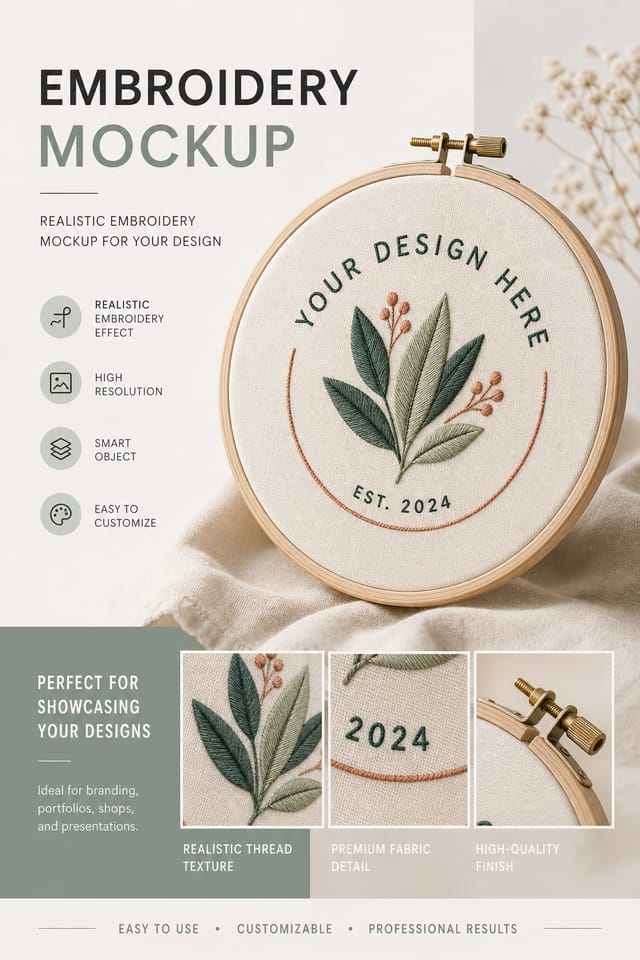
AI Embroidery Mockup Creator: Built for Creators
Professional embroidery mockup design without the complexity. Pixazo generates layouts, selects palettes, and handles typography in seconds.
Create Your Embroidery Mockup FreeEmbroidery Mockup Maker: The Technical Edge
Embroidery Mockup Creation Tools: Technical Breakdown
Style-Accurate Generation
The AI interprets embroidery design conventions and applies them to your mockup, producing output that looks correctly styled rather than generically templated.
Consistency Across Variants
Generate multiple embroidery mockups for a project and maintain visual consistency across the set. Specify your core design parameters and vary secondary elements.
Layered Style Application
Combine embroidery style with other design parameters in a single prompt. The AI interprets complex requests and applies multiple style constraints simultaneously.
Print-Ready Output
Generated embroidery mockups are sized and structured for professional printing. Download high-resolution files ready for production.
Embroidery Mockups in Practice: Practical Examples
Non-Profit Campaigns
Create compelling embroidery campaign mockups without allocating budget to design production. Focus resources on mission-critical activities.
Social Media Content
Design embroidery mockups sized for social platforms. Get content that looks intentional and well-crafted, not thrown together.
Small Business Marketing
Produce embroidery marketing mockups without a design agency budget. Get professional results from a text description.
Healthcare and Wellness
Design embroidery mockups for clinics, wellness centers, and health campaigns. Trustworthy visuals that communicate care and professionalism.
Embroidery Mockup Starter Prompt Starters
Copy any prompt below and paste it into Pixazo to generate your design instantly.
Clean embroidery mockup design, geometric structure, disciplined typography, color accent used selectively for emphasis, printer-optimized resolutionEmbroidery style mockup, bold headline placement, supporting text at appropriate scale, color palette consistent with embroidery design conventionsLarge-format embroidery mockup design, elements sized for visibility at print scale, no fine detail that would be lost in productionEditorial-style embroidery mockup, text-dominant design, typographic treatment carries visual weight, layout proportions inspired by print publication designPortrait-orientation embroidery mockup, vertical composition, headline at natural reading entry point, supporting information flows downward logicallyHigh-impact embroidery mockup, immediate visual read at thumbnail size, clear headline dominance, supporting information structured logicallyPractical Embroidery Mockup Tips: Expert-Level Advice
Keep Typography Simple
Use no more than two typefaces per embroidery mockup. One for headlines, one for body text. Consistency in typography signals professionalism.
Limit Your Color Palette
Stick to 2-3 primary colors in your embroidery mockup design. Too many colors compete for attention and weaken the visual hierarchy.
Match Tone to Audience
A embroidery mockup for a corporate event needs a different visual tone than one for a music festival. Let the audience guide your style choices.
Use High Contrast for Readability
Whether your embroidery mockup is displayed on screen or in print, strong contrast between text and background ensures the message gets through at any size.
Inside Embroidery Mockup Creation: The Workflow Explained
Open with Your Idea
Start with a text description of your embroidery mockup concept. Specify the visual style, colors, layout direction, and key text. Detailed prompts produce more accurate embroidery mockup designs than general ones.
Assess the Output
The AI produces a embroidery mockup based on your description. If the first result isn't exactly right, adjust the prompt to address what needs changing. Most designs reach the target within a few iterations.
Ship the Final File
Download your completed embroidery mockup in the format that fits your use case. High-resolution files for print, web-optimized versions for digital, or PDF for production-ready delivery.
Watch: Creating Embroidery Mockup designs step by step
Design Criteria for Embroidery Mockup: Best Practices
Embroidery Mockup Design Trends: Trend Report
Organic Shapes
Flowing, irregular forms are replacing sharp geometric shapes in embroidery mockup backgrounds and decorative elements for a softer visual feel.
Minimalist Layouts
Stripped-back embroidery mockup designs with generous white space and limited elements are gaining favor for their clarity and elegance.
Asymmetric Composition
Breaking grid symmetry in embroidery mockup layouts creates visual tension and a modern, editorial feel that stands out.
Motion-Ready Design
Static embroidery mockup designs are being created with animation in mind, using layered elements that translate smoothly to motion graphics.
What Embroidery Creators Built: Real Creator Work
Real creators sharing their embroidery designs made with Pixazo AI.
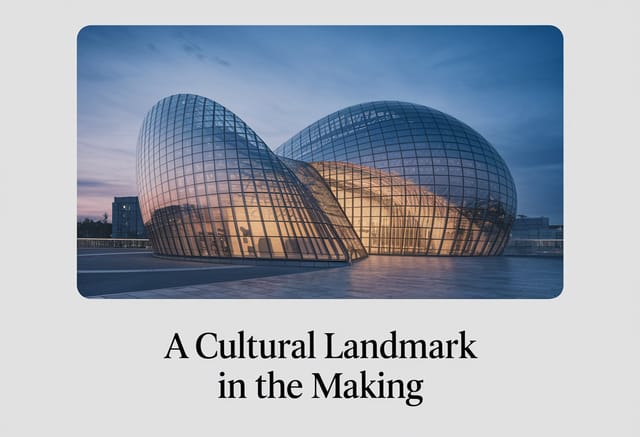
Portrait embroidery mockup for social sharing, vertical 4:5 ratio, headline in upper third, supporting content below centerline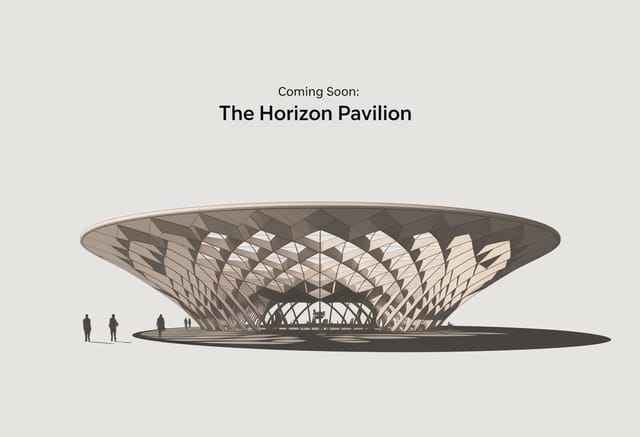
Handmade-feel embroidery mockup with brush stroke textures, imperfect edges, warm color palette, artisanal craft aesthetic
Embroidery mockup for outdoor billboard at 14x48 feet, extreme readability at distance, three-word headline max, high contrast backgroundEmbroidery Mockup AI Boundaries: Capabilities and Caveats
Known limitations and trade-offs of AI-generated embroidery design. Being specific about what AI mockup generation can and cannot do helps you plan your workflow and set accurate expectations.
Before You Start: What You Should Know
Pixazo generates embroidery mockups in RGB color space. For professional offset printing that requires CMYK, convert the downloaded file using Adobe Photoshop, Illustrator, or a free tool like GIMP. The AI selects colors that translate well to print when you mention print use in your prompt.
Describe your core design parameters in each prompt and vary only the specific elements that should change across the series. Maintaining consistent color palette, typographic approach, and compositional structure across embroidery mockup variations creates a coherent series.
Individual embroidery mockups generate in seconds. For batch production, you can submit multiple prompts in sequence and download results as they complete. A series of ten embroidery mockup variations typically takes under five minutes total.
The AI recognizes embroidery design as a distinct visual category with its own conventions. Specifying embroidery style in your prompt triggers appropriate design decisions around color, typography, and composition rather than defaulting to generic poster layout.

