Keychain Mockup : Create Free Keychain Mockups in Minutes with AI
Create Custom Keychain Mockups Quickly with Pixazo Best AI Keychain Mockup Maker. Try for Free!
Get Started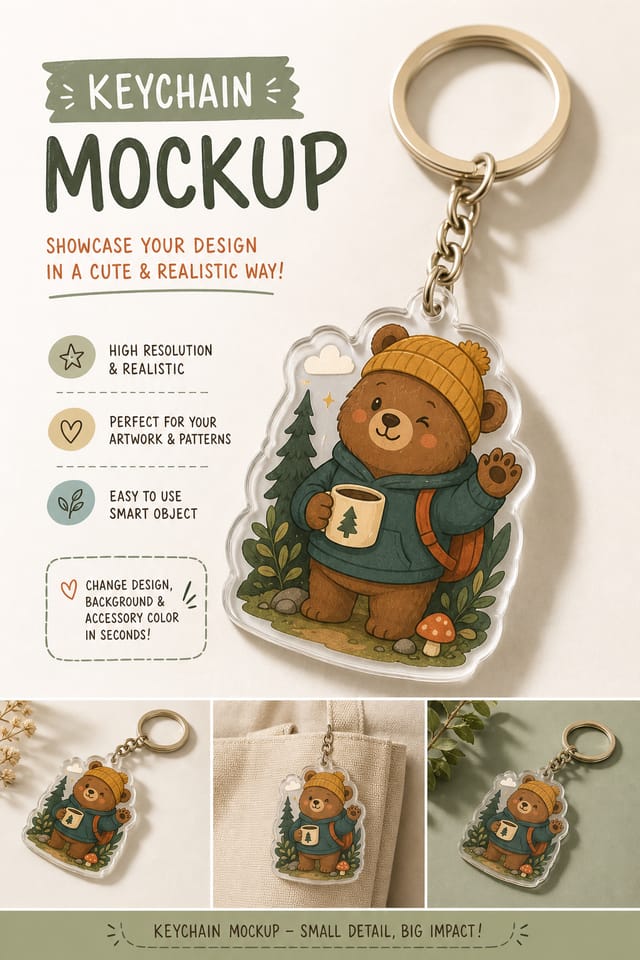
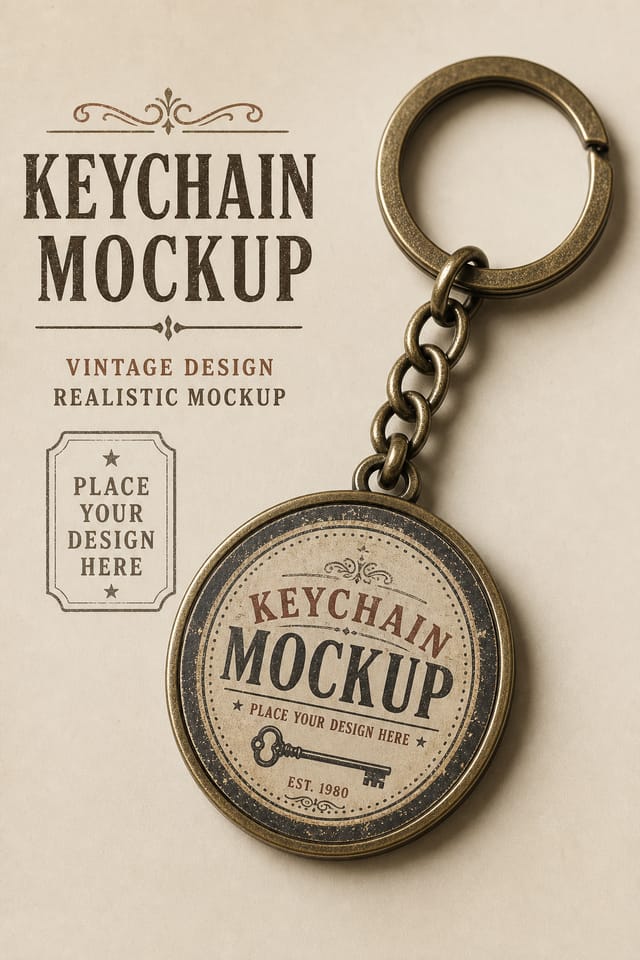
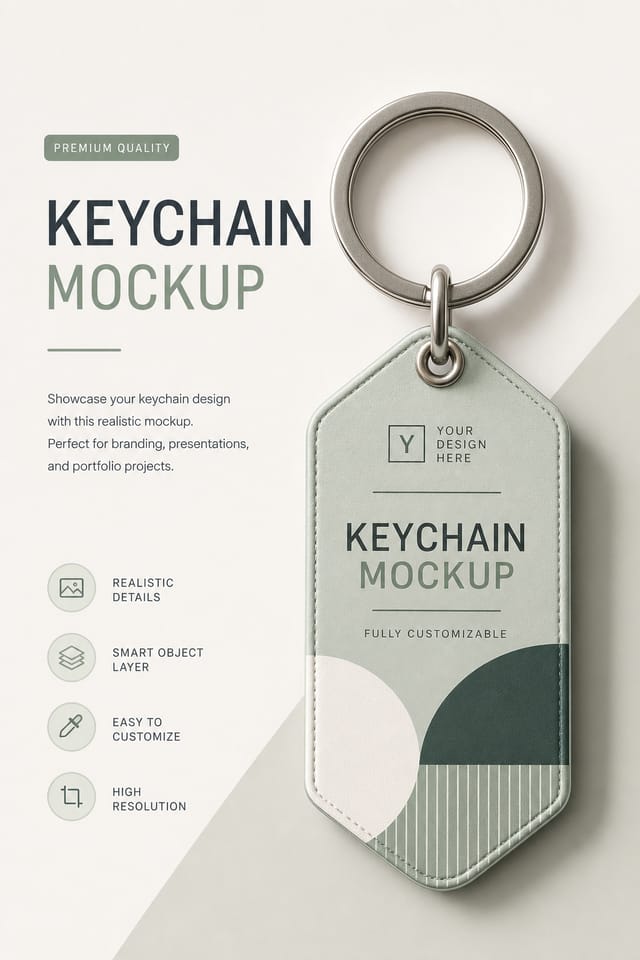
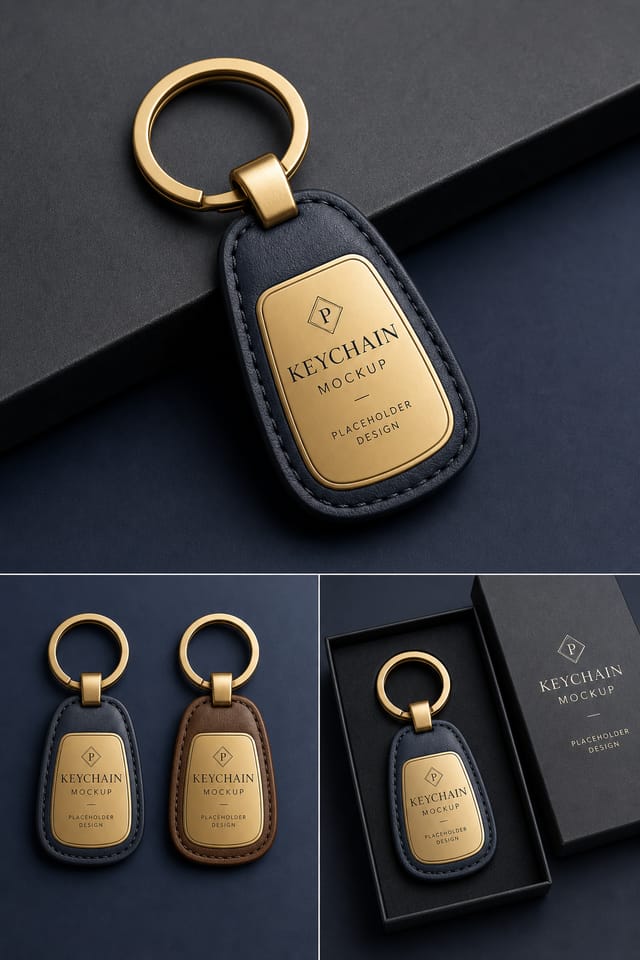
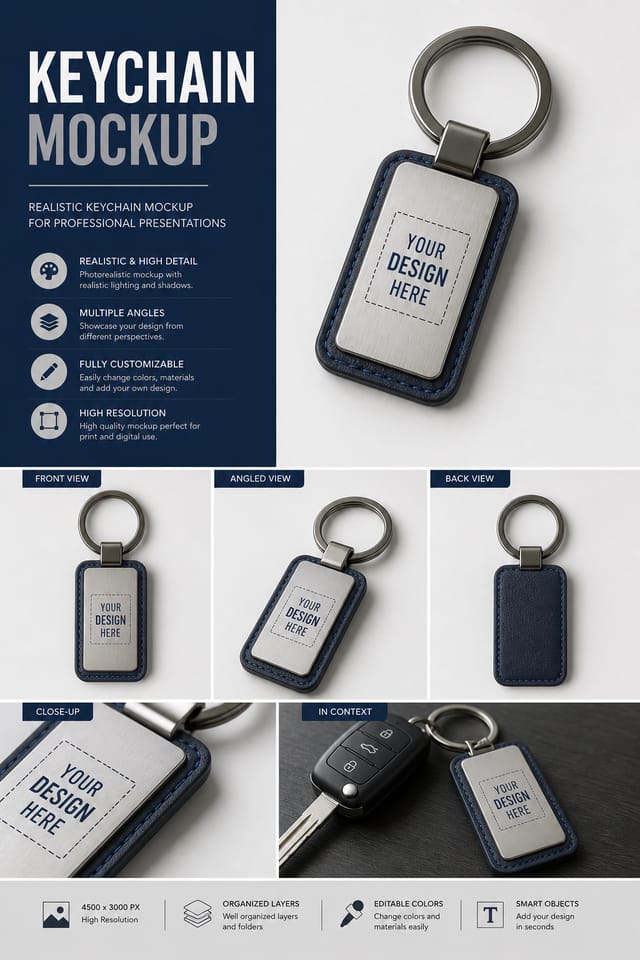
Download Your Keychain Mockup: Format Guide
Print-ready format for keychain mockup files that preserves fonts, colors, and layout across different devices and print services.
PNG
Lossless image format ideal for keychain mockup designs with transparency, sharp text, and web display at predictable file sizes.
WEBP
Modern web format offering smaller file sizes than PNG or JPG for keychain mockup images without significant quality loss.
SVG
Scalable format for keychain mockup designs that need to render crisply at any resolution, commonly used for web and responsive layouts.
JPG
Compressed image format suited for keychain mockup designs with photographic elements where smaller file size matters more than pixel-perfect edges.
From the Keychain Community: Community Showcase
Real creators sharing their keychain designs made with Pixazo AI.
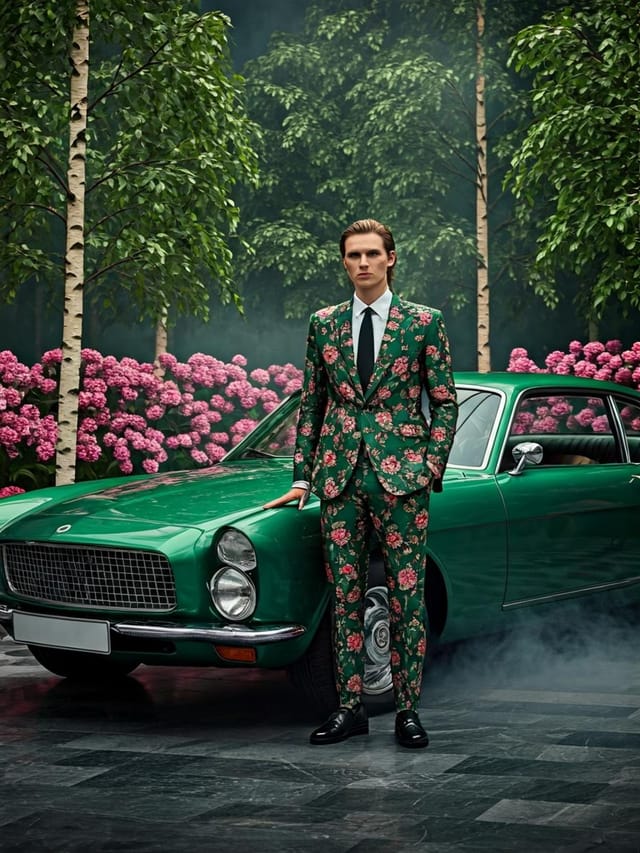
Eco-friendly themed keychain mockup, natural green and kraft tones, organic shapes, sustainability messaging, handcrafted aesthetic
Playful keychain mockup for a family audience, rounded typography, bright saturated colors, approachable and energetic tone
Cool palette keychain mockup, slate and steel tones, sans-serif typography, contemporary keychain sensibility, precise alignmentBuilt for Keychain Mockup: Key Capabilities
Export Flexibility
Download your keychain mockup in formats suited for your use case. Web-optimized versions for digital display, high-DPI files for print.
Fast Generation
Complete keychain mockup designs generate in seconds. No rendering queues, no waiting for batch processing.
Style-Accurate Generation
The AI interprets keychain design conventions and applies them to your mockup, producing output that looks correctly styled rather than generically templated.
Consistency Across Variants
Generate multiple keychain mockups for a project and maintain visual consistency across the set. Specify your core design parameters and vary secondary elements.
Color Palette Intelligence
Colors are chosen with keychain style awareness. The AI builds palettes that fit keychain design conventions rather than selecting arbitrarily.
Creating Your Keychain Mockup: Made Simple
Transmit the Brief
Start with a text description of your keychain mockup concept. Specify the visual style, colors, layout direction, and key text. Detailed prompts produce more accurate keychain mockup designs than general ones.
Score the First Draft
Pixazo generates your keychain mockup in seconds. Review the design and adjust your prompt to refine specific elements: change the color palette, shift the layout weight, or add visual elements you want included.
Commit the Output
Download your completed keychain mockup in the format that fits your use case. High-resolution files for print, web-optimized versions for digital, or PDF for production-ready delivery.
Keychain Mockup Specifications
Watch: Creating Keychain Mockup designs step by step
The Evolution of Keychain Mockup Design: Styles Gaining Traction
Bold Typography
Oversized type and expressive fonts are dominating keychain mockup design, turning headlines into visual centerpieces rather than just text.
Retro Revival
Vintage aesthetics from the 1970s and 1990s are influencing keychain mockup design with textured backgrounds, serif fonts, and warm gradients.
Gradient Overlays
Smooth color transitions are being used as primary design elements in keychain mockup work, adding depth without the complexity of photographic backgrounds.
Motion-Ready Design
Static keychain mockup designs are being created with animation in mind, using layered elements that translate smoothly to motion graphics.
Muted Earth Tones
Natural color palettes with warm neutrals and desaturated greens are replacing the bright neon trends of previous years in keychain mockup work.
Keychain Mockup Applications: A Practical Guide
Real Estate Marketing
Create keychain mockups for property listings, open houses, and agent branding. Professional visuals that elevate property presentation.
Wedding and Celebration Planning
Create keychain mockups for invitations, signage, and event branding. Cohesive visual systems that carry a celebration's theme across every touchpoint.
Small Business Marketing
Produce keychain marketing mockups without a design agency budget. Get professional results from a text description.
Non-Profit Campaigns
Create compelling keychain campaign mockups without allocating budget to design production. Focus resources on mission-critical activities.
Design Principles for Keychain Mockups: Standards That Matter
Alignment and Grid
Strong keychain mockup layouts align elements to an invisible grid. Consistent alignment builds trust and professionalism, while deliberate breaks from the grid create emphasis.
Purposeful Negative Space
Empty space in keychain mockup design is not wasted space. Generous margins and breathing room around elements signal quality and make the design easier to read.
Focal Point Clarity
Every keychain mockup design needs one primary focal point. If everything demands equal attention, nothing stands out. Guide the viewer to the single most important element first.
Pro Tips for Keychain Mockup Design: Expert-Level Advice
Leave White Space
Resist the urge to fill every area of your keychain mockup. Breathing room around key elements makes the overall design more effective.
Keep Typography Simple
Use no more than two typefaces per keychain mockup. One for headlines, one for body text. Consistency in typography signals professionalism.
Consider the Context
Think about where your keychain mockup will appear. A design optimized for social media needs different proportions and density than one for a physical bulletin board.
Check Alignment Carefully
Misaligned elements are one of the most common signs of amateur keychain mockup design. Use grid lines and snap-to features to keep things precise.
Sample Keychain Mockup Prompt Techniques
Copy any prompt below and paste it into Pixazo to generate your design instantly.
Professional keychain mockup, minimalist keychain approach, negative space used intentionally, readable at multiple viewing distances, print-ready compositionGeometric keychain mockup, structured grid system, angular composition, colors in blocks rather than gradients, modern clean finishClean keychain mockup design, geometric structure, disciplined typography, color accent used selectively for emphasis, printer-optimized resolutionTextured keychain mockup, surface treatment adds depth without obscuring legibility, texture consistent with keychain aestheticAtmospheric keychain mockup, background treatment supports the headline without competing with it, visual weight distributed intentionallyGetting Started with Keychain Mockups: The Essentials
A keychain mockup generates in seconds after submitting your prompt. Total time from prompt submission to downloadable file is typically under a minute, including any server processing time.
Pixazo provides an API for programmatic keychain mockup generation. Integrate it into your content pipeline to automate design production at scale. API documentation covers authentication, prompt formatting, and output retrieval.
You can specify any aspect ratio in your prompt. Common options include 1:1 for social posts, 4:5 for Instagram, 9:16 for stories, 16:9 for presentations, and standard print sizes like A4 or letter. The AI adapts keychain composition to fit your chosen ratio.
Generated designs that miss the mark usually need more specific prompts. Add details about the visual hierarchy you want, the feeling the keychain mockup should create, or specific elements to include or avoid. More context in the prompt produces more targeted output.
Yes. Set up separate brand kits for each client or brand, then switch between them when generating keychain mockups. Each brand kit stores its own colors, fonts, and logo so the AI applies the correct identity to every keychain mockup without manual reconfiguration.
Honest Notes on Keychain Mockups: Trade-Offs to Know
Known limitations and trade-offs of AI-generated keychain design. Being specific about what AI mockup generation can and cannot do helps you plan your workflow and set accurate expectations.

