

Create with Pixazo AI
Turn a prompt into studio-quality images and videos — free to try.
What Are AI Text Remover Tools?
AI text remover tools use artificial intelligence to intelligently detect and erase text from images while preserving the surrounding background and visual context. These tools utilize machine learning, inpainting algorithms, and neural networks to seamlessly fill in the erased areas, making the edited image appear natural. Whether you’re restoring old photos, repurposing social media content, or clearing watermarks, AI text removers offer an effortless, high-quality solution. A standout example is the Pixazo AI Text Remover, known for its precision and ease of use.
How Do AI Text Remover Tools Work?
AI text removers work by blending computer vision and inpainting techniques to detect and eliminate unwanted text while preserving the image’s original quality. These tools use Optical Character Recognition (OCR) and segmentation to locate specific text regions. Once detected, the system applies generative algorithms—often based on diffusion or deep learning models—to reconstruct the missing parts with natural-looking pixels. This ensures that the edited area blends smoothly with the surrounding visual elements.
Most AI text removal tools are designed for ease of use. Users can simply upload an image, manually highlight the text to be removed or let the system auto-detect it, and then download the enhanced image. Solutions like the AI Photo Text Editor make this process accessible even for non-designers.
How We Select the Best AI Design Generator Platforms at Pixazo
At Pixazo, we carefully evaluate AI design generator platforms to help users skip the overwhelming trial-and-error process. Our experts, with extensive experience in AI-powered design tools, assess each platform based on creativity, ease of use, customization options, and overall performance. We put these tools to the test by creating designs across different categories to ensure they deliver high-quality results effortlessly. Every recommendation is based on thorough research and real-world testing, with no paid placements or outside influence. Want to know how we pick the best AI design platforms? Explore our detailed evaluation process.
Disclaimer – Portions of this article were drafted with AI and reviewed by Jayesh Chaubey
Which AI Text Removers Offer the Best Features?
AI text remover tools vary in terms of automation, supported input types, batch processing, and quality of reconstruction. Some tools even offer complementary features that let users refine or reinsert content after cleanup, such as the ability to add text to photo once undesired elements are removed. The table below provides a comparative overview of the top 10 tools to help you pick the best solution for your image editing needs.
| Tool | Main Feature | Platform | Pricing |
|---|---|---|---|
| Appy Pie Design | One‑click high‑resolution text erasing | Web (JPG/PNG) | Check the Appy Pie website for pricing details |
| Sider AI | Lightweight browser‑based multilingual OCR | Browser extension & web app | Refer to Sider’s official pricing page |
| Clipdrop | Automatic detection & seamless background reconstruction | Web, desktop, mobile, API | See pricing information on Clipdrop’s site |
| Experte AI | Unlimited bulk removals with drag‑and‑drop | Web (no signup) | Visit Experte.com for any subscription options |
| Media.io | One‑click removal of text & small objects | Web (JPG/PNG) | Pricing details available on Media.io |
| Fotor AI | AI‑powered cleanup brush with auto‑inpainting | Web & mobile | Explore Fotor’s subscription plans on their site |
| Aragon AI | Research‑backed one‑click text inpainting | Web (JPG/PNG/WEBP/HEIC) | Check Aragon.ai for plan and pricing info |
| Phot.AI | Auto‑detect & batch removal with seamless inpainting | Web (no install) | Find Phot.AI pricing on the official website |
| PicsArt | Integrated smart inpainting within editing suite | Web & mobile | Visit PicsArt’s site for subscription details |
| FlexClip | Crop/cover/blur methods for video text | Web video editor | See FlexClip’s website for current plans |
What are the Top AI Text Remover Tools in 2026?
The best AI text removers combine speed, accuracy, and ease of use—perfect for creatives, marketers, and casual users alike. From fully automated tools like Pixazo AI Text Remover to power-user apps like Fotor and Media.io, each offers unique strengths depending on your editing needs.
- Pixazo AI Text Remover – Seamless, high-resolution erasing with just one click.
- Sider – Lightweight browser-based tool with multilingual OCR.
- Clipdrop – AI cleanup for text, people, and objects.
- Experte – 100% free bulk remover with drag-and-drop simplicity.
- Media.io – All-in-one platform with flexible text and video editing.
- Fotor – Multi-tool photo editor with dedicated cleanup brush.
- Aragon – Super-fast and privacy-first AI remover.
- Phot AI – Next-gen editor with auto-detection.
- PicsArt – Popular mobile app with smart removal tools.
- FlexClip – Ideal for removing text from videos and motion content.
1. Pixazo
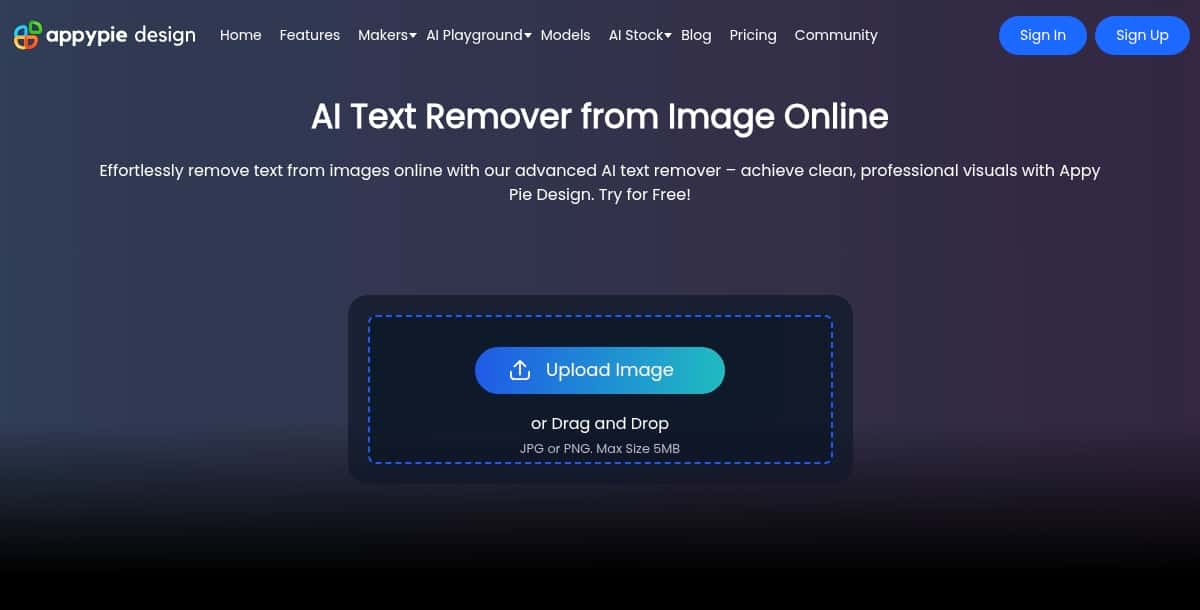
Appy Pie AI Text Remover effortlessly removes text from images using advanced AI, delivering clean, professional visuals in seconds with no manual editing. Try for free with no installation—just upload and download in seconds.
- AI Text Removal: Automatically erase text from JPEG/PNG images with precision.
- Supported Formats: Accepts JPG and PNG uploads up to 5 MB.
- Enterprise‑Grade Security: EU‑GDPR compliant with SOC‑1 & SOC‑2 certification.
- No Installation Required: Web‑based drag‑and‑drop interface, accessible on any device.
Pros:
- Free to try with intuitive, no‑install workflow.
- High‑quality, clean results every time.
- Backed by enterprise‑grade security and compliance.
- Part of the Appy Pie Design suite for seamless integration.
Cons:
- Limited to JPG/PNG formats and 5 MB max file size.
- Only available online; no offline or desktop version.
How It Works:
- Visit the AI Text Remover page.
- Upload or drag‑and‑drop your image (JPG/PNG, max 5 MB).
- AI processes your image and removes text in seconds.
- Download the cleaned image.
Pricing: Free to use; for credit‑based usage, high‑resolution downloads, and subscription plans, see the Appy Pie Design pricing page.
2. Sider AI
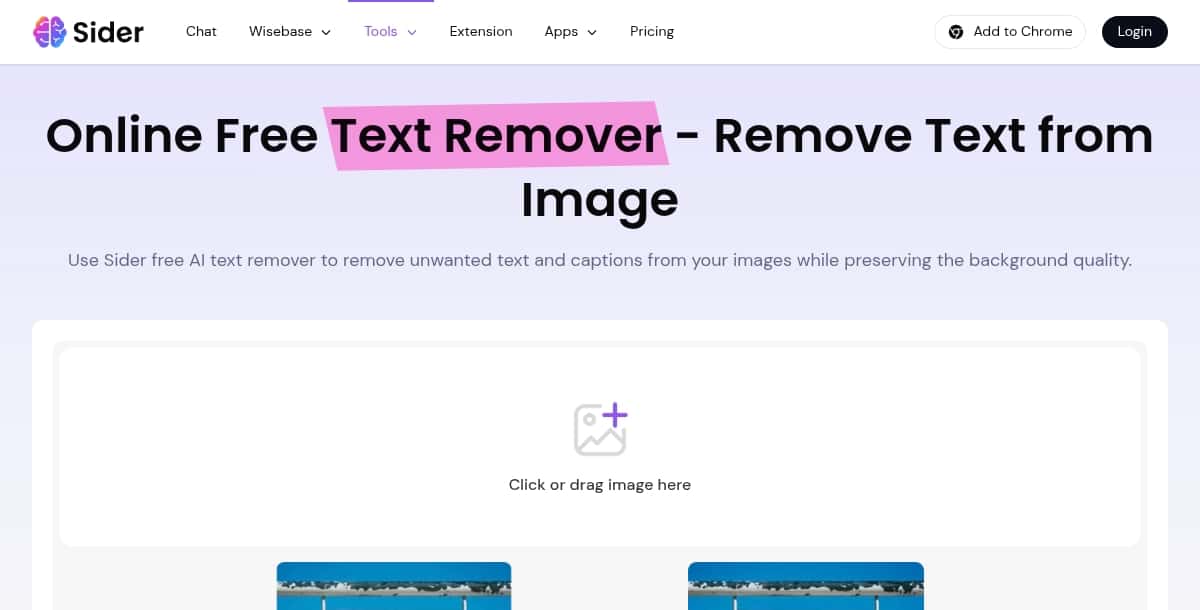
Sider AI Text Remover instantly erases unwanted text and captions from images, preserving background quality with advanced AI in just a few clicks.
- Preserve Details: Maintains textures, colors, and patterns while removing text seamlessly.
- Easy-to-Use: Simply upload or drag & drop your image, click “Confirm,” and let the AI handle the rest.
- Fast Processing: Remove text in seconds with a live preview.
- Secure & Private: Images are processed securely and never shared with third parties.
- Credit-Based: Free users receive daily credits; upgrade for unlimited removals.
Pros:
- High-fidelity background preservation
- Instant results with minimal artifacts
- Intuitive, no-skill-required interface
- Free daily credits available
Cons:
- Limited daily credits on the free plan
- Advanced features require a subscription
- Online-only; requires an internet connection
How It Works:
- Go to the Sider AI Text Remover page.
- Upload or drag & drop any image.
- Click “Confirm” to let the AI detect and erase text.
- Download your cleaned image instantly.
Pricing: Refer to the official site of the tool for latest pricing related information.
3. Clipdrop
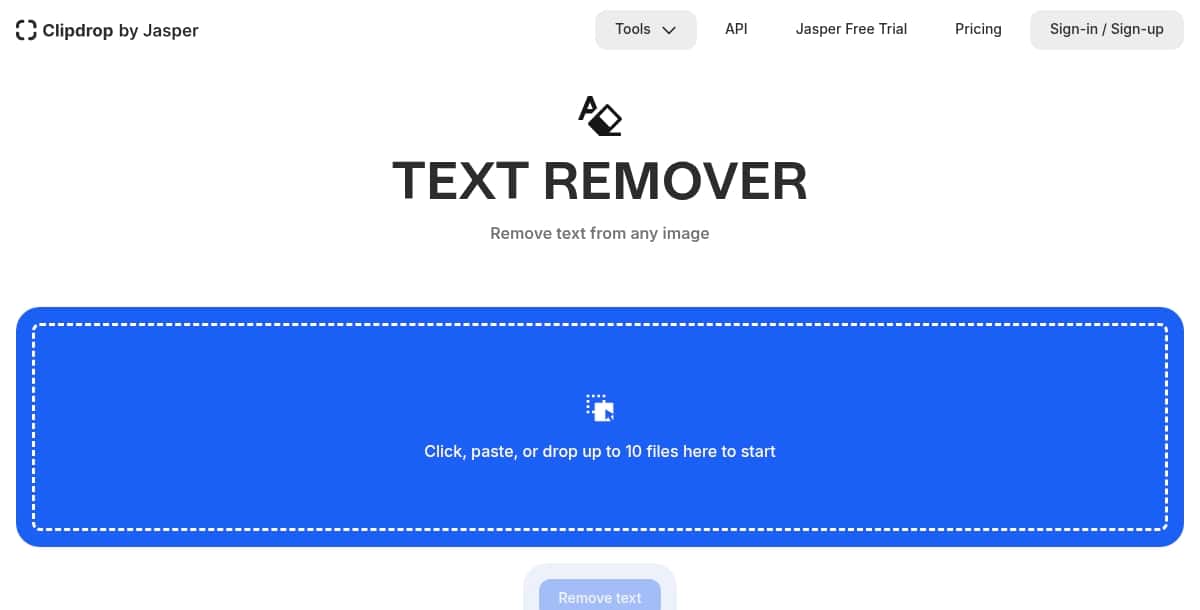
Clipdrop Text Removal uses advanced AI to automatically detect and remove text elements—such as watermarks, captions, and signage—from JPG and PNG images, seamlessly reconstructing the background for professional-quality results in seconds.
- Automatic Text Detection: Identifies and targets text areas without any manual selection.
- Seamless Background Reconstruction: AI fills in removed text regions with matching textures and colors.
- High-Resolution Support: Handles large images (free version up to 1024 px; larger images auto-resize for processing).
- Batch & API Access: Process multiple images at once or integrate into custom workflows via REST API.
- Cross-Platform: Available on web, desktop (Windows/macOS), mobile (iOS/Android), and via API.
Pros:
- Fast, one-click removal with live preview
- No manual editing or area selection required
- Integrates with other Clipdrop tools for a full editing suite
- Free tier available for basic text removal
Cons:
- Free plan limits image size and daily usage
- Complex or highly patterned backgrounds may need minor manual cleanup
- High-resolution downloads require a subscription
How It Works:
- Go to the Clipdrop Text Removal page.
- Upload or drag-and-drop your JPG/PNG image.
- AI processes and removes visible text, showing a live preview.
- Download the cleaned image or export via API.
Pricing: Refer to the official site of the tool for latest pricing related information.
4. Experte

Experte AI Text Remover is a 100% free, no-signup-required tool that bulk-erases unwanted text—captions, watermarks, and more—from images with just a drag-and-drop and highlight, delivering clean results in seconds.
- Unlimited Bulk Removals: Process any number of images at full resolution without limits or credits.
- Drag-and-Drop Interface: Simply drop files into the browser or select from your device.
- Intelligent Text Highlighting: Highlight text manually or let AI auto-detect text areas for removal.
- Seamless Background Restoration: Refills removed areas with matching textures and colors.
- No Signup Required: Start removing text immediately without creating an account.
Pros:
- Truly free with unlimited usage
- No watermarks or output restrictions
- High-quality, full-resolution results
- User-friendly with minimal learning curve
Cons:
- No offline or desktop version
- Brush selection may require precision on complex backgrounds
- Lacks dedicated mobile app
How It Works:
- Go to the Experte AI Image Cleaner page.
- Drag-and-drop or upload your images.
- Select the “Remove Text” option and highlight unwanted text areas.
- AI processes and restores the background in seconds; download your clean images.
Pricing: Free to use—visit Experte.com for more tools and updates.
5. Media.io
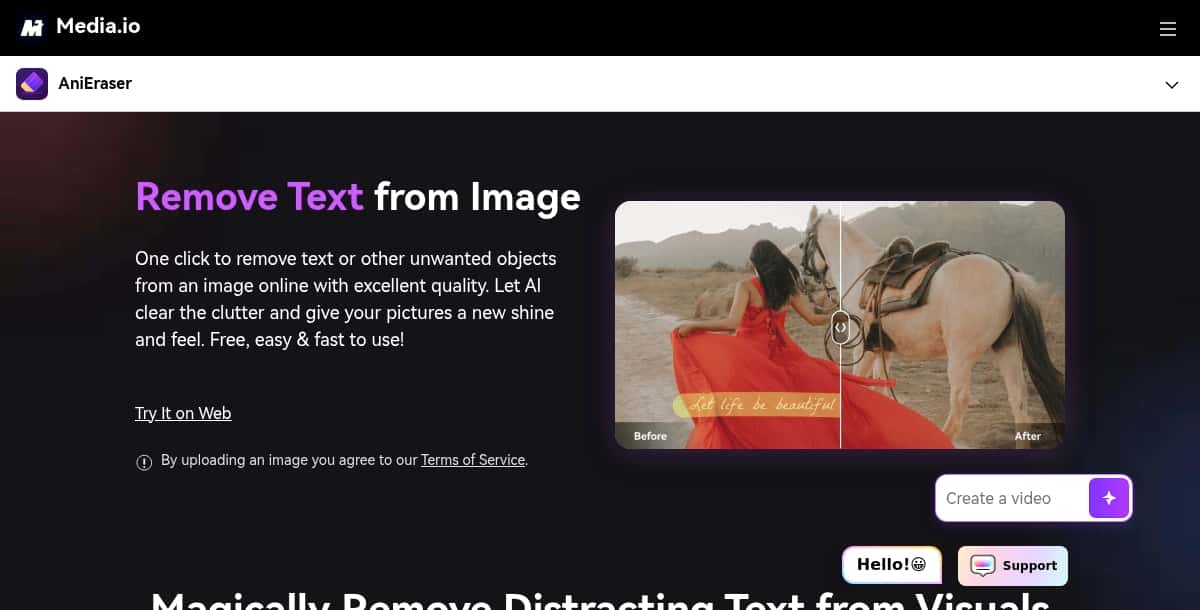
Media.io Text Remover uses advanced AI to instantly erase text and unwanted objects from images, delivering clean, professional-quality results in seconds with a single click.
- One‑Click Removal: Remove text, logos, captions, or date stamps from any image with one click.
- Automatic Text Detection: AI locates and targets text overlays without manual selection.
- Seamless Background Reconstruction: Fills erased regions with matching textures and pixels.
- High‑Resolution Support: Handle large images while preserving full quality.
- No Signup Required: Use the tool freely in-browser without creating an account.
Pros:
- Fast, intuitive one‑click workflow
- Excellent background preservation
- Supports removal of all text types and small objects
- Accessible on desktop, mobile, and web
Cons:
- Requires internet connection for cloud processing
- Complex or patterned backgrounds may need minor touch‑ups
- No offline or standalone desktop app without separate download
How It Works:
- Navigate to the Media.io Text Remover page.
- Upload or drag‑and‑drop your image.
- Brush over or let AI auto‑detect the text areas to remove.
- Click “Remove” and download your cleaned image.
Pricing: Visit the official Media.io site to view current plans and subscription options.
6. Fotor AI
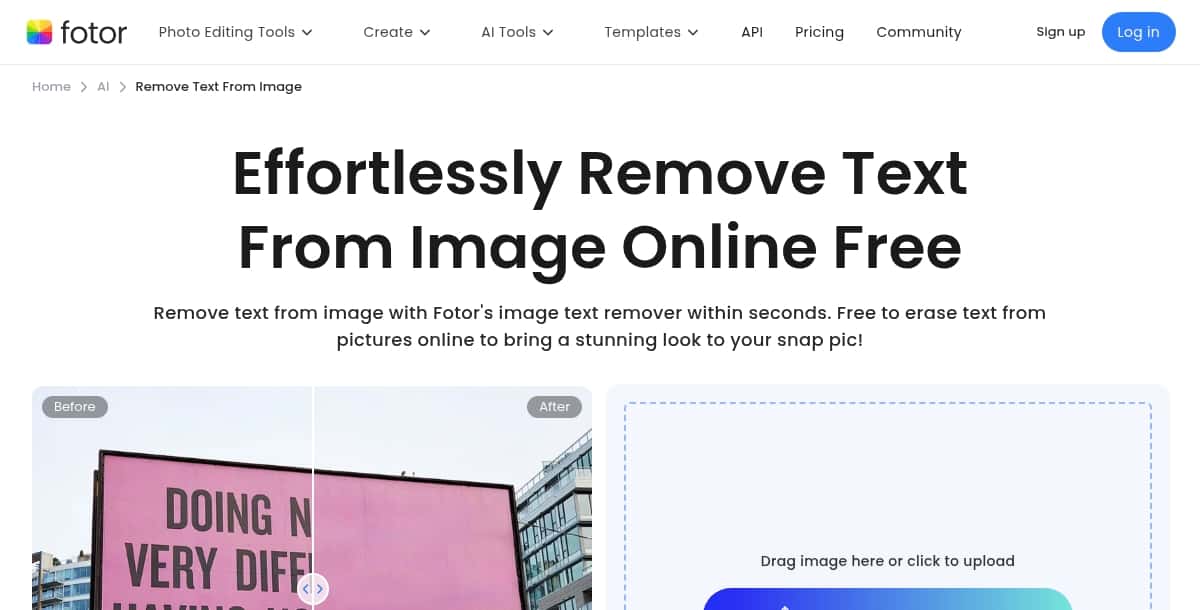
Fotor AI Text Remover uses advanced AI to erase unwanted text—such as captions, watermarks, and date stamps—from images while perfectly preserving the original background and visual quality in seconds.
- Drag‑and‑Drop Interface: Simply drag or upload JPG/PNG images to start the removal process.
- Automatic Text Detection: Identifies and targets text overlays without manual selection.
- One‑Click Removal: Click “Remove” and watch the text vanish instantly.
- Seamless Background Reconstruction: AI fills erased regions with matching textures and colors.
- Device & Mobile Friendly: Accessible on any browser‑enabled device with no installation required.
Pros:
- Extremely easy to use—no manual editing required
- Produces clean, artifact‑free images in seconds
- Works on desktop and mobile browsers alike
- Free to try without creating an account
Cons:
- Batch processing and high‑resolution exports require a Pro subscription
- No offline or desktop application available
- Highly complex or low‑contrast text may need minor touch‑ups
How It Works:
- Visit the Fotor AI Text Remover page.
- Drag‑and‑drop or upload your image (JPG/PNG).
- Select the “Text Remover” tool and click “Remove.”
- Preview the result, click “Apply,” then download your cleaned image.
Pricing: See Fotor’s official website for the most up‑to‑date subscription and credit options.
7. Aragon

Aragon AI Text Remover lets you erase any words or typography from your images with a single click, preserving the original background seamlessly in seconds.
- Supported Formats: Works with JPG, PNG, WEBP, and HEIC images.
- One‑Click Removal: Instantly remove all visible text without manual masking.
- Automatic Background Inpainting: AI fills in erased areas using surrounding pixels for natural, artifact‑free results.
- Research‑Backed AI: Built on cutting‑edge technology developed by teams from Meta and Microsoft.
- Cloud‑Based & Secure: Images are processed securely in the cloud and deleted after editing.
Pros:
- No manual selection needed—completely automated
- Maintains original image quality and textures
- Fast turnaround with results in seconds
- Accessible on any device via web browser
Cons:
- Requires an internet connection—no offline support
- No built‑in batch processing—one image at a time
- Advanced team or bulk features require login or subscription
How It Works:
- Go to the Aragon AI Text Remover page.
- Upload or drag‑and‑drop your image (JPG, PNG, WEBP, HEIC).
- Click “Remove Text” and let the AI process your photo.
- Download the cleaned image once processing is complete.
Pricing: Visit the Aragon AI website to view current plans and subscription details.
8. Phot.AI
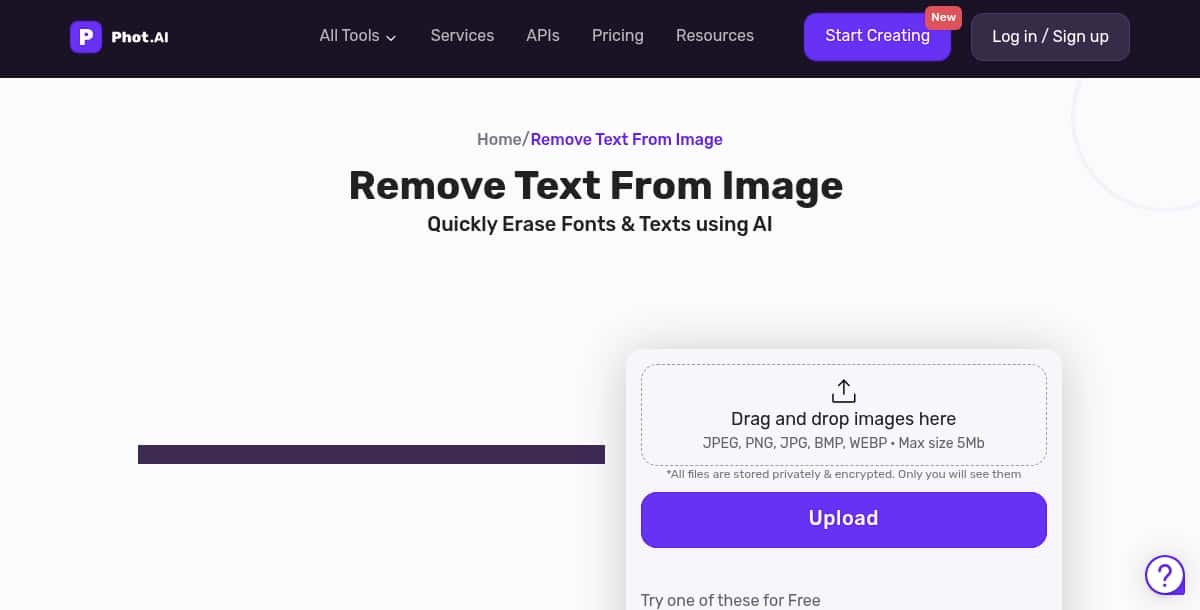
Phot.AI Text Remover uses advanced AI to automatically detect and remove text, fonts, watermarks, and captions from images, reconstructing backgrounds with seamless inpainting for professional-quality results in seconds.
- Automatic Text Detection: Recognizes fonts, watermarks, and overlaid text without manual masking.
- Seamless Background Inpainting: AI fills erased regions with matching textures and colors to preserve visual consistency.
- High-Resolution Support: Handles large images and maintains full-quality output.
- Batch Processing: Remove text from multiple images simultaneously for efficient workflows.
- Web-Based & No Installation: Access via browser on any device—no downloads required.
Pros:
- Quick, one-click text removal with no manual selection needed
- Maintains original image clarity and detail
- Free usage available for basic needs
- Integrates seamlessly with other Phot.AI editing tools
Cons:
- Advanced batch and high-resolution features may require a subscription
- Performance may vary on highly complex or patterned backgrounds
- Requires a stable internet connection for cloud processing
How It Works:
- Visit the Phot.AI Text Remover page.
- Upload or drag-and-drop your image (JPG, PNG, BMP).
- Click “Remove Text” and let the AI process your photo.
- Download the cleaned image or export to cloud storage.
Pricing: Check the Phot.AI website for the latest subscription and usage options.
9. PicsArt
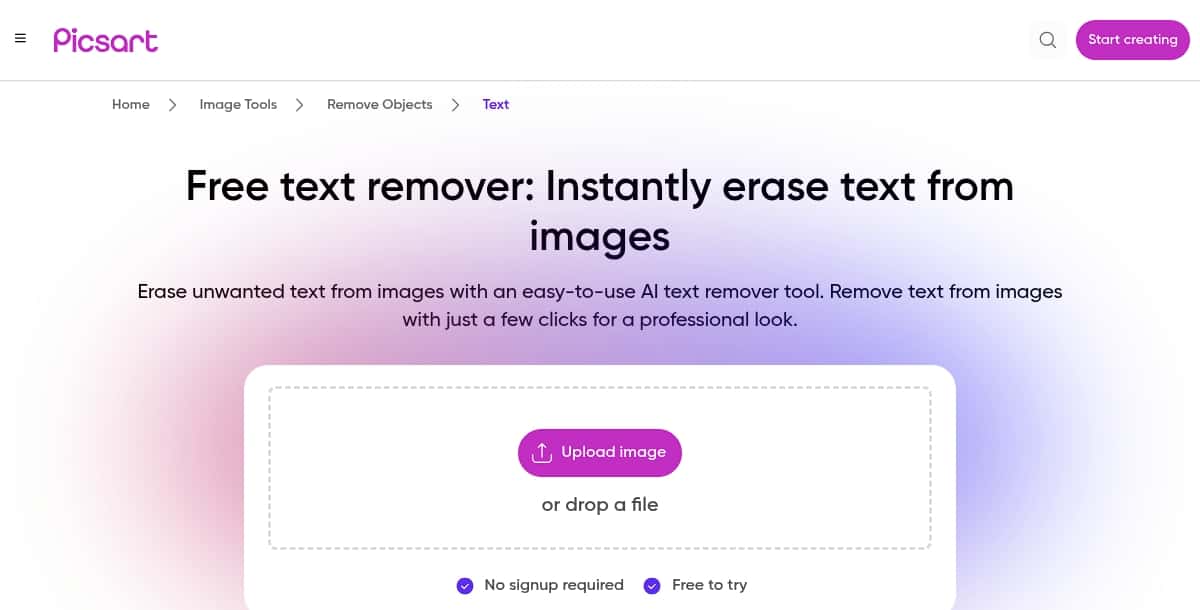
PicsArt AI Text Remover leverages powerful AI-driven object removal technology to erase text, watermarks, and captions from images, delivering clean, professional visuals with no background artifacts.
- Automatic Text Removal: Simply upload or drag‑and‑drop—AI detects and removes all types of text overlays.
- Seamless Inpainting: Fills erased regions with matching textures and colors to preserve background integrity.
- No Sign‑Up Required: Free to try online with unlimited basic removals.
- High‑Quality Output: Maintains original resolution and clarity for professional results.
- Cross‑Platform Access: Available via web and mobile apps without installation.
Pros:
- Fast, one‑click operation with live preview
- Excellent background preservation even on complex scenes
- Integrated into PicsArt’s comprehensive editing suite
- Works on both simple and intricate textures
Cons:
- Batch processing and high‑res exports require a subscription
- Low‑contrast or highly patterned text may need manual touch‑ups
- Requires an internet connection; no offline mode
How It Works:
- Open the PicsArt Text Remover page.
- Upload or drag‑and‑drop your image (JPG/PNG).
- AI automatically identifies and removes text, showing a live preview.
- Download the cleaned image or continue editing in the PicsArt editor.
Pricing: Visit the official PicsArt website for the most up‑to‑date subscription information.
10. FlexClip

FlexClip Video Text Remover offers three easy methods—cropping, replacing, and blurring—to remove unwanted on-screen text from videos, delivering clean results without complex editing skills.
- Crop Out Text: Remove text near the edges by cropping to rectangle, square, or circular frames.
- Cover Text with Overlay: Replace text areas by overlaying shapes or media elements for a seamless finish.
- Blur Text: Obscure text regions with adjustable blur overlays that blend naturally into the footage.
Pros:
- No AI model required—uses straightforward editing tools
- Browser-based with no installation needed
- Multiple removal techniques for flexible customization
- Integrated into FlexClip’s full-featured video editor with templates and effects
Cons:
- Methods may reduce visible frame area or require manual overlay adjustments
- No fully automated AI-driven text erasing—some manual steps are necessary
- Complex, moving text may need advanced video editing tools
How It Works:
- Visit the FlexClip “Remove Text from Video” guide and upload your clip.
- Select your preferred removal method: crop, replace with overlay, or blur.
- Adjust the area and settings, then preview the result.
- Export and download your cleaned video.
Pricing: See FlexClip’s official site for the latest subscription plans and export options.
What Does the Future of AI Text Removal Look Like?
AI text removal is rapidly evolving toward real-time, multi-format support, and higher restoration fidelity. These advancements are part of a broader trend in visual editing where tools like the AI image generator and AI font generator are transforming how users manipulate and enhance visual content. Future tools will support:
- Real-Time Removal: Erase text instantly while recording or streaming
- Offline Editing: On-device AI to process removals without uploading
- Layer-Aware Inpainting: Tools that recognize context like shadows or lighting during removal
- Cross-Media Functionality: Remove text from PDFs, videos, memes, or GIFs in one tool
What Other Visual Editing Features Are Advancing Alongside AI Text Removal?
AI-powered visual editing is rapidly expanding beyond just text removal to cover full-scene enhancements and content restoration. As the technology matures, many platforms now offer features that let users not only erase unwanted text but also remove objects from photo backgrounds, people, or clutter with a single click. These object removal tools use the same underlying inpainting and context-aware models to ensure seamless, realistic edits.
Additionally, AI models are being trained to restore damaged or aged images, with AI photo restoration tools reviving faded colors, repairing tears, and enhancing resolution in archival photos. Together, these advancements are transforming traditional photo editing into a unified, intelligent workflow accessible to everyone—from casual users to professional creators.
Which AI Text Remover Tool Works Best for Your Use Case?
The best AI text remover for your needs depends on what you’re editing, whether it’s images, videos, or large batches of content. With today’s tools offering smarter detection and cleaner results, your ideal choice comes down to how fast you need to work, the quality you expect, and the format you’re working with.
For quick photo edits, Pixazo, Fotor, and Media.io keep the process simple. These tools are great for removing text from product shots, social media visuals, or personal images without needing advanced design skills.
If you’re editing video, FlexClip is a practical option. It helps content creators remove on-screen text from clips with minimal effort, making it useful for marketing teams, YouTubers, and educators.
When image quality matters, Clipdrop and Phot.AI offer more advanced fill-in features. They work well for restoring old photos or cleaning up professional visuals where texture and lighting need to be preserved.
Looking for design flexibility, PicsArt and Sider combine text removal with broader editing tools. These platforms are a good fit for creators who want to clean up visuals and then enhance them further without switching apps.
For large-scale or repeated tasks, Experte and Aragon AI bring efficiency. Experte supports bulk image handling, while Aragon is designed for enterprise use, helping teams clean branded assets or client deliverables at scale.
Whether you’re fixing a single image or preparing hundreds for a campaign, these AI text removers give you the control and speed to get it done cleanly and efficiently.
For enhanced workflows, users often pair them with the best AI photo text editor tools to refine or replace text. To reinsert branding or messages, the best AI text adder tools offer creative customization.
Frequently Asked Questions (FAQs)
Q1. What is an AI text remover?
An AI text remover is a tool that uses machine learning to detect and erase text from images or videos. It then reconstructs the deleted area using content-aware inpainting algorithms to maintain visual consistency.
Q2. Are these tools free?
Most tools offer free plans or trials, but high-resolution downloads or batch features often require payment. Look for options like Aragon and Experte for completely free use, though features may be limited compared to premium tools.
Q3. Which is the best AI text remover in 2026?
Pixazo AI Text Remover stands out for speed, accuracy, and watermark-free HD exports. Others like Fotor and Clipdrop are also strong contenders depending on your use case.
Q4. Can I remove text from videos?
Yes, tools like FlexClip allow frame-by-frame text removal from video files and GIFs. Processing may take longer due to file size and frame count, but results can often be exported in full HD quality.

Deepak Joshi
Author · Pixazo
Deepak writes about generative AI models, APIs, and the workflows teams use to ship them. Reviewed by Abhinav Girdhar.