8 Best AI Photo Colorizers for Black and White Photos

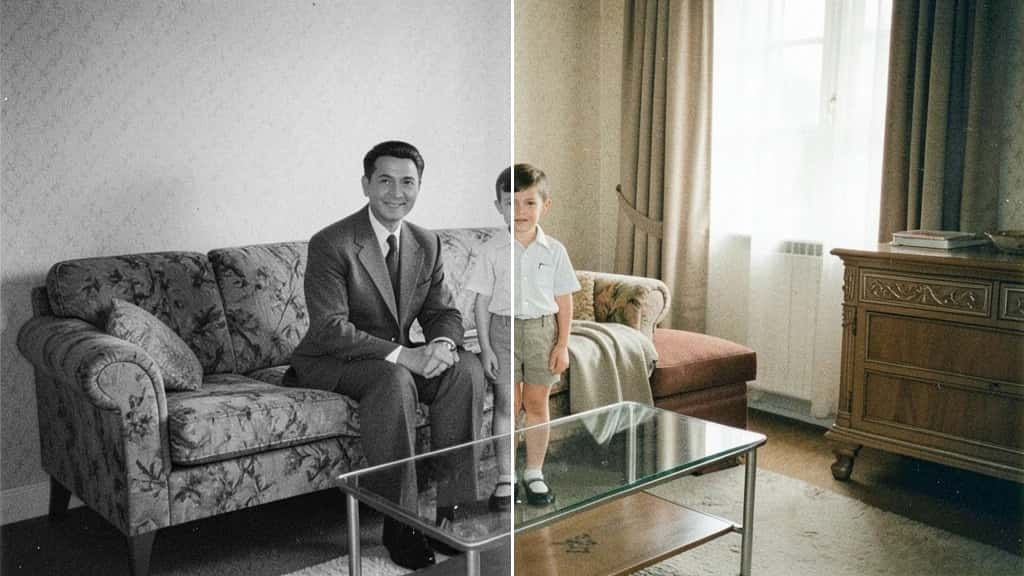
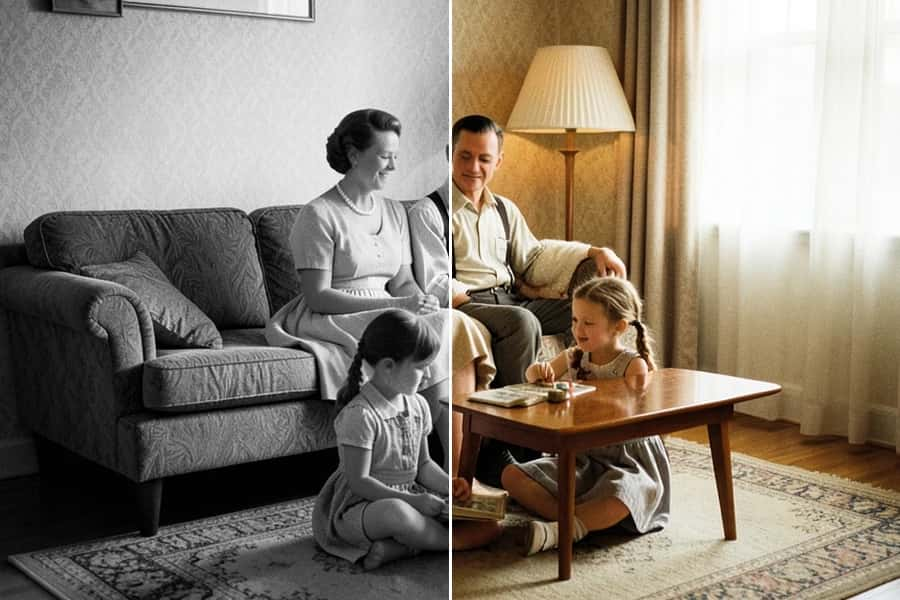
An AI photo colorizer reads the tones, textures and shapes in a black and white photo, then predicts plausible colors for skin, sky, grass and clothing. It is worth knowing up front that it does not recover the true original colors, because that information was never captured. The result is an educated guess, not a restoration of fact. With that in mind, here are 8 tools that do it well, including the AI Photo Colorizer.
Below: a quick comparison table, the eight colorizers in full with honest limits, how the AI actually works, and the right order to restore, colorize and upscale an old photo.
The 8 Best AI Photo Colorizers at a Glance
| # | Tool | Best for | Pricing |
|---|---|---|---|
| 1 | Palette.fm | Natural skin tones with optional control | Free previews, paid exports |
| 2 | MyHeritage In Color | Family history and old portraits | Free limited, subscription |
| 3 | Adobe Photoshop Colorize | Colorizing inside a full editor | Paid subscription |
| 4 | Hotpot.ai | Quick browser colorization | Free attempts, paid credits |
| 5 | VanceAI Photo Colorizer | Colorize plus restore and upscale | Small free, then credits |
| 6 | Pixazo | Colorize then restore and upscale in one place | Free tier, paid plans |
| 7 | Fotor | Colorization inside an easy editor | Freemium |
| 8 | DeOldify (open source) | Free, local, developer-friendly | Free and open source |
What an AI Photo Colorizer Actually Does
- ▸It predicts, not remembers: The model guesses colors from patterns it learned, since a black and white photo never recorded the real color.
- ▸It is strongest on common scenes: Portraits, landscapes and street photos come out best. Rare objects and unusual materials are the weak spots.
- ▸Many share a lineage: A lot of tools build on or are inspired by the same colorization research, which is why easy photos look similar and hard ones diverge.
- ▸Treat it as interpretive: The color is a believable reconstruction, not evidence of what something truly looked like.
Suggested Read: How to Restore Old Photos With AI
The 8 Best AI Photo Colorizers in Full
01Palette.fm
Best for: Fast, natural-looking color on portraits and historical photos with optional control.
Strengths: Some of the most believable skin tones among free-to-try tools, and you can steer the result with text filters and color hints instead of one-click only.
Limitation: The most useful controls and high-resolution, watermark-free downloads sit behind a paid plan.
Pricing: Free previews to try, paid credits or subscription for full-resolution exports.
02MyHeritage In Color
Best for: Family history users colorizing old family portraits.
Strengths: Simple, reliable one-click colorization built into a platform designed around old photos, with restoration and enhancement in the same place.
Limitation: It is tied to the MyHeritage account and ecosystem, and assumes you are there for genealogy rather than general editing.
Pricing: Limited free use, with a subscription for unrestricted colorization.
03Adobe Photoshop Colorize
Best for: Editors already in Photoshop who want colorization inside a professional pipeline.
Strengths: Colorizes as a non-destructive neural filter and lets you refine with Photoshop full toolset, including local color correction by hand.
Limitation: It requires a paid Photoshop subscription and a learning curve, which is overkill if colorizing is all you need.
Pricing: Part of a paid Creative Cloud subscription.
04Hotpot.ai
Best for: Quick, no-friction colorization in the browser.
Strengths: A straightforward web tool with a utilitarian workflow, sitting alongside other simple AI image utilities.
Limitation: Results can look flatter or less nuanced on difficult photos than the specialist colorizers.
Pricing: Free attempts with paid credits for higher volume.
05VanceAI Photo Colorizer
Best for: Users who want colorization bundled with upscaling, restoration and denoising.
Strengths: Part of a broad AI photo suite, so you can restore, colorize and enlarge an old photo without switching tools.
Limitation: Free output is limited and often capped or watermarked, pushing serious use toward credits.
Pricing: A small free allowance, then a credit or subscription model.
06Pixazo
Best for: People who want to colorize a black and white photo and then restore, enhance or upscale it in the same workspace. Use the AI Photo Colorizer with a simple upload-and-generate flow.
Strengths: It runs in the browser and sits next to Pixazo restoration, upscaling and face tools, which makes the restore then colorize then upscale order easy to follow in one place.
Limitation: Like every AI colorizer, it predicts plausible color rather than recovering true color, so it will not know the real color of a specific dress or uniform without manual guidance.
Pricing: Free to try, with paid plans or credits for full-resolution downloads and higher usage.
07Fotor
Best for: Casual users who want colorization inside an easy all-purpose editor.
Strengths: Approachable interface with colorization alongside everyday editing, templates and quick fixes.
Limitation: Colorization is one feature among many rather than a specialist focus, so fine color control is limited.
Pricing: Free tier with limits, paid plan for full features and clean exports.
08DeOldify (open source)
Best for: Developers and tinkerers who want free, local, no-account colorization.
Strengths: The influential open-source project behind much of today colorization quality, free to run yourself with full control over the pipeline.
Limitation: There is no polished consumer app, so using it well means setting up the model, which is beyond most non-technical users.
Pricing: Free and open source, your only cost is the compute.
Try the AI Photo Colorizer Free
Suggested Read: 10 Best AI Photo Restoration Tools
How AI Colorization Works, in Plain Language
- ▸It splits light from color: The model keeps your grayscale detail as a lightness channel and predicts the two color channels that complete the image.
- ▸It leans on context: A round shape at the top is likely sky and gets blue, a textured green-prone region reads as foliage, faces get skin tones in a learned range.
- ▸It varies by tool: Because it is predicting, the same photo can come out with different palettes on different tools, and reds, purples and unusual dyes are the most error-prone.
- ▸It is creative, not forensic: Treat the color as a plausible reconstruction, not proof of what something really looked like.
Suggested Read: How to Make AI Photos Look Real
When to Pair Colorization With Restoration and Upscaling
- ▸Restore before you colorize: Scratches, dust, creases and heavy grain confuse the color model and get colored along with everything else, so repair first.
- ▸Upscale last: Run colorization on a cleaned image, then enlarge so the added color detail is upscaled cleanly rather than the damage.
- ▸A sensible order for an heirloom: Scan at high resolution, restore and de-scratch, colorize, then upscale and sharpen.
- ▸Fix skin by hand if needed: If skin tones look muddy, a light manual adjustment of saturation and warmth often beats re-running the AI.
Suggested Read: Best AI Image Upscaler Tools
How to Get Better Colorization Results
- ▸Start with the best scan: More real detail means better predictions, so scan at high resolution.
- ▸Fix damage and contrast first: Clean the image before colorizing so the model is not coloring the damage.
- ▸Use hints where offered: Nudge skin, lips and key clothing, which are where viewers notice errors first.
- ▸Correct known colors by hand: For a known uniform, flag or car, a manual pass beats trusting the guess.
Suggested Read: How to Convert an Image to an AI Image
Common Colorization Mistakes to Avoid
- ▸Treating output as historically accurate: The color is a prediction, not evidence, so do not present it as proof of what clothing or surroundings really looked like.
- ▸Colorizing before restoring: Running color on a scratched scan bakes the damage into the result. Clean first, colorize, then upscale.
- ▸Accepting the first one-click result: Skin tones and known colors are often slightly off on the first pass, so use the hints or a quick manual correction.
Conclusion
There is no single best colorizer for everyone. Dedicated tools tend to win on portraits and faces, while all-in-one editors win when you also need restoration, upscaling and export in one place. Output varies more by image than by brand, so try two or three on your actual photo before you pay, and remember the color is a believable guess, not the real thing.
FAQ
Can AI recover the original colors of a black and white photo?
No. The original color was never recorded, so AI predicts plausible colors from patterns it learned, which makes the result a believable guess rather than a true recovery.
Which AI photo colorizer is most accurate for faces and skin tones?
Dedicated colorizers like Palette.fm tend to handle skin tones most naturally, but accuracy varies by photo, so test two or three on your own image.
Is there a free AI photo colorizer?
Yes. Several tools offer free previews or limited free use, and DeOldify is fully free and open source, though full-resolution, watermark-free downloads usually need a paid plan.
Should I colorize or restore an old photo first?
Restore first. Scratches, dust and damage confuse the color model and get colored along with the photo, so clean the image before colorizing, and upscale last.
Why do different tools give my photo different colors?
Because each tool is predicting colors, not reading them, small differences in the underlying model lead to different plausible palettes, especially on reds, purples and unusual materials.
Will colorizing reduce the quality of my photo?
Colorizing adds color but not real detail, and heavy compression or small inputs can soften the result, so start with the best scan and upscale as the final step.
Can I control the colors the AI chooses?
Some tools let you add hints, pick palettes or nudge areas, while others are one-click only. For a known color, a manual pass by hand is usually most reliable.
Deepak Joshi
Author · Pixazo
Deepak writes about generative AI models, APIs, and the workflows teams use to ship them. Reviewed by Abhinav Girdhar.