How to Make a Custom Calendar (Print and Digital)


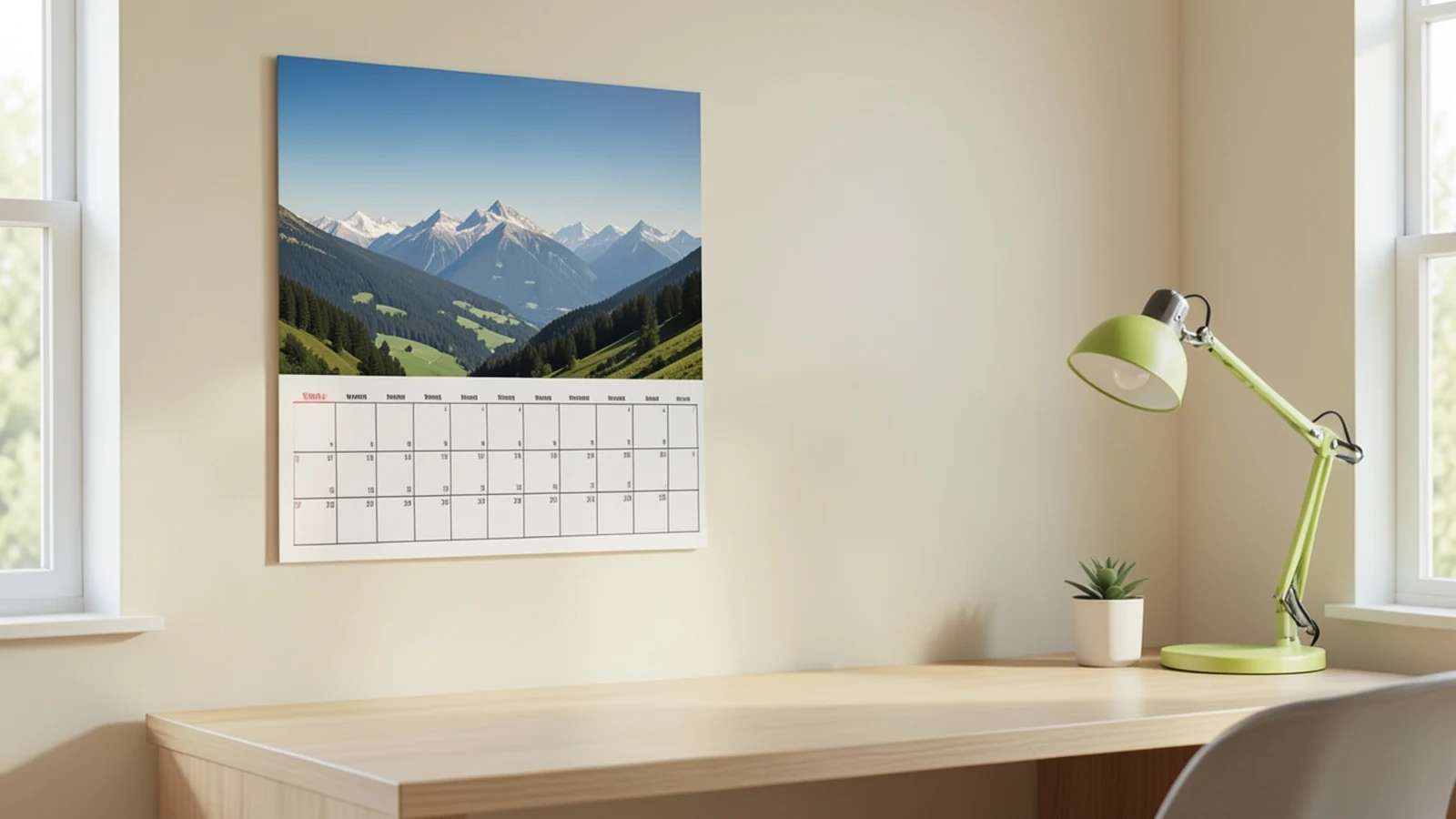
A custom calendar is a gift, a planner, and a piece of branding all at once, whether it hangs on a kitchen wall or lives on your phone. The good news is you no longer need design software to make one. An AI Calendar Maker lets you build a polished calendar in minutes, and this guide walks you through it for both print and digital, step by step.
We will cover the types of calendars you can make, a simple step-by-step to design one, how to get it print-ready, and how to turn it into a digital calendar you can sync and share. Follow the whole thing or jump to the part you need.
Types of custom calendars you can make
Before you start, decide what the calendar is for. The format shapes every choice that follows.
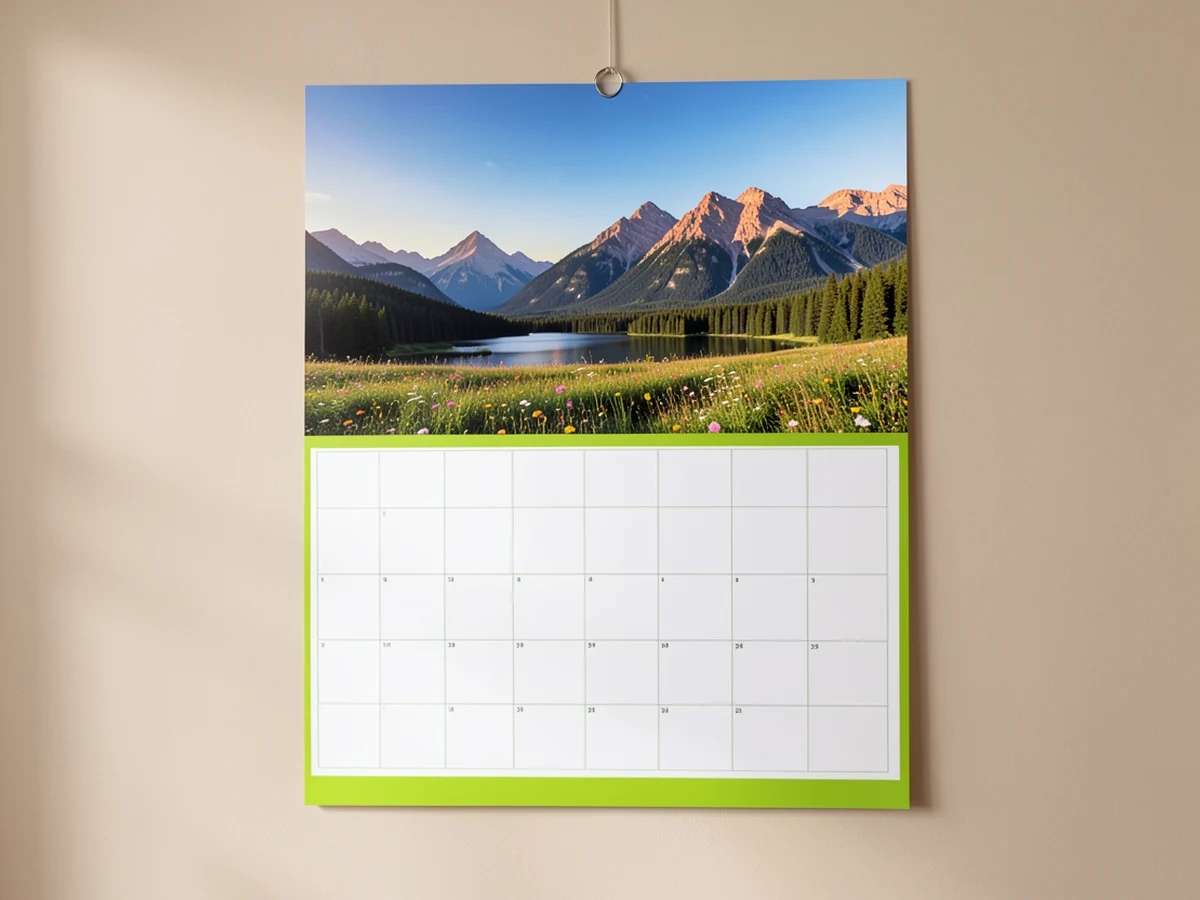
- Wall calendar: the classic 12-month hanging calendar, great for photos and gifts.
- Desk calendar: a compact standing or flip calendar for a workspace.
- Photo calendar: built around your own photos, one hero image per month.
- Planner or academic calendar: room to write, often running July to June for students and teachers.
- Digital calendar: a shareable, syncable calendar for phone and computer, or a phone wallpaper version.
Suggested Read: 60 Wallpaper Ideas for Phone and Desktop
How to make a custom calendar, step by step
The flow below works for any format. Using an AI calendar maker, the whole thing takes minutes rather than an afternoon in a design app.
Choose wall, desk, photo, planner, or digital, then set the range, a standard 12-month year, an academic July-to-June year, or a custom start month. Decide whether the week starts on Sunday or Monday.
In the AI Calendar Maker, pick a layout and theme that matches the occasion, or start from a blank grid if you want full control. Templates handle the tricky grid maths for you.
Upload a photo for each month, or generate artwork from a prompt. One strong, high-resolution image per month looks best; keep the focal point away from where the grid sits.
Add your country's public holidays, then personalise it with birthdays, anniversaries, appointments, and reminders. Mark the key dates so the calendar is genuinely useful, not just pretty.
Set fonts, colours, and, for a business calendar, your logo. Keep the date numbers high-contrast and readable, and use a consistent theme across all twelve months.
Download a print-ready PDF with bleed and crop marks for printing, or publish a digital version you can sync and share. Save an editable copy so you can update it next year.
Also Read: How to Make a Poster: Sizes, Layout and Free Templates
How to print your custom calendar
For a physical calendar, a few print settings make the difference between crisp and amateur.
- Size: A4 or A3 (or Letter and 11 x 17 inches) for wall calendars; roughly 6 x 8 inches for desk calendars.
- Resolution: export at 300 DPI so photos and dates print sharp, never blurry.
- Bleed: add about 3mm of bleed and keep important content inside the safe margin so nothing is trimmed off.
- Paper: matte or satin cardstock resists glare and feels premium; glossy makes photos pop.
- Binding: wire-o (spiral) at the top lets a wall calendar hang and flip flat; saddle-stitch suits booklets.
- Where to print: a home printer works for one copy; a local print shop or an online print service is better for gifts and bulk runs.
How to make a digital calendar
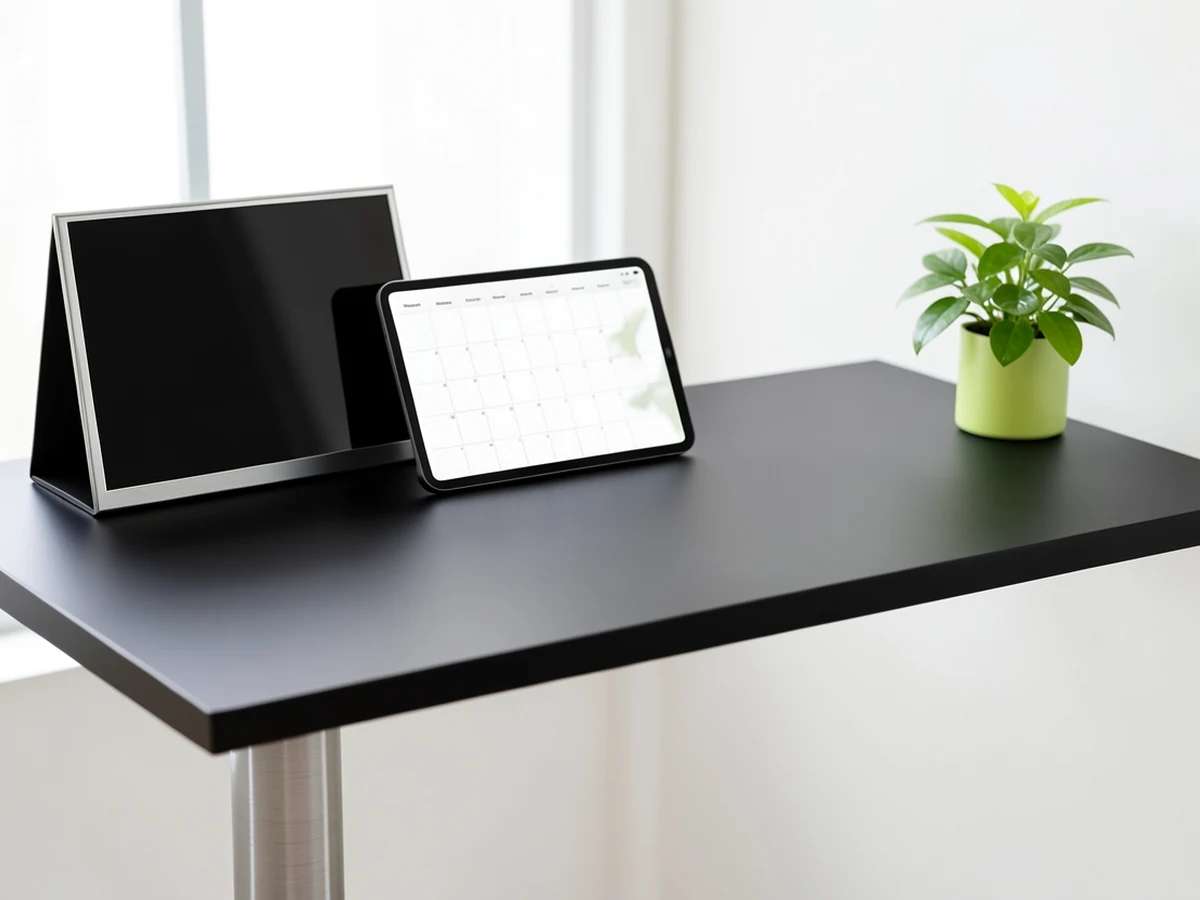
A digital calendar is easy to share, update, and carry everywhere. There are two flavours: a designed visual calendar (like a phone wallpaper) and a functional one you sync to your devices.
- Designed digital calendar: export your design as images or a PDF to use as a phone or desktop wallpaper, or to share online.
- Sync to your phone: import key dates into Google Calendar, Apple Calendar, or Outlook using an .ics file so reminders follow you around.
- Share it: publish a shareable link or send the file so family, a team, or clients all see the same dates.
- Add recurring events: set birthdays and weekly plans to repeat automatically so you enter them once.
- Keep it in sync: match the digital version's branding and dates to your printed one so both tell the same story.
Also Read: 15 Best Color Palette Generators for Designers
Design tips for a calendar people actually use
- One strong image per month: resist clutter; a single beautiful photo or illustration carries each page.
- Leave room to write: if it is a planner, keep date cells roomy enough for real notes.
- High-contrast date numbers: make sure the numbers stay readable over busy photos.
- Consistent theme: use the same fonts and colour logic across all twelve months so it feels designed, not pieced together.
Suggested Read: 35 Postcard Ideas for Marketing and Travel
Custom calendar ideas worth making
Stuck on what to make? These are the custom calendars people love to give, use, and keep all year.
- Photo gift calendar: a year of family or holiday photos, one per month, makes a heartfelt and inexpensive present.
- Business or promotional calendar: brand it with your logo and colours and hand it to clients; a well-made calendar is a year-long advert on their wall.
- Family command centre: a large month view with room for everyone’s events, chores, and meal plans keeps a busy household in sync.
- Baby’s first year: one photo a month to track milestones, a keepsake parents treasure long after the year ends.
- Pet calendar: your dog or cat starring across all twelve months, a guaranteed crowd-pleaser.
- Countdown calendar: for a wedding, a trip, or a product launch, mark the days down to the big date.
- Habit or fitness tracker: a grid to tick off workouts, reading, or water goals turns a calendar into a motivator.
- Meal-plan or recipe calendar: plan dinners and shopping for the week or month so the kitchen runs itself.
Suggested Read: How to Make a Coupon
Common mistakes to avoid
A few small slips are what separate a calendar that looks professionally made from one that looks homemade. Watch for these.
- Low-resolution photos: anything under 300 DPI prints soft and blurry. Always use the largest original images you have, not thumbnails pulled from social media.
- Forgetting the bleed: artwork that runs to the very edge without bleed can be trimmed with a white sliver showing. Extend backgrounds past the trim line and keep text inside the safe margin.
- Hard-to-read dates: a busy photo behind small, low-contrast numbers makes the calendar pretty but useless. Keep date numbers bold and legible over every image.
- Wrong week start or holidays: double-check whether the week starts on Sunday or Monday for your audience, and add the correct country’s public holidays before you print.
- Cramming the design: too many fonts, colours, or photos per page looks cluttered. One strong hero image and a consistent theme per month almost always wins.
Related Read: 80 Poster Ideas for Every Occasion and Style
Print or digital: which custom calendar should you make?
Make a printed calendar when it is a gift, a keepsake, or a piece of decor, a photo wall calendar of the family year is hard to beat. Make a digital one when you want reminders, easy updates, and sharing across devices. The best approach is often both: design once, print a copy for the wall, and sync the dates to your phone so nothing slips. Whichever you choose, a free AI Calendar Maker lets you build it in minutes and reuse the design next year.
Suggested Read: 12 Graphic Design Trends Defining 2027
Frequently asked questions
How do I make my own calendar for free?
Use a free AI Calendar Maker: choose a format and template, add your photos and dates, brand it with your colours and fonts, then download a print-ready PDF or publish a digital version. It takes a few minutes and needs no design software.
What size should a printed calendar be?
Wall calendars are commonly A4 or A3 (or Letter and 11 x 17 inches), and desk calendars around 6 x 8 inches. Export at 300 DPI with about 3mm of bleed so the print is sharp and nothing important is trimmed off.
How do I make a photo calendar?
Pick a photo-calendar template, upload one high-resolution image for each month, and position the focal point away from the date grid. Add your personal dates, then export for print or publish it digitally. Using your own photos is what makes it feel custom.
Can I turn my custom calendar into a Google or phone calendar?
Yes. Export the key dates as an .ics file and import them into Google Calendar, Apple Calendar, or Outlook, which lets reminders sync across your devices. You can also use the designed version as a phone or desktop wallpaper.
What paper is best for printing a calendar?
Matte or satin cardstock is a safe, premium choice that resists glare and handles handling well, while glossy paper makes photos pop. For wall calendars, a wire-o (spiral) binding at the top lets the pages hang and flip flat.
How many photos do I need for a photo calendar?
For a standard 12-month photo calendar you need at least twelve images, one per month, plus optionally one more for the cover. Choose high-resolution photos with the focal point off to one side so it is not hidden behind the date grid, and pick a loose theme, such as seasons or a trip, so the year feels cohesive.
Deepak Joshi
Author · Pixazo
Deepak writes about generative AI models, APIs, and the workflows teams use to ship them. Reviewed by Abhinav Girdhar.