Table of Contents
- What Are AI Flowchart Makers?
- How AI Flowchart Maker Tools Are Helpful to Teams and Professionals?
- Which Are the Best AI Flowchart Maker Tools in 2026?
- 1. Pixazo
- 2. EdrawMind AI
- 3. Lucidchart
- 4. Miro
- 5. Edraw Max
- 6. Taskade
- 7. Microsoft Visio
- 8. Draw.io
- 9. Gliffy
- 10. Venngage
- How Do the Best AI Flowchart Makers Compare in 2026?
- Why AI Flowcharts Matter for Business Growth?
- Which AI Flowchart Maker Tool Should You Choose?
- FAQs
AI flowchart makers are online tools that use artificial intelligence to help teams and individuals design clear, professional diagrams in minutes. These platforms streamline creating process maps, decision trees, org charts, UML, and BPMN-style workflows—removing the need for advanced design skills or bulky software. With features like auto-layout, smart connectors, AI-assisted text-to-diagram prompts, and customizable templates, a flowchart generator lets you instantly turn ideas or instructions into precise visuals. Whether you’re mapping a customer journey, documenting SOPs, or presenting system architecture, these tools make it simple to create a flowchart online fast and share it with your team. One of the most accessible options is this AI flowchart maker that helps you generate and customize diagrams with just a few clicks. You can also explore a broader collection of AI design tools to build everything from presentation graphics to documentation visuals—streamlining your workflow with the help of AI. What Are AI Flowchart Makers?
How AI Flowchart Maker Tools Are Helpful to Teams and Professionals?
AI flowchart maker tools simplify one of the most time-consuming tasks in project planning, business analysis, and team collaboration—turning complex ideas into structured visuals. Instead of manually dragging shapes or struggling with formatting, you can use an AI-powered flowchart generator to instantly convert processes, instructions, or brainstorming notes into clean diagrams that everyone can understand. This speed and clarity make them invaluable for teams managing projects, workflows, or business strategies.
Customization is one of the biggest advantages. Whether you’re building a simple workflow or a detailed BPMN chart, you can personalize layouts, shapes, and connectors to suit your needs. For inspiration on visual process mapping, you can explore AI workflow design tools, which covers practical strategies for transforming abstract processes into easy-to-follow diagrams. Combined with modern AI capabilities, these tools allow users to create diagrams that are both functional and visually engaging. And when your data needs a different visual format such as breaking down percentages or performance distribution you can complement your diagrams with a pie chart maker for clearer numerical representation.
AI-powered platforms also ensure consistency and scalability across all your visuals. For example, if you’re documenting an organization’s operations, pairing an AI flowchart tool with an AI image generator lets you enrich your workflow documentation with context-driven visuals, icons, or infographics. By combining flowchart software with other AI design tools, teams can save time, improve collaboration, and maintain a professional look across presentations, training materials, and reports.
How We Select the Best AI Design Generator Platforms at Pixazo
At Pixazo, we carefully evaluate AI design generator platforms to help users skip the overwhelming trial-and-error process. Our experts, with extensive experience in AI-powered design tools, assess each platform based on creativity, ease of use, customization options, and overall performance. We put these tools to the test by creating designs across different categories to ensure they deliver high-quality results effortlessly. Every recommendation is based on thorough research and real-world testing, with no paid placements or outside influence. Want to know how we pick the best AI design platforms? Explore our detailed evaluation process.
Disclaimer - Portions of this article were drafted with AI and reviewed by Jayesh Chaubey
Which Are the Best AI Flowchart Maker Tools in 2026?
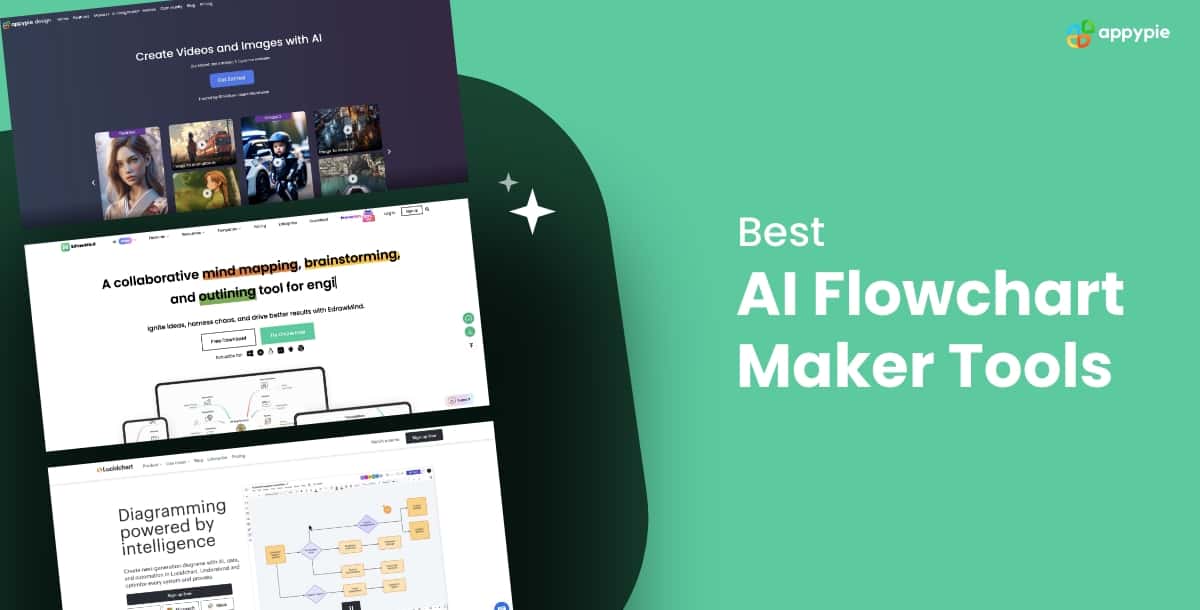
The best AI flowchart makers in 2026 are Pixazo, EdrawMind AI, Lucidchart, Miro, Edraw Max, Taskade, Microsoft Visio, Draw.io, Gliffy, and Venngage. These platforms empower professionals, students, and teams to design clear and professional flowcharts, workflow diagrams, and process maps with just a few clicks. Whether you’re an entrepreneur streamlining operations or a project manager building collaboration-friendly diagrams, these tools make it simple to create a flowchart online without wasting time on formatting.
- Pixazo: Best overall AI flowchart generator for quick, customizable results.
- EdrawMind AI: Best for brainstorming mind maps and turning them into flowcharts.
- Lucidchart: Best for enterprise-grade collaboration and advanced diagramming.
- Miro: Best for real-time whiteboarding and collaborative process mapping.
- Edraw Max: Best for technical diagrams and detailed business workflows.
- Taskade: Best for integrating task management with flowchart visualization.
- Microsoft Visio: Best for corporate professionals needing deep Microsoft integration.
- Draw.io: Best for free, open-source flowcharting with robust customization.
- Gliffy: Best for simple, quick diagram creation inside Confluence or Jira.
- Venngage: Best for presentation-ready flowcharts with professional templates.
1. Pixazo
Pixazo’s AI Flowchart Maker is one of the most versatile diagramming tools in 2026, perfect for businesses, educators, and teams who want to simplify complex processes. With its AI-powered automation, you can instantly turn text prompts or workflow descriptions into clear, professional flowcharts. Whether you’re creating a business process map, decision tree, or organizational chart, the platform makes it simple to design structured visuals without advanced technical skills.
The platform focuses on speed, accessibility, and collaboration. As a web-based tool, it allows you to design flowcharts directly in your browser—no installation needed. This makes it ideal for professionals who need quick yet polished diagrams for meetings, documentation, or training materials.
Key Features
- AI Powered Generation: Automatically create flowcharts from prompts or uploaded inputs.
- Prompt-Based Design Output: Enter workflow details, and the tool generates structured diagrams instantly.
- AI Editor for Customization: Modify layouts, styles, and elements with ease.
- No Design Skills Needed: Beginner-friendly platform with guided AI assistance.
Pros
- User-friendly, suitable for beginners and professionals alike.
- Cloud-based with no need for software installation.
- Flexible enough to create business, educational, or technical flowcharts.
Cons
- Advanced diagramming (like UML or BPMN) may be less detailed compared to enterprise tools.
- Requires sign-up to download high-resolution outputs.
How to Use
- Access the Pixazo AI Flowchart Maker tool.
- Upload a reference image of the flowchart you want and enter your prompt describing information and design style.
- Sign up and log in to proceed with your creation.
- Preview the generation on the Playground and customize it if needed.
- Download and share your flowchart wherever it’s required.
2. EdrawMind AI
EdrawMind AI combines mind mapping with AI assistance to help you rapidly structure ideas and present them as clean, shareable diagrams. It’s ideal when you’re starting from fuzzy requirements or brainstorming notes—AI suggests topics, auto-organizes branches, and helps turn text into clear maps that can inform downstream flowcharts and process documentation.
The focus is clarity and speed. You can draft a prompt, let the AI generate a complete mind map, switch to outline view to refine content, and export visuals for presentations or documentation. Teams benefit from cross-platform access and collaboration-friendly features.
Key Features
- AI Mind Map Generation: Create structured maps from short prompts or pasted text.
- Auto-Layout & Topic Suggestions: AI proposes branches and reorganizes content for readability.
- Outline & Presentation Modes: Move between map, outline, and slideshow views to refine and present.
- Cross-Platform Access: Desktop and web access with cloud sync for collaboration.
Pros
- Excellent for early-stage thinking and requirements capture.
- Fast AI assistance reduces manual formatting work.
- Good presentation/outline modes for stakeholder reviews.
Cons
- Primarily a mind-mapping tool; flowchart options are more limited than full diagram suites.
- Some advanced templates and AI features are plan-dependent.
How to Use
- Start a new map and enter a short prompt describing your process or topic.
- Let AI expand branches; use auto-layout and topic suggestions to refine structure.
- Switch to outline mode to adjust wording and hierarchy.
- Present directly or export visuals for documentation and downstream flowcharting.
3. Lucidchart
Lucidchart is a professional diagramming platform with AI that can generate flowcharts and other diagrams from plain-text prompts. It shines for collaboration, enterprise-grade integrations, and data-linked diagrams, making it a strong choice for teams standardizing documentation at scale.
Built for teams and systems docs. Lucidchart supports real-time co-editing, comments, and sharing, while integrations with Google Workspace, Microsoft 365, Slack, Confluence, and Jira keep diagrams embedded where work happens. Import from other tools (including Visio) eases migration.
Key Features
- AI Diagram Generator: Turn natural-language prompts into flowcharts, UML, ERDs, and more.
- Data Linking & Conditional Formatting: Bind shapes to live data and highlight changes automatically.
- Broad Integrations: Embed and sync with Google Workspace, Microsoft 365, Slack, Confluence, and Jira.
- Import/Export: Visio, draw.io, and Gliffy import with rich export options for docs and decks.
Pros
- Fast AI-assisted creation across many diagram types.
- Robust collaboration and sharing for distributed teams.
- Enterprise features (SSO/SAML, admin controls) available on higher tiers.
Cons
- Advanced features and larger user seats can increase total cost.
- Some integrations and data features are limited to specific plans.
How to Use
- Create a new document and choose the AI diagram option.
- Describe your process or system in plain text; generate the initial flowchart.
- Refine with drag-and-drop editing, swimlanes, and data linking if needed.
- Share with stakeholders or embed in Confluence/Jira/Slides for review.
4. Miro
Miro combines an infinite whiteboard with AI diagramming to turn plain text into editable flowcharts in seconds. It’s built for workshops, product planning, and cross-functional alignment—where real-time collaboration and quick iteration matter most.
Flexible for both quick sketches and formal diagrams. Start from AI-generated flowcharts, then refine with shape libraries (including BPMN/UML), custom shape packs on eligible plans, and smart connectors. Miro’s board canvas keeps related docs, stickies, and diagrams together for context.
Key Features
- AI Flowchart Generator: Convert text descriptions into structured flowcharts instantly.
- Smart Diagramming: Auto-layout, snapping, and intelligent connectors speed up editing.
- Rich Shape Libraries: Access BPMN, UML, and other packs; upload custom shapes on supported plans.
- Real-Time Collaboration: Multi-user editing, cursors, comments, and quick sharing.
Pros
- Excellent for workshops and live co-creation sessions.
- Fast AI start with strong manual refinement tools.
- Keeps diagrams, notes, and context on one canvas.
Cons
- Some advanced shape packs/custom shapes require Business or Enterprise plans.
- Very large boards can feel heavy without careful organization.
How to Use
- Create a board and open the AI flowchart generator.
- Paste a text description of your process; generate the initial diagram.
- Refine with smart connectors, swimlanes, and relevant shape libraries.
- Invite collaborators to comment or edit; export or present from the board.
5. Edraw Max
Edraw Max is a comprehensive diagramming suite with built-in AI that speeds up flowchart creation from text prompts and accelerates formatting. It supports a wide range of diagram types (flowcharts, org charts, mind maps, network diagrams, and more) and adds AI aids for layout, error checks, and quick edits—useful for teams producing formal process documentation.
Designed for versatility and polish. You can start from a prompt or template, let AI draft the structure, then refine with drag-and-drop shapes, auto-layout, and smart connectors. Edraw Max offers desktop and web access with cloud sync for cross-device work.
Key Features
- Text-to-Flowchart: Generate an initial diagram from natural-language prompts.
- AI Assist: Auto-layout, error/consistency checks, and quick style suggestions.
- Extensive Templates & Symbols: Libraries for business, engineering, IT, and more.
- Cross-Platform + Cloud: Desktop and web with sync for team collaboration.
Pros
- Strong template coverage and symbol sets for many industries.
- Helpful AI tooling to reduce manual formatting.
- Good balance of beginner friendliness and pro controls.
Cons
- Some AI capabilities and assets are plan-dependent.
- Heavier desktop client compared to lightweight web-only tools.
How to Use
- Create a new document and choose a flowchart template or the AI option.
- Enter a text prompt describing your process; generate the initial chart.
- Use auto-layout and smart connectors to refine structure and readability.
- Apply themes/styles; add swimlanes or callouts if needed.
- Export or share the finished diagram with your team.
6. Taskade
Taskade blends AI diagram generation with a collaborative workspace, letting you turn prompts into flowcharts and tie them to tasks, notes, and outlines. It’s great for teams that want lightweight diagramming inside a broader productivity environment, with quick sharing and real-time editing.
From idea to action. Start with an AI generator (system design, decision tree, database flows, and more), customize the nodes, and connect steps to tasks or documentation in the same workspace. Exports make it easy to share in decks or reports.
Key Features
- AI Flowchart Generators: Create diagrams from prompts for different use cases (e.g., decision trees, system design).
- Real-Time Collaboration: Multi-user editing, comments, and workspace sharing.
- Workflow Integration: Link diagram nodes to tasks, notes, and project docs.
- Easy Export: Save diagrams as images for presentations and reports.
Pros
- Fast AI-assisted start with built-in templates.
- Works well for teams already using Taskade for tasks and docs.
- Simple exports and sharing.
Cons
- Less suited for highly specialized engineering diagrams.
- Advanced features vary by plan.
How to Use
- Create a new project and open an AI flowchart generator.
- Describe your process in plain text; generate the initial diagram.
- Edit nodes/connectors; convert key steps into tasks if needed.
- Invite collaborators to review and comment in real time.
- Export the diagram as an image or keep it linked within your project.
7. Microsoft Visio
Microsoft Visio remains a staple for professional flowcharts, now enhanced with Microsoft 365 integrations and AI-assisted generation via Copilot in eligible plans. It offers familiar templates, data-linked diagrams, and enterprise controls, making it a go-to for organizations standardizing process documentation.
Tight Microsoft ecosystem fit. Build diagrams in Visio on the web or desktop, collaborate through OneDrive/SharePoint, and embed or present in Teams, PowerPoint, and Excel. Copilot can draft starter flowcharts from text, which you then refine with Visio’s shape libraries and formatting tools.
Key Features
- AI-Assisted Drafting (Copilot): Generate an initial flowchart from a text description.
- Rich Templates & Stencils: Classic flowcharts, cross-functional (swimlane) charts, BPM, and more.
- Data Visualization: Link shapes to Excel/other data sources; refresh to keep diagrams current.
- Microsoft 365 Integration: Share, co-author, and manage access through OneDrive/SharePoint and Teams.
Pros
- Enterprise-ready with governance and identity controls.
- Strong data-linking and familiar Microsoft UI.
- Good pathway for orgs already using Microsoft 365.
Cons
- AI/Copilot features depend on plan eligibility and tenant setup.
- Heavier learning curve than lightweight web-only tools.
How to Use
- Open Visio (web or desktop) and choose a flowchart template.
- Use Copilot (if available) to generate a starter flow from a text prompt.
- Refine with shape libraries, swimlanes, and formatting.
- Optionally link shapes to Excel data for live updates.
- Share via OneDrive/SharePoint or present in Teams/PowerPoint.
8. Draw.io
Draw.io (also known as diagrams.net) is a free, open-source flowchart and diagramming tool that’s popular for its simplicity and wide integration options. While it doesn’t rely heavily on AI, recent updates have added smart layouts and automation features to speed up diagram creation. It’s a go-to for individuals and teams seeking a reliable, cost-effective option for professional diagrams.
Highly flexible and integration-friendly. You can use Draw.io as a standalone web app or integrate it with Google Drive, OneDrive, GitHub, and Atlassian tools like Confluence and Jira. It’s lightweight, runs in the browser, and doesn’t require installation—making it an accessible choice for quick flowcharts or technical diagrams.
Key Features
- Smart Layouts: Auto-arrange shapes and connectors for readability.
- Extensive Shape Libraries: Flowcharts, UML, BPMN, ERDs, and more.
- Cloud Integrations: Save and collaborate through Google Drive, OneDrive, GitHub, and Atlassian.
- Free & Open Source: No subscription needed for core features.
Pros
- Completely free with robust functionality.
- Broad integration with popular cloud and dev platforms.
- Flexible for both business and technical diagrams.
Cons
- Less advanced AI support compared to premium tools.
- Interface can feel basic compared to polished commercial software.
How to Use
- Open the Draw.io (diagrams.net) web app.
- Choose a storage option (Google Drive, OneDrive, or local device).
- Select a flowchart template or start with a blank canvas.
- Drag and drop shapes, connect them, and use smart layout to tidy the design.
- Save and share with your team or export to multiple formats.
9. Gliffy
Gliffy is a lightweight online diagramming tool that integrates deeply with Atlassian Confluence and Jira, making it a favorite among software teams using project management software. It allows quick flowchart creation with drag-and-drop simplicity and supports collaborative editing inside project management platforms.
Focused on simplicity and team adoption. With intuitive controls, Gliffy makes it easy for non-designers to create diagrams without a steep learning curve. Its integration with Confluence pages and Jira issues helps teams embed visuals directly into their workflow.
Key Features
- Drag-and-Drop Editor: Simple interface for quick diagram creation.
- Confluence & Jira Integration: Build and embed diagrams directly in Atlassian tools.
- Template Library: Access starter templates for flowcharts, org charts, and more.
- Collaboration: Real-time co-editing and comments for team alignment.
Pros
- Very easy to use—ideal for quick diagrams.
- Tight Atlassian integration for dev and PM teams.
- Affordable compared to enterprise diagramming suites.
Cons
- Less advanced AI features compared to newer tools.
- Feature set may feel limited for complex technical diagrams.
How to Use
- Open Gliffy in your browser or within Confluence/Jira.
- Select a flowchart template or start a new diagram.
- Drag shapes onto the canvas, connect them, and format as needed.
- Embed the finished diagram directly into project documentation or tasks.
- Share with collaborators for editing or feedback.
10. Venngage
Venngage is a design-focused platform known for presentation-ready visuals, offering flowchart creation alongside infographics, reports, and marketing materials. Its AI tools and drag-and-drop editor make it easy to create polished, visually engaging flowcharts that can be shared in client presentations, pitches, and reports.
Perfect for non-technical audiences. Venngage emphasizes templates, design themes, and branding controls, making flowcharts look professional without requiring design expertise. It’s especially popular with educators, marketers, and consultants.
Key Features
- AI Diagram Assistance: Generate and refine flowcharts with AI prompts.
- Presentation-Ready Templates: Professional designs optimized for client-facing use.
- Brand Kit: Apply custom fonts, colors, and logos for consistent branding.
- Export Options: Download in multiple formats (PNG, PDF) for easy sharing.
Pros
- Visually polished flowcharts suitable for presentations.
- Beginner-friendly editor with attractive templates.
- Branding controls ideal for business use.
Cons
- More focused on aesthetics than advanced technical diagramming.
- Free plan has limited templates and export options.
How to Use
- Sign in to Venngage and choose a flowchart template.
- Use AI prompts or drag-and-drop editing to build your diagram.
- Apply your brand kit (fonts, colors, logo) for consistency.
- Preview and adjust design elements for presentation quality.
- Export as an image or PDF to include in reports or slides.
How Do the Best AI Flowchart Makers Compare in 2026?
Each AI flowchart maker brings something unique—some focus on fast text-to-diagram automation, others excel at collaboration, data linking, or broad template libraries. Your best pick depends on whether you prioritize rapid AI generation, enterprise integrations, workshop-friendly whiteboarding, or presentation-ready design. If you need diagrams beyond flowcharts (like org charts, mind maps, or ERDs), consider this versatile AI diagram maker to complement your toolkit.
| Tool | Best for | Key Features |
|---|---|---|
| Pixazo | Best overall for prompt-based AI flowcharts | AI-powered generation, prompt-based design output, AI editor for customization, no design skills needed |
| EdrawMind AI | Turning brainstorms into structured diagrams | AI mind-map generation, auto-layout suggestions, outline/presentation modes, cloud sync |
| Lucidchart | Enterprise collaboration & data-linked diagrams | AI diagram generator, data linking/conditional formatting, broad integrations, import/export |
| Miro | Real-time workshops and whiteboard-first diagramming | AI-assisted automated diagramming, BPMN/UML shape libraries, smart connectors, multi-user collaboration |
| Edraw Max | Full-suite diagramming with helpful AI assists | Text-to-flowchart, AI layout/style suggestions, extensive templates/symbols, desktop + web |
| Taskade | Linking flowcharts with tasks and docs | AI flowchart generators, real-time co-editing, nodes tied to tasks/notes, easy export |
| Microsoft Visio | Microsoft 365 orgs & data visualization | Copilot text-to-flowchart (eligible plans), rich templates/stencils, Excel data linking, M365 sharing |
| Draw.io (diagrams.net) | Best free/open-source option | Smart layouts, extensive shape libraries, Google/OneDrive/GitHub integration, free & open source |
| Gliffy | Atlassian teams (Confluence/Jira) | Drag-and-drop editor, native Confluence/Jira embedding, templates, real-time collaboration |
| Venngage | Presentation-ready, branded flowcharts | AI assistance, professional templates, brand kit (fonts/colors/logo), PNG/PDF exports |
Why AI Flowcharts Matter for Business Growth?
AI flowcharts are more than simple diagrams—they clarify complex operations, align teams, and accelerate decision-making. In 2026’s fast-moving environment, AI flowchart makers help organizations save time while producing consistent, presentation-ready process visuals that drive execution across product, ops, compliance, and customer success.
- Clarify Complex Processes: Turn long SOPs and scattered notes into clear, step-by-step visuals so stakeholders instantly understand the workflow and their responsibilities.
- Save Time & Reduce Errors: AI turns plain-text instructions into structured diagrams in minutes, minimizing manual formatting. For fundamentals and best practices, see how to create a diagram.
- Ensure Consistency: Standardized shapes, labels, and styles keep documentation uniform across teams and projects—critical for audits, handoffs, and ongoing maintenance.
- Boost Engagement: Clean, brand-aligned flowcharts make presentations, onboarding, and status reviews more compelling—improving stakeholder buy-in and cross-functional alignment.
- Scale with the Right Tools: Choose platforms that balance AI generation with collaboration and export needs. Explore AI diagram makers to match your use case and budget.
Which AI Flowchart Maker Tool Should You Choose?
The best AI flowchart maker for you depends on your goals, team setup, and whether you prioritize fast automation or deeper customization.
If you want the fastest and most accessible option, Pixazo’s AI Flowchart Maker is a top choice. It transforms prompts and reference inputs into professional-quality flowcharts within minutes, letting you refine styles and outputs without requiring design skills.
Platforms like EdrawMind AI and Miro are perfect for brainstorming and collaborative planning, making them great for workshops, mind-mapping, and agile teams.
Meanwhile, tools like Lucidchart and Microsoft Visio excel in enterprise environments, offering advanced integrations, data linking, and strong administrative controls.
For independent professionals, educators, or startups, Draw.io, Gliffy, and Venngage provide lightweight and affordable solutions that still deliver polished, presentation-ready diagrams.
To strengthen your visual communication beyond flowcharts, pair these tools with other diagramming formats. For instance, learning how to create an infographic can help you present data in engaging ways, while AI-powered design platforms ensure your workflow visuals stay consistent, scalable, and impactful across every channel.
Frequently Asked Questions (FAQs)
How do AI flowchart makers work?
AI flowchart makers use natural language processing to turn written prompts or uploaded references into structured diagrams. You simply describe a workflow, process, or decision tree, and the AI automatically generates a professional flowchart that you can customize further.
Can AI flowchart tools handle complex business processes?
Yes, most modern AI flowchart makers are designed to support simple workflows as well as advanced diagrams. From organizational charts and BPMN processes to UML diagrams, these platforms provide the flexibility to adapt to both technical and non-technical needs.
Are AI flowchart makers suitable for collaboration?
Absolutely, many AI flowchart tools are cloud-based and support real-time collaboration. This allows multiple team members to edit, comment, and review diagrams simultaneously, making them perfect for workshops, remote teams, and project planning sessions.
Do AI-generated flowcharts require manual editing?
In most cases, AI-generated flowcharts are accurate enough to use immediately, but manual edits are often helpful. You can adjust layouts, labels, and styles to better match branding, ensure clarity, or highlight specific process steps.
What makes AI flowchart makers better than traditional diagramming software?
AI flowchart makers significantly reduce the time and effort needed to create diagrams. Unlike traditional tools where every shape and connector must be placed manually, AI tools automate the initial design, allowing users to focus on refining and presenting their ideas.
Related Articles
- Top 10 AI Photo Frame Generators in 2026
- 10 Best AI Mockup Maker Tools in 2026
- Ethical concerns related to voice cloning & misuse of AI-generated Voiceovers
- Top 9 Free AI Pay Stub generators – 2026
- 15 Best AI Avatar Generators in 2026 : Create Your Perfect Virtual Self
- How to Design Wallpaper On Your Own?
- Top 10 AI Clipart Tools in 2026: Simplifying Your Graphic Design Journey
- 10 Best AI App Icon Maker Tools in 2026
- 10 Best AI Gift Tag Maker Tools in 2026
- 11 Best AI Voice Cloning Tools in 2026
- 10 Best AI Album Cover Maker Tools in 2026
- 10 Best AI Brochure Generator Tools in 2026
- 10 Best AI Letterhead Generator Tools in 2026
- 10 Best AI Menu Maker Tools in 2026
- Introducing Pixazo’s AI Infographic Generator: Instantly Turn Ideas Into Stunning Visuals

Most Popular Posts
- Best AI Image and Video Generators in 2026
- Best AI 3D Model Generators in 2026
- Best AI Image Generation Models in 2026
- Best AI Video Generation Models in 2026
- Best Open Source Image Generation Models in 2026
- Best Open Source Video Generation Models in 2026
- Best Prompts to Create Amazing Videos using AI